Subscribe to our newsletter
Keep up #withiiyama
You have successfully subscribed to our newsletter.
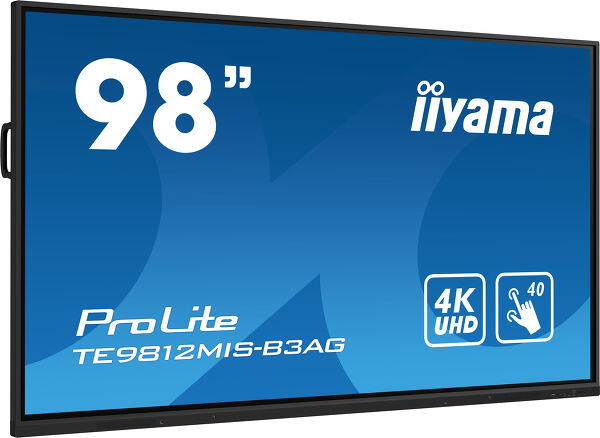
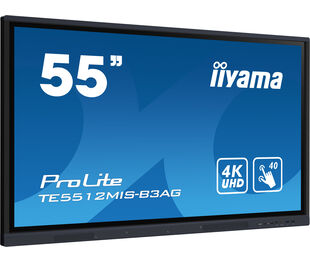
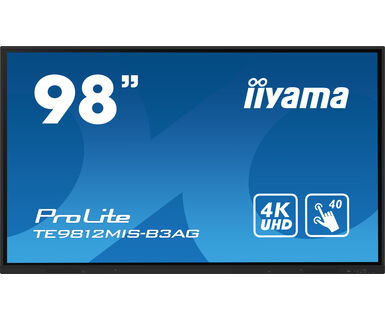
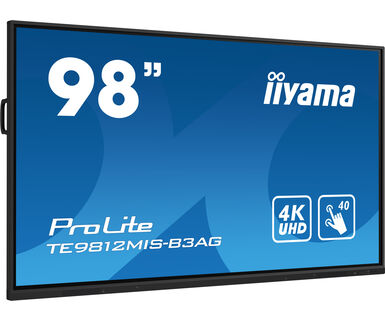
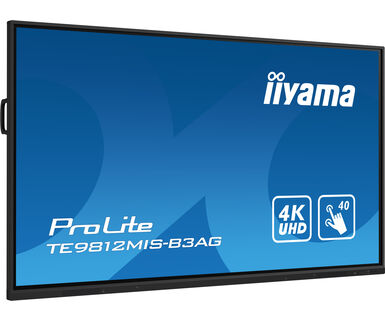
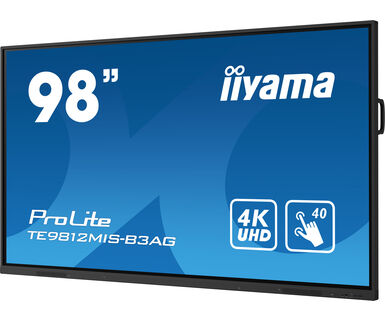
98" Interactive 4K UHD Touchscreen featuring a 4K interface with User Profiles
The TE9812MIS-B3AG is an exceptional 4K UHD interactive display designed by iiyama to enhance collaboration, communication, and engagement. With key features like Zero Airgap LCD screen eliminating parallax, accurate PureTouch-IR, iiWare 10 with Android 11, Wifi, and the iiyama DMS (Device management System), this display transforms the way you engage with content, making it an indispensable tool for modern workspaces and educational settings.
Boasting a new 4K Interface with User Profiles for simple login and access to your very own bespoke application and Cloud Drives or harmonize with your existing estate and unleash the true power of Windows and Office applications. iiyama TE9812MIS-B3AG becomes a highly personalised & flexible device within a busy hybrid environment for multiple users.
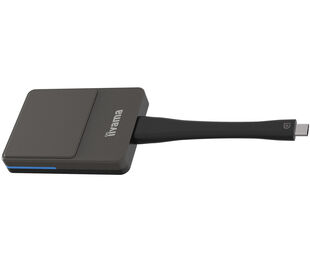
Share wirelessly more easily than ever before with iiyama Share and EShare app, bringing effortless ideation and efficient collaboration in your enterprise or school. This affordable display transforms the modern workplaces, educational institutions, dynamic meeting spaces and beyond. Elevate your interactive experience with the iiyama TE12 SERIES displays and embrace the future of visual communication.
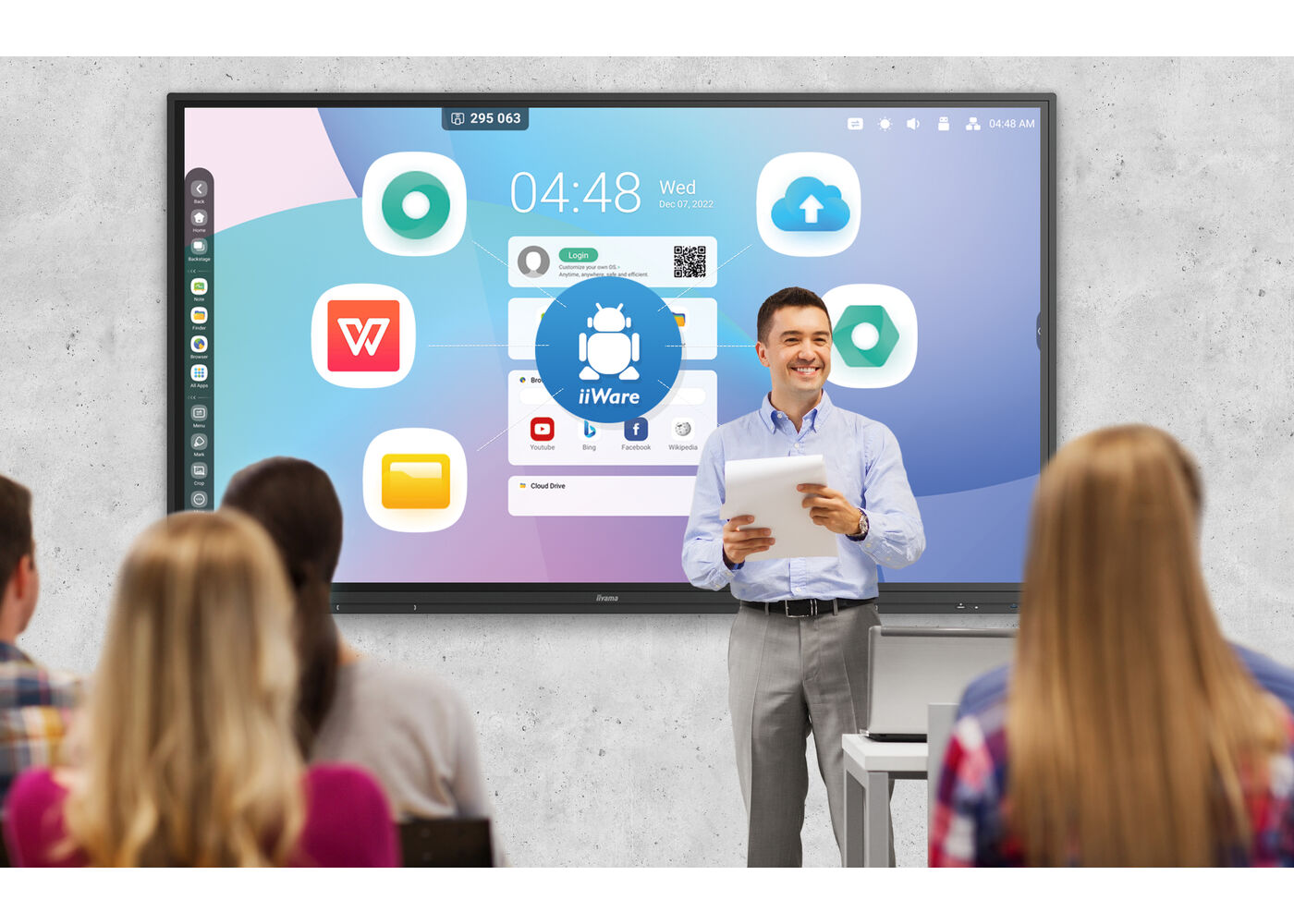
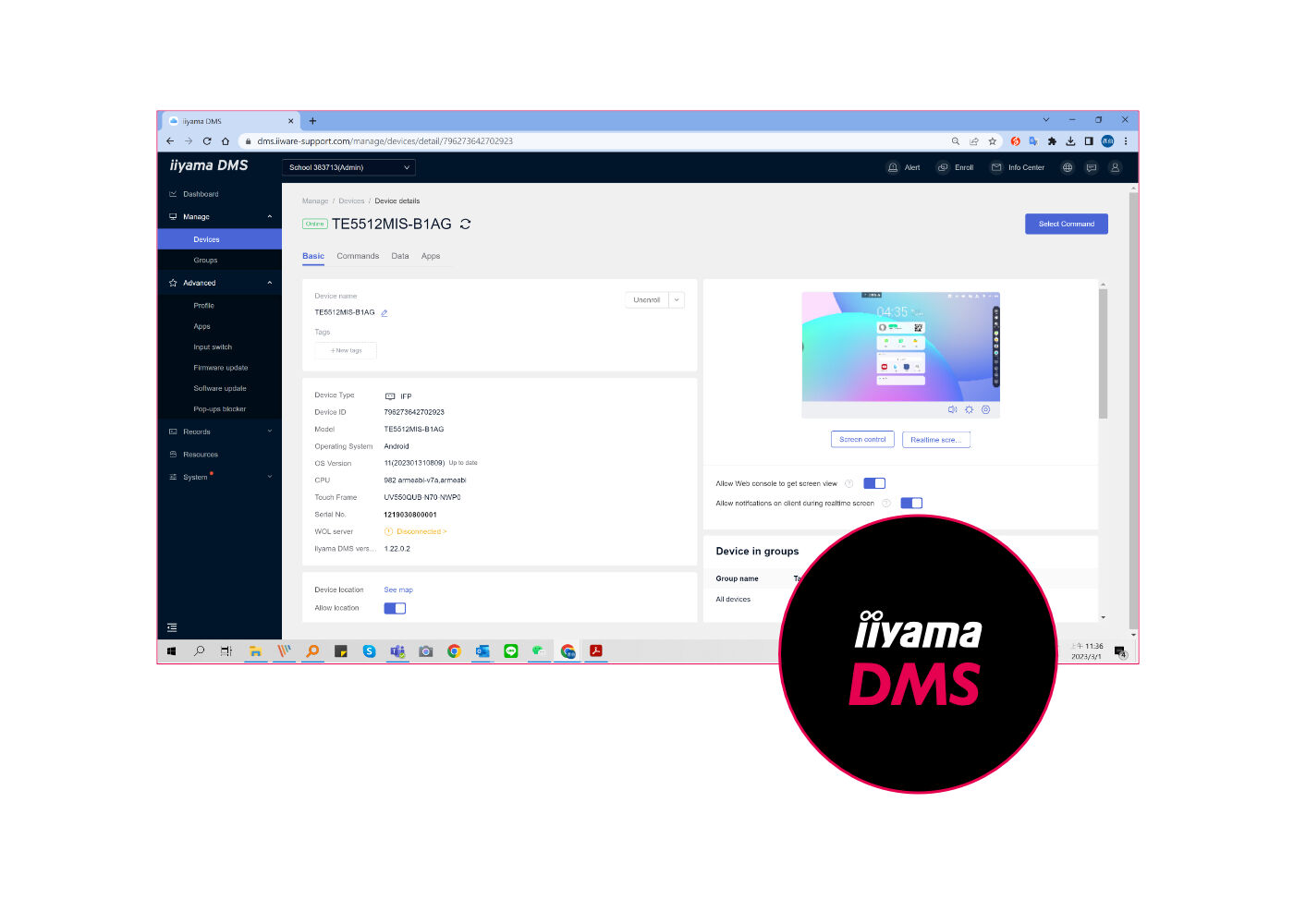
Connect up to 9 devices and easily share, stream and edit content from your device to your interactive display and vice versa, back to your laptop, tablet or phone. iiyama Share supports AirPlay, Chromecast and Miracast.
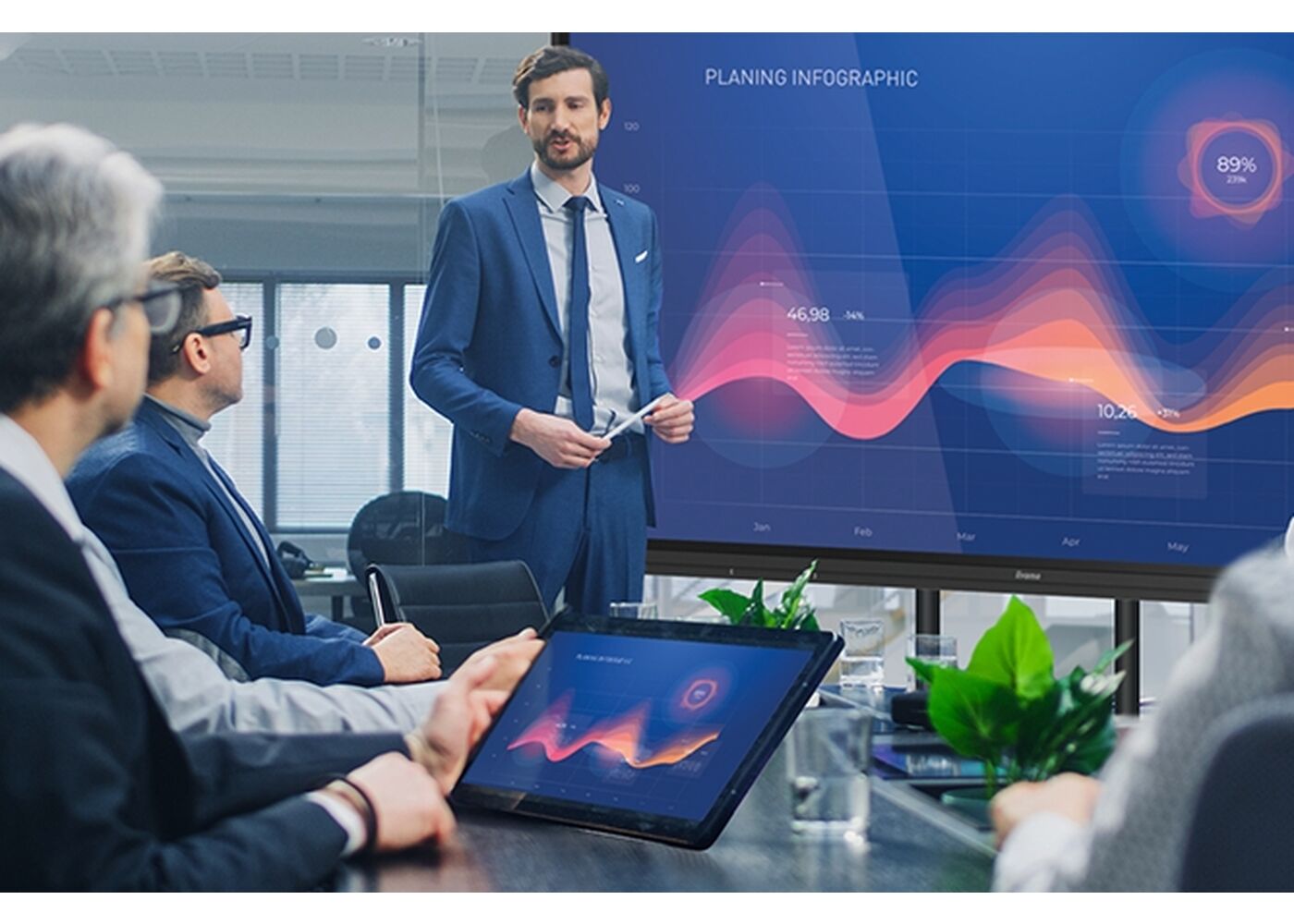
Az iiyama PureTouch-IR 1 mm-es érintési pontosságot biztosít a legsimább és leggyorsabb kommenteléshez.
A felhasználói biztonság érdekében használja a képernyőzárat és az USB jelszavas védelmet, valamint az új Clean alkalmazást, amely törli az összes használt adatot és jelszót.



| Dizájn | Vékony káva |
| Átló | 97.5", 247.7cm |
| Panel | IPS |
| Touch Glass | AG coated glass, zero air-gap |
| Panel | IPS |
| Natív felbontás | 3840 x 2160 (8.3 megapixel 4K UHD) |
| Képarány | 16:9 |
| Fényerő | 400 cd/m² |
| Fényerősség | 350 cd/m² érintéssel |
| Fényáteresztés | 92% |
| Statikus kontraszt | 1200:1 |
| Dinamikus kontraszt | 4000:1 |
| Válaszidő (GTG) | 8ms |
| Látótér | horizontális/vertikális: 178°/178°, jobb/bal: 89°/89°, fel/le: 89°/89° |
| Szín támogatás | 1.07B 8bit+FRC |
| Horizontális szinkronizálás | 30 - 135kHz |
| Látható terület Sz x M | 2158.8 x 1214.4mm, 85 x 47.8" |
| Káva szélessége (oldal, felső, alsó) | 16.5mm, 16.5mm, 31mm |
| Pixel magasság | 0.562mm |
| Káva színe és felülete | fekete, matt |
| Éríntőképernyős technológia | PureTouch-IR |
| Érintőpontok | 40, 5pt writing (HID, only with supported OS) |
| Érintés pontossága | +- 1.5mm |
| Érintési mód | ceruza, újj, kesztyű |
| Érintőképernyő interfész | USB |
| Támogatott operációs rendszerek | Minden iiyama monitor Plug & Play funkcióval rendelkezik, és kompatibilis a Windows és a Linux rendszerekkel. Az érintőképernyős modellek által támogatott operációs rendszerekre vonatkozó részletes információk a letöltések részben található illesztőprogram-fájlban találhatók. |
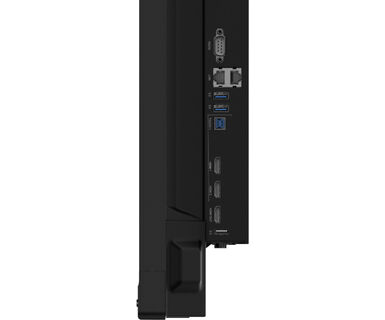
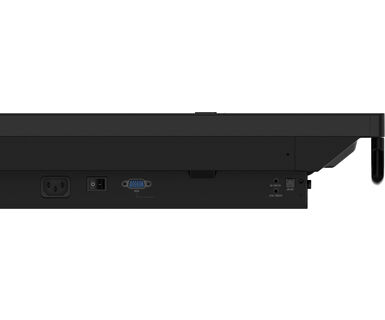
| Analóg jelbemenet | VGA x1 (max. 1920x1080 @60Hz) |
| Digitális jelbemenet |
HDMI x3 (v.2.0, max. 3840x2160 @60Hz, YUV444) USB-C x1 (v.3.2 (Gen 1, 5Gbit), 3840x2160 @60Hz - RGB444 - (65W charging, Touch) |
| Audio bemenet | Mini jack x1 |
| Monitor vezérlő bemenet |
RS-232c x1 (DSUB 9pin) RJ45 (LAN) x1 (LAN Control) IR x1 |
| Digitális jelkimenet | HDMI x1 (3840x2160 @60Hz) |
| Audio kimenet |
S/PDIF (Optikai) x1 Mini jack x1 Hangszórók 2 x 16W (Front) |
| HDCP | HDMI 1: 2.1, USB-C: 2.2 |
| USB portok | x5 (media playback / peripherals / storage – front side: 2x v.3.2 (Gen 1, 5Gbit), 1x USB-C v.3.2 (Gen 1, 5Gbit, 65W PD), right side: 2x v.3.2 (Gen 1, 5Gbit)) |
| RJ45 (LAN) | x2 (Auto switch for PC & Android, 1000MB) |
| Beépített szoftver | iiWare 10 (Android OS 11) featuring iiyama DMS, Note, web browser, file manager, cloud drives, WPS office, iiyama Share and EShare for wireless connection with Windows/iOS/Android devices |
| WiFi | igen (WiFi 6 - Dual WiFi Bandwidth: 2.4GHz/5GHz, WiFi Standard: IIEEE 802.11 a/b/g/n/ac/ax, Bluetooth Support: 2.1+EDR/ 3.0/ 4.x/ 5.0) |
| Hardver | CPU: Quad core A55, GPU: Mali G52, RAM: 8GB, ROM: 64GB |
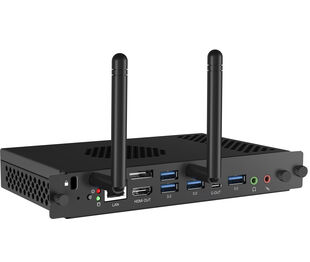
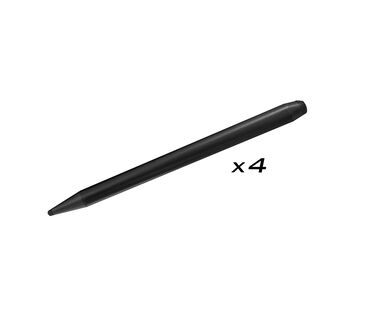
| Extra | Slot for optional OPS Slot PC, 4x Touch pen |
| Kioszk mód | igen |
| Max. non-stop üzemidő | 24/7 |
| Média lejátszás | igen |
| Üveg vastagsága | 3mm |
| Üveg keménysége | 7H |
| Ház (káva) | fém |
| OSD billentyűzár | igen |
| Képernyőn megjelenő nyelvek | EN, DE, FR, ES, IT, RU, CZ, NL, PL, SV, FI, DA, NB |
| Vezérlőgombok | Power, Power Indicator, Remote Sensor, Light Sensor |
| Felhasználói vezérlők | general settings (input, volume, backlight), audio settings (volume, bass, treble, balance, sound mode, mute), screen settings (aspect ratio, pixel shift), display settings (brightness, contrast, hue, sharpness, display mode, colour temp.), adjust settings (H-position, V-position, clock, phase, auto), settings (wireless & networks, personal, input & output, application, system) |
| Kékfény csökkentés | igen |
| Plug&Play | DDC2B |
| Jótállás | 5 years (for details and eligible countries please check the Warranty section of our website) |
| Tájolás | tájkép |
| Ventilátor nélküli kialakítás | igen |
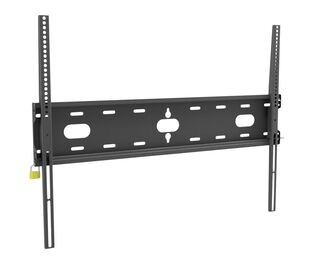
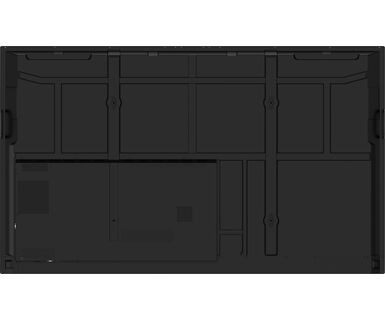
| VESA állvány | 800 x 600mm |
| Működési hőmérséklet tartomány | 0°C - 40°C |
| Tárolási hőmérséklet tartomány | - 20°C - 60°C |
| MTBF | 50.000 óra (kivéve háttérvilágítás) |
| Kábelek | áramellátás, USB, HDMI |
| Touch pen | x4 (Dual function tips) |
| Útmutatók | gyors üzembe helyezési útmutató, biztonsági útmutató |
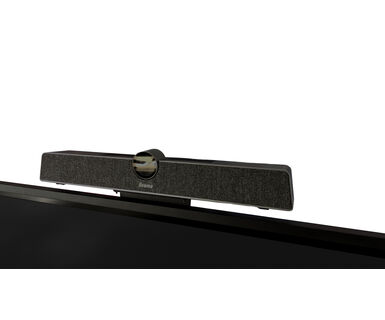
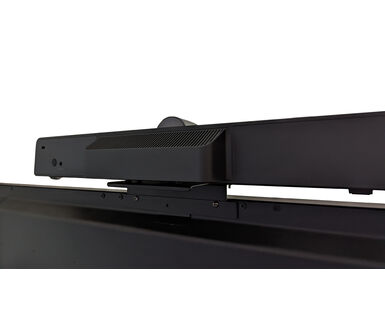
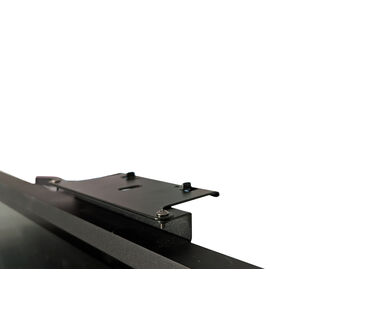
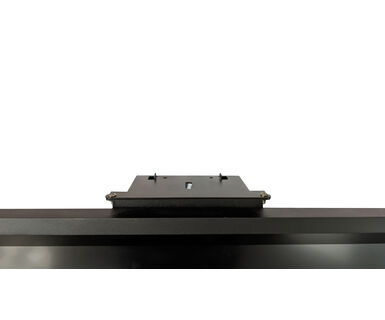
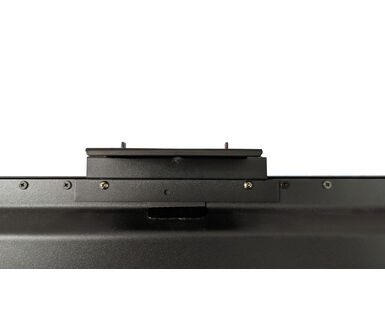
| Egyéb | Mounting bracket for NUC, Mounting bracket for webcam |
| Távirányító | igen (elemeket tartalmazza) |
| Tápegység | belső |
| Áramellátás | AC 100 - 240V, 50/60Hz |
| Energiafogyasztás | 233W jellemző, 0.5W készenlét, 0.3W kikapcsolva |
| Áramfogyasztás | 0.5W készenlét |
| Előírások | CB, CE, TÜV-Bauart, EAC, RoHS támogatás, ErP, WEEE, HATÓTÁVOLSÁG, EPA 8.0 |
| REACH SVHC | 0,1% felett: Vezet |
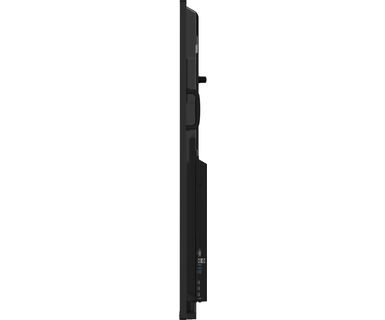
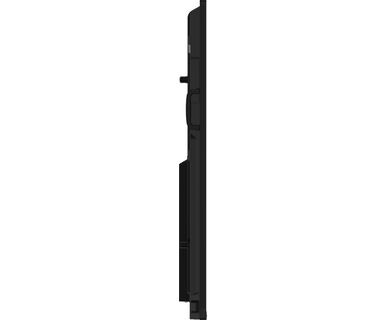
| Termék méretei Sz x H x M | 2244.5 x 1323 x 92mm |
| Doboz mértei Sz x H x M | 2406 x 1474 x 280mm |
| Raklap térfogata | 4db |
| Súly (doboz nélkül) | 98.5kg |
| Súly (dobozzal) | 128.1kg |
| EAN kód | 4948570123728 |
| Other | OPS Slot PC |
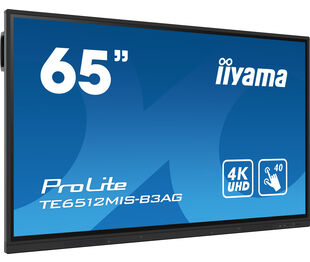
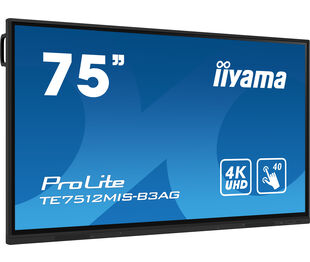
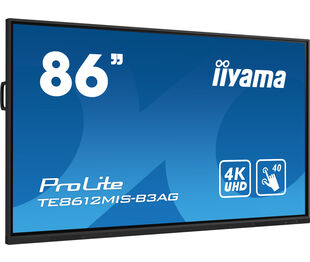
| Kapcolódó termékek | ProLite TE5512MIS-B3AG, ProLite TE6512MIS-B3AG , ProLite TE7512MIS-B3AG, ProLite TE8612MIS-B3AG |
To update firmware on your iiyama TE12 or TE14 series interactive display, please refer to this document.
If you are unable to set the native resolution with the maximum refresh rate on your monitor, try the following troubleshooting steps:
1. Ensure you are using a cable that supports both the native resolution and the desired refresh rate.
2. Visit the product page on our website and check technical specification tab - Interfaces / Connectors / Controls section to see what resolution and refresh rate are supported under the signal input you have seleced (e.g. HDMI signal input does not always support the maxium refresh rate, please check the DisplayPort connection instead).
3. Check the settings and specifications of your PC / graphics card to see if they support the desired resolution or refresh rate.
No, you cannot install apps on your iiyama monitor through the official Google Play Store. However, you do have the option to sideload applications onto your display.
Please visit the iiyama signup webpage and enter the model name or serial number of your iiyama screen. You will be directed to all available software applications for your product, along with instructions on how to activate them.
All iiyama LFDs and IFP displays can be used in portrait mode, except for products with item names starting with TE or LE, which can only operate in landscape mode. Always follow the installation instructions provided with the monitor and the guidelines in the User Manual.
If you wish to change the settings on your monitor remotely, please refer to the RS232/LAN protocol document available in the DOWNLOAD section on the product page.
The commands can be sent to the screen with a terminal app, for example Hercules SETUP utility. For more information, please refer to the RS232/LAN protocol document available in the DOWNLOAD section on the product page.
If your touch functionality is not working, please check the following:
1. Ensure your PC is connected to the monitor with the supplied USB cable.
2. Verify in the user manual that your operating system is supported by the screen.
When cleaning, please follow these guidelines to avoid damaging your Touch monitor:
1. Avoid using paper towels, abrasive cloths, or any harsh cleaning agents, as they can scratch the screen or damage the touch sensors.
2. Do not spray the cleaning solution directly onto the screen to prevent liquid from seeping into the monitor.
3. Avoid excessive cleaning, as it can wear out the screen over time.
4. For more details, please check our dedicated Cleaning page.
If your monitor is displaying a "No Signal" message, please check the following:
1. Ensure the cables are properly connected at both ends.
2. Select the correct signal input (HDMI/DP) or choose AUTO.
For guidance on selecting an input while the screen is in standby mode, please consult the user manual. On desktop monitors, common methods include pressing the INPUT, AUTO, or "2" buttons, or moving the joystick backward.
Yes, your iiyama monitor will work with your Apple Mac system. However, it depends on the signal input how to connect. Since Apple Mac systems from 2020 onwards only have Thunderbolt 3 (USB-C) ports for video output, you have two options:
1. Connect directly to the USB-C signal input on your iiyama monitor.
2. In case your monitor only has HDMI or Displayport, you will need a Mac-compatible dongle that supports one of the video inputs available. Apple offers a USB-C Digital AV Multiport Adapter (MW5M3AM) that can be used for this purpose.
3. If your iiyama monitor has touchscreen capabilities, please refer to the user manual to verify touch functionality compatibility with your Mac system.
To resolve the issue of a blinking picture, please follow these steps:
1. Inspect the Signal Cable.
Ensure the signal cable is securely connected at both ends and free from any physical damage. Avoid any sharp bends or squishing of the cable.
2. Use a Shorter Cable.
If possible, use a cable shorter than 3 meters and connect the monitor directly to a wall power socket, avoiding the use of adapters.
3. Disable FreeSync/Adaptive Sync.
For desktop or gaming monitors, try disabling FreeSync or Adaptive Sync in the monitor's settings menu.