Subscribe to our newsletter
Keep up #withiiyama
You have successfully subscribed to our newsletter.
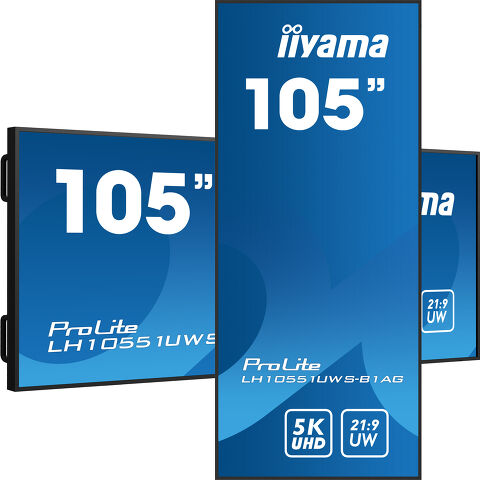
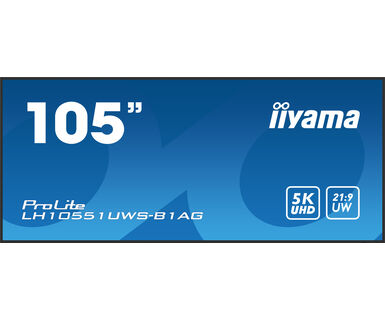
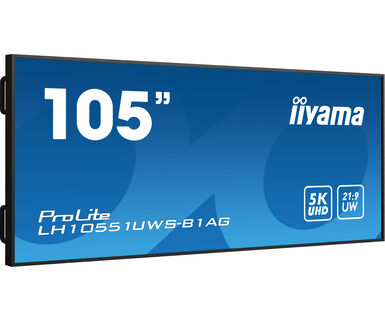
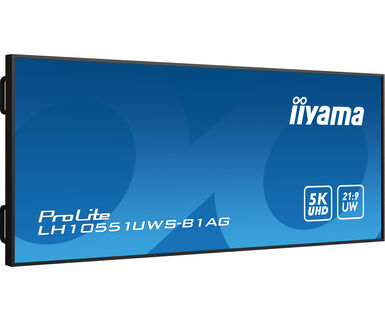
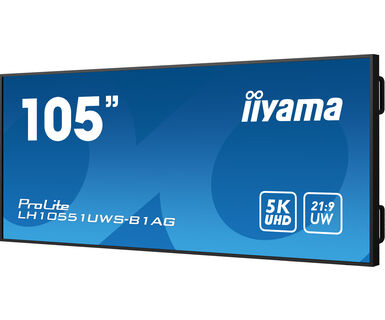
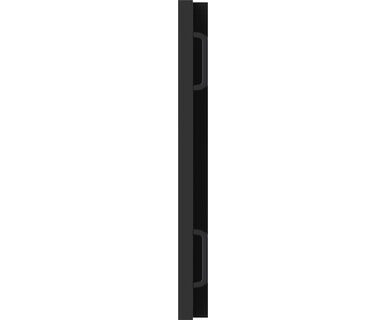
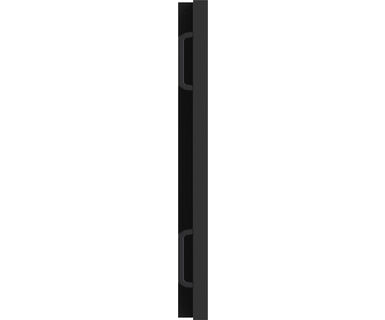
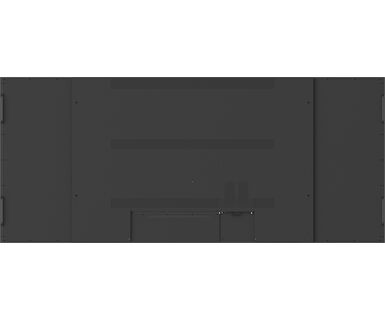
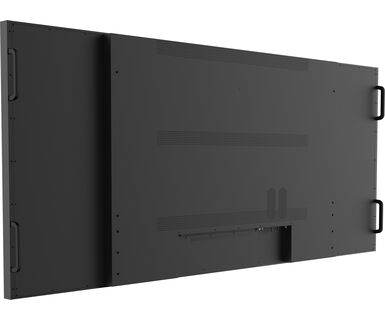
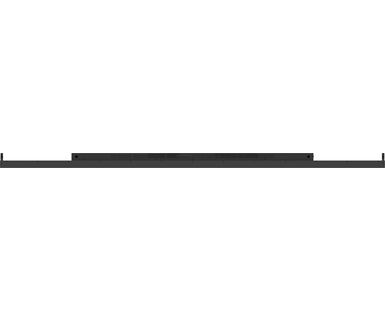
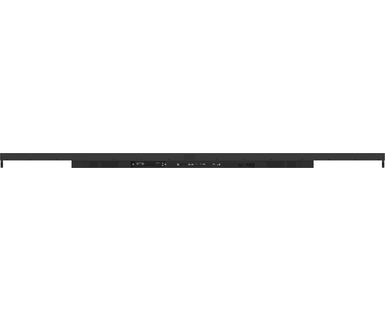
105” Profesionalni 5KUW Monitor za specijalizovane 21:9 panoramske reklame
Doživite pravi panoramski ultraširoki 21:9 prikaz za sav svoj sadržaj uz neverovatne 105" IIyama monitore. Ovaj super elegantni displej sa tankim okvirom prikazuje živopisne i veće slike i video zapise koristeći rezoluciju od 5KUW, što ga čini drugačijim od ostalih.
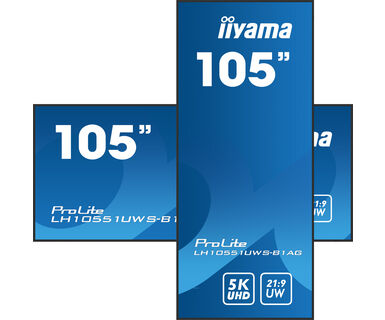
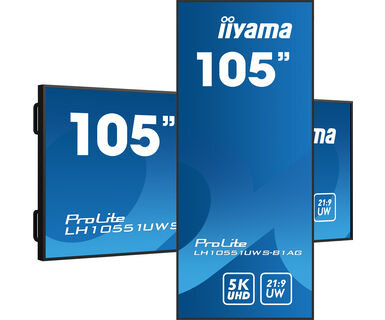
Bez obzira da li je instaliran u kontrolnim sobama ilina mestima za digitalno oglašavanje za vrhunske maloprodajne prostore, ovaj iiyama monitor velikog formata od 105” nudi preduzećima jednostavno i efikasno rešenje za privlačenje pažnje publike. Dizajniran da radi u neprekidnim, non-stop okruženjima, LH10551UWS-B1AG se može instalirati i koristiti u pejzažnoj i portretnoj orijentaciji za stvaranje najstimulativnijih slika u svakom prostoru.
Mogućnost pozicioniranja ekrana u pejzažnoj ili portretnoj orijentaciji znači da možete maksimalno iskoristiti svaki prostor i svojoj publici približiti svoje poruke, reklame, video zapise i bezbednosne informacije.
Doživite zapanjujuće vizuelne slike sa 5KUW (5120x2160) rezolucijom, nudeći oštre i jasne slike za zaista impresivno iskustvo gledanja.
Pruža najnoviji video, audio i Touch signal, sve preko jednog porta.
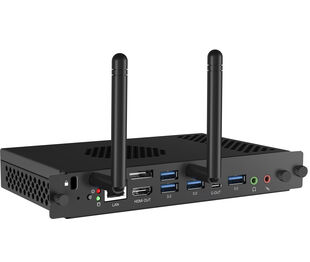
Otključajte svu bezbednost i fleksibilnost Windows IoT-a pomoću opcionog OPS Slot PC-a.
Ugrađeni zvučnici nude zvuk visokog kvaliteta, obezbeđujući kristalno jasan zvuk tokom prezentacija, video konferencija ili reprodukcije multimedije.



| Dizajn | Tanki okvir |
| Dijagonala | 104.7", 265.9cm |
| Panel | IPS, AG presvučeno staklo, mat završna obrada, haze 25% |
| Osnovna rezolucija | 5120 x 2160 @60Hz (14.75 megapixel, 5KUW) |
| Osnovna rezolucija | 60Hz |
| Format ekrana | 21:9 |
| Osvetljenje | 500 cd/m² |
| Statički kontrast | 1200:1 |
| Vreme odziva (GTG) | 8ms |
| Zona gledanja | horizontalno/vertikalno: 178°/178°, desno/levo: 89°/89°, gore/dole: 89°/89° |
| Podržane boje | 1.07G (8 Bits+FRC) (NTSC 85%) |
| Horizontalna sinhronizacija | 30 - 140KHz |
| Vidljiva površina Š x V | 2450 x 1033.6mm, 96.5 x 40.7" |
| Razmak piksela | 0.479mm |
| Boja okvra | crna, mat |
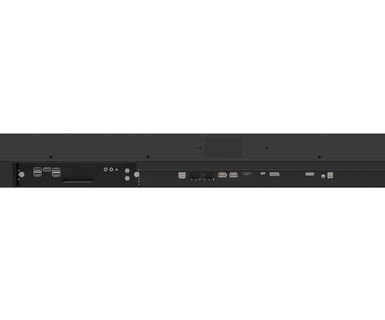
| Ulaz digitalnog signala |
HDMI x1 (2.0, max. 3840x2160 @60Hz) DisplayPort x1 (1.4, max. 5120x2160 @60Hz) USB-C x1 (2.0 (signal only), 5120x2160 @60Hz (DP 1.4 Alt mode)) |
| Kontrolni ulaz | RJ45 (LAN) x1 (Supports RS232c over Ethernet only) |
| Digitalni izlaz signala | DisplayPort x1 (1.4, max. 5120x2160 @60Hz, SST (Single Stream Transport ) Screen Mirror) |
| Audio izlaz |
S/PDIF (Optički) x1 Mini konektor x1 (3.5mm) Zvučnici 2 x 10W |
| HDCP | v.2.2 |
| USB HUB | x4 (2.0) |
| Dodatno | OPS PC Slot |
| Maksimalno neprekidno radno vreme | 24/7 |
| Protiv zadržavanja slike | da |
| Kućište (okvir) | metal |
| OSD jezici | EN, DE, FR, ES, IT, CN, RU, JP, CZ, NL, PL |
| Plug&Play | DDC2B |
| Orijentacija | pejzaž, portret |
| Dizajniran bez ventilatora | da |
| VESA montiranje | 1500 x 600mm |
| Opseg radne temperature | 0°C - 40°C |
| Temperatura skladištenja | - 20°C - 60°C |
| MTBF - Prosecno vreme izmedju kvarova | 50.000 sati (izuzimajući pozadinsko osvetljenje) |
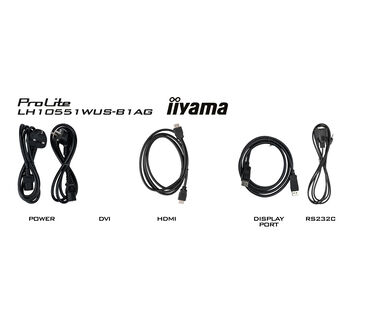
| Kablovi | Strujni kabl, HDMI, RS-232c |
| Upustva | kratko uputstvo, bezbednosni vodič |
| Ostalo | Nalepnice za rupe od vijaka, žičane kopče |
| Daljinski upravljač | da (baterije uključene) |
| Napajanje | interna |
| Potrošnja energije | % 1W tipično, 0.5W stand by, 0.3W iskljucen |
| Propisi | CB, CE, TÜV-Bauart, EAC, RoHS podrška, ErP, WEEE, REACH, UKCA |
| Klasa energetske efikasnosti (Regulation (EU) 2017/1369) | G |
| Dimenzije proizvoda Š x V x D | 2487.4 x 1070.6 x 99.1mm |
| Dimenzije kutije Š x V x D | 2683 x 1407 x 339mm |
| Težina (bez kutije) | 60.14kg |
| Težina (sa kutijom) | 88.7kg |
| EAN kod | 4948570121977 |
To fix the issue with rotating the picture displayed on your screen, please note there are two possible methods:
1. If the content is coming from an external source (e.g., a Windows device), the picture orientation must be adjusted in the display settings of that device.
2.If the content source is the monitor itself, the screen content may rotate automatically, depending on the monitor model. In some cases, however, it is necessary to adjust picture orientation in monitor's settings manually. Please note that NOT all monitors support screen rotation or portrait installation. For detailed information, refer to your monitor's user manual.
If you are unable to set the native resolution with the maximum refresh rate on your monitor, try the following troubleshooting steps:
1. Ensure you are using a cable that supports both the native resolution and the desired refresh rate.
2. Visit the product page on our website and check technical specification tab - Interfaces / Connectors / Controls section to see what resolution and refresh rate are supported under the signal input you have seleced (e.g. HDMI signal input does not always support the maxium refresh rate, please check the DisplayPort connection instead).
3. Check the settings and specifications of your PC / graphics card to see if they support the desired resolution or refresh rate.
Please visit the iiyama signup webpage and enter the model name or serial number of your iiyama screen. You will be directed to all available software applications for your product, along with instructions on how to activate them.
All iiyama LFDs and IFP displays can be used in portrait mode, except for products with item names starting with TE or LE, which can only operate in landscape mode. Always follow the installation instructions provided with the monitor and the guidelines in the User Manual.
If you wish to change the settings on your monitor remotely, please refer to the RS232/LAN protocol document available in the DOWNLOAD section on the product page.
The commands can be sent to the screen with a terminal app, for example Hercules SETUP utility. For more information, please refer to the RS232/LAN protocol document available in the DOWNLOAD section on the product page.
If your monitor is displaying a "No Signal" message, please check the following:
1. Ensure the cables are properly connected at both ends.
2. Select the correct signal input (HDMI/DP) or choose AUTO.
For guidance on selecting an input while the screen is in standby mode, please consult the user manual. On desktop monitors, common methods include pressing the INPUT, AUTO, or "2" buttons, or moving the joystick backward.
Yes, your iiyama monitor will work with your Apple Mac system. However, it depends on the signal input how to connect. Since Apple Mac systems from 2020 onwards only have Thunderbolt 3 (USB-C) ports for video output, you have two options:
1. Connect directly to the USB-C signal input on your iiyama monitor.
2. In case your monitor only has HDMI or Displayport, you will need a Mac-compatible dongle that supports one of the video inputs available. Apple offers a USB-C Digital AV Multiport Adapter (MW5M3AM) that can be used for this purpose.
3. If your iiyama monitor has touchscreen capabilities, please refer to the user manual to verify touch functionality compatibility with your Mac system.
To resolve the issue of a blinking picture, please follow these steps:
1. Inspect the Signal Cable.
Ensure the signal cable is securely connected at both ends and free from any physical damage. Avoid any sharp bends or squishing of the cable.
2. Use a Shorter Cable.
If possible, use a cable shorter than 3 meters and connect the monitor directly to a wall power socket, avoiding the use of adapters.
3. Disable FreeSync/Adaptive Sync.
For desktop or gaming monitors, try disabling FreeSync or Adaptive Sync in the monitor's settings menu.