Subscribe to our newsletter
Keep up #withiiyama
You have successfully subscribed to our newsletter.

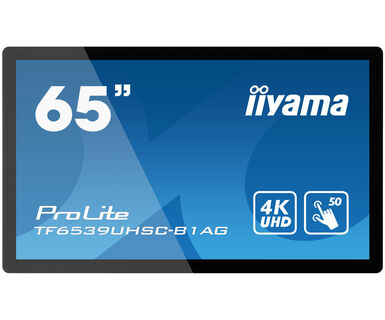
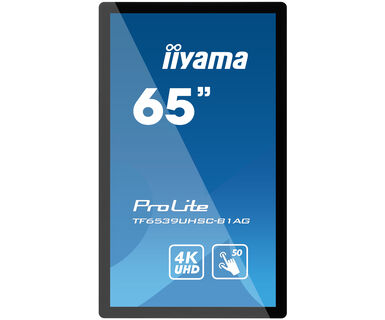
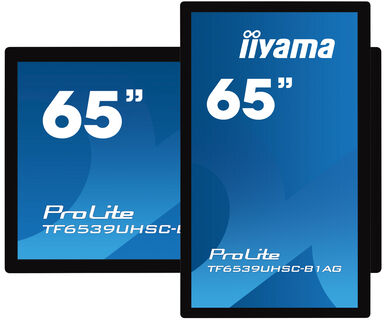
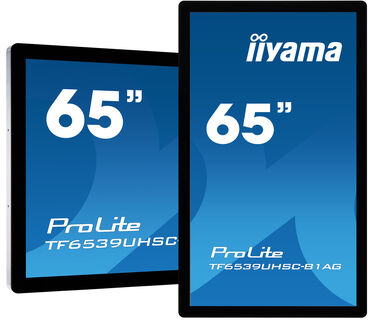
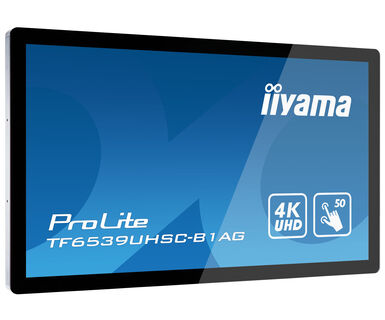
65" Open Frame PCAP interaktív nagyméretű kijelző 15pt érintőképernyő funkcióval, IPS panel technológiával és üvegen keresztüli érintés funkcióval, fekvő, álló vagy felfelé néző használatra
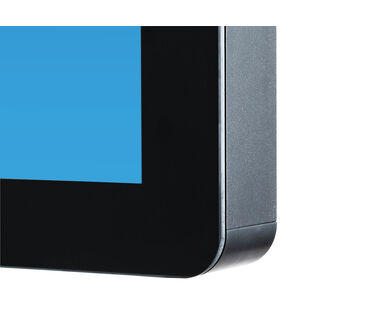
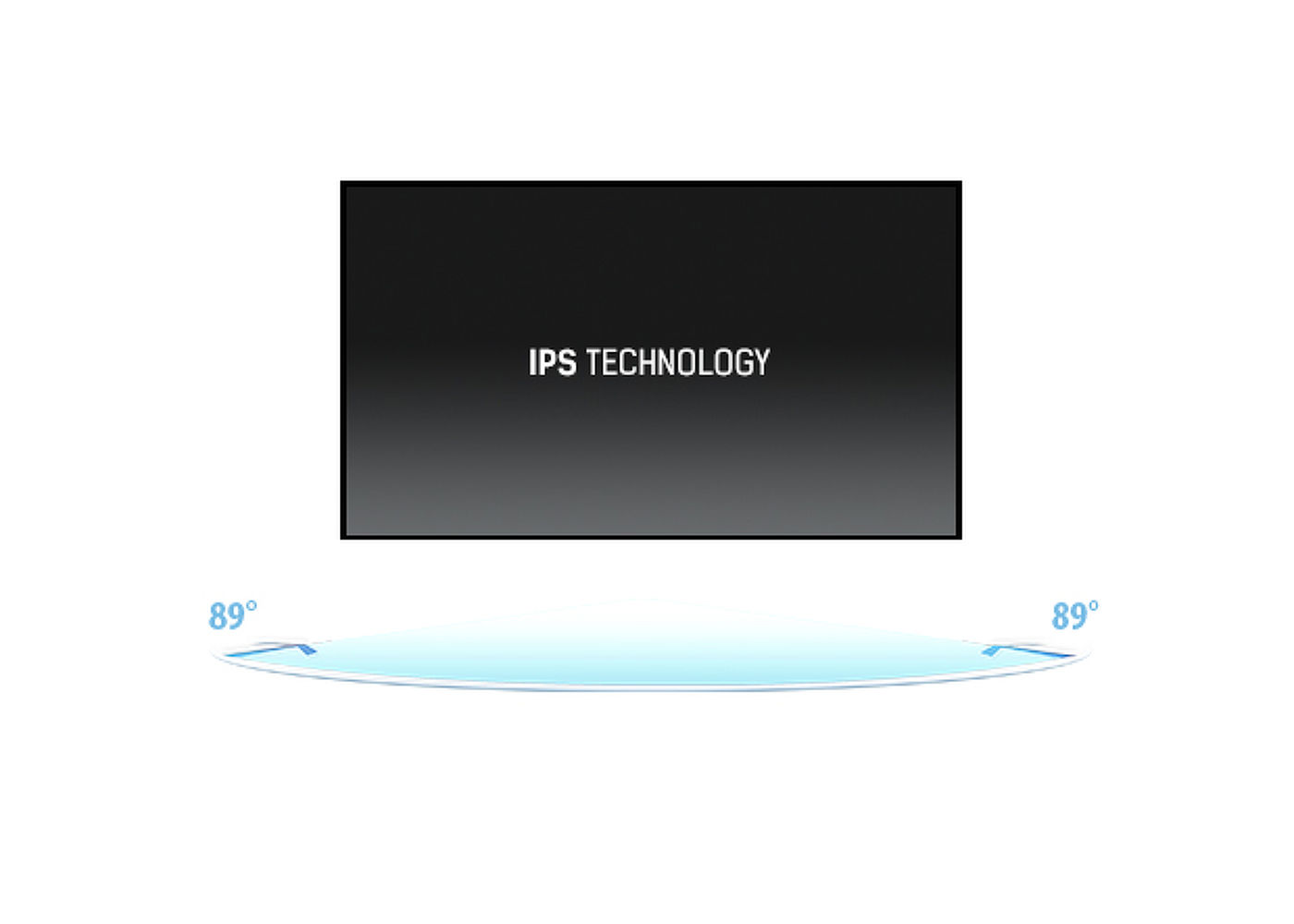
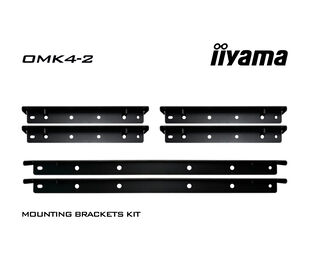
A 4K UHD (3840x2160) Open Frame TF6539UHSC-B1AG kijelző üvegen keresztüli érintés funkcióval zökkenőmentes és pontos érintési reakciót garantál, amely beépíthető kioszkokba és alkalmas interaktív, üvegen keresztüli kereskedelmi értékesítésre. Az IPS panel technológia kivételes színteljesítményt és széles látószöget kínál, így tökéletes megoldást jelent interaktív kirakatokhoz, oktatáshoz, kioszkokhoz és bolti kommunikációhoz. A fémváz 60950-1 ütés és karcálló, széltől szélig futó üveggel van felszerelve, ez a kijelző a legigényesebb környezetbe is telepíthető, alkalmas non-stop használatra, és az Open Frame oldalsó rögzítési lyukaknak köszönhetően többféle állásban is rögzíthető. A beépítés megkönnyítése érdekében a TF5539UHSC-B1AG felszerelhető opcionális külső rögzítőállvánnyal (OMK4-2), amely tökéletes megoldás kioszkokba történő beépítésre és interaktív multimediás funkcióra.
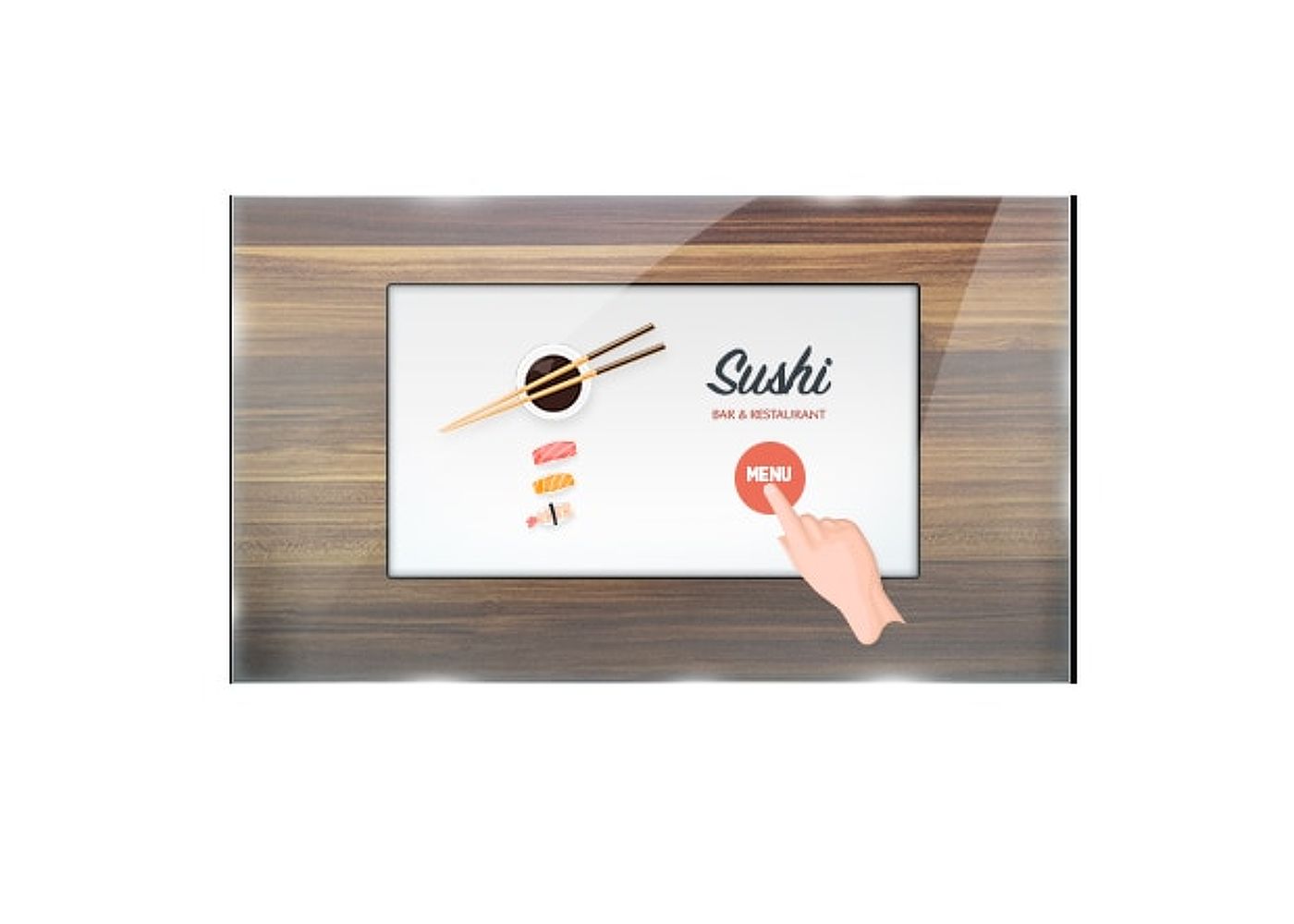
Ez az üvegen keresztüli érintő funkció közvetlenül az üvegen keresztül működik, és az üvegfelületeket interaktív érintőképernyővé alakíthatja. Használja kirakati ablakokon, ingatlanirodában, üzlethelyiségekben vagy éttermekben.
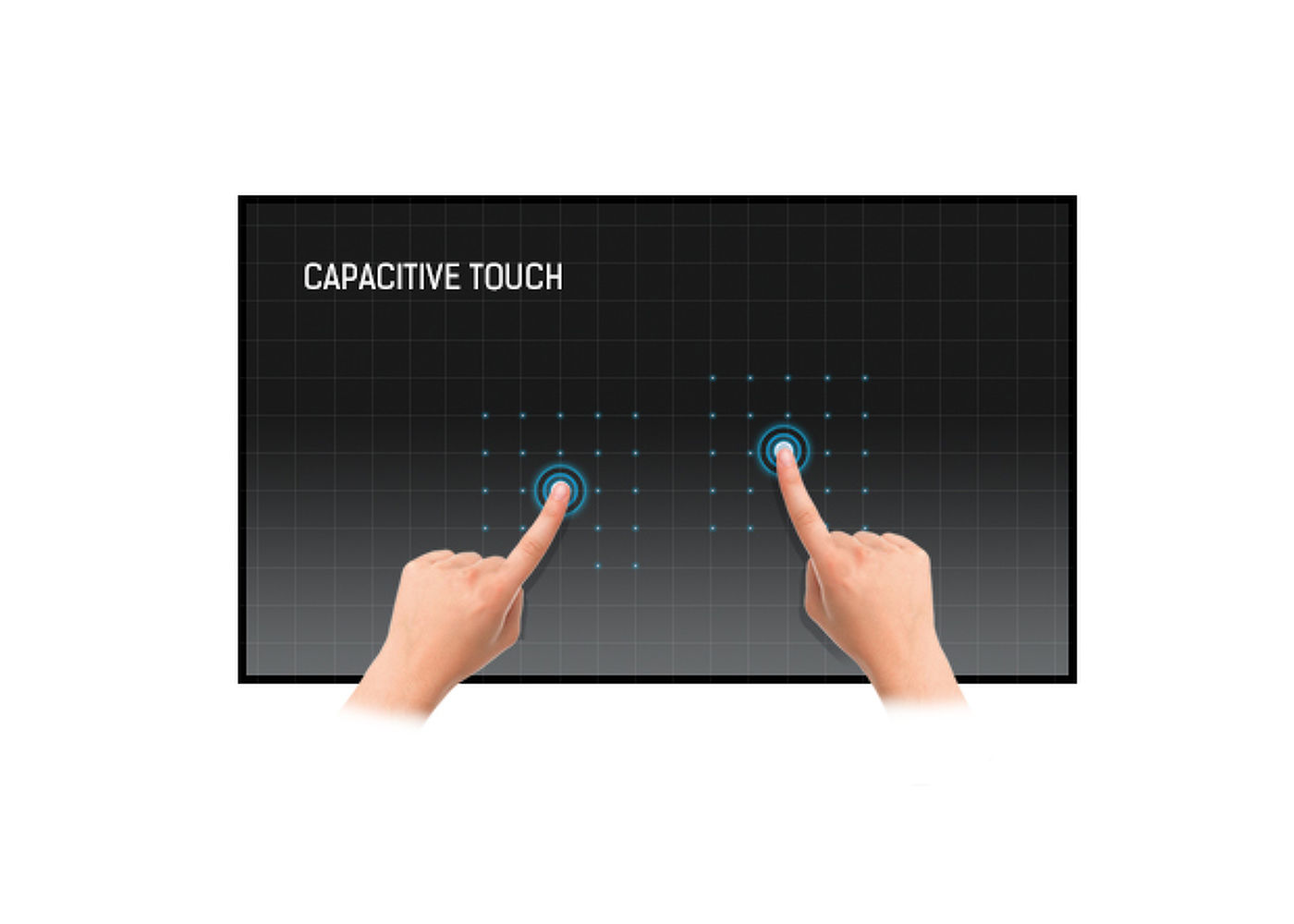
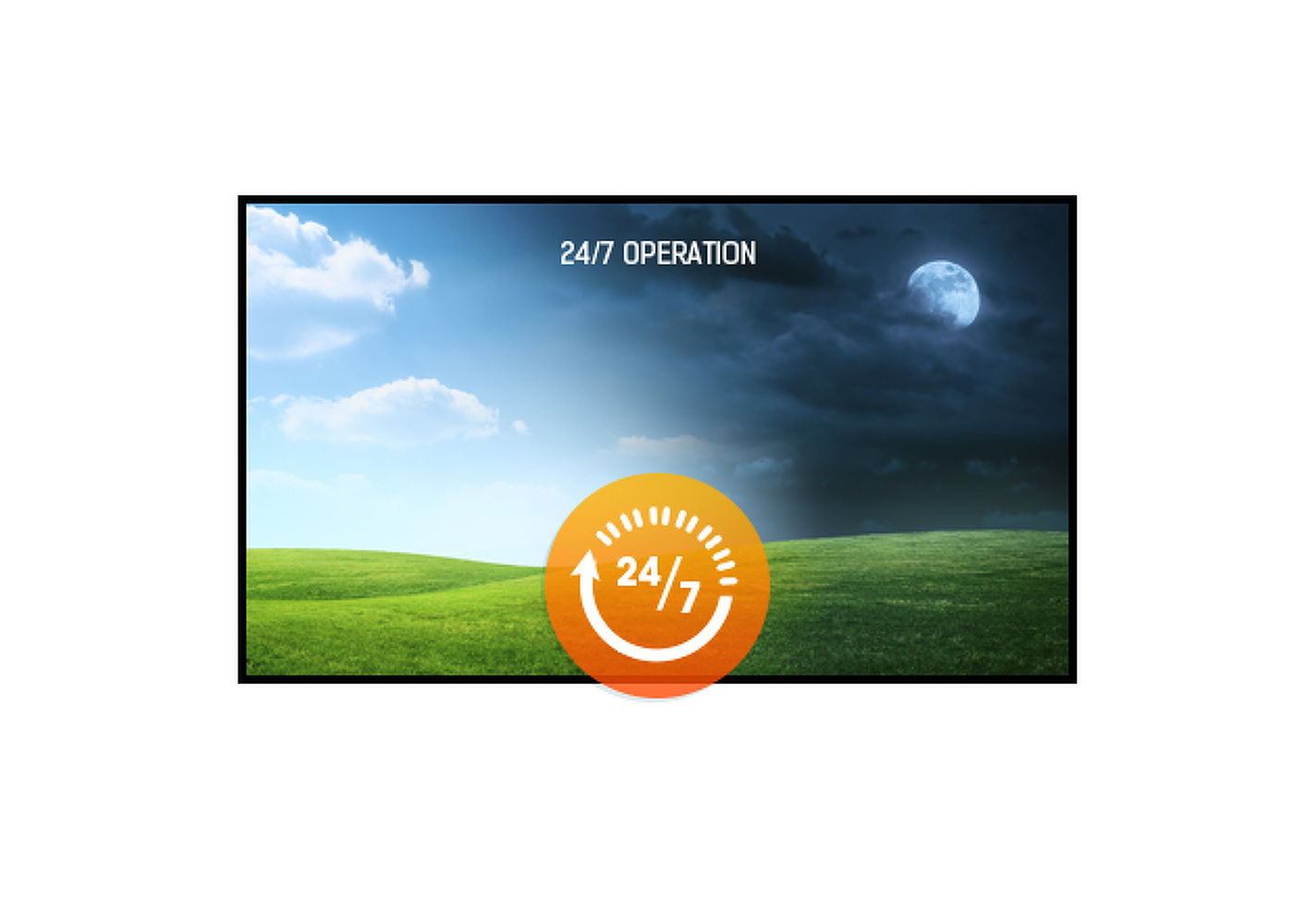
24/7 displays are designed for a continuous operation.



| Dizájn | Széltől szélig érő üveg, Open Frame |
| Átló | 65", 165cm |
| Panel | IPS LED, AG coated glass |
| Natív felbontás | 3840 x 2160 @60Hz (8.3 megapixel 4K UHD) |
| Képarány | 16:9 |
| Fényerő | 500 cd/m² |
| Fényáteresztés | 84% |
| Statikus kontraszt | 1100:1 |
| Válaszidő (GTG) | 8ms |
| Látótér | horizontális/vertikális: horizontal°/vertical 178°, jobb/bal: 0°/0°, fel/le: 0°/0° |
| Szín támogatás | 16.7mln 8bit |
| Horizontális szinkronizálás | 30 - 83kHz |
| Látható terület Sz x M | 1430.9 x 806mm, 56.3 x 31.7" |
| Káva szélessége (oldal, felső, alsó) | 36.3mm, 37.3mm, 37.3mm |
| Pixel magasság | 0.372mm |
| Káva színe és felülete | fekete, matt |
| Éríntőképernyős technológia | projektív kapacitív |
| Érintőpontok | 50 (HID, only with supported OS) |
| Érintés pontossága | +- 3mm |
| Érintési mód | ceruza, újj, kesztyű (latex) |
| Érintőképernyő interfész | USB |
| Támogatott operációs rendszerek | Minden iiyama monitor Plug & Play funkcióval rendelkezik, és kompatibilis a Windows és a Linux rendszerekkel. Az érintőképernyős modellek által támogatott operációs rendszerekre vonatkozó részletes információk a letöltések részben található illesztőprogram-fájlban találhatók. |
| Üvegen keresztüli érintés | 6mm |
| Tenyérérzékelés elutasítása | igen |
| Analóg jelbemenet | VGA x1 (max. 1920x1200 @60Hz) |
| Digitális jelbemenet |
HDMI x2 (v.2.0 x1 max. 3840x2160 @60Hz, v.1.4 x1 max. 3840x2160 @30Hz) DisplayPort x1 (v.1.2 max. 3840x2160 @60Hz) |
| Audio bemenet | Mini jack x1 |
| Monitor vezérlő bemenet |
RS-232c x1 RJ45 (LAN) x1 |
| Audio kimenet |
Mini jack x1 Hangszórók 2 x 8W |
| HDCP | igen |
| Extra | fogantyúk, üvegen keresztüli érintőképernyő, hőmérséklet-érzékelő ventilátor vezérléssel |
| Max. non-stop üzemidő | 24/7 |
| Anti képmegőrzés | igen |
| Üveg vastagsága | 5mm |
| Üveg keménysége | 7H |
| 60950 Ball drop teszt | igen |
| Víz- és porvédelem | IP54 (elől) |
| Ház (káva) | fém |
| Képernyőn megjelenő nyelvek | EN, DE, FR, ES, IT, RU, NL, PL |
| Vezérlőgombok | bekapcsolás, menü, kilépés, fel, le |
| Plug&Play | DDC2B |
| Tájolás | tájkép, portré, oldalával felfelé |
| VESA állvány | 600 x 400mm |
| Mini PC tartó | VESA 100 x 100, NUC INTEL |
| Működési hőmérséklet tartomány | 0°C - 40°C |
| Tárolási hőmérséklet tartomány | - 20°C - %2°C |
| MTBF | 50000 óra (kivéve háttérvilágítás) |
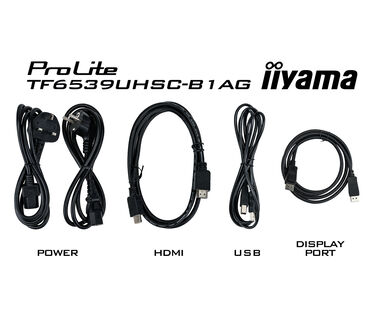
| Kábelek | áramellátás (1.8m), USB (1.8m), HDMI (1.8m), DP (1.8m) |
| Útmutatók | gyors üzembe helyezési útmutató, biztonsági útmutató |
| Kábel takaró | igen |
| Tápegység | belső |
| Áramellátás | AC 100 - 240V, V, /50Hz |
| Energiafogyasztás | 175W jellemző, 1.0W készenlét, 0.5W kikapcsolva |
| Áramfogyasztás | 1.0W készenlét |
| Előírások | CE, EAC, RoHS támogatás, ErP, WEEE, cULus, HATÓTÁVOLSÁG, UKCA |
| Energiahatékonysági osztály ((EU) 2017/1369 rendelet) | G |
| REACH SVHC | 0,1% felett: Vezet |
| Termék méretei Sz x H x M | 1503.5 x 880.5 x 67mm |
| Doboz mértei Sz x H x M | 1670 x 1020 x 310mm |
| Raklap térfogata | 8db |
| Raklap méretei Sz x H x M | 1690 x 2292 x 1260mm |
| Súly (doboz nélkül) | 56kg |
| Súly (dobozzal) | 65kg |
| EAN kód | 4948570118083 |
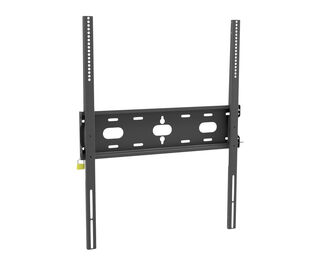
| Tartók / állványok / konzolok | OMK4-2 |
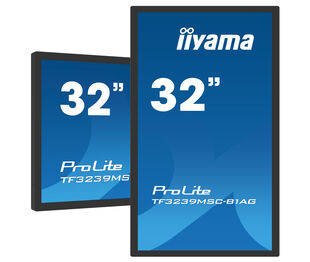
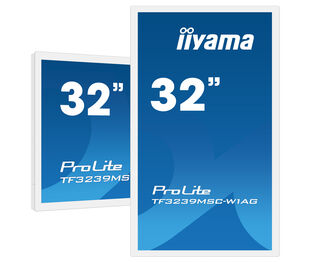
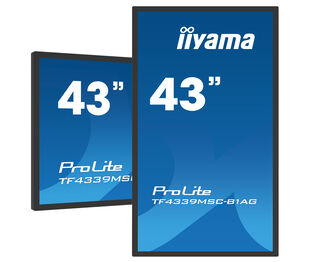
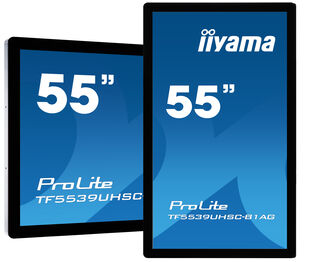
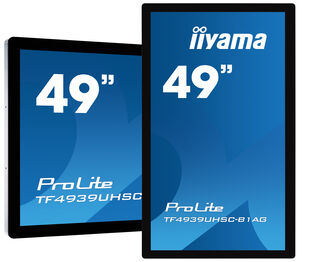
| Terméksorozatok | ProLite TF3239MSC-B1AG , ProLite TF3239MSC-W1AG, ProLite TF4339MSC-B1AG, ProLite TF5539UHSC-B1AG, ProLite TF4939UHSC-B1AG |
| TFxx39_RS232_Protocol_20211222 | TFxx39_RS232_Protocol_20211222.pdf | |
| Mac OS Driver for OS version 10.14-13.x | UPDD_07_01_13.zip |

If you are unable to set the native resolution with the maximum refresh rate on your monitor, try the following troubleshooting steps:
1. Ensure you are using a cable that supports both the native resolution and the desired refresh rate.
2. Visit the product page on our website and check technical specification tab - Interfaces / Connectors / Controls section to see what resolution and refresh rate are supported under the signal input you have seleced (e.g. HDMI signal input does not always support the maxium refresh rate, please check the DisplayPort connection instead).
3. Check the settings and specifications of your PC / graphics card to see if they support the desired resolution or refresh rate.
If you wish to change the settings on your monitor remotely, please refer to the RS232/LAN protocol document available in the DOWNLOAD section on the product page.
The commands can be sent to the screen with a terminal app, for example Hercules SETUP utility. For more information, please refer to the RS232/LAN protocol document available in the DOWNLOAD section on the product page.
If your touch functionality is not working, please check the following:
1. Ensure your PC is connected to the monitor with the supplied USB cable.
2. Verify in the user manual that your operating system is supported by the screen.
When cleaning, please follow these guidelines to avoid damaging your Touch monitor:
1. Avoid using paper towels, abrasive cloths, or any harsh cleaning agents, as they can scratch the screen or damage the touch sensors.
2. Do not spray the cleaning solution directly onto the screen to prevent liquid from seeping into the monitor.
3. Avoid excessive cleaning, as it can wear out the screen over time.
4. For more details, please check our dedicated Cleaning page.
If your monitor is displaying a "No Signal" message, please check the following:
1. Ensure the cables are properly connected at both ends.
2. Select the correct signal input (HDMI/DP) or choose AUTO.
For guidance on selecting an input while the screen is in standby mode, please consult the user manual. On desktop monitors, common methods include pressing the INPUT, AUTO, or "2" buttons, or moving the joystick backward.
Yes, your iiyama monitor will work with your Apple Mac system. However, it depends on the signal input how to connect. Since Apple Mac systems from 2020 onwards only have Thunderbolt 3 (USB-C) ports for video output, you have two options:
1. Connect directly to the USB-C signal input on your iiyama monitor.
2. In case your monitor only has HDMI or Displayport, you will need a Mac-compatible dongle that supports one of the video inputs available. Apple offers a USB-C Digital AV Multiport Adapter (MW5M3AM) that can be used for this purpose.
3. If your iiyama monitor has touchscreen capabilities, please refer to the user manual to verify touch functionality compatibility with your Mac system.
To resolve the issue of a blinking picture, please follow these steps:
1. Inspect the Signal Cable.
Ensure the signal cable is securely connected at both ends and free from any physical damage. Avoid any sharp bends or squishing of the cable.
2. Use a Shorter Cable.
If possible, use a cable shorter than 3 meters and connect the monitor directly to a wall power socket, avoiding the use of adapters.
3. Disable FreeSync/Adaptive Sync.
For desktop or gaming monitors, try disabling FreeSync or Adaptive Sync in the monitor's settings menu.