ProLite XB2797QSNP-W1
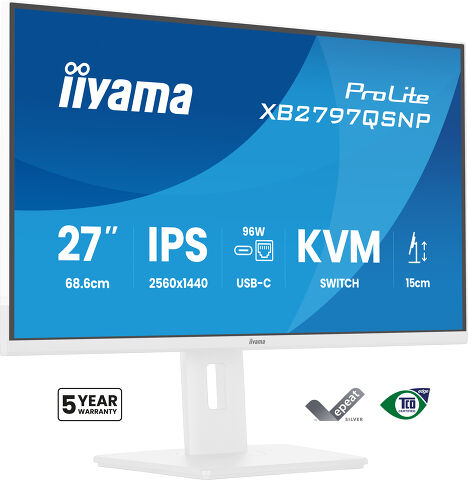
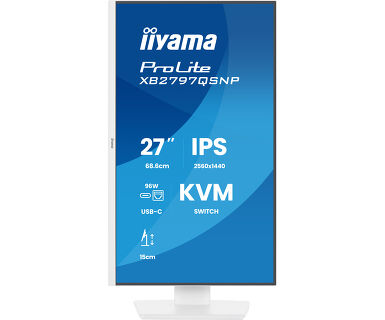
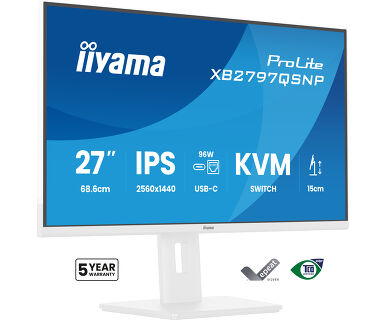
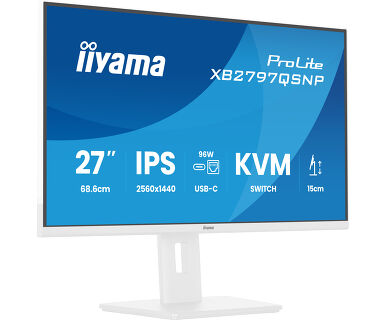
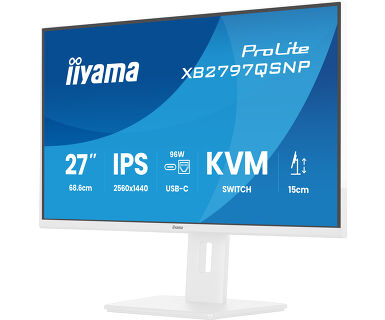
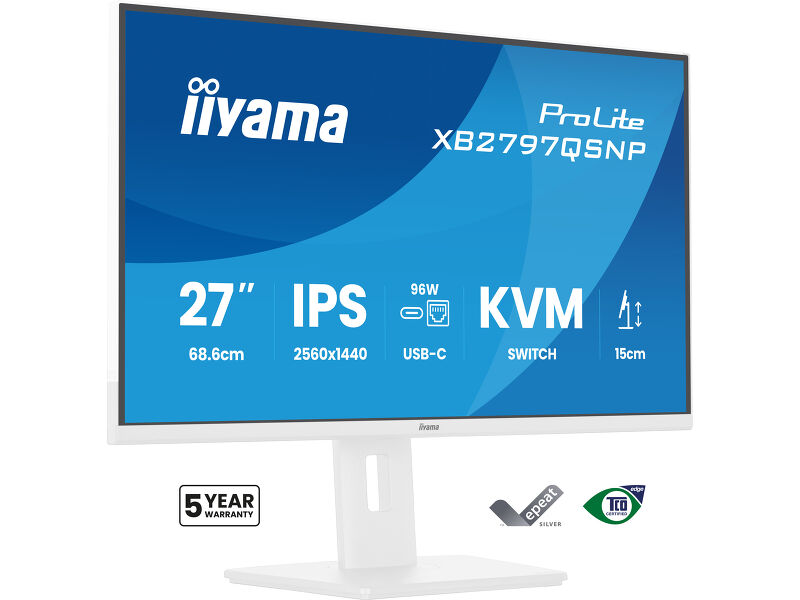
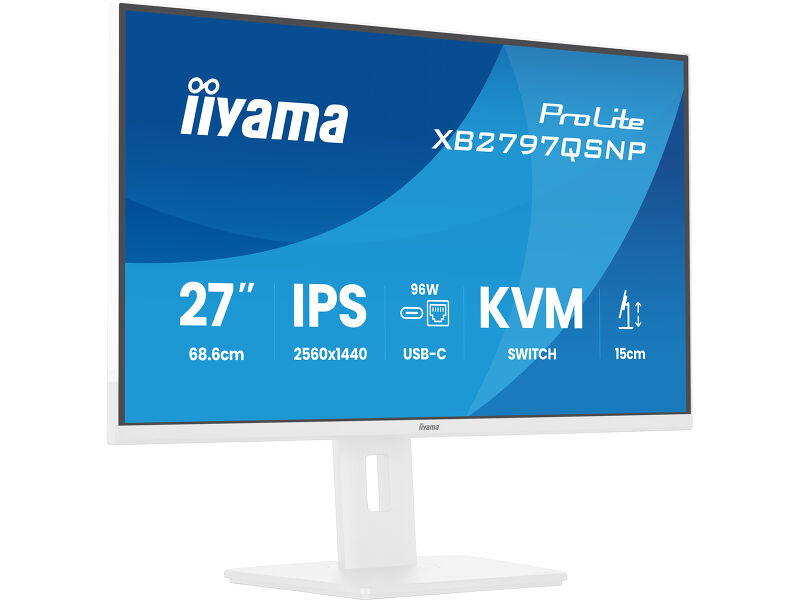
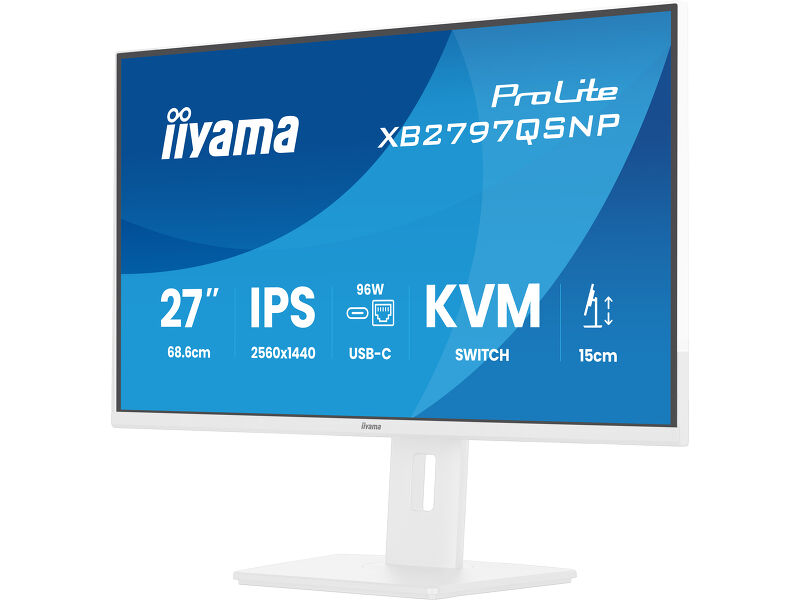
27” QHD monitor with USB-C docking, KVM and LAN - everything you need in a single display
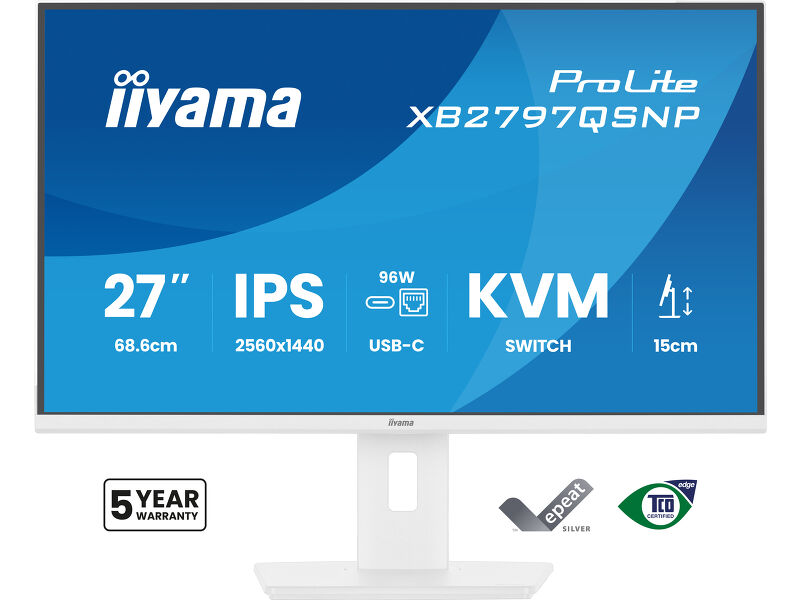
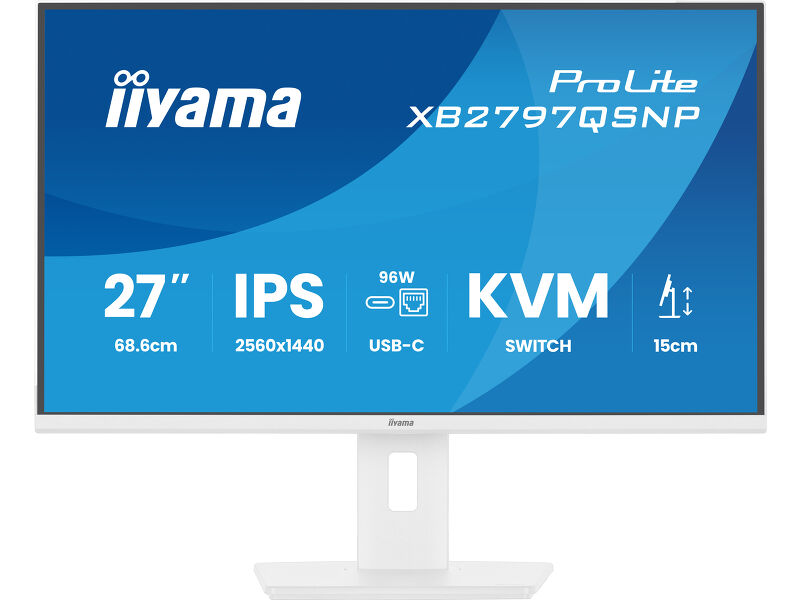
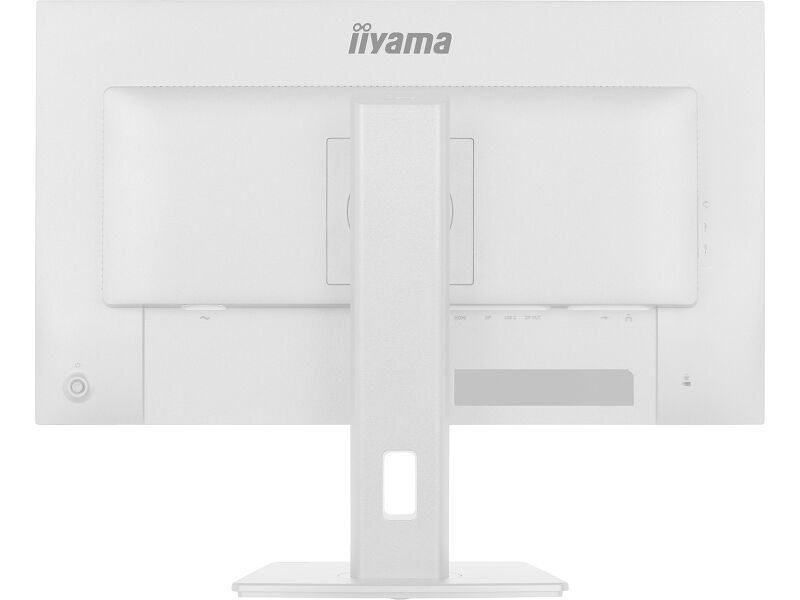
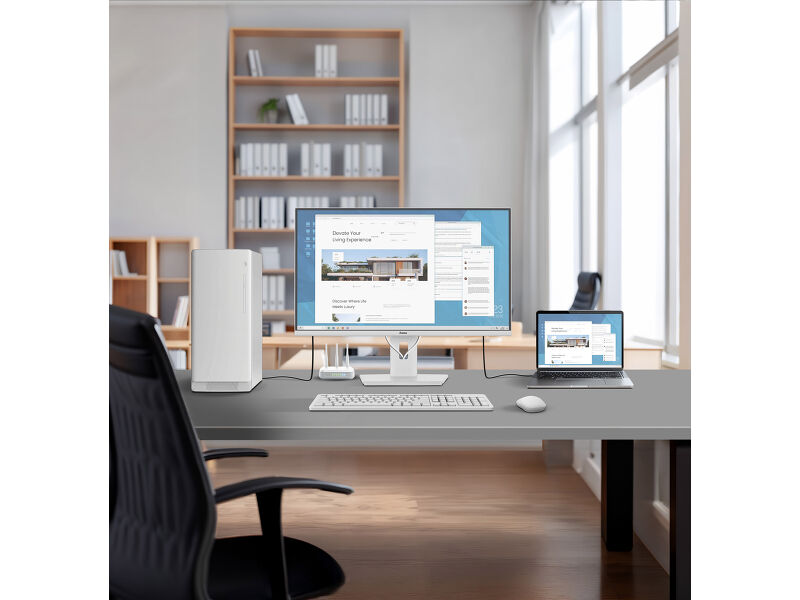
Stay connected and reduce cable clutter with the ProLite XB2797QSNP. The integrated USB-C dock with 96W power delivery lets you transfer video, audio, data and power through a single cable, keeping your workspace clean and efficient. The RJ45 port ensures a fast, stable wired network connection without additional adapters.
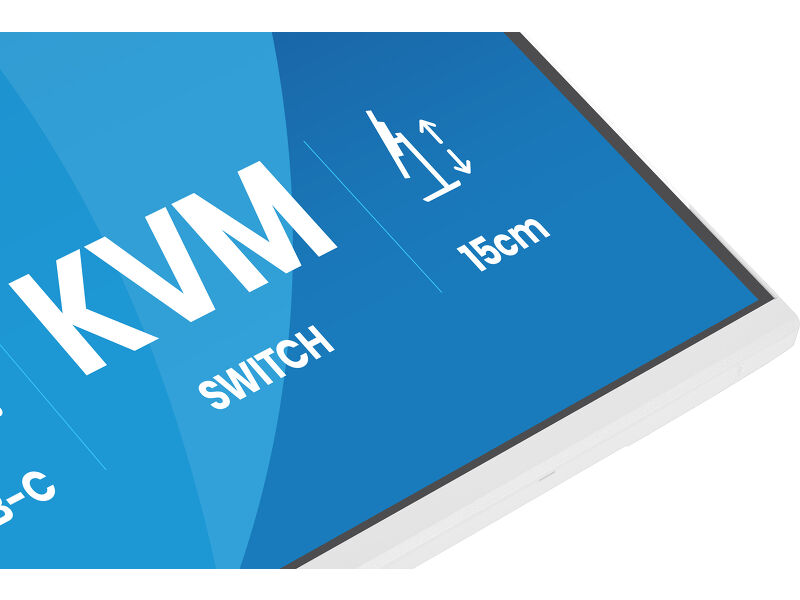
With the built-in KVM switch, you can control two computers using a single keyboard and mouse, making it easy to switch between systems and maintain a smooth workflow.
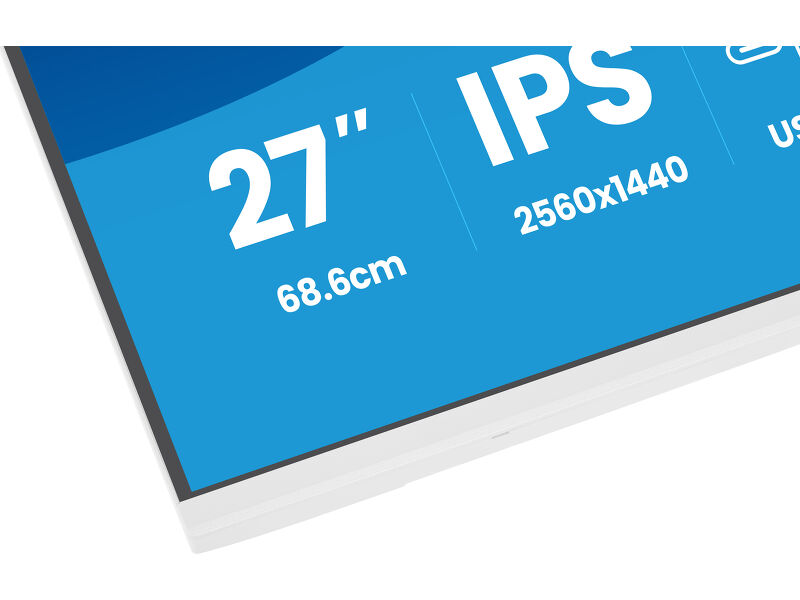
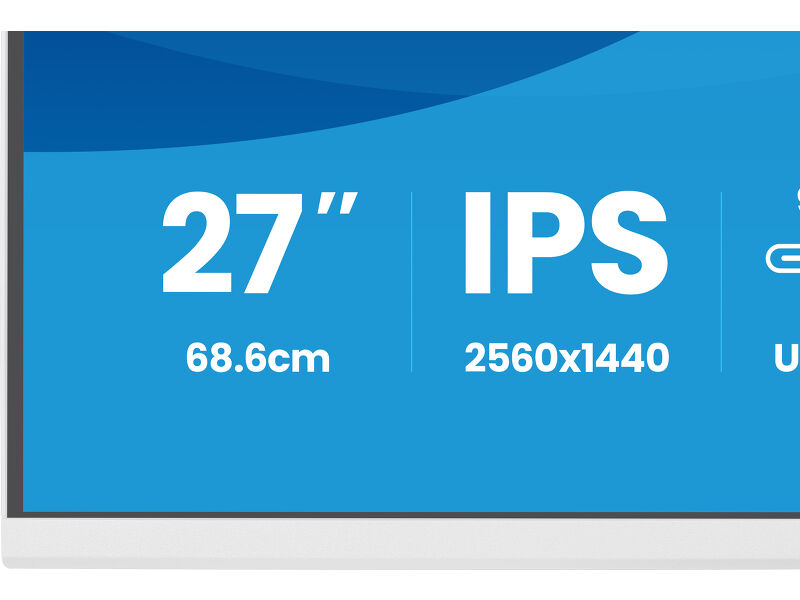
The 27” QHD IPS panel delivers high resolution and accurate colour reproduction with wide viewing angles, supporting detailed work such as content creation, spreadsheets or design tasks. The DisplayPort output enables quick setup of a dual-monitor configuration to expand your screen space and boost productivity.
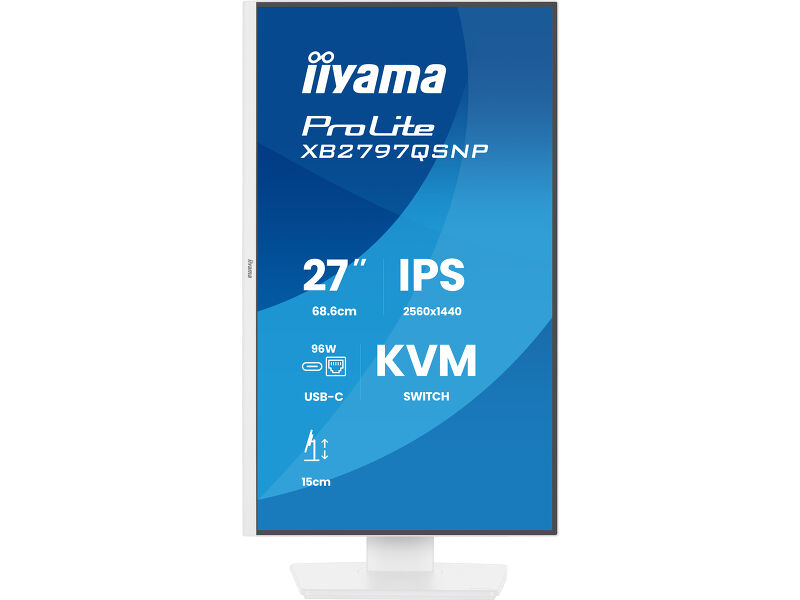
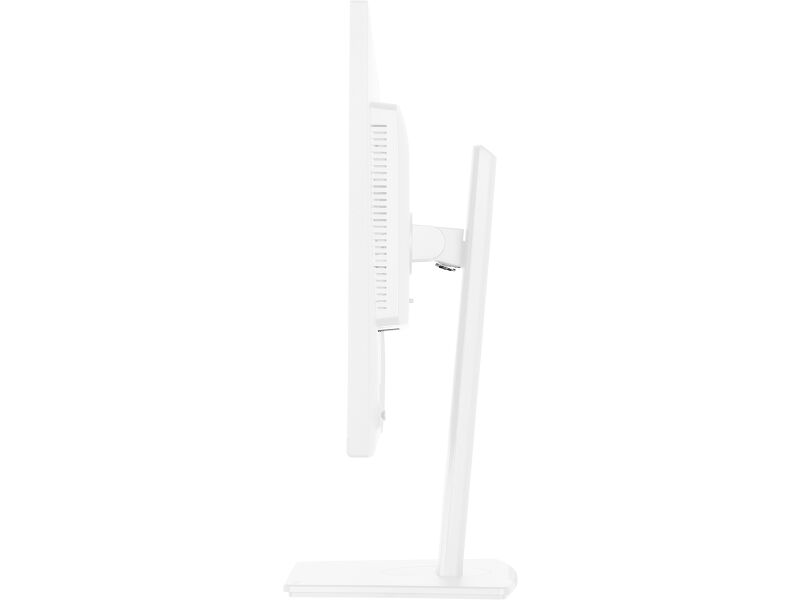
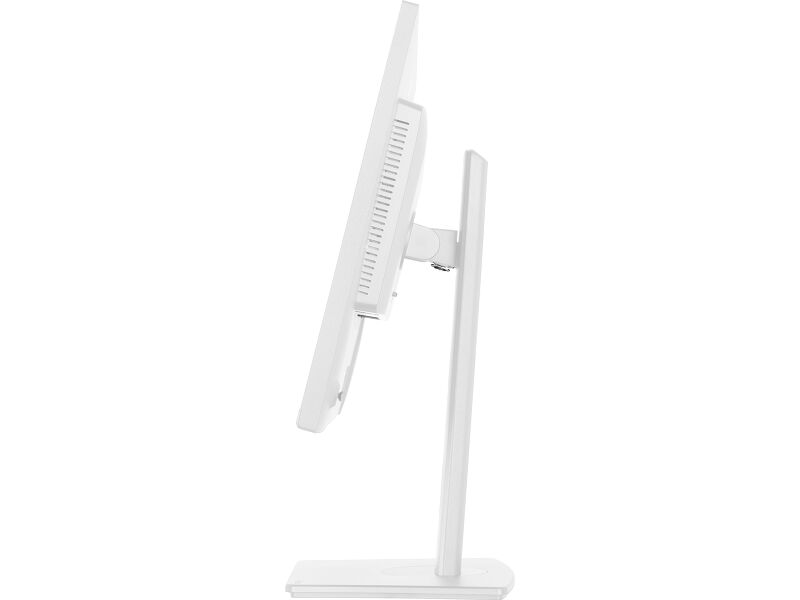
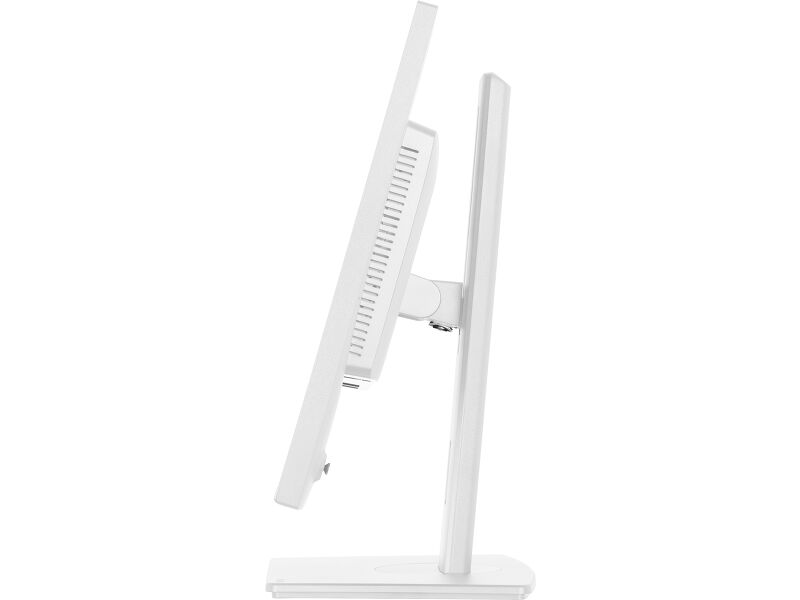
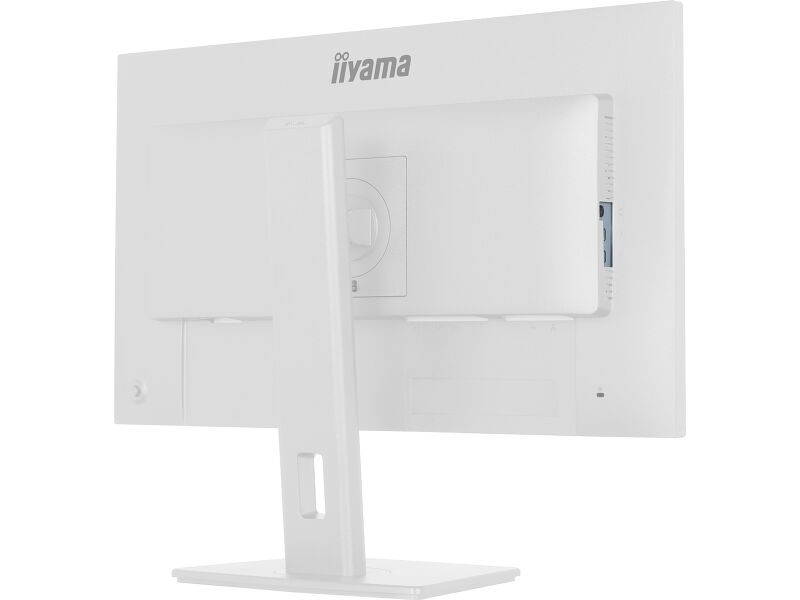
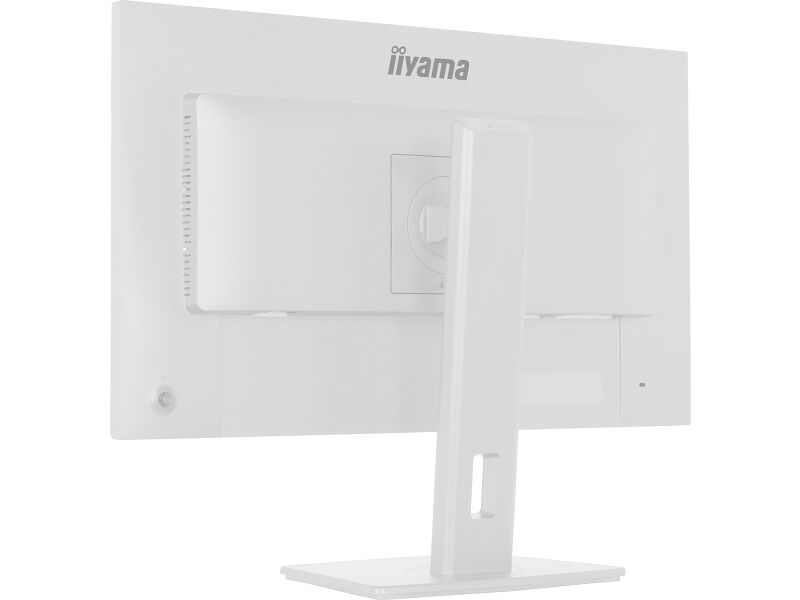
The stand offers 15cm height adjustment along with tilt, swivel and pivot functions including portrait mode, so you can work comfortably in your preferred position. Tested and certified by TÜV Rheinland for Eye Comfort, the XB2797QSNP meets strict display standards to help reduce visual fatigue during extended use, supporting long-lasting focus and well-being at work.
Available also without USB-C dock: XB2797QSU-W1.
Available also in black : ProLite XB2797QSNP-B1
Easy multi-device control with KVM
Easily switch between multiple computers using one monitor, keyboard, and mouse, making multitasking smooth and efficient.
USB-C dock for tidy desk & easy connectivity
Connect everything with just one cable - handle video, data, and power while keeping your desk clean and organized.
Expand your view with QHD
QHD 2560x1440 resolution offers up to 77% more screen space than Full HD, giving you plenty of room to multitask efficiently, view more content at once, and work with greater precision, without constantly switching between windows.
Adjustable stand for optimal comfort
Find your perfect screen position easily and maintain a healthy, comfortable posture all day long. Thanks to its fully adjustable stand, you can effortlessly adapt the monitor to your needs. Raise or lower the height, swivel left or right, or tilt the screen to reduce glare and find the optimal viewing angle. Whether you're working, designing, or attending long video calls, this flexibility helps reduce neck and back strain, improving both comfort and productivity throughout your day.
Feel the difference with certified eye comfort
Hardware-based low blue light built into the panel, flicker-free technology and true-to-life colour accuracy all work together to support more comfortable viewing throughout the day. Backed by TÜV Rheinland Eye Comfort certification, this display lets you work, browse and create for longer with greater ease.
Video
Technical specification




DISPLAY CHARACTERISTICS
| Design | 4-side slim bezel |
| Diagonal | 27", 68.5cm |
| Panel | IPS Panel Technology LED, matte finish |
| Native resolution | 2560 x 1440 @75Hz (3.7 megapixel QHD) |
| Aspect ratio | 16:9 |
| Panel brightness | 350 cd/m² |
| Static contrast | 1000:1 |
| Advanced contrast | 80M:1 |
| Response time (MPRT) | 1ms |
| Viewing zone | horizontal/vertical: 178°/178°, right/left: 89°/89°, up/down: 89°/89° |
| Colour support | 16.7mln (sRGB: 100%; NTSC: 72%) |
| Horizontal Sync | 30 - 112kHz |
| Viewable area W x H | 596.7 x 335.7mm, 23.5 x 13.2" |
| Pixel pitch | 0.233mm |
| Colour | matte, white |
INTERFACES / CONNECTORS / CONTROLS
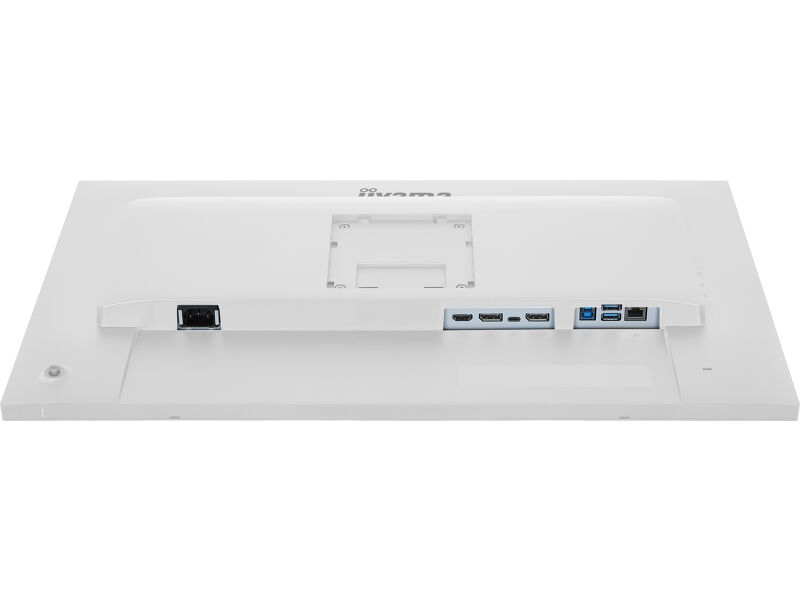
| Signal input |
HDMI x1 (v.1.4) DisplayPort x1 (v.1.2) USB-C x1 (PD 96W) |
| Signal output | DisplayPort x1 (2560;1440) |
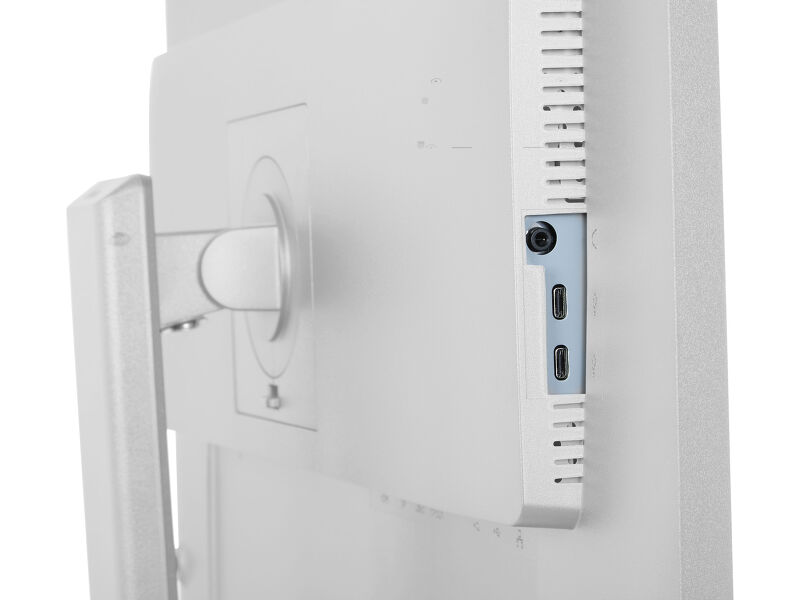
| USB HUB | x4 (2x Type-A v.3.2 Gen 1 (5Gbps, 4.5W) 2x Type-C (7.5Gbps, 5W)) |
| USB-C DOCK | x1 (Power delivery 96W, LAN, DP out, USB v.3.2 (Gen 1, 5Gbit)) |
| HDCP | yes |
| Headphone connector | yes |
| RJ45 (LAN) | x1 |
FEATURES
| KVM switch | yes |
| Flicker free | yes |
| Extra | i-Style boje, Ne zamara oči |
| OSD languages | EN, DE, FR, ES, IT, RU, JP, CZ, NL, PL, UA |
| Control buttons | Džojstik: Uključivanje/Meni (Central), Gore/Izbor signala, Dole, Levo/Prečica, Desno/Jačina zvuka |
| User controls | podešavanje slike (osvetljenost, kontrast, ECO, ACR, OD, MBR, adaptivna sinhronizacija), podešavanja boja (i-Style boja, RGB opseg, temperatura boja, korisnička podešavanja), OSD (horizontalna pozicija OSD-a, vertikalna pozicija OSD-a, rotacija OSD-a, vreme OSD-a, pozadina OSD-a, DDC/CI kontrola, informacije o ekranu), jezik, dodatno 1 (oštrina, podešavanje video režima, početni logo, LED lampica za napajanje, USB punjenje, brzina USB-C-a, MST DP-izlaz), dodatno 2 (prečica, Mac adresa, verzija firmvera), KVM (HDMI, DisplayPort, USB-C), izbor ulaza, podešavanja zvuka (jačina zvuka, isključivanje zvuka), resetovanje (resetovati sve?) |
| Speakers | 2 x 2W |
| Convenience | Kensington-lock™ prepared, DDC/CI, DDC2B |
MECHANICAL
| Display position adjustments | height, swivel, tilt, pivot (rotation both sides) |
| Height adjustment | 150mm |
| Rotation (PIVOT function) | 90° |
| Swivel stand | 120°; 60° left; 60° right |
| Tilt angle | 23° up; 5° down |
| VESA mounting | 100 x 100mm |
ACCESSORIES INCLUDED
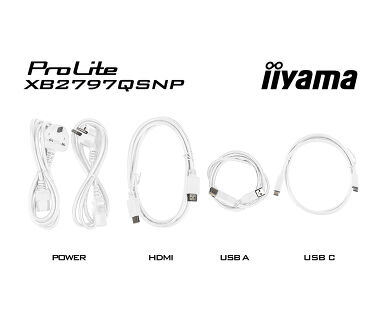
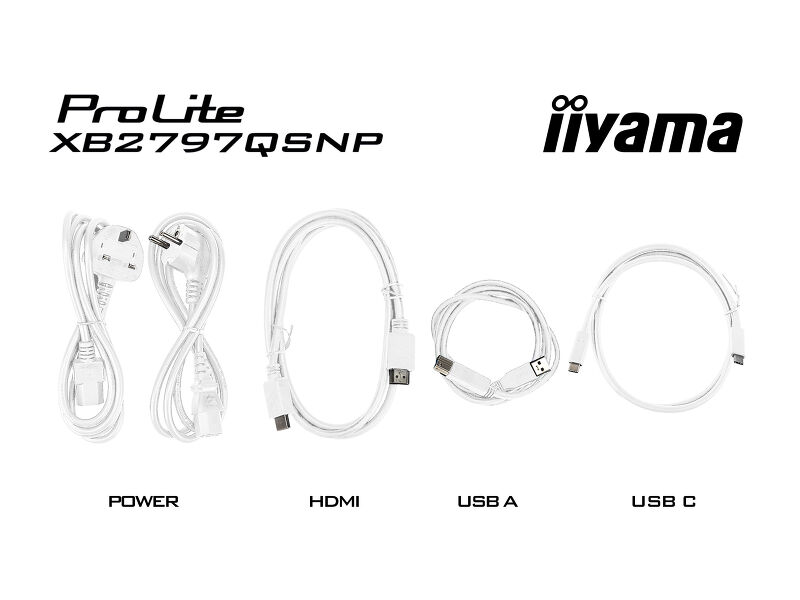
| Cables | power (1.5m), USB (1.5m), HDMI (1.5m), USB-C (1.0m) |
| Other | quick start guide, safety guide |
POWER MANAGEMENT
| Power supply unit | internal |
| Power supply | AC 100 - 240V, 50/60Hz |
| Power usage | 21W default, 0.5W stand by, 0.3W off mode |
SUSTAINABILITY
| Regulations | CE, TÜV-GS, EAC, VCCI-B, PSE, RoHS support, ErP, WEEE, REACH, UKCA, TCO Edge |
| Energy efficiency class (Regulation (EU) 2017/1369) | E |
| EPEAT Silver | *registration varies by country, go to www.epeat.net for details |
| REACH SVHC | above 0.1%: Lead, Lead monoxide, Diboron trioxide |
| Warranty | 5 years (for details and eligible countries please check the Warranty section of our website) |
DIMENSIONS / WEIGHT
| Product dimensions W x H x D | 613 x 403.5 (547.5) x 209.5mm |
| Box dimensions W x H x D | 691 x 447 x 142mm |
| Weight (without box) | 5.9kg |
| Weight (with box) | 8.0kg |
| EAN code | 4948570125951 |




Downloads
| User manual | XB2797QSNP(H)-usermanual-e.pdf | Download |
| Technical specification | ProLite XB2797QSNP-W1 - en.pdf | Download |
| Drawing | XB2797QSNP-B1.pdf | Download |
| EU Energy Label | XB2797QSNP-W1 EU Energy Label (2547953).pdf | Download |
| UK Energy Label | XB2797QSNP-W1 UK Energy Label (2547953).pdf | Download |
| Guarantee label | XB2797QSNP-W1.pdf | Download |
FAQS
Why can't I set the native resolution with the maximum refresh rate on my monitor?
+If you are unable to set the native resolution with the maximum refresh rate on your monitor, try the following troubleshooting steps:
1. Ensure you are using a cable that supports both the native resolution and the desired refresh rate.
2. Visit the product page on our website and check technical specification tab - Interfaces / Connectors / Controls section to see what resolution and refresh rate are supported under the signal input you have seleced (e.g. HDMI signal input does not always support the maxium refresh rate, please check the DisplayPort connection instead).
3. Check the settings and specifications of your PC / graphics card to see if they support the desired resolution or refresh rate.
Why isn’t my notebook charging when connected to the USB-C input of my monitor in standby mode?
+To resolve the issue of your laptop not charging, please try the following steps:
1. Activate USB BC or disable USB standby mode in the monitor’s settings menu.
2. Update your PC’s BIOS/UEFI.
Why is my monitor displaying a "No Signal" message?
+If your monitor is displaying a "No Signal" message, please check the following:
1. Ensure the cables are properly connected at both ends.
2. Select the correct signal input (HDMI/DP) or choose AUTO.
For guidance on selecting an input while the screen is in standby mode, please consult the user manual. On desktop monitors, common methods include pressing the INPUT, AUTO, or "2" buttons, or moving the joystick backward.
I have an Apple MAC-system, will my iiyama monitor work?
+Yes, your iiyama monitor will work with your Apple Mac system. However, it depends on the signal input how to connect. Since Apple Mac systems from 2020 onwards only have Thunderbolt 3 (USB-C) ports for video output, you have two options:
1. Connect directly to the USB-C signal input on your iiyama monitor.
2. In case your monitor only has HDMI or Displayport, you will need a Mac-compatible dongle that supports one of the video inputs available. Apple offers a USB-C Digital AV Multiport Adapter (MW5M3AM) that can be used for this purpose.
3. If your iiyama monitor has touchscreen capabilities, please refer to the user manual to verify touch functionality compatibility with your Mac system.
The picture on my monitor is flickering. What steps can I take to fix it?
+To resolve the issue of a blinking picture, please follow these steps:
1. Inspect the Signal Cable.
Ensure the signal cable is securely connected at both ends and free from any physical damage. Avoid any sharp bends or squishing of the cable.
2. Use a Shorter Cable.
If possible, use a cable shorter than 3 meters and connect the monitor directly to a wall power socket, avoiding the use of adapters.
3. Disable FreeSync/Adaptive Sync.
For desktop or gaming monitors, try disabling FreeSync or Adaptive Sync in the monitor's settings menu.
Is Adaptive Sync compatible with AMD FreeSync or NVIDIA G-Sync?
+Yes, Adaptive Sync is compatible with AMD FreeSync and NVIDIA G-Sync.
Why can't I select MBR when FreeSync/Adaptive Sync is activated?
+MBR cannot be selected when FreeSync/AdaptiveSync is activated, because MBR can interfere with the FreeSync/Adaptive Sync technology as they have different methods of improving motion clarity. MBR reduces motion blur (response time), while Adaptive Sync/FreeSync addresses stuttering. We recommend activating Adaptive Sync/FreeSync on systems with fluctuating or unstable frame rates. MBR performs best on powerful systems that maintain a consistently high frame rate.
How can I recognize which iiyama monitor has a USB-C Dock and LAN support?
+iiyama monitors with USB-C Dock capabilities can be recognized by an "N" in their model names, such as HSN or QSN. For example, XUB****HSN. You can also visit our product selector page and use the available filters.
How to use the USB-C dock?
+To explore the features and benefits of a monitor with a USB-C dock, please watch the video below.
The DP-out currently mirrors the main monitor. How can I change it to extend the desktop instead?
+To extend the desktop via DP-out, enable the MST function in the screen settings. For detailed instructions, please refer to your user manual.
Compatible accessories