Bültenimize Abone Olun!
Keep up #withiiyama
Bültenimize başarıyla abone oldunuz.
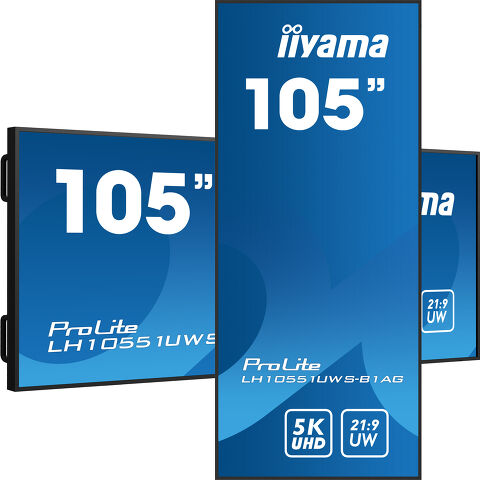
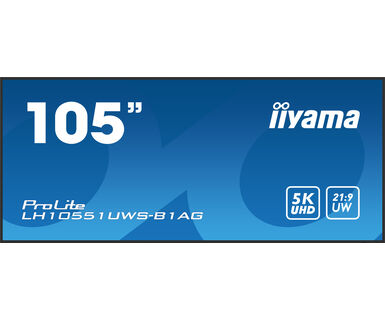
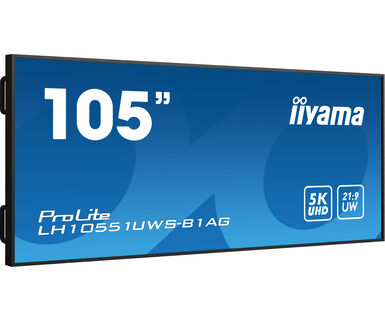
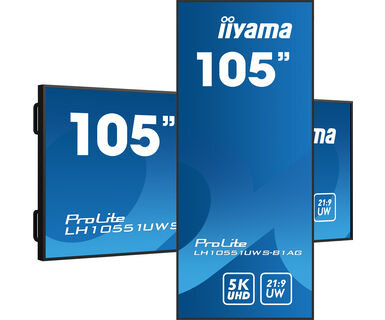
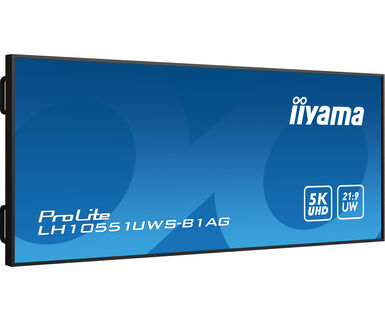
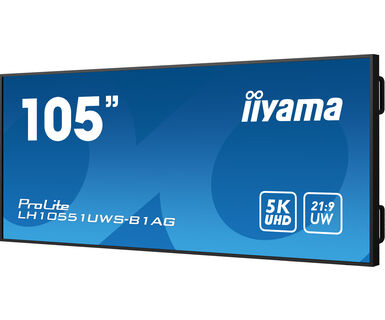
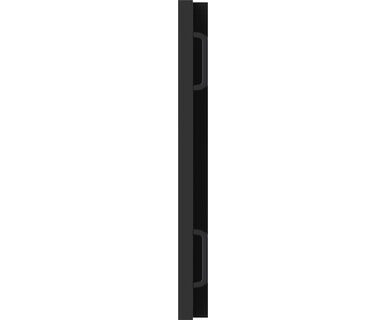
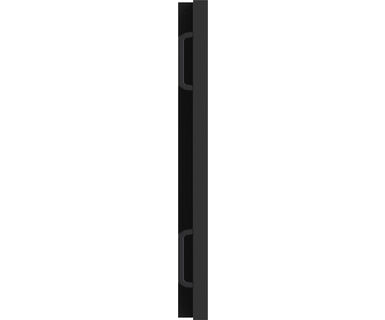
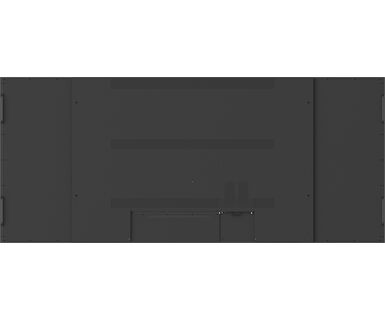
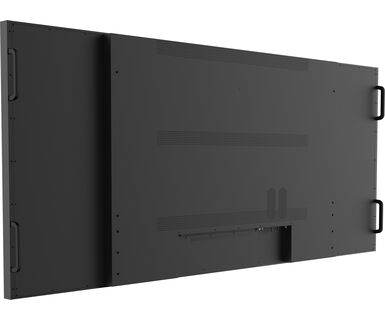
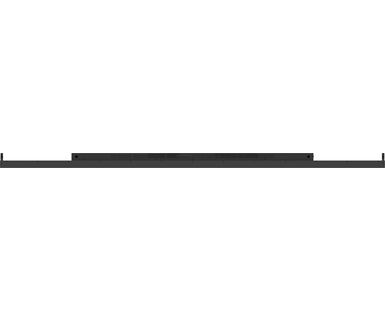
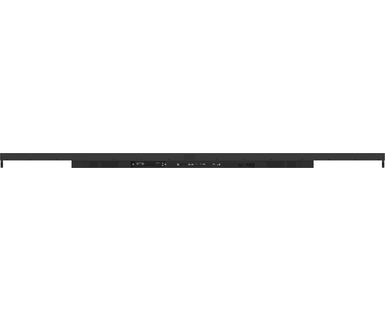
105” Profesyonel 5KUW Ekran, özel 21:9 panoramik dijital signage ekranı
iiyama'nın ağzınızı açık bırakacak 105 inçlik ekranlarıyla tüm içerikleriniz için gerçek 21:9 Panoramik Ultra Geniş görüş deneyimi yaşayın. Bu süper şık ince çerçeveli tasarım ekran, fark yaratmak için 5KUW çözünürlük kullanarak canlı ve gerçeküstü görüntüler ve videolar gösterir.
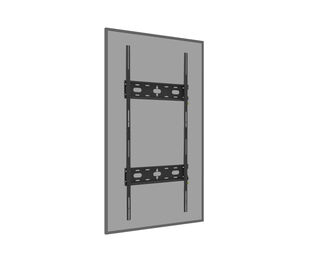
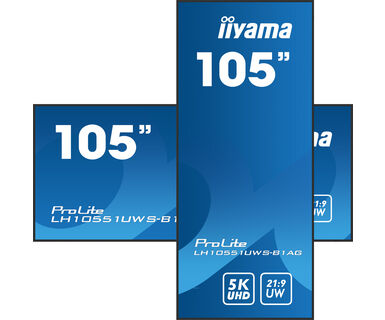
İster kritik görev kontrol odası tesislerine, ister üst düzey perakende alanları için canlı dijital tabelalara kurulsun, bu iiyama 105 inçlik büyük formatlı ekran, işletmelere izleyicilerinin dikkatini çekmelerine yardımcı olmak için kolay ve etkili bir çözüm sunar. Sürekli, günün her saati ortamlarda performans gösterecek şekilde tasarlanan LH10551UWS-B1AG, her alanda en heyecan verici görüntüleri oluşturmak için yatay ve dikey yönde kurulabilir ve kullanılabilir.
Delivers the latest in video, audio and Touch signal, all through one port.


| Ekran Boyutu | 104.7", 265.9cm |
| Diyagonal | 265.9cm |
| Panel | IPS, AG coated glass, mat kaplama, haze 25% |
| Çözünürlük | 5120 x 2160 @60Hz (14.75 megapixel, 5KUW) |
| En-Boy Oranı | 21:9 |
| Panel Parlaklığı | 500 cd/m² |
| Statik Kontrast | 1200:1 |
| Tepki süresi (GTG) | 8ms |
| Görüntüleme Alanı | yatay/dikey: 178°/178°, sağ/sol: 89°/89°, yukarı/aşağı: 89°/89° |
| Renk desteği | (NTSC 85%) |
| Yatay Sync | 30 - 140kHz |
| Görüntülenebilir alan G x Y | 2450 x 1033.6mm, 96.5 x 40.7" |
| Piksel Aralığı | 0.479mm |
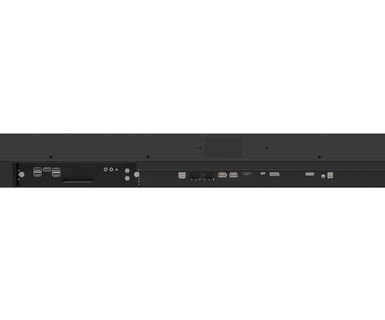
| Dijital sinyal girişi |
HDMI x1 (2.0, max. 3840x2160 @60Hz) DisplayPort x1 (1.4, max. 5120x2160 @60Hz) USB-C x1 (2.0 (signal only), 5120x2160 @60Hz (DP 1.4 Alt mode)) |
| Monitör kontrol girişi | RJ45 (LAN) x1 (Supports RS232c over Ethernet only) |
| Dijital sinyal çıkışı | DisplayPort x1 (1.4, max. 5120x2160 @60Hz, SST (Single Stream Transport ) Screen Mirror) |
| Ses çıkışı |
S/PDIF (Optik) x1 Mini jack x1 (3.5mm) Hoparlör 2 x 10W |
| HDCP | v.2.2 |
| USB HUB | x4 (2.0) |
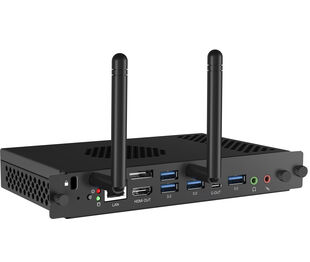
| Ekstra | OPS PC yuvası |
| Anti görüntü koruma | evet |
| Fansız tasarım | evet |
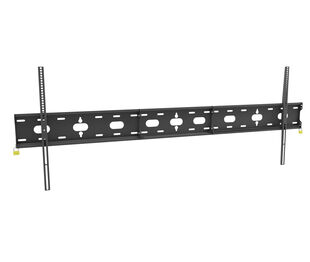
| VESA montajı | 1500 x 600mm |
| Çalışma sıcaklığı aralığı | 0°C - 40°C |
| Depolama sıcaklığı aralığı | - 20°C - 60°C |
| MTBF | 50.000 saat (arka ışık hariç) |
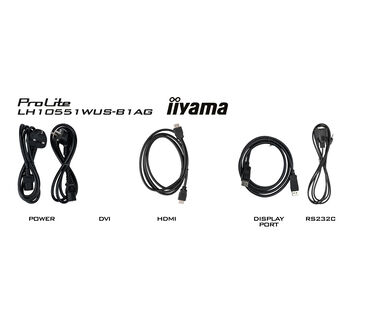
| Kablolar | güç, HDMI, RS-232c |
| Diğer | Vida delikleri için çıkartmalar |
| Güç Kaynağı | AC 100 - 240V, 50/60Hz |
| Güç Tüketimi | 247W tipik, 0.5W stand by, 0.3W off mode |
| Ürün boyutları G x Y x D | 2487.4 x 1070.6 x 99.1mm |
| Kutu boyutları G x Y x D | 2683 x 1407 x 339mm |
| Ağırlık (kutu hariç) | 60.14kg |
| Ağırlık (kutu ile birlikte) | 88.7kg |
| EAN kodu | 4948570121977 |
To fix the issue with rotating the picture displayed on your screen, please note there are two possible methods:
1. If the content is coming from an external source (e.g., a Windows device), the picture orientation must be adjusted in the display settings of that device.
2.If the content source is the monitor itself, the screen content may rotate automatically, depending on the monitor model. In some cases, however, it is necessary to adjust picture orientation in monitor's settings manually. Please note that NOT all monitors support screen rotation or portrait installation. For detailed information, refer to your monitor's user manual.
If you are unable to set the native resolution with the maximum refresh rate on your monitor, try the following troubleshooting steps:
1. Ensure you are using a cable that supports both the native resolution and the desired refresh rate.
2. Visit the product page on our website and check technical specification tab - Interfaces / Connectors / Controls section to see what resolution and refresh rate are supported under the signal input you have seleced (e.g. HDMI signal input does not always support the maxium refresh rate, please check the DisplayPort connection instead).
3. Check the settings and specifications of your PC / graphics card to see if they support the desired resolution or refresh rate.
Please visit the iiyama signup webpage and enter the model name or serial number of your iiyama screen. You will be directed to all available software applications for your product, along with instructions on how to activate them.
All iiyama LFDs and IFP displays can be used in portrait mode, except for products with item names starting with TE or LE, which can only operate in landscape mode. Always follow the installation instructions provided with the monitor and the guidelines in the User Manual.
If you wish to change the settings on your monitor remotely, please refer to the RS232/LAN protocol document available in the DOWNLOAD section on the product page.
The commands can be sent to the screen with a terminal app, for example Hercules SETUP utility. For more information, please refer to the RS232/LAN protocol document available in the DOWNLOAD section on the product page.
Monitörünüz "Sinyal Yok" mesajını görüntülüyorsa lütfen aşağıdakileri kontrol edin:
1. Kabloların her iki uçta da düzgün şekilde bağlandığından emin olun.
2. Doğru sinyal girişini (HDMI/DP) seçin veya AUTO'yu seçin.
Ekran bekleme modundayken bir giriş seçme konusunda rehberlik için lütfen kullanıcı kılavuzuna bakın. Masaüstü monitörlerde, yaygın yöntemler arasında INPUT, AUTO veya "2" düğmelerine basmak veya joystick'i geriye doğru hareket ettirmek yer alır.
Evet, iiyama monitörünüz Apple Mac sisteminizle çalışacaktır. Ancak, nasıl bağlanacağınız sinyal girişine bağlıdır. 2020'den itibaren Apple Mac sistemleri yalnızca video çıkışı için Thunderbolt 3 (USB-C) bağlantı noktalarına sahip olduğundan, iki seçeneğiniz vardır:
1. Doğrudan iiyama monitörünüzdeki USB-C sinyal girişine bağlayın.
2. Monitörünüzde yalnızca HDMI veya Displayport varsa, mevcut video girişlerinden birini destekleyen Mac uyumlu bir dongle'a ihtiyacınız olacaktır. Apple, bu amaçla kullanılabilen bir USB-C Dijital AV Çoklu Bağlantı Noktası Adaptörü (MW5M3AM) sunar.
3. iiyama monitörünüzde dokunmatik ekran yetenekleri varsa, Mac sisteminizle dokunmatik işlevselliğinin uyumluluğunu doğrulamak için lütfen kullanıcı kılavuzuna bakın.
To resolve the issue of a blinking picture, please follow these steps:
1. Inspect the Signal Cable.
Ensure the signal cable is securely connected at both ends and free from any physical damage. Avoid any sharp bends or squishing of the cable.
2. Use a Shorter Cable.
If possible, use a cable shorter than 3 meters and connect the monitor directly to a wall power socket, avoiding the use of adapters.
3. Disable FreeSync/Adaptive Sync.
For desktop or gaming monitors, try disabling FreeSync or Adaptive Sync in the monitor's settings menu.