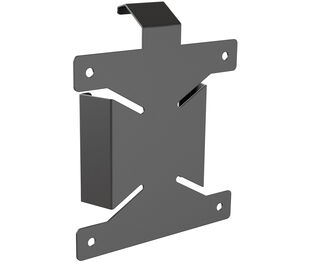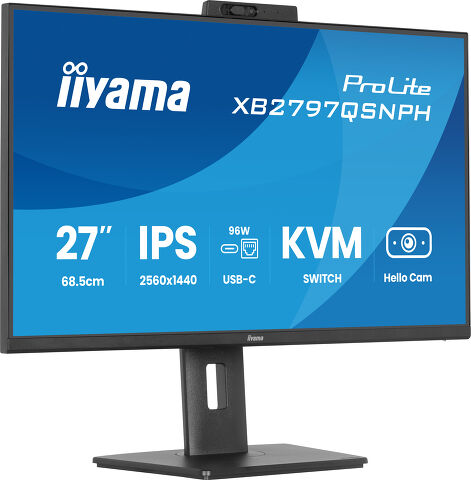
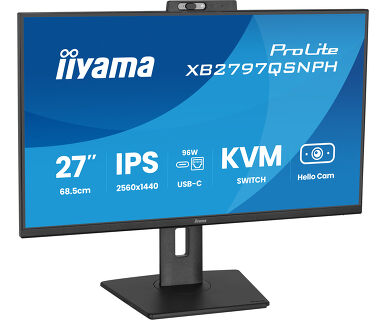
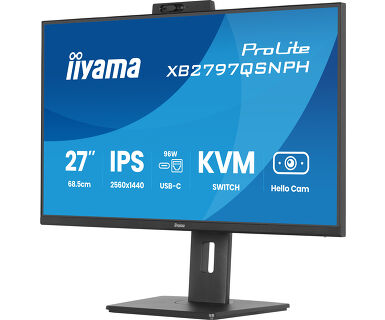
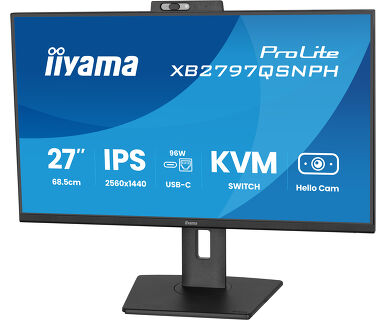
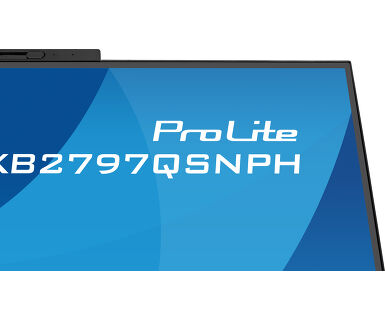
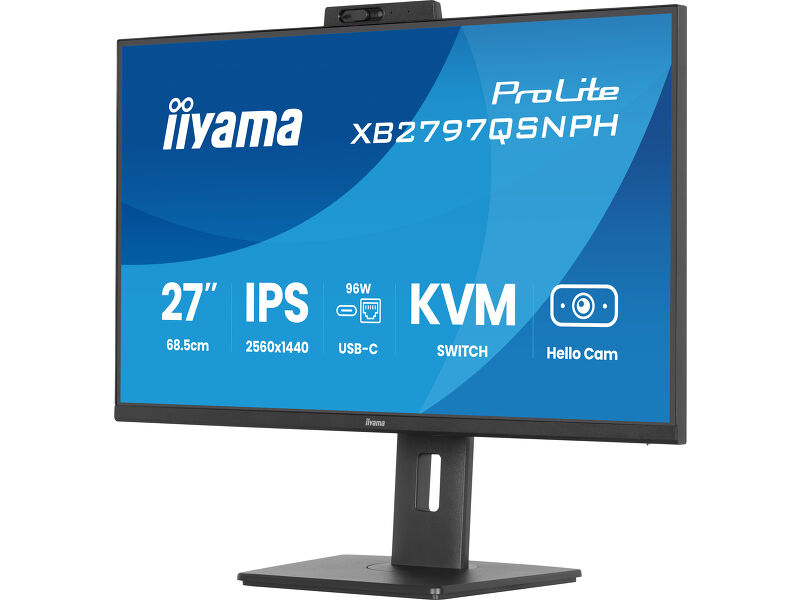
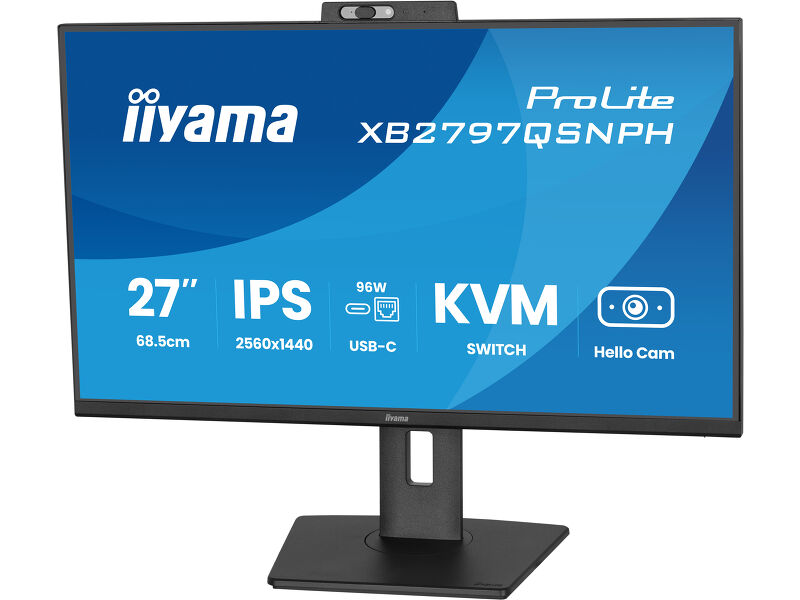
ProLite XB2797QSNPH-B1
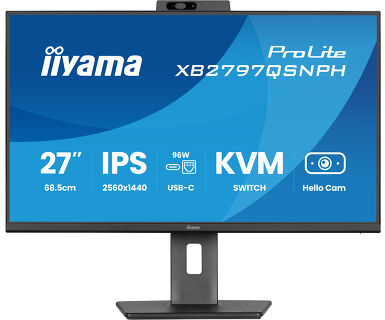
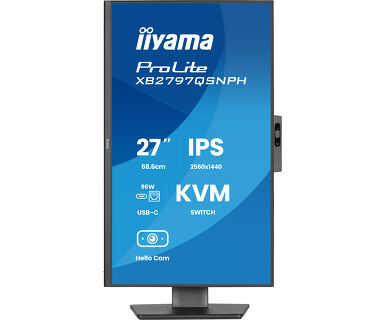
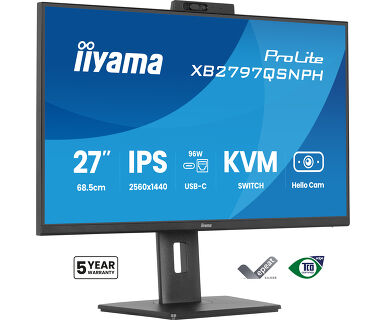
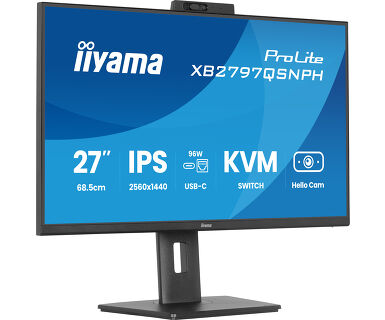
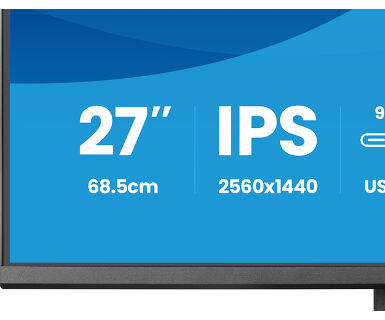
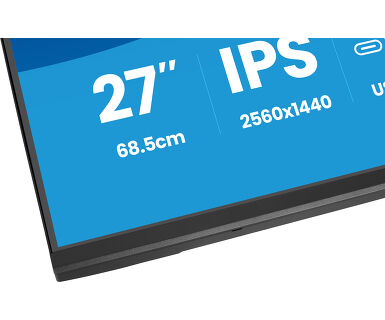
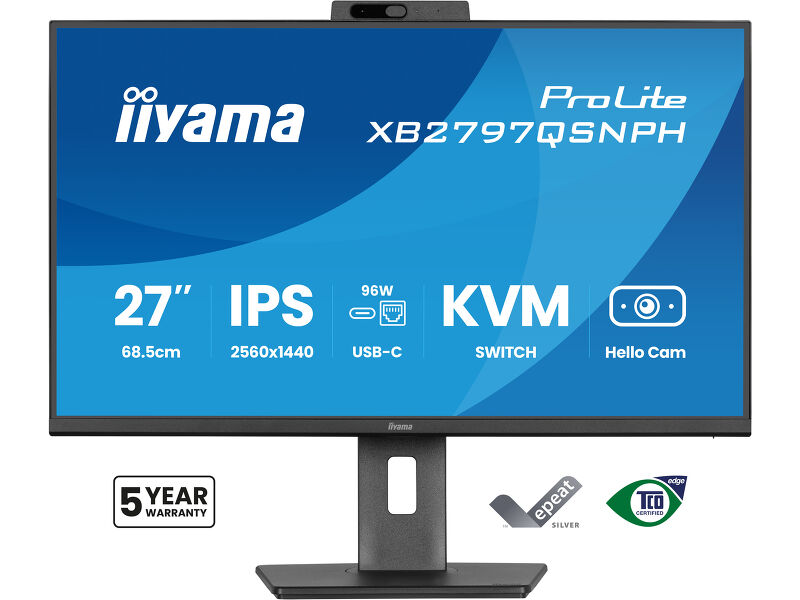
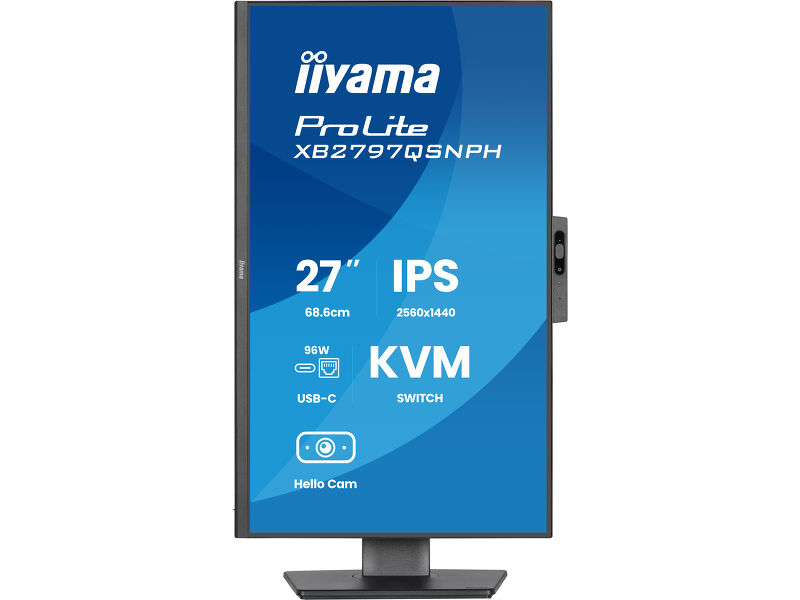
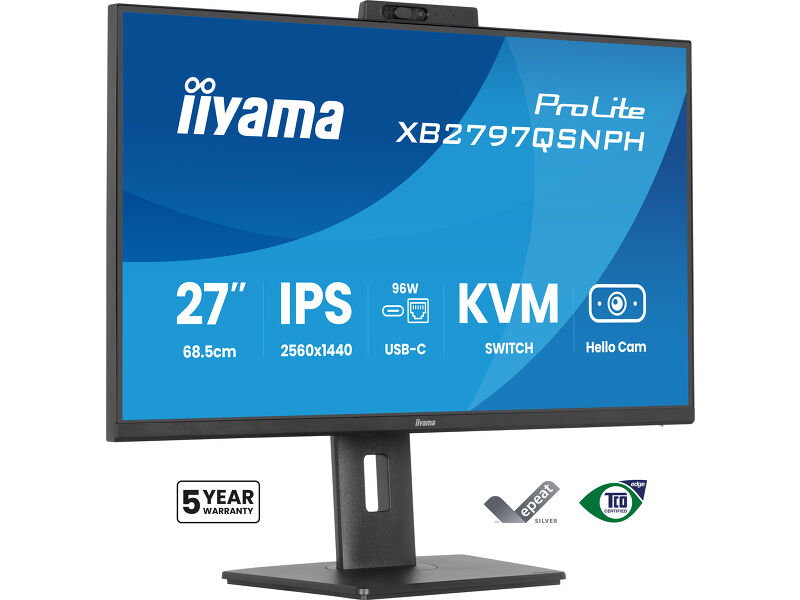
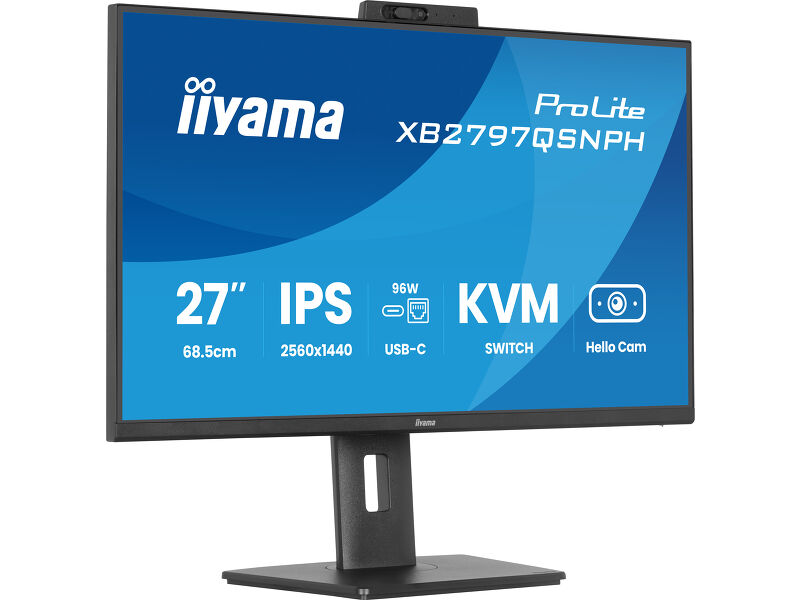
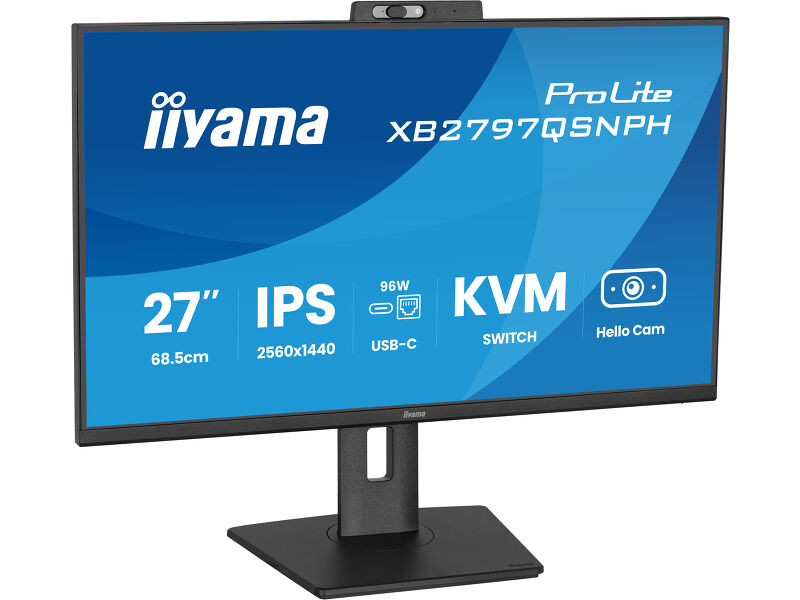
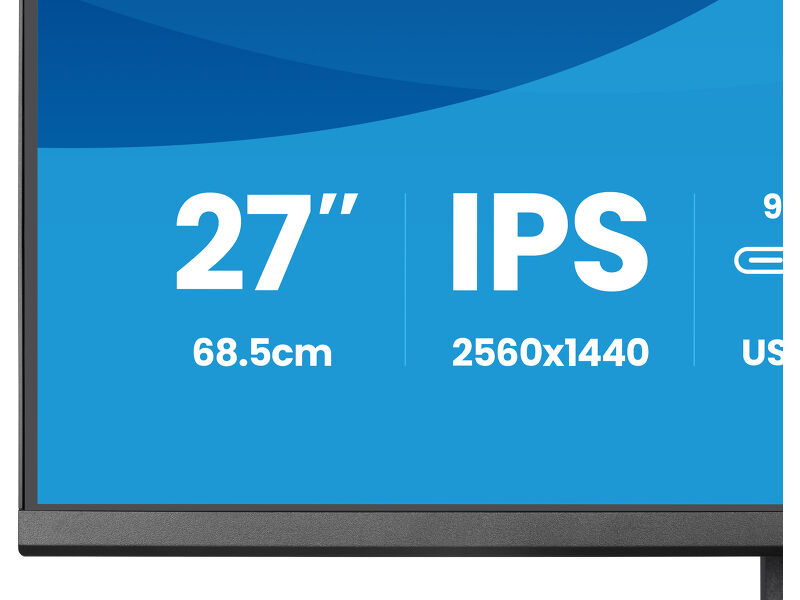
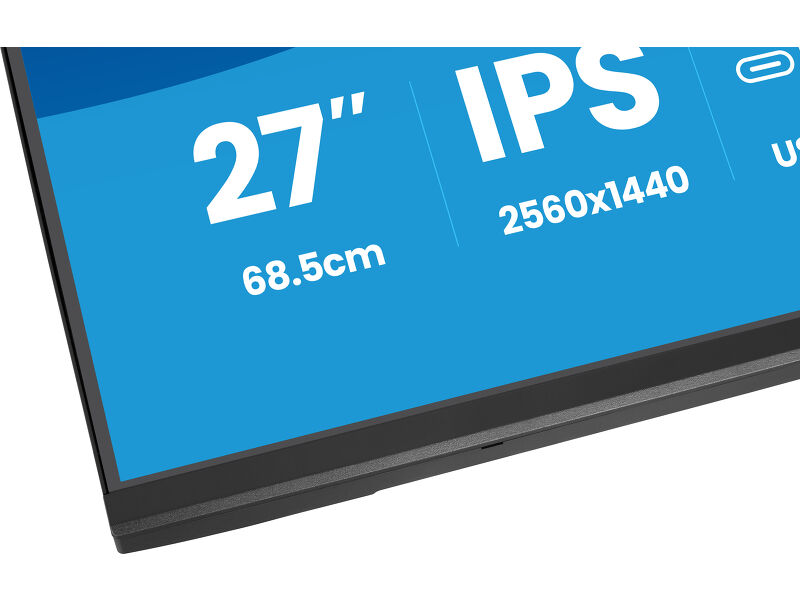
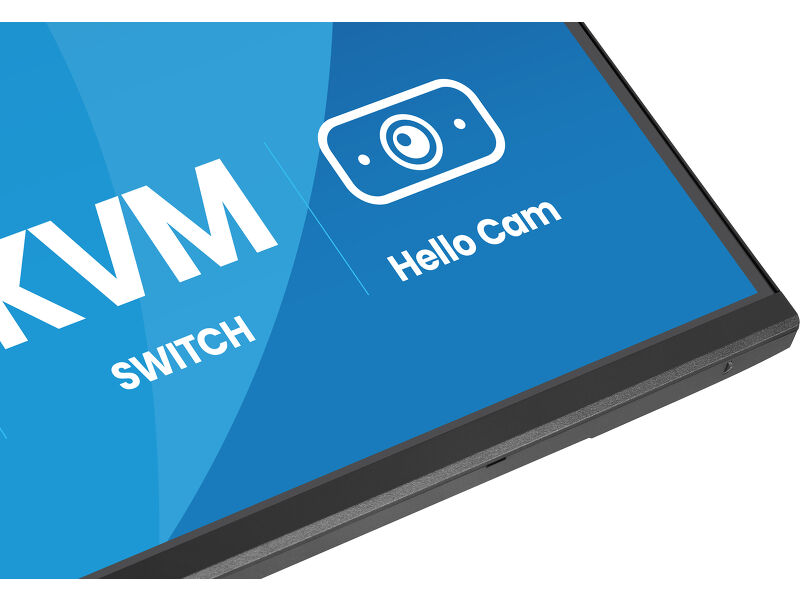
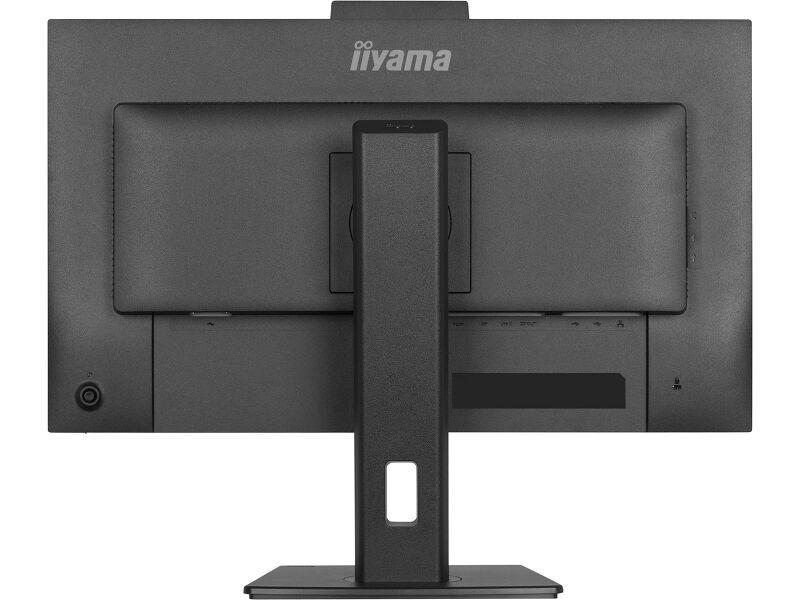
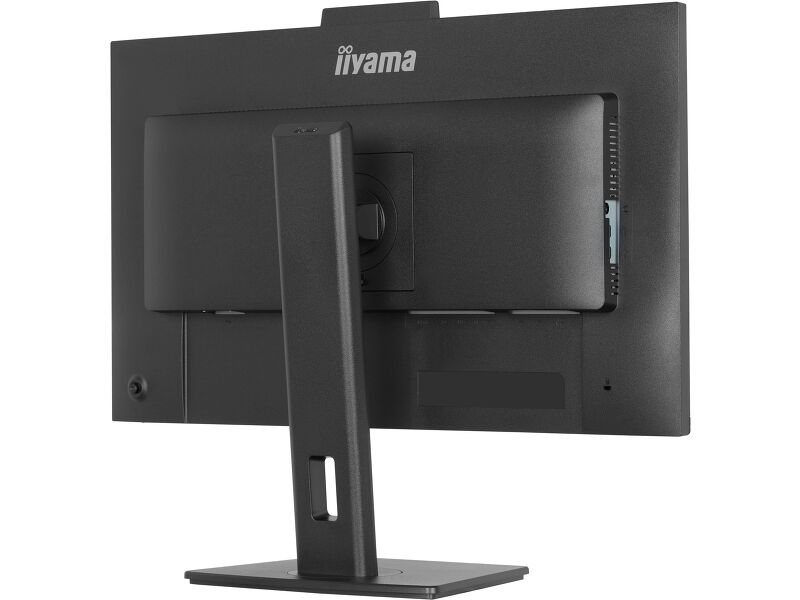
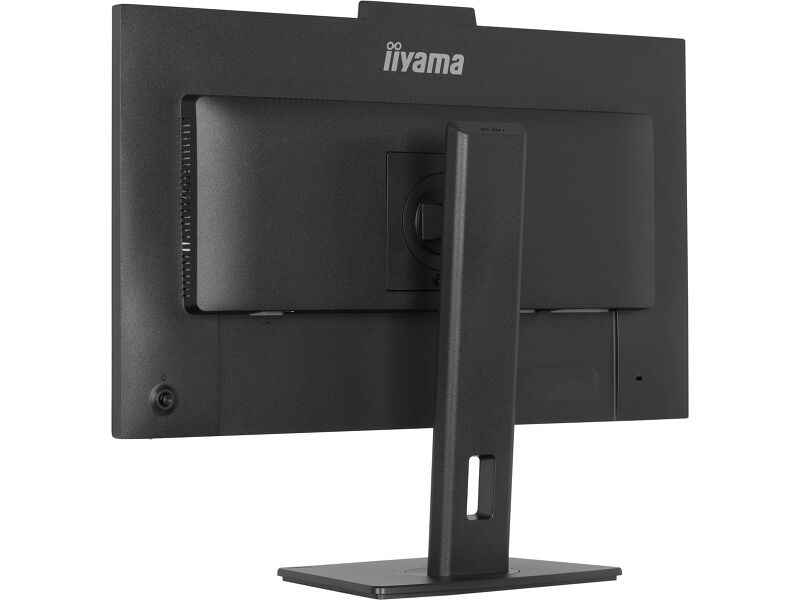
27’’ IPS QHD monitor with a built-in 5MP Windows Hello camera, microphone, USB-C Dock, LAN, KVM-Switch and 15cm height adjustable stand
Upoznajte XCB3497WQSNPH — 34-inčni zakrivljeni sveobuhvatni monitor dizajniran za efikasnost bez napora. Sa ugrađenim KVM prekidačem i USB-C priključnom stanicom, možete neprimetno da kontrolišete više uređaja i povežete svoj laptop pomoću jednog kabla. Živopisni VA monitor pruža zapanjujuće boje, dubok kontrast i široke uglove gledanja za inteligentno iskustvo sa autofokusom na Windovs-u, kao što je imerzivno iskustvo na veb kameri sa autofokusom od 5MP. Ergonomsko postolje je podesivo po visini, a tehnologije za negu očiju čine vas udobnim i produktivnim tokom celog dana.
USB-C dock for tidy desk & easy connectivity
Connect everything with just one cable - handle video, data, and power while keeping your desk clean and organized.
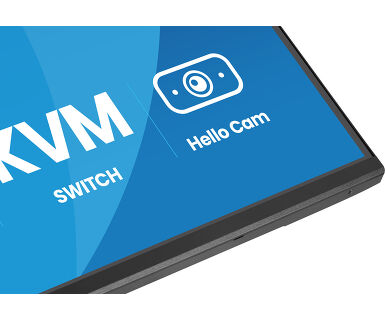
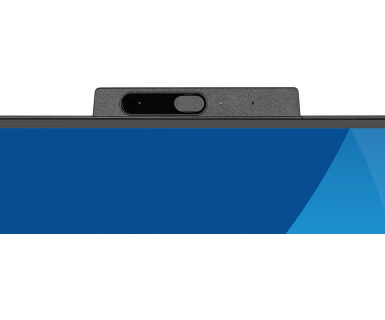
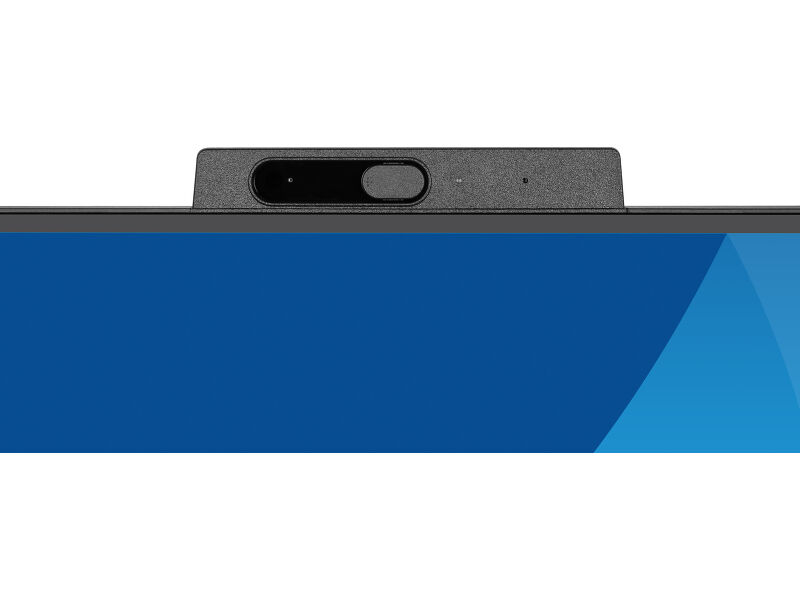
Easy access with Window Hello cam
Log in quickly and securely with facial recognition, while enjoying crystal-clear video calls thanks to the high-resolution autofocus webcam.
Feel the difference with certified eye comfort
Hardware-based low blue light built into the panel, flicker-free technology and true-to-life colour accuracy all work together to support more comfortable viewing throughout the day. Backed by TÜV Rheinland Eye Comfort certification, this display lets you work, browse and create for longer with greater ease.
You Tube
Tehnička specifikacija




KARAKTERISTIKE EKRANA
| Dizajn | tanak okvir sa 4 strane |
| Dijagonala | 27", 68.5cm |
| Panel | IPS LED panel tehnologijam mat završna obrada |
| Osnovna rezolucija | 2560 x 1440 @75Hz (3.7 megapixel QHD) |
| Osnovna rezolucija | 75Hz |
| Format ekrana | 16:9 |
| Osvetljenje | 350 cd/m² |
| Statički kontrast | 1000:1 |
| Napredni kontrast | 80M:1 |
| Vreme odziva (MPRT) | 1ms |
| Zona gledanja | horizontalno/vertikalno: 178°/178°, desno/levo: 89°/89°, gore/dole: 89°/89° |
| Podržane boje | 16.7mln (sRGB: 99%; NTSC: 72%, DCI-P3 >90%) |
| Horizontalna sinhronizacija | 31 - 112KHz |
| Vidljiva površina Š x V | 596.7 x 335.7mm, 23.5 x 13.2" |
| Razmak piksela | 0.233mm |
| Boja | mat, crna |
KONEKTORI / KONTROLE
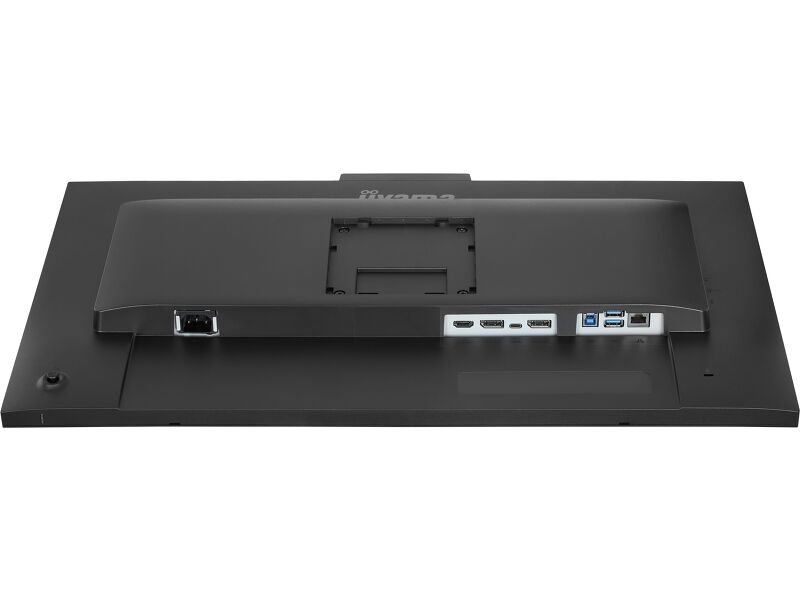
| Ulaz signala |
HDMI x1 (v.1.4) DisplayPort x1 (v.1.2) USB-C x1 (PD 96W) |
| Izlaz signala | DisplayPort x1 (Daisy Chain MST max. 2560 x 1440) |
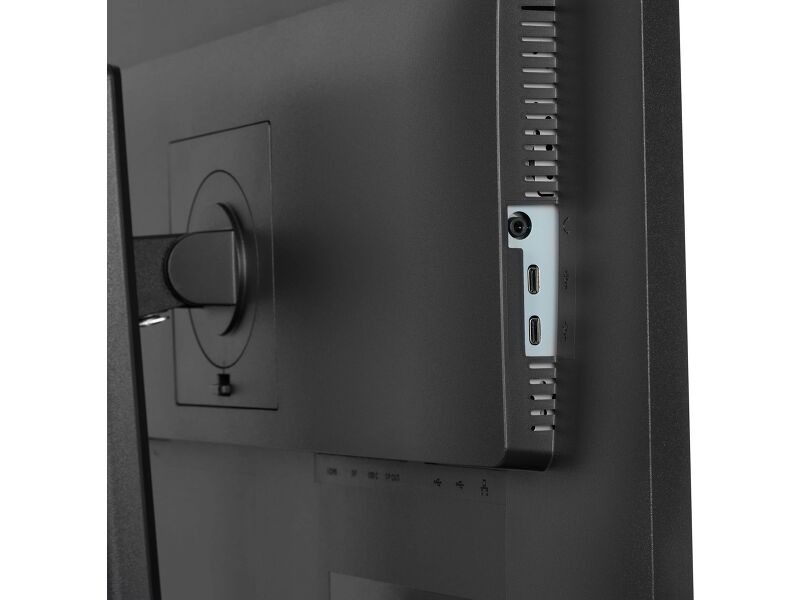
| USB HUB | x4 (2x Type A v.3.2 Gen 1 (5Gbps, 4.5W) 2x Type C (5Gbps, 7.5W)) |
| USB-C DOCK | x1 (Isporuka snage od 96W, LAN, DP out,USB v.3.2 (Gen 1, 5Gbit)) |
| HDCP | da |
| Priključak za slušalice | da |
| RJ45 (LAN) | x1 |
KARAKTERISTIKE
| KVM svič | da |
| Smanjeno emitovanje plave svetlosti | da |
| Bez treperenja | da |
| Dodatno | Ugrađena veb kamera od 5 megapiksela sa autofokusom, mikrofonom i zatvaračem u skladu sa Windovs Hello, Eye comfort |
| OSD jezici | EN, DE, FR, ES, IT, RU, JP, CZ, NL, PL, UA |
| Kontrolni tasteri | Džojstik: Napajanje/Meni (Central), Gore/Izbor signala, Dole, Levo/Prečica, Desno/Jačina zvuka |
| Korisničke kontrole | podešavanje slike (osvetljenost, kontrast, ECO, ACR, OD, MBR, adaptivna sinhronizacija), podešavanja boja (i-Style boja, RGB opseg, temperatura boja, korisnička podešavanja), OSD (horizontalna pozicija OSD-a, vertikalna pozicija OSD-a, rotacija OSD-a, vreme OSD-a, pozadina OSD-a, DDC/CI kontrola, informacije o ekranu), jezik, dodatno 1 (oštrina, podešavanje video režima, početni logo, LED lampica za napajanje, USB punjenje, brzina USB-C-a, MST DP-izlaz), dodatno 2 (prečica, Mac adresa, verzija firmvera), KVM (HDMI, DisplayPort, USB-C), izbor ulaza, podešavanja zvuka (jačina zvuka, isključivanje zvuka), resetovanje (resetovati sve?) |
| Zvučnici | 2 x 2W |
| Pogodnost | Kensington-lock™ priprema, DDC/CI, DDC2B, Mac OSX |
MEHANIČKI
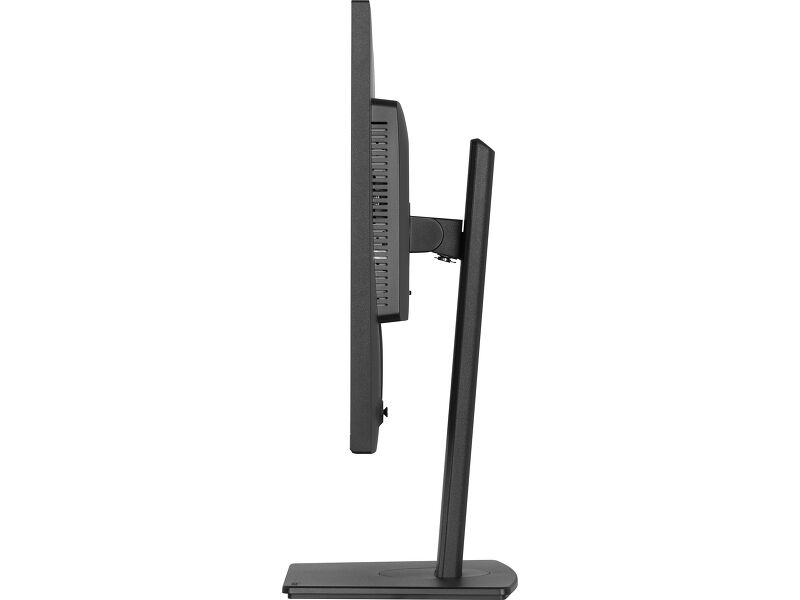
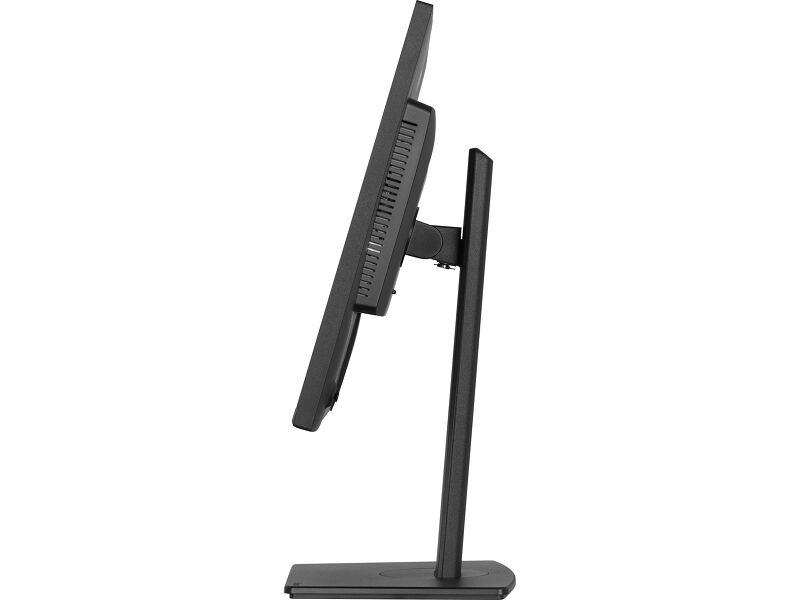
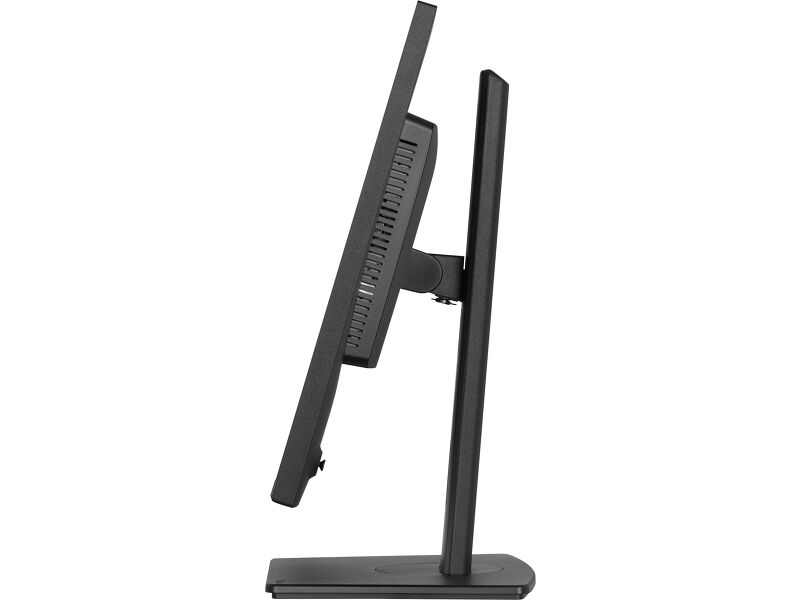
| Podešavanje položaja prikaza | visina, okretanje, nagib, pivot (rotacija u obe strane) |
| Podešavanje visine | 150mm |
| Rotacija (PIVOT funkcija) | 90° |
| Okretno postolje | 120°; 60° levo; 60° desno |
| Ugao nagiba | 23° gore; 5° dole |
| VESA montiranje | 100 x 100mm |
UKLJUČENI DODACI
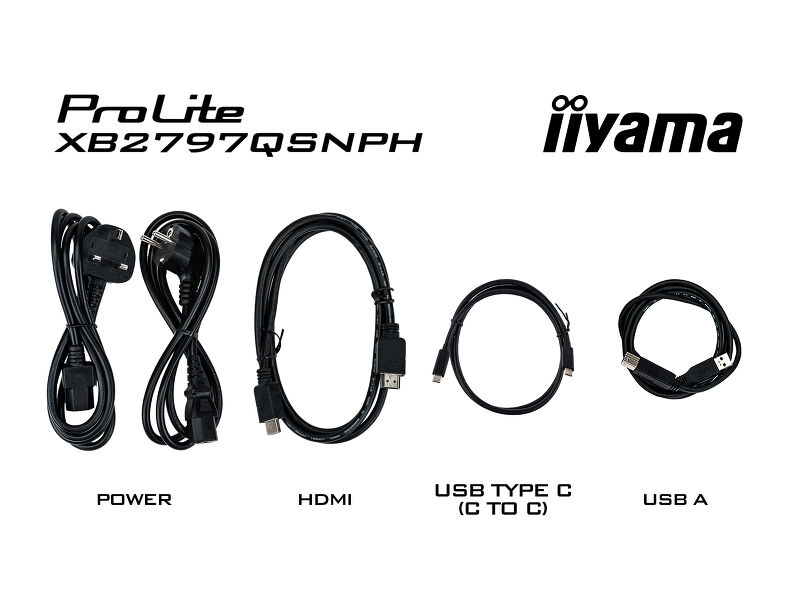
| Kablovi | Strujni kabl (1.5m), USB (1.5m), HDMI (1.5m), USB-C (1.0m) |
| Ostalo | kratko uputstvo, bezbednosni vodič |
UPRAVLJANJE NAPAJANJEM
| Napajanje | interna |
| Potrošnja energije | 21W default , 0.5W stand by, 0.3W iskljucen |
ODRŽIVOST
| Propisi | CE, TÜV-GS, EAC, PSE, RoHS podrška, ErP, WEEE, VCCI, REACH, UKCA, TCO Edge |
| Klasa energetske efikasnosti (Regulation (EU) 2017/1369) | E |
| REACH SVHC | iznad 0,1%: olovo, olovo monoksid, dibor trioksid |
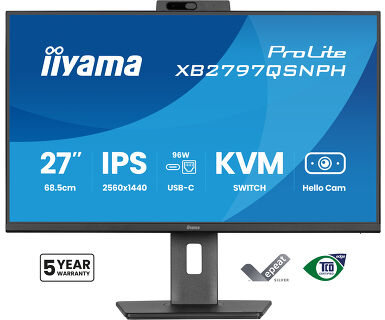
| Garancija | 5 godina (za detalje i zemlje koje ispunjavaju uslove potražite odeljak Garancija na našoj web stranici) |
DIMENZIJE / TEŽINA
| Dimenzije proizvoda Š x V x D | 613 x 415.5 (565.5) x 209.5mm |
| Dimenzije kutije Š x V x D | 691 x 447 x 142mm |
| Težina (bez kutije) | 6.0kg |
| Težina (sa kutijom) | 8.2kg |
| EAN kod | 4948570125975 |



Preuzimanja
| Uputstvo za upotrebu | XB2797QSNP(H)-usermanual-e.pdf | Preuzimanje |
| Specifikacija | ProLite XB2797QSNPH-B1 - sr_rs.pdf | Preuzimanje |
| Sheme | XB2797QSNPH-B1_Drawing.pdf | Preuzimanje |
| EU Energetska oznaka | XB2797QSNPH-B1 EU Energy Label (2611656).pdf | Preuzimanje |
| UK Energetska oznaka | XB2797QSNPH-B1 UK Energy Label (2611656).pdf | Preuzimanje |
| Guarantee label | XB2797QSNPH-B1.pdf | Preuzimanje |
Katalozi i Lifleti
| USB-C Dock White Paper | USB-C_Dock_White_Paper_12.2024.pdf | Preuzimanje |
Sustainability & Environmental Documents
| Carbon Footprint | XB2797QSNPH-B1.pdf | Preuzimanje |
FAQS
Why can't I set the native resolution with the maximum refresh rate on my monitor?
+If you are unable to set the native resolution with the maximum refresh rate on your monitor, try the following troubleshooting steps:
1. Ensure you are using a cable that supports both the native resolution and the desired refresh rate.
2. Visit the product page on our website and check technical specification tab - Interfaces / Connectors / Controls section to see what resolution and refresh rate are supported under the signal input you have seleced (e.g. HDMI signal input does not always support the maxium refresh rate, please check the DisplayPort connection instead).
3. Check the settings and specifications of your PC / graphics card to see if they support the desired resolution or refresh rate.
Why isn’t my notebook charging when connected to the USB-C input of my monitor in standby mode?
+To resolve the issue of your laptop not charging, please try the following steps:
1. Activate USB BC or disable USB standby mode in the monitor’s settings menu.
2. Update your PC’s BIOS/UEFI.
How can I recognize which iiyama monitor has a USB-C Dock and LAN support?
+iiyama monitors with USB-C Dock capabilities can be recognized by an "N" in their model names, such as HSN or QSN. For example, XUB****HSN. You can also visit our product selector page and use the available filters.
How to use the USB-C dock?
+To explore the features and benefits of a monitor with a USB-C dock, please watch the video below.
The DP-out currently mirrors the main monitor. How can I change it to extend the desktop instead?
+To extend the desktop via DP-out, enable the MST function in the screen settings. For detailed instructions, please refer to your user manual.
Is Adaptive Sync compatible with AMD FreeSync or NVIDIA G-Sync?
+Yes, Adaptive Sync is compatible with AMD FreeSync and NVIDIA G-Sync.
Why can't I select MBR when FreeSync/Adaptive Sync is activated?
+MBR cannot be selected when FreeSync/AdaptiveSync is activated, because MBR can interfere with the FreeSync/Adaptive Sync technology as they have different methods of improving motion clarity. MBR reduces motion blur (response time), while Adaptive Sync/FreeSync addresses stuttering. We recommend activating Adaptive Sync/FreeSync on systems with fluctuating or unstable frame rates. MBR performs best on powerful systems that maintain a consistently high frame rate.
Why is my monitor displaying a "No Signal" message?
+If your monitor is displaying a "No Signal" message, please check the following:
1. Ensure the cables are properly connected at both ends.
2. Select the correct signal input (HDMI/DP) or choose AUTO.
For guidance on selecting an input while the screen is in standby mode, please consult the user manual. On desktop monitors, common methods include pressing the INPUT, AUTO, or "2" buttons, or moving the joystick backward.
I have an Apple MAC-system, will my iiyama monitor work?
+Yes, your iiyama monitor will work with your Apple Mac system. However, it depends on the signal input how to connect. Since Apple Mac systems from 2020 onwards only have Thunderbolt 3 (USB-C) ports for video output, you have two options:
1. Connect directly to the USB-C signal input on your iiyama monitor.
2. In case your monitor only has HDMI or Displayport, you will need a Mac-compatible dongle that supports one of the video inputs available. Apple offers a USB-C Digital AV Multiport Adapter (MW5M3AM) that can be used for this purpose.
3. If your iiyama monitor has touchscreen capabilities, please refer to the user manual to verify touch functionality compatibility with your Mac system.
The picture on my monitor is flickering. What steps can I take to fix it?
+To resolve the issue of a blinking picture, please follow these steps:
1. Inspect the Signal Cable.
Ensure the signal cable is securely connected at both ends and free from any physical damage. Avoid any sharp bends or squishing of the cable.
2. Use a Shorter Cable.
If possible, use a cable shorter than 3 meters and connect the monitor directly to a wall power socket, avoiding the use of adapters.
3. Disable FreeSync/Adaptive Sync.
For desktop or gaming monitors, try disabling FreeSync or Adaptive Sync in the monitor's settings menu.
Opcioni dodaci