Bültenimize Abone Olun!
Keep up #withiiyama
Bültenimize başarıyla abone oldunuz.
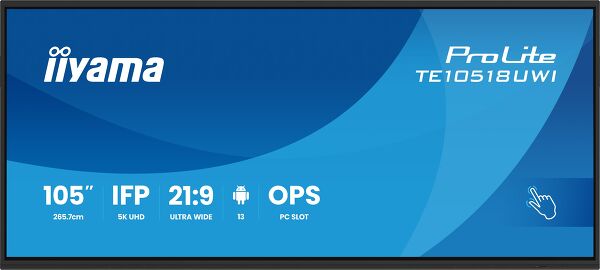
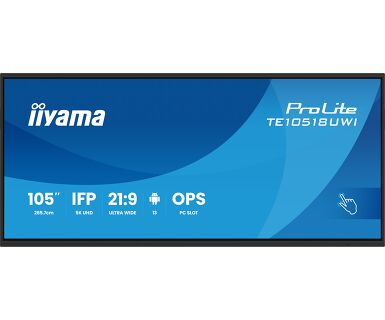
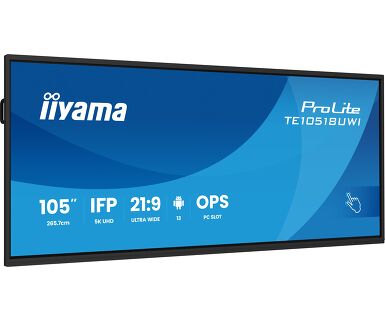
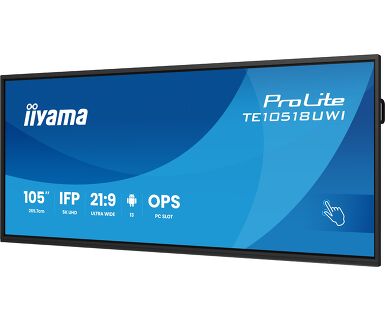
105 inç Ultra Geniş 5K UHD etkileşimli ekran, 21:9 panoramik görüntü ile
TE10518UWI-B1AG, işyerinizde işbirliği ve etkileşimi yeni bir seviyeye taşıyan devrim niteliğinde bir 105 inç 5K UHD Etkileşimli Dokunmatik Ekran. En son teknoloji ve etkileyici bir dizi özellik ve işlevselliğe sahip olan bu etkileşimli ekran, çalışma, iletişim kurma ve fikir paylaşma şeklinizi dönüştürmek üzere tasarlanmıştır. Yönetim kurulu odaları, sınıflar veya işbirliği odaları için olsun, bu 105 inç 21:9 Ultra Geniş etkileşimli dokunmatik ekran, yaratıcılığı, üretkenliği ve sorunsuz iletişimi teşvik etmek için en üstün araçtır.
Microsoft Teams Front Row’un tercih edilen entegrasyonu ile iş birliğinizi bir üst seviyeye taşıyın. Bu özellik, interaktif dokunmatik ekranınızı merkezi bir iletişim merkezi olarak kullanarak sanal toplantılara ve video konferanslara sorunsuz bir şekilde ev sahipliği yapmanızı veya katılmanızı sağlar.
iiyama'dan PureTouch-IR⁺, en yumuşak ve en hızlı etki için 1mm dokunma hassasiyeti sunar.
Delivers the latest in video, audio and Touch signal, all through one port and even charges your device with 100W power delivery.


| Ekran Boyutu | 104.6", 265.7cm |
| Diyagonal | 265.7cm |
| Panel | VA |
| Touch Glass | AG kaplamalı cam, zero bonding |
| Çözünürlük | 5120 x 2160 (14.75 megapixel, 5K UHD) |
| En-Boy Oranı | 21:9 |
| Panel Parlaklığı | 450 cd/m² |
| Işık geçirgenliği | 92% |
| Statik Kontrast | 4000:1 |
| Dinamik kontrast | 5000:1 |
| Tepki süresi (GTG) | 6.5ms |
| Görüntüleme Alanı | yatay/dikey: 178°/178°, sağ/sol: 89°/89°, yukarı/aşağı: 89°/89° |
| Renk desteği | (NTSC 90%) |
| Yatay Sync | 30 - 135kHz |
| Görüntülenebilir alan G x Y | 2450 x 1033.6mm, 96.5 x 40.7" |
| Piksel Aralığı | 0.479mm |
| Dokunmatik teknoloji | PureTouch-IR⁺ |
| Dokunmatik Nokta Sayısı | 40, 32pt writing (HID, yalnızca desteklenen işletim sistemiyle) |
| Dokunma doğruluğu | +- 1mm |
| Desteklenen işletim sistemleri | Tüm iiyama monitörleri Tak ve Çalıştır özelliğine sahiptir ve Windows ve Linux ile uyumludur. Dokunmatik modeller için desteklenen işletim sistemiyle ilgili ayrıntılar için lütfen indirmeler bölümünde bulunan sürücü talimat dosyasına bakın. |
| Palm rejection | Evet |
| Dijital sinyal girişi |
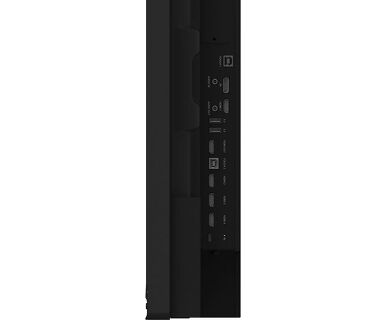
HDMI x4 (1x 2.1, max. 5120x2160 @60Hz; 3x 2.0, max. 3840x2160 @60Hz, YUV444) DisplayPort x1 (1.4, max. 5120x2160 @60Hz) USB-C x2 (3.2 Gen 1, 3840x2160 @60Hz, DP Alt mode 1.2, Touch, front: 15W PD, back: 100W PD) |
| Ses girişi | Mini jack x1 |
| Monitör kontrol girişi | RS-232c x1 |
| Dijital sinyal çıkışı |
HDMI x1 (3840x2160 @60Hz, YUV/RGB444) USB-C x1 (3.2 Gen 1, 3840x2160 @60Hz (DP 1.2 Alt mode, Touch, 5W PD, MSD (Multi-Screen Display)) |
| Ses çıkışı |
S/PDIF (Optik) x1 Mini jack x1 Hoparlör 2 x 16W (Front + 16W Subwoofer) |
| HDCP | HDMI, DP & USB-C: 2.3 |
| USB Portları | x8 (medya oynatma / çevre birimleri / depolama – front: 2x 3.2 (Gen 1, 5Gbit), 1x USB-C 3.2 (Gen 1, 15W PD), back side: 2x 3.2 (Gen 1, 5Gbit), 1x USB-C 3.2 (Gen 1, 100W PD), top side: 2x 3.2 (Gen 1, 5Gbit)) |
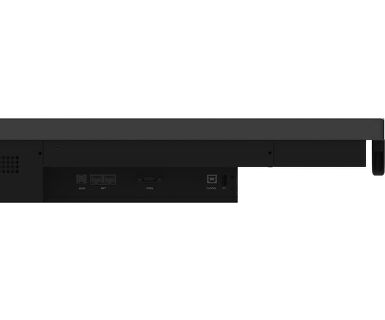
| RJ45 (LAN) | x2 (PC ve Android için otomatik geçiş, 1000MB) |
| Mikrofon | 8-Array (8m voice pick-up, Front facing) |
| Dahili OS | iiWare 11 (Android 13 OS) featuring iiyama DMS, iiyama OS, iiyama Class, Note, web browser, file manager, cloud drives, WPS office, iiyama Share and EShare for wireless connection with Windows/iOS/Android devices |
| WiFi | (WiFi 6 Modülü OWM002 - Çift WiFi Bant Genişliği: 2,4 GHz/5 GHz, WiFi Standardı: IIEEE 802.11 a/b/g/n/ac/ax, Bluetooth Desteği: 2.1+EDR/ 3.0/ 4.x/ 5.0) |
| NFC/RFID | CPU: A311D2, A76*4+A55*4(2.4GHz), GPU: Mali G610, RAM: 8GB, ROM: 64GB |
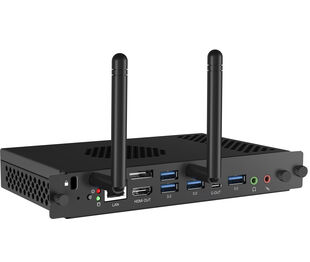
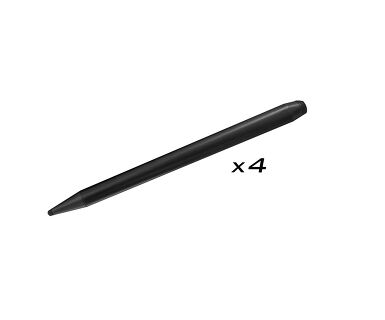
| Ekstra | WiFi 6 Modülü (OWM002), isteğe bağlı OPS Yuvası PC için yuva, 4x Dokunmatik kalem |
| Kiosk Modu | evet |
| Anti görüntü koruma | evet |
| Media playback | evet |
| Cam Kalınlığı | 3mm |
| Cam Sertliği | 7H |
| OSD tuş kilidi | evet |
| OSD dilleri | , , , , , , , , , CAT, SV, FI, DA, NB |
| Kontrol Düğmeleri | Power, Power Indicator, Remote Sensor, Ambient Light Sensor, USB-C Connector (3.2), USB Connector (3.2), Microphone Indicator |
| Kullanıcı kontrolleri | common settings (input, volume, backlight), audio settings (volume, bass, treble, balance, sound mode, mute), screen settings (pixel shift, eye care, auto light, ECO, ECR, auto colour temp.), display settings (brightness, contrast, hue, sharpness, display mode, colour temp.), settings (wireless & networks, personal, input & output, application, system) |
| Mavi ışık azaltıcı | evet |
| Garanti | 5 years (for details and eligible countries please check the Warranty section of our website) |
| Fansız tasarım | evet |
| VESA montajı | 1000 x 400mm |
| Çalışma sıcaklığı aralığı | 0°C - 40°C |
| Depolama sıcaklığı aralığı | - 20°C - 60°C |
| MTBF | 50.000 saat (arka ışık hariç) |
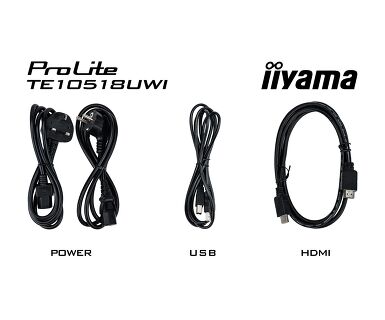
| Kablolar | güç, USB, HDMI |
| Dokunmatik kalem | x4 (Çift işlevli kalem, Anti-Bakteriyel) |
| Güç Kaynağı | AC 100 - 240V, 50/60Hz |
| Güç Tüketimi | 282W tipik, 0.5W stand by, 0.3W off mode |
| Yönetmelikler | , , , , , , , (RoHS) |
| Ürün boyutları G x Y x D | 2507.2 x 1130.1 x 103mm |
| Kutu boyutları G x Y x D | 2668 x 1305 x 280mm |
| Ağırlık (kutu hariç) | 91.4kg |
| Ağırlık (kutu ile birlikte) | 119.5kg |
| EAN kodu | 4948570122011 |
If you are unable to set the native resolution with the maximum refresh rate on your monitor, try the following troubleshooting steps:
1. Ensure you are using a cable that supports both the native resolution and the desired refresh rate.
2. Visit the product page on our website and check technical specification tab - Interfaces / Connectors / Controls section to see what resolution and refresh rate are supported under the signal input you have seleced (e.g. HDMI signal input does not always support the maxium refresh rate, please check the DisplayPort connection instead).
3. Check the settings and specifications of your PC / graphics card to see if they support the desired resolution or refresh rate.
No, you cannot install apps on your iiyama monitor through the official Google Play Store. However, you do have the option to sideload applications onto your display.
Please visit the iiyama signup webpage and enter the model name or serial number of your iiyama screen. You will be directed to all available software applications for your product, along with instructions on how to activate them.
All iiyama LFDs and IFP displays can be used in portrait mode, except for products with item names starting with TE or LE, which can only operate in landscape mode. Always follow the installation instructions provided with the monitor and the guidelines in the User Manual.
If you wish to change the settings on your monitor remotely, please refer to the RS232/LAN protocol document available in the DOWNLOAD section on the product page.
The commands can be sent to the screen with a terminal app, for example Hercules SETUP utility. For more information, please refer to the RS232/LAN protocol document available in the DOWNLOAD section on the product page.
Dokunmatik işleviniz çalışmıyorsa lütfen aşağıdakileri kontrol edin:
1. Bilgisayarınızın monitöre verilen USB kablosuyla bağlı olduğundan emin olun.
2. Kullanıcı kılavuzunda işletim sisteminizin ekran tarafından desteklendiğini doğrulayın.
When cleaning, please follow these guidelines to avoid damaging your Touch monitor:
1. Avoid using paper towels, abrasive cloths, or any harsh cleaning agents, as they can scratch the screen or damage the touch sensors.
2. Do not spray the cleaning solution directly onto the screen to prevent liquid from seeping into the monitor.
3. Avoid excessive cleaning, as it can wear out the screen over time.
4. For more details, please check our dedicated Cleaning page.
Monitörünüz "Sinyal Yok" mesajını görüntülüyorsa lütfen aşağıdakileri kontrol edin:
1. Kabloların her iki uçta da düzgün şekilde bağlandığından emin olun.
2. Doğru sinyal girişini (HDMI/DP) seçin veya AUTO'yu seçin.
Ekran bekleme modundayken bir giriş seçme konusunda rehberlik için lütfen kullanıcı kılavuzuna bakın. Masaüstü monitörlerde, yaygın yöntemler arasında INPUT, AUTO veya "2" düğmelerine basmak veya joystick'i geriye doğru hareket ettirmek yer alır.
Evet, iiyama monitörünüz Apple Mac sisteminizle çalışacaktır. Ancak, nasıl bağlanacağınız sinyal girişine bağlıdır. 2020'den itibaren Apple Mac sistemleri yalnızca video çıkışı için Thunderbolt 3 (USB-C) bağlantı noktalarına sahip olduğundan, iki seçeneğiniz vardır:
1. Doğrudan iiyama monitörünüzdeki USB-C sinyal girişine bağlayın.
2. Monitörünüzde yalnızca HDMI veya Displayport varsa, mevcut video girişlerinden birini destekleyen Mac uyumlu bir dongle'a ihtiyacınız olacaktır. Apple, bu amaçla kullanılabilen bir USB-C Dijital AV Çoklu Bağlantı Noktası Adaptörü (MW5M3AM) sunar.
3. iiyama monitörünüzde dokunmatik ekran yetenekleri varsa, Mac sisteminizle dokunmatik işlevselliğinin uyumluluğunu doğrulamak için lütfen kullanıcı kılavuzuna bakın.
To resolve the issue of a blinking picture, please follow these steps:
1. Inspect the Signal Cable.
Ensure the signal cable is securely connected at both ends and free from any physical damage. Avoid any sharp bends or squishing of the cable.
2. Use a Shorter Cable.
If possible, use a cable shorter than 3 meters and connect the monitor directly to a wall power socket, avoiding the use of adapters.
3. Disable FreeSync/Adaptive Sync.
For desktop or gaming monitors, try disabling FreeSync or Adaptive Sync in the monitor's settings menu.