Subscribe to our newsletter
Keep up #withiiyama
You have successfully subscribed to our newsletter.

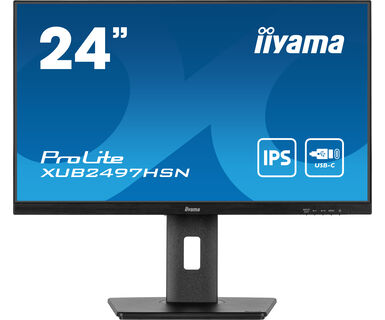
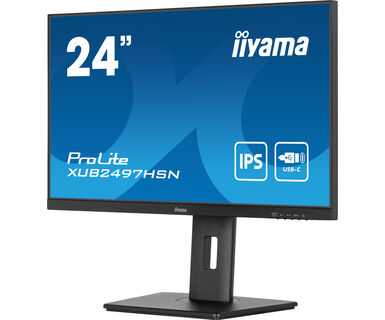
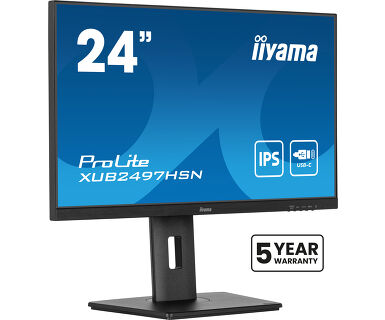
24" IPS technology panel with USB-C dock and RJ45 (LAN)
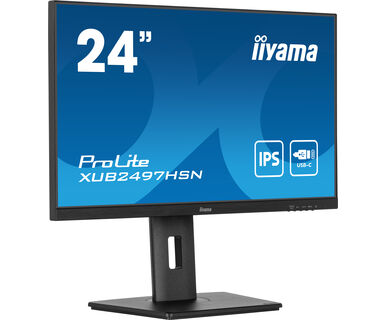
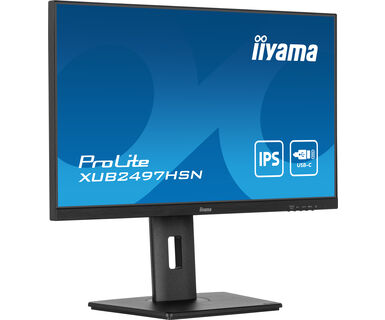
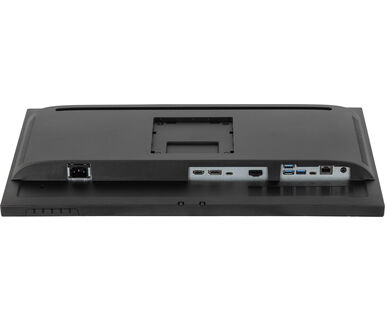
Equipped with a USB-C dock connector, the XUB2497HSN allows you to simplify your workspace by using a single cable to both send signal from your notebook to your monitor and power and charge the notebook from the monitor. Additionally, if your monitor is connected to the Internet with a LAN cable, your notebook will automatically be connected to the network as well. Thanks to a DisplayPort output you can easily extend your desktop by creating a double-monitor set-up. Supplied with a 150mm height-adjustable stand featuring pivot and swivel functions, the XUB2497HSN allows you to easily adjust the screen position to your preferences.
Available also without USB-C dock: XUB2497HSU-B1.
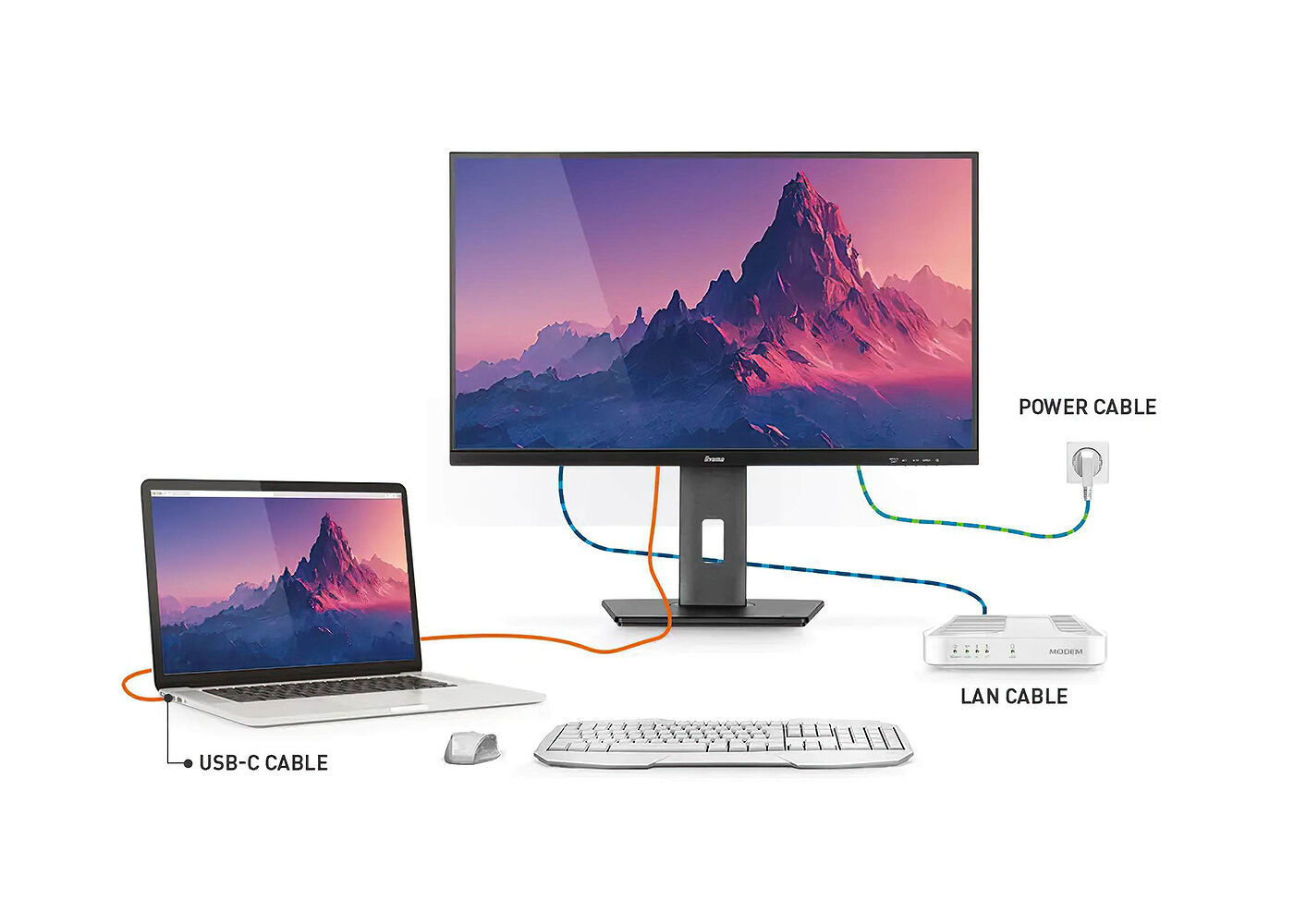
The dock allows you to connect your laptop with a single cable to the monitor to both make sure it is charged and connected to a wired network and signal from the laptop is sent to the monitor. A second monitor can be connected to the DisplayPort (MST) output to create a multi-monitor set-up. With additional USB-ports, your mouse, keyboard or webcam can also be connected to the monitor. All thanks to a single cable connecting your laptop* to the USB C dock in the monitor.
*Functions vary depending on your laptop USB-C support.
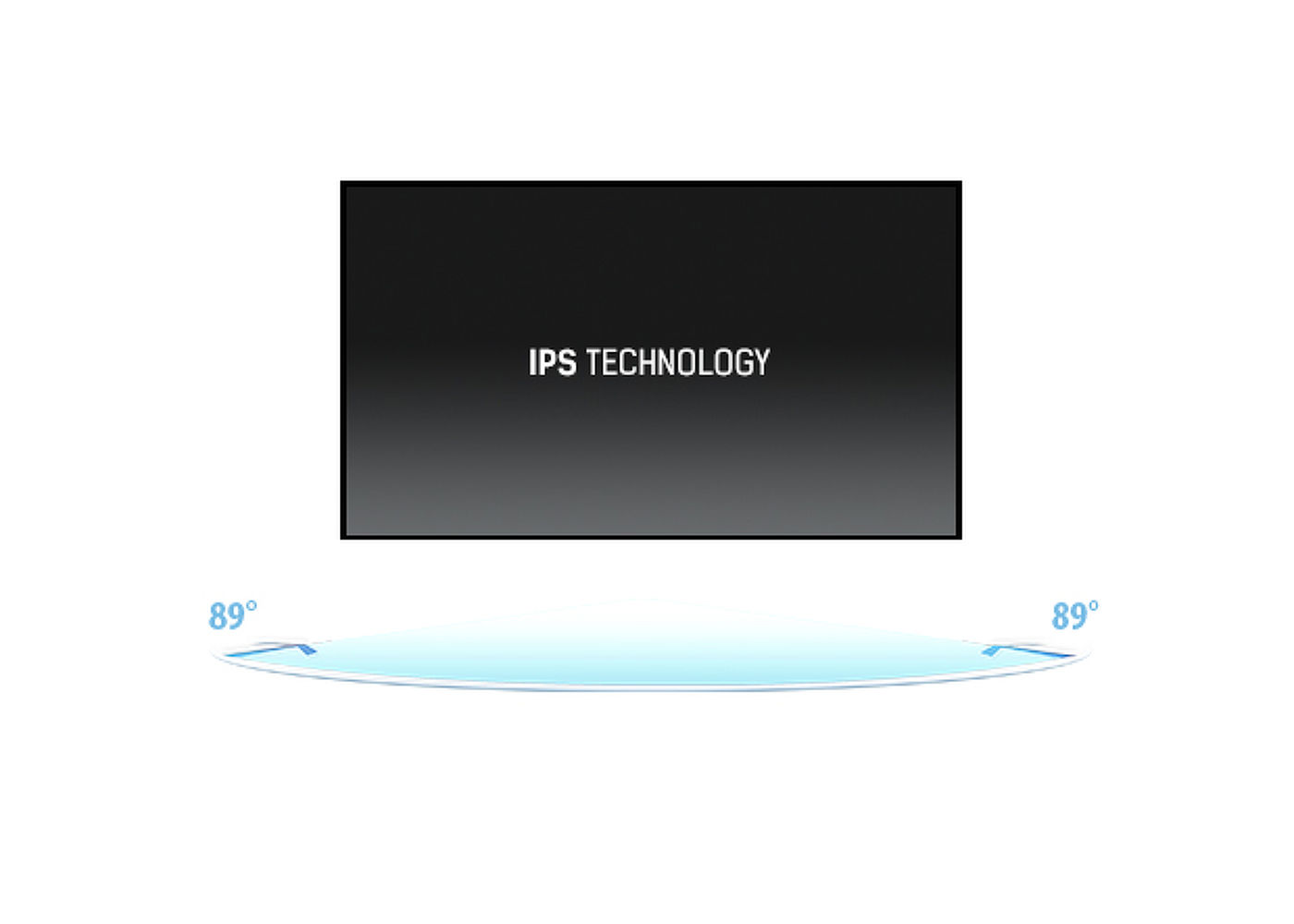
IPS technology offers higher contrast, darker blacks and much better viewing angles than standard TN technology. The screen will look good no matter what angle you look at it.
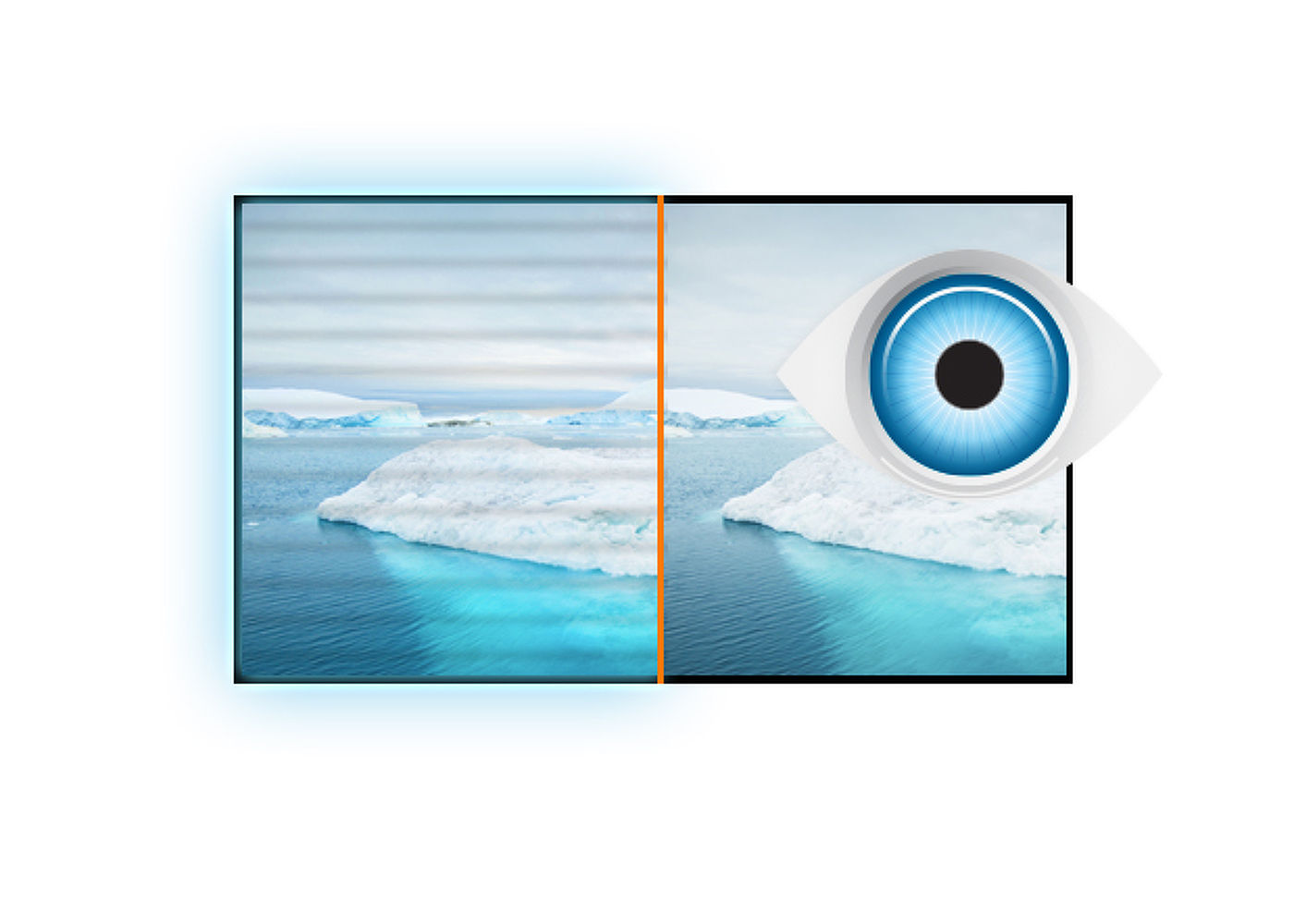
The ultimate solution for the comfort and health of your eyes. Flicker-free monitors with the blue light reducer function substantially reduce the strain and fatigue caused by flickering and blue light emittance of regular monitors.
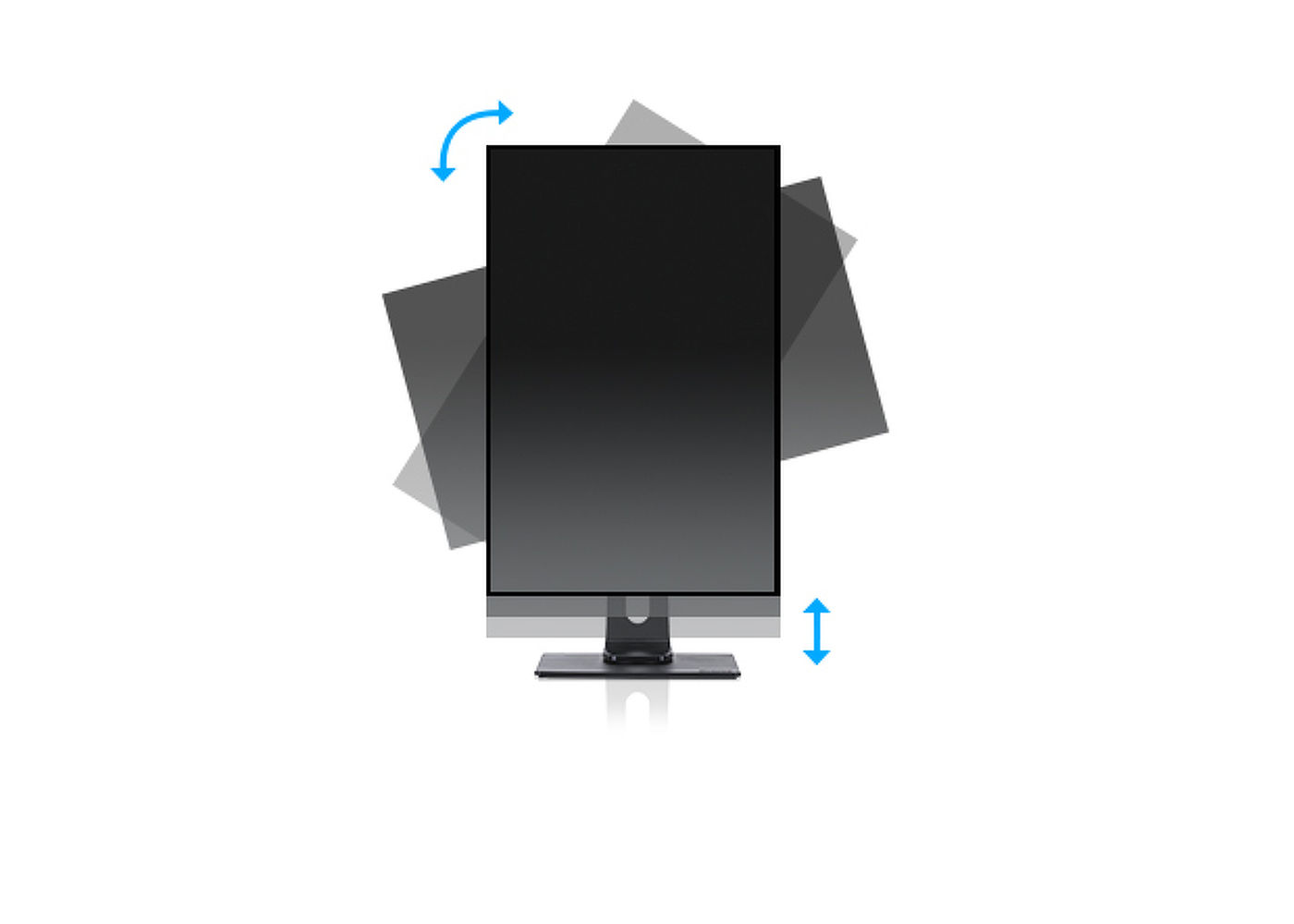
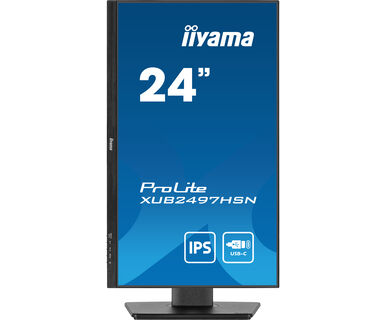
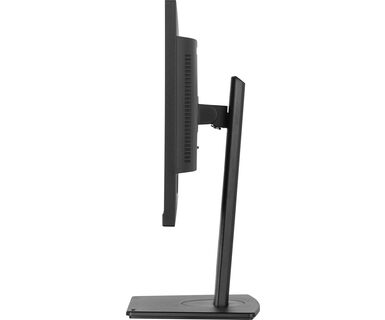
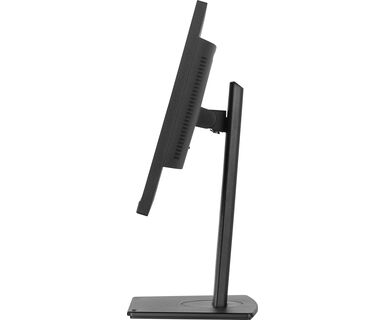
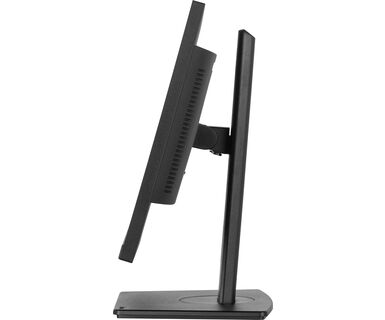
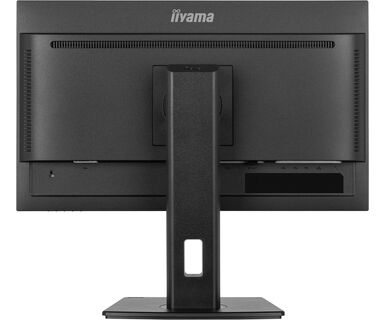
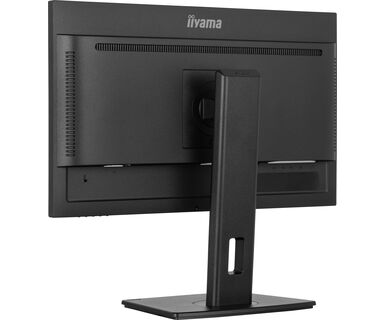
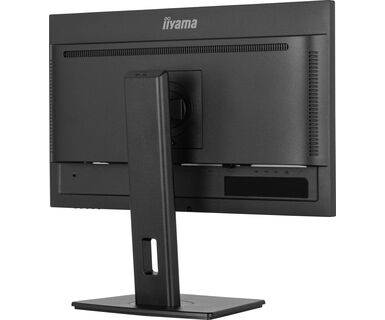
With a height adjustable stand you will create an ergonomic work posture and position that meets all health and safety requirements. This will not only prevent any health issues but will also increase your productivity. The pivot function allows the screen to rotate from landscape to portrait orientation. This functionality can be useful if the application requires more height than width.
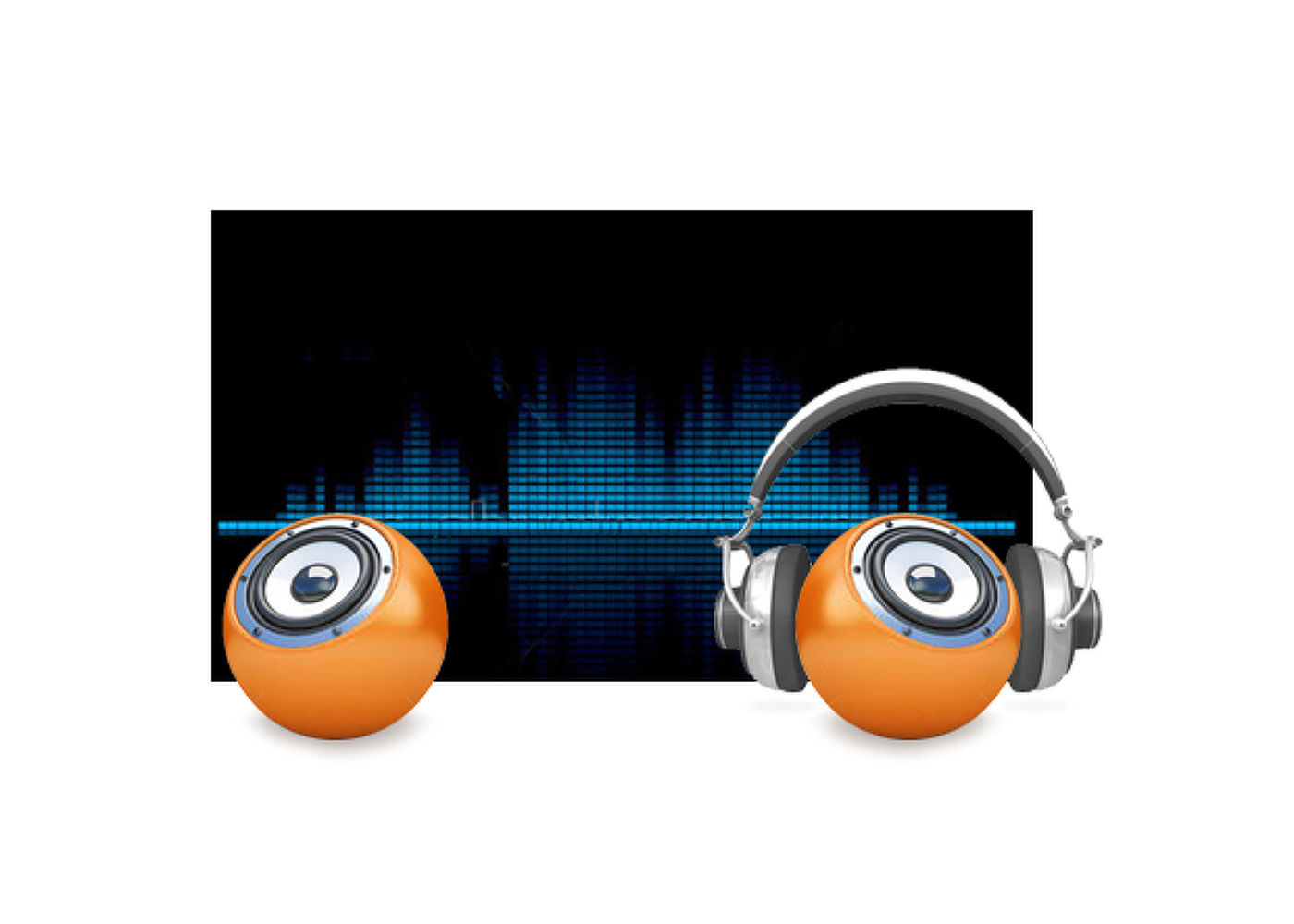
Playing with friends? Use the integrated high-quality speakers. Don’t want to disturb anybody? Plug your headset into the headphone socket and turn the volume up.




| Design | 3-side borderless |
| Diagonal | 23.8", 60.5cm |
| Panel | IPS Panel Technology LED, matte finish |
| Native resolution | 1920 x 1080 @100Hz (2.1 megapixel Full HD) |
| Aspect ratio | 16:9 |
| Panel brightness | 250 cd/m² |
| Static contrast | 1300:1 |
| Advanced contrast | 80M:1 |
| Response time (MPRT) | 1ms |
| Viewing zone | horizontal/vertical: 178°/ 178°, right/left: 89°/89°, up/down: 89°/89° |
| Colour support | 16.7mln (sRGB: 99%; NTSC: 72%) |
| Horizontal Sync | 30 - 110kHz |
| Viewable area W x H | 527 x 296.5mm, 20.7 x 11.7" |
| Pixel pitch | 0.275mm |
| Colour | matte, black |
| Signal input |
HDMI x1 (v.1.4) DisplayPort x1 (v.1.2) USB-C x1 (PD 65W) |
| Signal output | DisplayPort x1 (Daisy Chain MST max. 1920 x 1080) |
| USB HUB | x4 ((3x v.3.2 Gen 1 (5Gbps, 4.5W) 1x Type C (5Gbps, 7.5W)) |
| USB-C DOCK | x1 (Power delivery 65W, LAN, DP out, USB v.3.2 (Gen 1, 5Gbit)) |
| HDCP | yes |
| Headphone connector | yes |
| RJ45 (LAN) | x1 |
| Blue light reducer | yes |
| Flicker free | yes |
| Adaptive Sync support | yes |
| Extra | i-Style colour |
| OSD languages | EN, DE, FR, ES, IT, RU, JP, CZ, NL, PL |
| Control buttons | Power, Menu, Up / Right / Volume, Down /Left / Shortcut, Input / Exit |
| User controls | picture adjust (brightness, contrast, Eco, ACR, OD, MBR, Adaptive Sync), colour settings (i-Style colour, blue light reducer, colour temp., user preset), OSD (OSD H. position, OSD V. position, OSD rotate, OSD time), language, recall, miscellanous 1 (sharp and soft, video mode adjust, opening logo, RGB range), miscellaneous 2 (USB BC, MST, USB, LED, display information, MAC address), input select, audio settings (volume, mute) |
| Speakers | 2 x 2W |
| Convenience | Kensington-lock™ prepared, DDC/CI, DDC2B, Mac OSX |
| Display position adjustments | height, swivel, tilt, pivot (rotation both sides) |
| Height adjustment | 150mm |
| Rotation (PIVOT function) | 90° |
| Swivel stand | 90°; 45 ° left; 45° right |
| Tilt angle | 23° up; 5° down |
| VESA mounting | 100 x 100mm |
| Cable management system | yes |
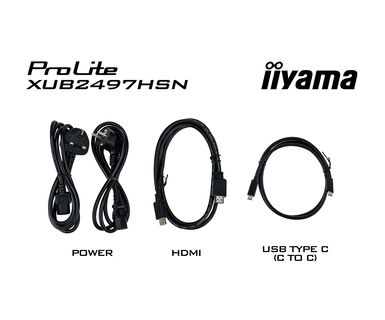
| Cables | power, HDMI, USB-C |
| Other | quick start guide, safety guide |
| Power supply unit | internal |
| Power supply | AC 100 - 240V, 50/60Hz |
| Power usage | 18W typical, 0.5W stand by, 03W off mode |
| Regulations | TCO Certified, CE, TÜV-Bauart, EAC, VCCI-B, PSE, RoHS support, ErP, WEEE, REACH, UKCA |
| Energy efficiency class (Regulation (EU) 2017/1369) | E |
| REACH SVHC | above 0.1%: Lead |
| Warranty | 5 years (for details and eligible countries please check the Warranty section of our website) |
| Product dimensions W x H x D | 538.5 x 350 (500) x 209.5mm |
| Box dimensions W x H x D | 685 x 405 x 126mm |
| Weight (without box) | 5.3kg |
| Weight (with box) | 7.4kg |
| EAN code | 4948570123209 |
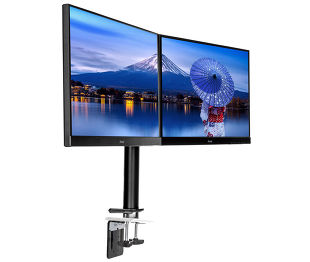

To resolve the issue of your laptop not charging, please try the following steps:
1. Activate USB BC or disable USB standby mode in the monitor’s settings menu.
2. Update your PC’s BIOS/UEFI.
iiyama monitors with USB-C Dock capabilities can be recognized by an "N" in their model names, such as HSN or QSN. For example, XUB****HSN. You can also visit our product selector page and use the available filters.
To explore the features and benefits of a monitor with a USB-C dock, please watch the video below.
To extend the desktop via DP-out, enable the MST function in the screen settings. For detailed instructions, please refer to your user manual.
Yes, Adaptive Sync is compatible with AMD FreeSync and NVIDIA G-Sync.
MBR cannot be selected when FreeSync/AdaptiveSync is activated, because MBR can interfere with the FreeSync/Adaptive Sync technology as they have different methods of improving motion clarity. MBR reduces motion blur (response time), while Adaptive Sync/FreeSync addresses stuttering. We recommend activating Adaptive Sync/FreeSync on systems with fluctuating or unstable frame rates. MBR performs best on powerful systems that maintain a consistently high frame rate.
If your monitor is displaying a "No Signal" message, please check the following:
1. Ensure the cables are properly connected at both ends.
2. Select the correct signal input (HDMI/DP) or choose AUTO.
For guidance on selecting an input while the screen is in standby mode, please consult the user manual. On desktop monitors, common methods include pressing the INPUT, AUTO, or "2" buttons, or moving the joystick backward.
Yes, your iiyama monitor will work with your Apple Mac system. However, it depends on the signal input how to connect. Since Apple Mac systems from 2020 onwards only have Thunderbolt 3 (USB-C) ports for video output, you have two options:
1. Connect directly to the USB-C signal input on your iiyama monitor.
2. In case your monitor only has HDMI or Displayport, you will need a Mac-compatible dongle that supports one of the video inputs available. Apple offers a USB-C Digital AV Multiport Adapter (MW5M3AM) that can be used for this purpose.
To resolve the issue of a blinking picture, please follow these steps:
1. Inspect the Signal Cable.
Ensure the signal cable is securely connected at both ends and free from any physical damage. Avoid any sharp bends or squishing of the cable.
2. Use a Shorter Cable.
If possible, use a cable shorter than 3 meters and connect the monitor directly to a wall power socket, avoiding the use of adapters.
3. Disable FreeSync/Adaptive Sync.
For desktop or gaming monitors, try disabling FreeSync or Adaptive Sync in the monitor's settings menu.