Subscribe to our newsletter
Keep up #withiiyama
You have successfully subscribed to our newsletter.
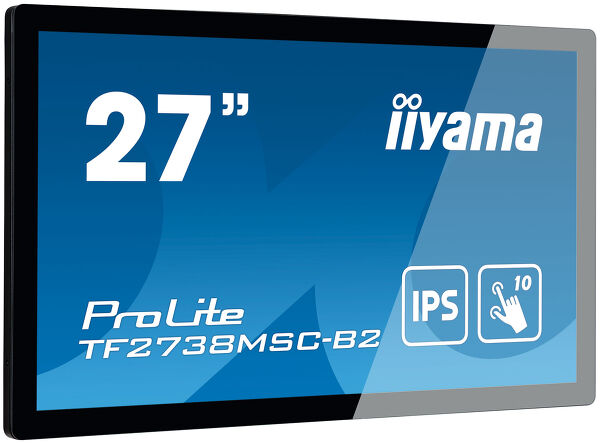
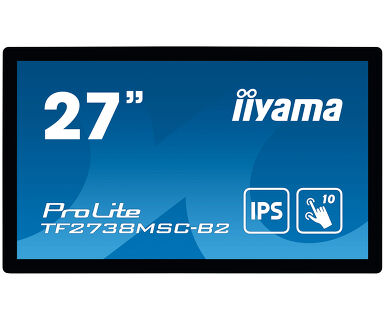
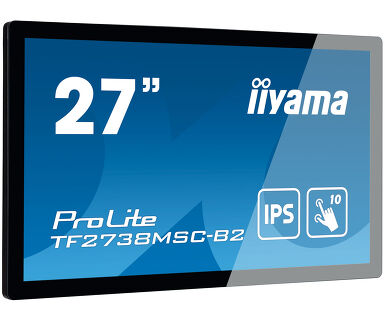
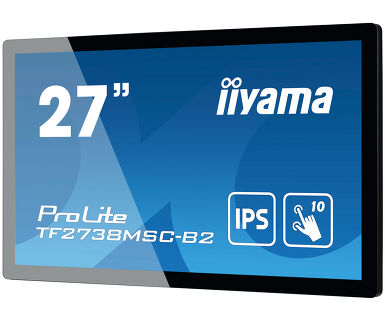
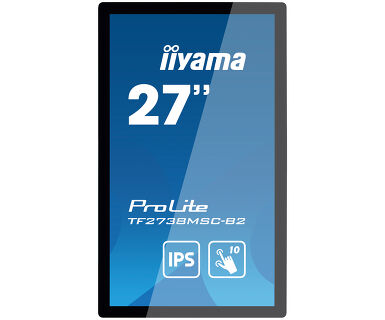
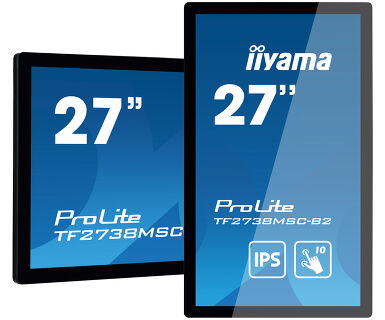
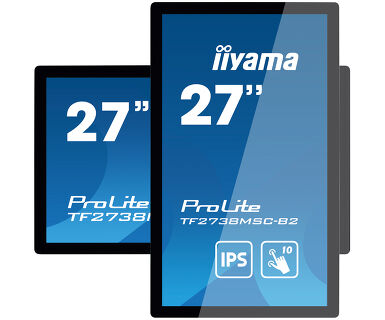
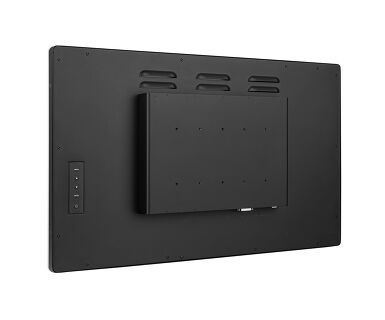
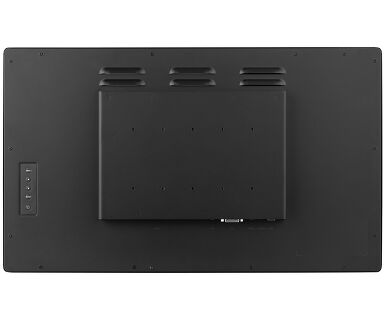
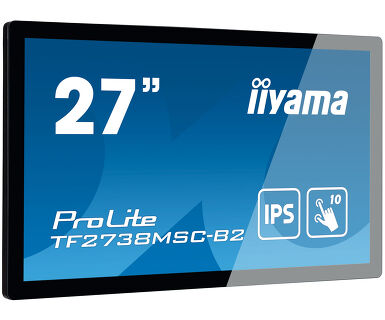
27” 10pt open frame touch monitor with edge-to-edge glass
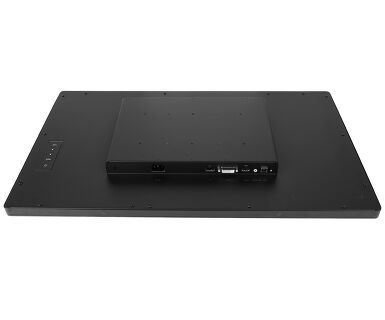
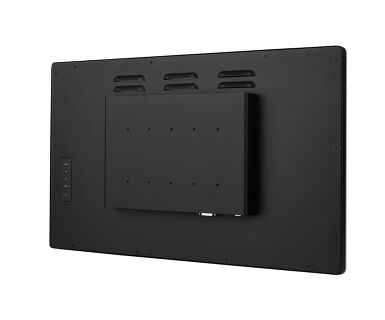
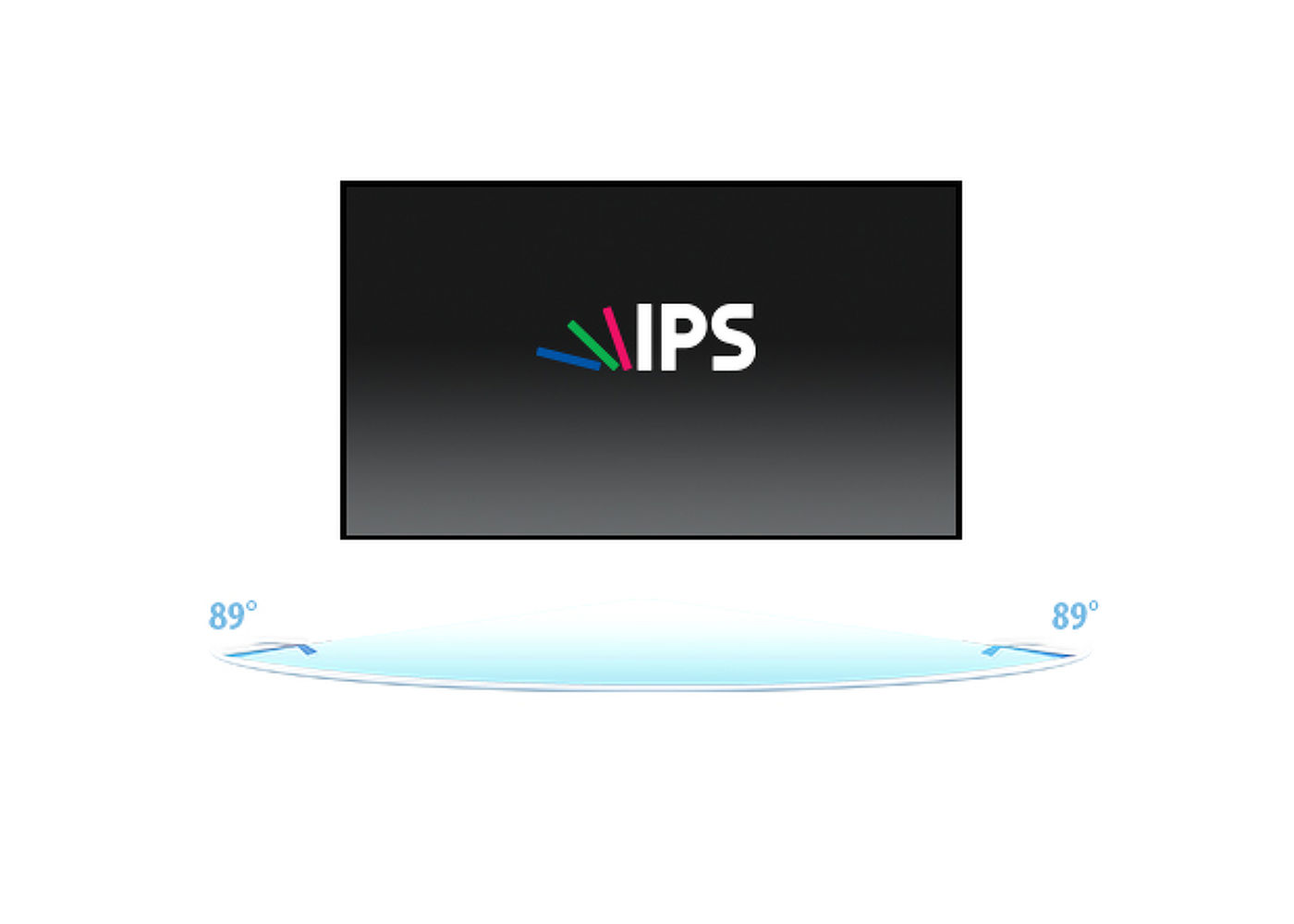
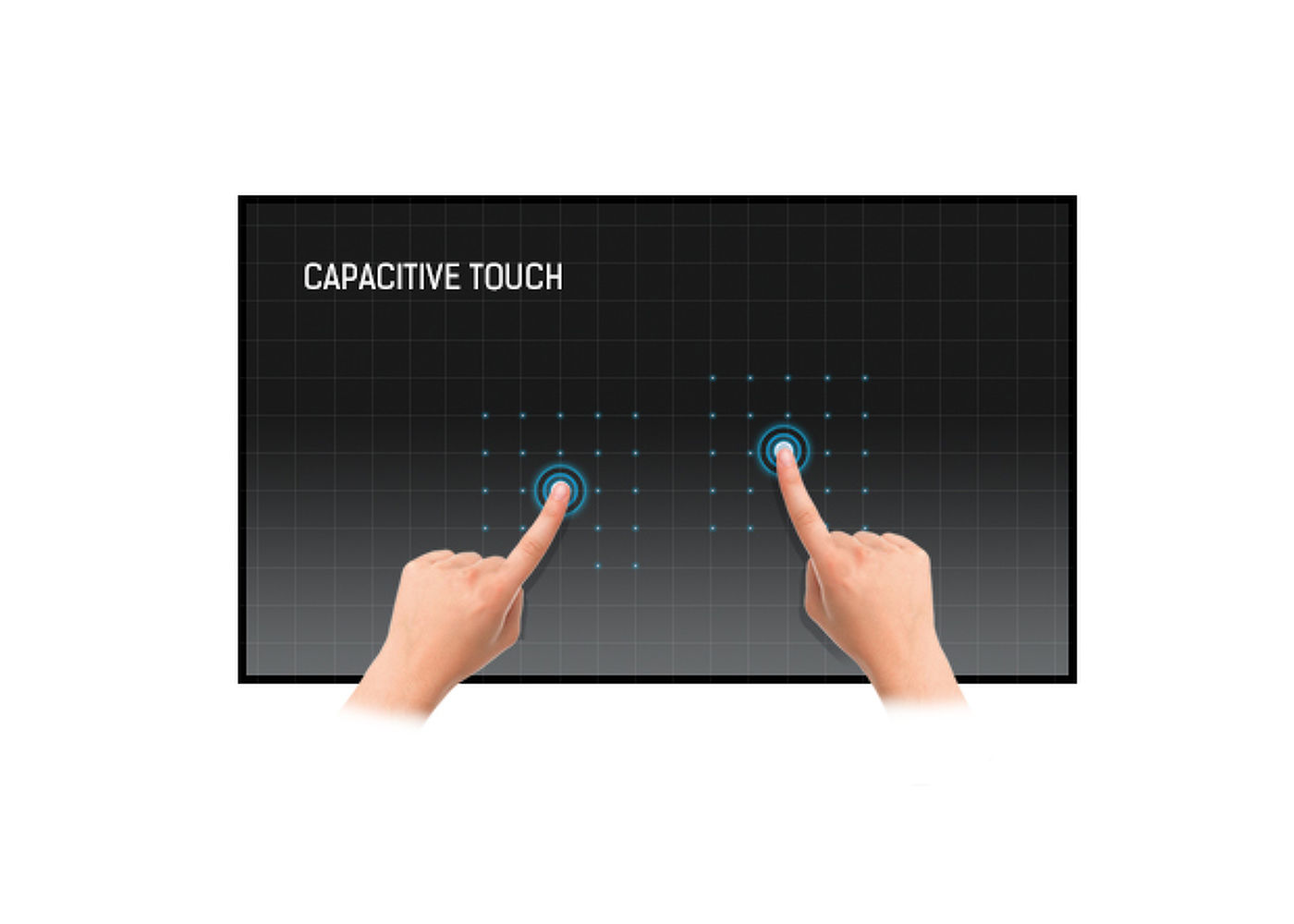
With 1920x1080 Full HD resolution and Projective Capacitive 10 point touch technology, the ProLite TF2738MSC-B2 delivers seamless and accurate touch response. Featuring IPS LED LCD Screen technology, it offers exceptional colour performance and wide viewing angles. Its rugged bezel with edge-to-edge glass makes it very suitable for applications like table top integration. In addition, the screen comes with an IPX1 rating, making it water resistant from the front. Equipped with speakers and triple digital input (DVI, HDMI and DisplayPort). The ProLite TF2738MSC-B2 is an ideal screen for kiosk integrators and a perfect solution for Interactive Digital Signage, Instore Retail, Gaming and Interactive Presentations.
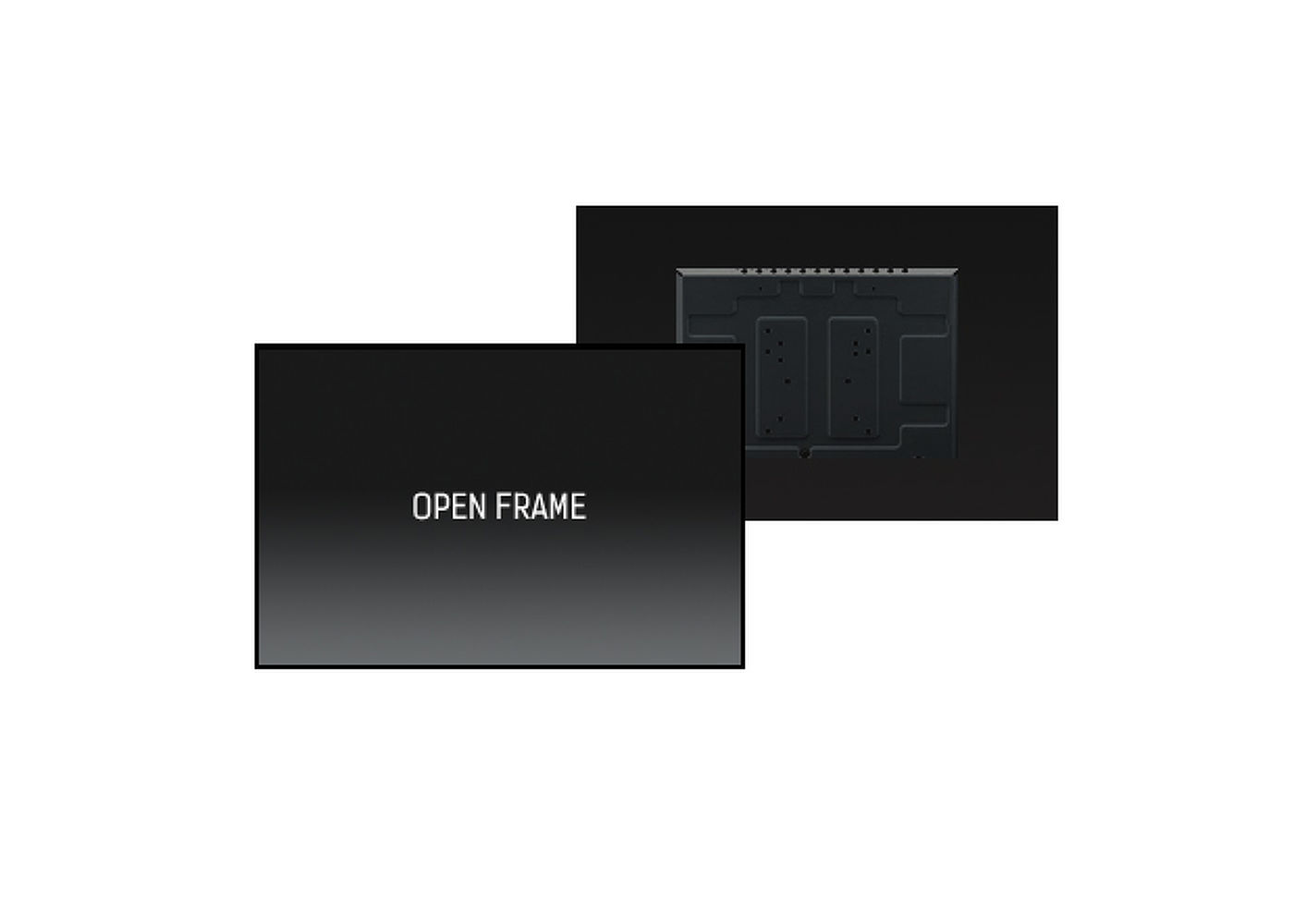



| Dizájn | Open Frame |
| Átló | 27", 68.6cm |
| Panel | IPS LED |
| Natív felbontás | 1920 x 1080 (2.1 megapixel Full HD) |
| Képarány | 16:9 |
| Fényerő | 500 cd/m² |
| Fényerősség | 425 cd/m² érintéssel |
| Fényáteresztés | 85% |
| Statikus kontraszt | 1000:1 |
| Speciális kontraszt | 12M:1 |
| Válaszidő (GTG) | 5ms |
| Látótér | horizontális/vertikális: 178°/178°, jobb/bal: 89°/89°, fel/le: 89°/89° |
| Szín támogatás | 16.7mln |
| Horizontális szinkronizálás | 30 - 80kHz |
| Látható terület Sz x M | 597.6 x 336.2mm, 23.5 x 13.2" |
| Káva szélessége (oldal, felső, alsó) | 24.5mm, 24mm, 24mm |
| Pixel magasság | 0.311mm |
| Káva színe és felülete | fekete, matt |
| Éríntőképernyős technológia | projektív kapacitív |
| Érintőpontok | 10 (HID, only with supported OS) |
| Érintési mód | ceruza, újj, kesztyű (latex) |
| Érintőképernyő interfész | USB |
| Támogatott operációs rendszerek | All iiyama monitors are Plug & Play and compatible with Windows and Linux. For details regarding the supported OS for the touch models, please refer to the driver instruction file available in the downloads section. |
| Digitális jelbemenet |
DVI x1 HDMI x1 DisplayPort x1 |
| Audio kimenet | Hangszórók 2 x 3W |
| HDCP | igen |
| Max. non-stop üzemidő | 16/7 |
| Üveg vastagsága | 3.6mm |
| Üveg keménysége | 6H |
| 60950 Ball drop teszt | igen |
| Víz- és porvédelem | IP1X (elől) |
| OSD billentyűzár | igen |
| Képernyőn megjelenő nyelvek | EN, DE, FR, CN, RU, JP, NL, PL |
| Vezérlőgombok | Menu, Scroll up/ Audio, Scroll down/ i-Style colour, Select/ Input select, Power |
| Felhasználói vezérlők | picture adjust (contrast, brightness, adv. contrast, ECO mode, OD) input select, audio adjust (volume, mute, audio input) colour adjust (cool, normal, warm, user colour, i-Style colour), information, manual image adjust (sharpness, video mode adjust, blue light reducer, X-res technology), setup menu (language select, OSD position, OSD time out, OSD background, opening logo, LED) memory recall |
| Kékfény csökkentés | igen |
| Plug&Play | DDC2B |
| Tájolás | tájkép, portré, oldalával felfelé |
| Ventilátor nélküli kialakítás | igen |
| VESA állvány | 100 x 100mm, 200 x 100mm |
| Kábelek | áramellátás, USB, HDMI, mDP-DP, DP |
| Útmutatók | gyors üzembe helyezési útmutató, biztonsági útmutató |
| Kábel takaró | igen |
| Tápegység | belső |
| Áramellátás | AC AC - 100V, 240/V, 50Hz |
| Energiafogyasztás | 25W jellemző, 1.5W készenlét, 0.3W kikapcsolva |
| Áramfogyasztás | 1.5W készenlét |
| Előírások | CE, TÜV-Bauart, EAC, RoHS támogatás, ErP, WEEE, HATÓTÁVOLSÁG, UKCA |
| Energiahatékonysági osztály ((EU) 2017/1369 rendelet) | F |
| REACH SVHC | 0,1% felett: Vezet |
| Termék méretei Sz x H x M | 648.5 x 386.5 x 52mm |
| Doboz mértei Sz x H x M | 746 x 500 x 123mm |
| Raklap térfogata | 36db |
| Raklap méretei Sz x H x M | 747 x 1107 x 2005mm |
| Súly (doboz nélkül) | 8.3kg |
| Súly (dobozzal) | 9.4kg |
| EAN kód | 4948570118199 |

If your touch functionality is not working, please check the following:
1. Ensure your PC is connected to the monitor with the supplied USB cable.
2. Verify in the user manual that your operating system is supported by the screen.
When cleaning, please follow these guidelines to avoid damaging your Touch monitor:
1. Avoid using paper towels, abrasive cloths, or any harsh cleaning agents, as they can scratch the screen or damage the touch sensors.
2. Do not spray the cleaning solution directly onto the screen to prevent liquid from seeping into the monitor.
3. Avoid excessive cleaning, as it can wear out the screen over time.
4. For more details, please check our dedicated Cleaning page.
If your monitor is displaying a "No Signal" message, please check the following:
1. Ensure the cables are properly connected at both ends.
2. Select the correct signal input (HDMI/DP) or choose AUTO.
For guidance on selecting an input while the screen is in standby mode, please consult the user manual. On desktop monitors, common methods include pressing the INPUT, AUTO, or "2" buttons, or moving the joystick backward.
Yes, your iiyama monitor will work with your Apple Mac system. However, it depends on the signal input how to connect. Since Apple Mac systems from 2020 onwards only have Thunderbolt 3 (USB-C) ports for video output, you have two options:
1. Connect directly to the USB-C signal input on your iiyama monitor.
2. In case your monitor only has HDMI or Displayport, you will need a Mac-compatible dongle that supports one of the video inputs available. Apple offers a USB-C Digital AV Multiport Adapter (MW5M3AM) that can be used for this purpose.
3. If your iiyama monitor has touchscreen capabilities, please refer to the user manual to verify touch functionality compatibility with your Mac system.
To resolve the issue of a blinking picture, please follow these steps:
1. Inspect the Signal Cable.
Ensure the signal cable is securely connected at both ends and free from any physical damage. Avoid any sharp bends or squishing of the cable.
2. Use a Shorter Cable.
If possible, use a cable shorter than 3 meters and connect the monitor directly to a wall power socket, avoiding the use of adapters.
3. Disable FreeSync/Adaptive Sync.
For desktop or gaming monitors, try disabling FreeSync or Adaptive Sync in the monitor's settings menu.