Subscribe to our newsletter
Keep up #withiiyama
You have successfully subscribed to our newsletter.
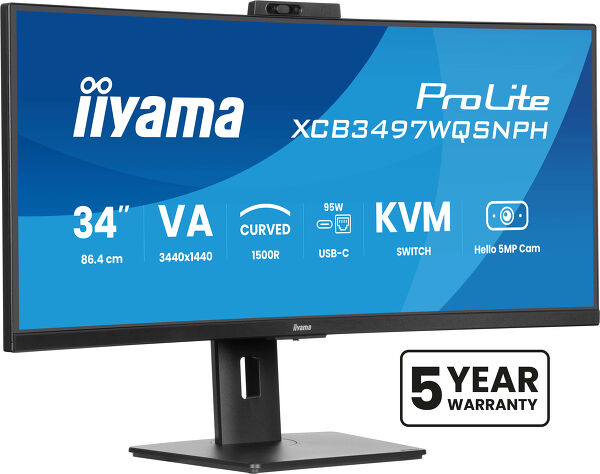
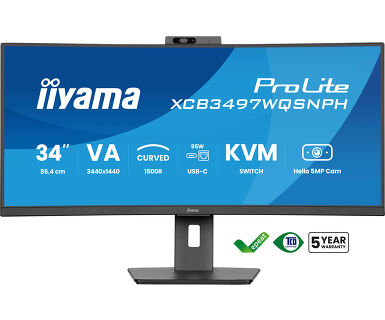
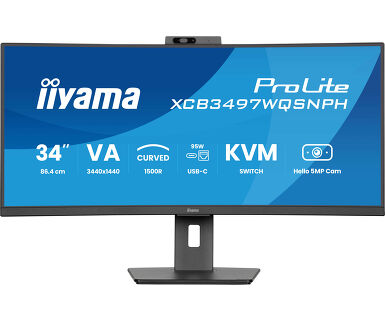
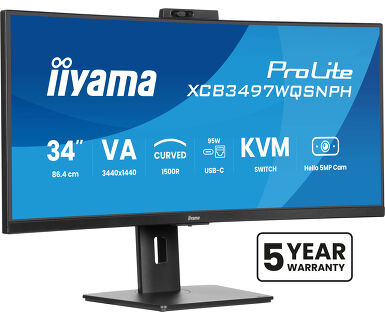
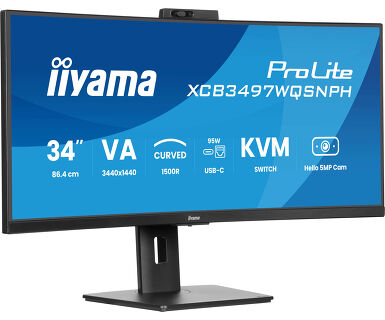
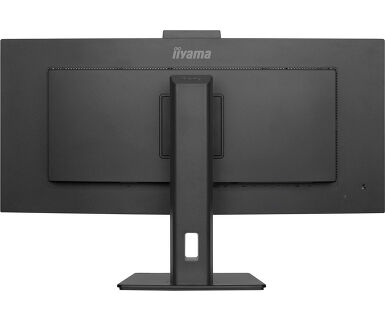
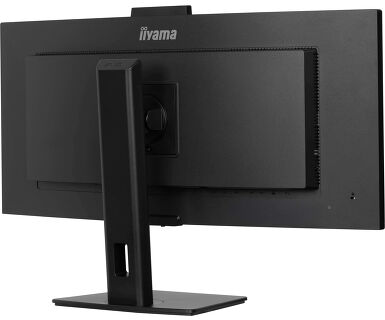
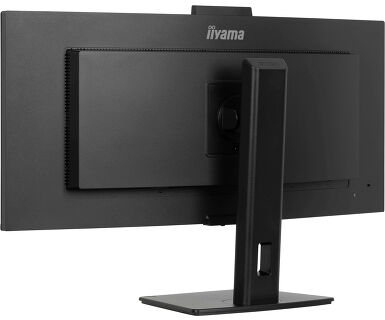
34’’ VA UWQHD zakrivljeni monitor sa ugrađenom Windovs Hello kamerom i mikrofonom, USB-C priključkom, LAN, KVM-prekidačem i postoljem od 15cm podesivim po visini
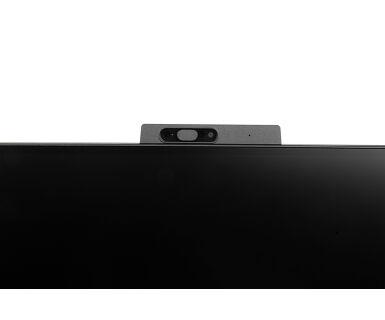
Upoznajte XCB3497WQSNPH — 34-inčni zakrivljeni sveobuhvatni monitor dizajniran za efikasnost bez napora. Sa ugrađenim KVM prekidačem i USB-C priključnom stanicom, možete neprimetno da kontrolišete više uređaja i povežete svoj laptop pomoću jednog kabla. Živopisni VA monitor pruža zapanjujuće boje, dubok kontrast i široke uglove gledanja za inteligentno iskustvo sa autofokusom na Windovs-u, kao što je imerzivno iskustvo na veb kameri sa autofokusom od 5MP. Ergonomsko postolje je podesivo po visini, a tehnologije za negu očiju čine vas udobnim i produktivnim tokom celog dana.
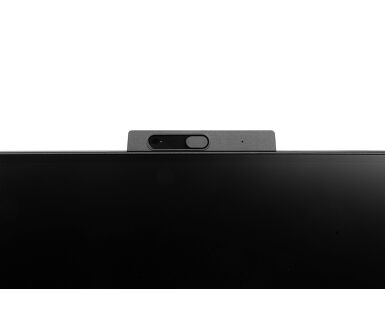
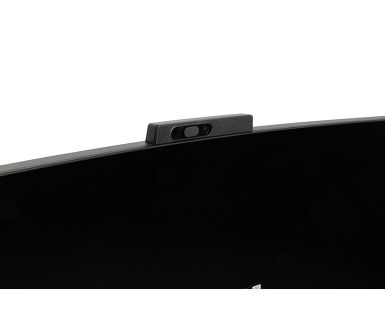
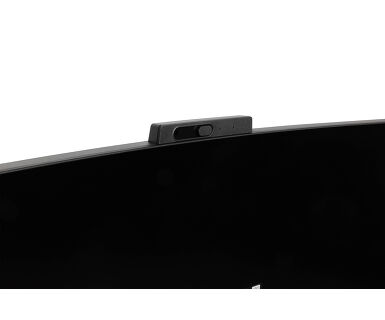
Log in quickly and securely with facial recognition, while enjoying crystal-clear video calls thanks to the high-resolution autofocus webcam.




| Dizajn | zakrivljen |
| Dijagonala | 34", 86.7cm |
| Panel | VA, mat završna obrada |
| Zakrivljen | 1500R |
| Osnovna rezolucija | 3440 x 1440 @120Hz (4.9 megapixel UWQHD, DisplayPort & USB-C) |
| Osnovna rezolucija | 120Hz |
| Format ekrana | 21:9 |
| Osvetljenje | 350 cd/m² |
| Statički kontrast | 3000:1 |
| Napredni kontrast | 80M:1 |
| Vreme odziva (MPRT) | 0.4ms |
| Zona gledanja | horizontalno/vertikalno: horizontal°/vertical 178°, desno/levo: 0°/0°, gore/dole: 0°/0° |
| Podržane boje | 16.7miliona 8bit (sRGB: 99%; NTSC: 72%, DCI-P3 >90%) |
| Horizontalna sinhronizacija | 30 - 180KHz |
| Vidljiva površina Š x V | 797.2 x 333.7mm, 31.3 x 13.1" |
| Razmak piksela | 0.232mm |
| Boja | mat, crna |
| Ulaz signala |
HDMI x2 (1x v.2.0 and 1x v. 1.4, 3440x1440 @100Hz, 2560x1440 @120Hz) DisplayPort x1 (v.1.4, 3440 x 1440@ 120Hz) USB-C x1 (3440 x 1440@ 120Hz, PD 95W) |
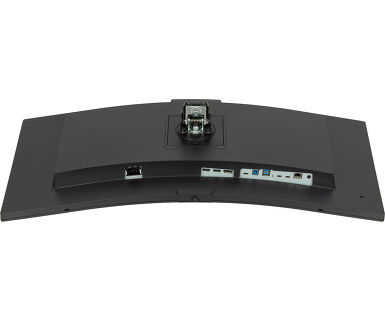
| USB HUB | x4 (2x Type A v.3.2 Gen 1 (5Gbps, 4.5W) 2x Type C (5Gbps, 7.5W)) |
| USB-C DOCK | x1 (Isporuka snage od 95W, LAN, USB v.3.2 (Gen 1, 5Gbit)) |
| HDCP | da |
| Priključak za slušalice | da |
| RJ45 (LAN) | x1 |
| KVM svič | da |
| Smanjeno emitovanje plave svetlosti | da |
| Bez treperenja | da |
| Adaptive Sync podrška | FreeSync Premium HDMI: 2560 x 1440 @48-100Hz, DP / USB-C: 3440 x 1440 @48-120Hz |
| OSD jezici | EN, DE, FR, ES, IT, RU, JP, CZ, NL, PL |
| Zvučnici | 2 x 5W |
| Pogodnost | Kensington-lock™ priprema, DDC2B, Mac OSX |
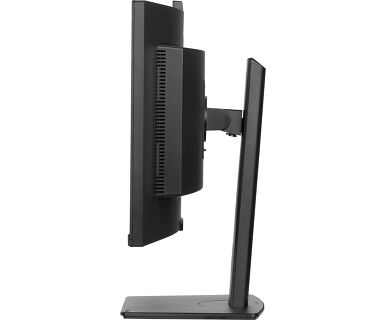
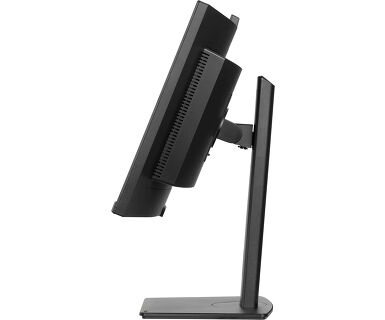
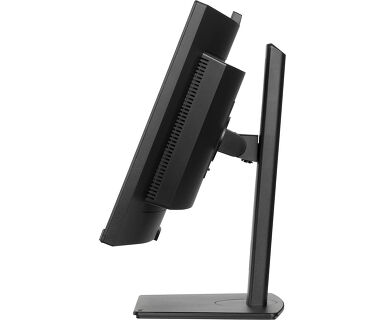
| Podešavanje položaja prikaza | visina, okretanje, nagib |
| Podešavanje visine | 150mm |
| Okretno postolje | 90°; ° levo; 45° desno |
| Ugao nagiba | 23° gore; 5° dole |
| VESA montiranje | 100 x 100mm |
| Sistem upravljanja kablovima | da |
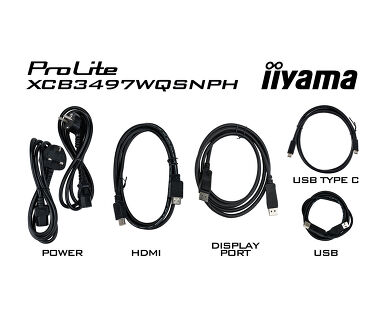
| Kablovi | Strujni kabl, USB, HDMI, DP, USB-C |
| Ostalo | kratko uputstvo, bezbednosni vodič |
| Napajanje | interna |
| Potrošnja energije | 32W default , 0.5W stand by, 0.3W iskljucen |
| Propisi | TCO Sertifikat, CE, TÜV-GS, EAC, PSE, RoHS podrška, ErP, WEEE, VCCI, REACH, UKCA |
| Klasa energetske efikasnosti (Regulation (EU) 2017/1369) | F |
| EPEAT Silver | EPEAT je sveobuhvatni rejting zaštite okoline koji pomaže u identifikaciji ekološki zelenijih računara i druge elektronske opreme. Srebrna certifikacija znači da monitor ispunjava sve tražene kriterijume plus najmanje 50% neobaveznih zahteva. EPEAT Silver važi u zemljama gde iiyama registruje proizvod. Molimo posetite www.epeat.net radi statusa registracije u vašoj zemlji. |
| REACH SVHC | iznad 0.1%: Olova |
| Dimenzije proizvoda Š x V x D | 807 x 443 (592.5) x 239.5mm |
| Dimenzije kutije Š x V x D | 940 x 500 x 198mm |
| Težina (bez kutije) | 9.7kg |
| Težina (sa kutijom) | 14.2kg |
| EAN kod | 4948570125296 |
If you are unable to set the native resolution with the maximum refresh rate on your monitor, try the following troubleshooting steps:
1. Ensure you are using a cable that supports both the native resolution and the desired refresh rate.
2. Visit the product page on our website and check technical specification tab - Interfaces / Connectors / Controls section to see what resolution and refresh rate are supported under the signal input you have seleced (e.g. HDMI signal input does not always support the maxium refresh rate, please check the DisplayPort connection instead).
3. Check the settings and specifications of your PC / graphics card to see if they support the desired resolution or refresh rate.
To resolve the issue of your laptop not charging, please try the following steps:
1. Activate USB BC or disable USB standby mode in the monitor’s settings menu.
2. Update your PC’s BIOS/UEFI.
iiyama monitors with USB-C Dock capabilities can be recognized by an "N" in their model names, such as HSN or QSN. For example, XUB****HSN. You can also visit our product selector page and use the available filters.
To explore the features and benefits of a monitor with a USB-C dock, please watch the video below.
To extend the desktop via DP-out, enable the MST function in the screen settings. For detailed instructions, please refer to your user manual.
Yes, Adaptive Sync is compatible with AMD FreeSync and NVIDIA G-Sync.
MBR cannot be selected when FreeSync/AdaptiveSync is activated, because MBR can interfere with the FreeSync/Adaptive Sync technology as they have different methods of improving motion clarity. MBR reduces motion blur (response time), while Adaptive Sync/FreeSync addresses stuttering. We recommend activating Adaptive Sync/FreeSync on systems with fluctuating or unstable frame rates. MBR performs best on powerful systems that maintain a consistently high frame rate.
If your monitor is displaying a "No Signal" message, please check the following:
1. Ensure the cables are properly connected at both ends.
2. Select the correct signal input (HDMI/DP) or choose AUTO.
For guidance on selecting an input while the screen is in standby mode, please consult the user manual. On desktop monitors, common methods include pressing the INPUT, AUTO, or "2" buttons, or moving the joystick backward.
Yes, your iiyama monitor will work with your Apple Mac system. However, it depends on the signal input how to connect. Since Apple Mac systems from 2020 onwards only have Thunderbolt 3 (USB-C) ports for video output, you have two options:
1. Connect directly to the USB-C signal input on your iiyama monitor.
2. In case your monitor only has HDMI or Displayport, you will need a Mac-compatible dongle that supports one of the video inputs available. Apple offers a USB-C Digital AV Multiport Adapter (MW5M3AM) that can be used for this purpose.
3. If your iiyama monitor has touchscreen capabilities, please refer to the user manual to verify touch functionality compatibility with your Mac system.
To resolve the issue of a blinking picture, please follow these steps:
1. Inspect the Signal Cable.
Ensure the signal cable is securely connected at both ends and free from any physical damage. Avoid any sharp bends or squishing of the cable.
2. Use a Shorter Cable.
If possible, use a cable shorter than 3 meters and connect the monitor directly to a wall power socket, avoiding the use of adapters.
3. Disable FreeSync/Adaptive Sync.
For desktop or gaming monitors, try disabling FreeSync or Adaptive Sync in the monitor's settings menu.