Subscribe to our newsletter
Keep up #withiiyama
You have successfully subscribed to our newsletter.
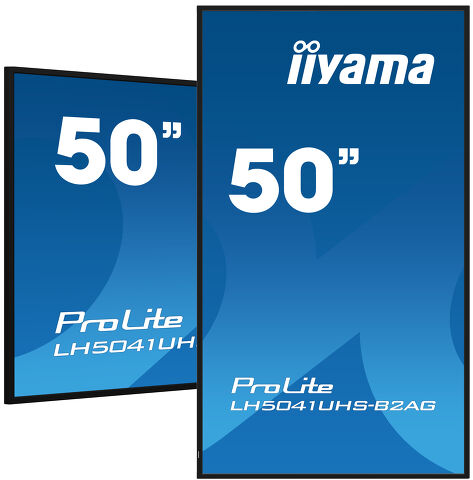
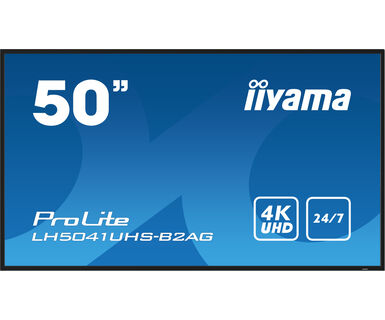
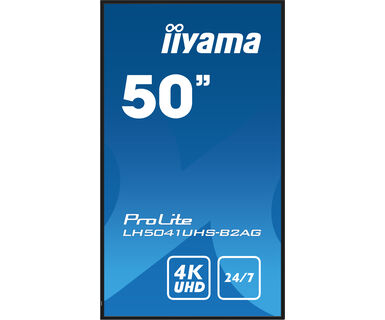
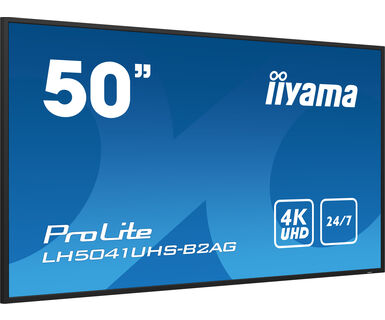
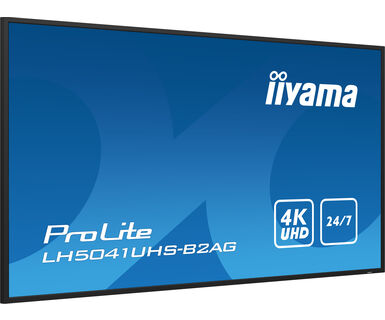
50" Professional Digital Signage display with 4K UHD resolution and 24/7 operating time
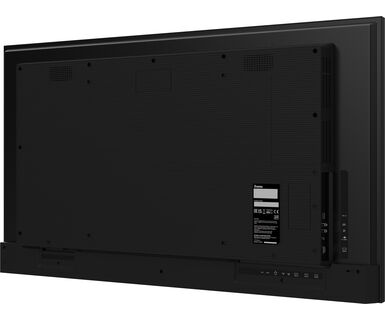
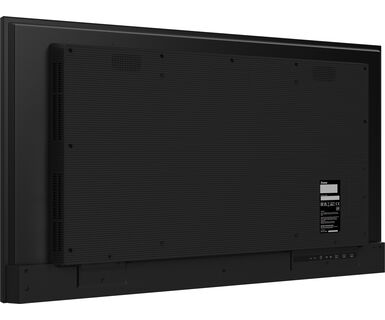
Set in a slim bezel, the iiyama LH5041UHS is a professional digital signage display offering 24/7 operating time in portrait and landscape orientation.
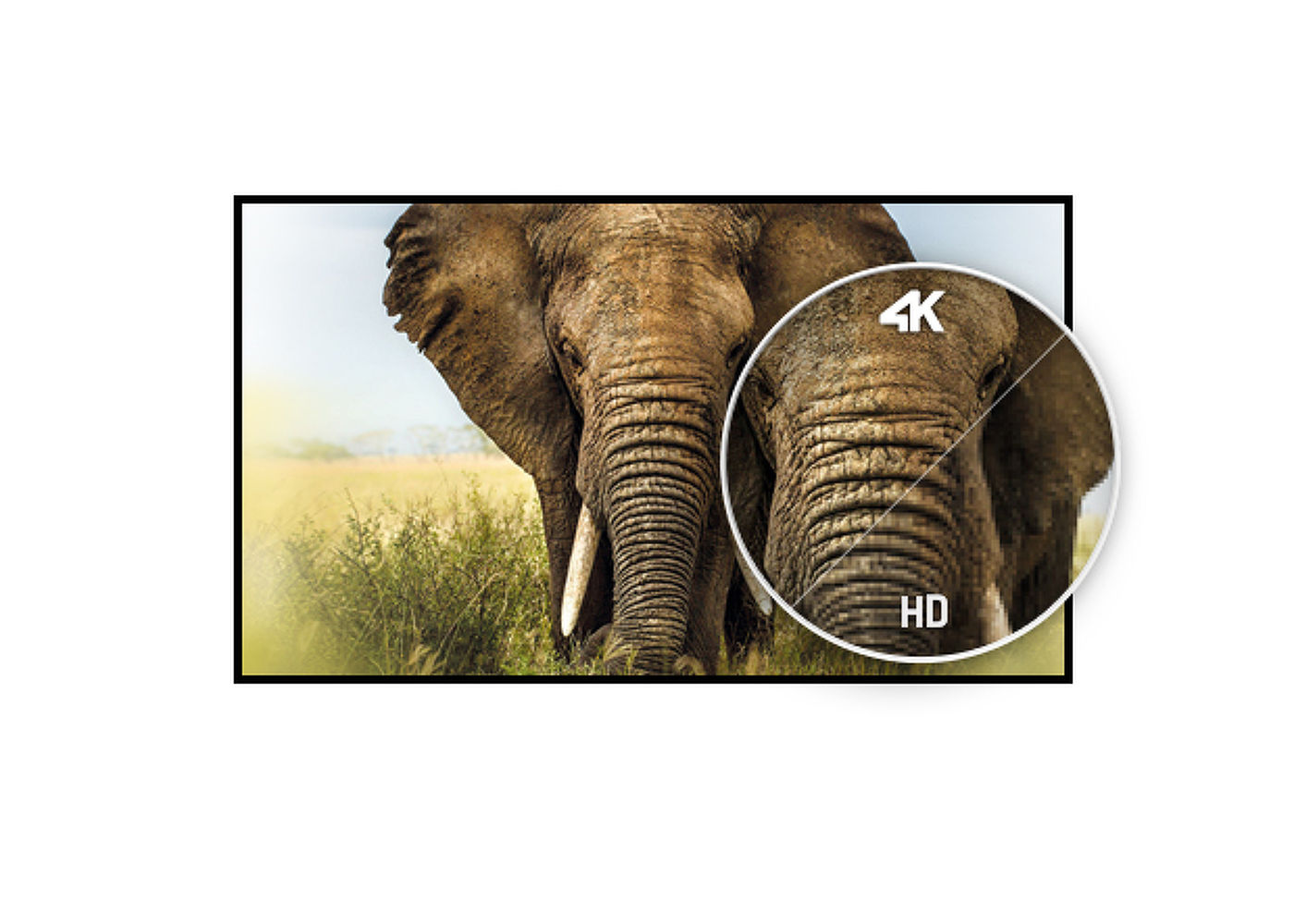
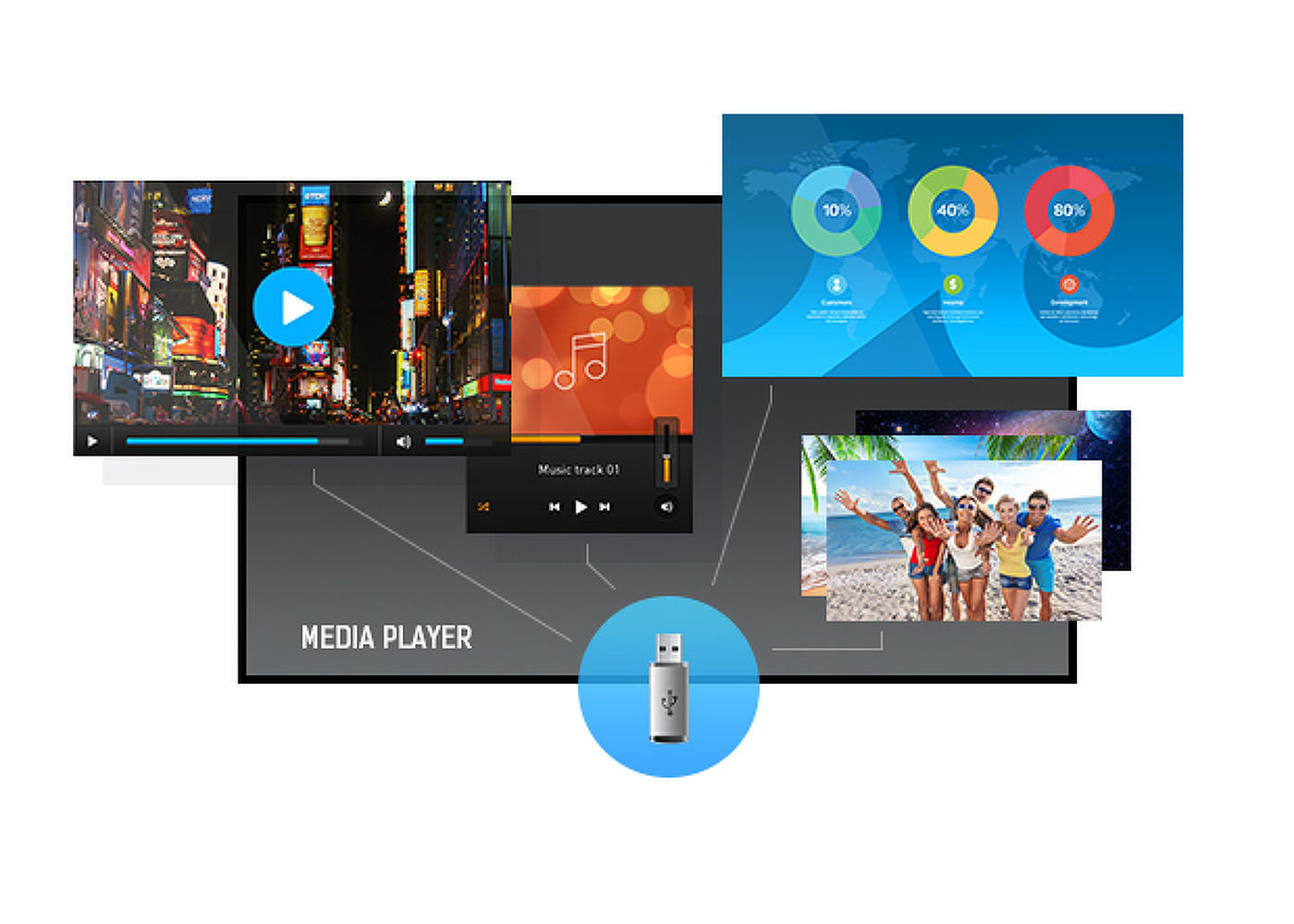
The 4K UHD resolution (3840x2160) provides exceptional colour and image performance. With the built-in media player you can play your favourite music and show your most beautiful videos, photos and images directly on screen.
UHD resolution (3840x2160), better known as 4K, offers a gigantic viewable area with 4 times more information and work space than a Full HD screen. Due to the high DPI (dots per inch), it displays an incredibly sharp and crisp image.
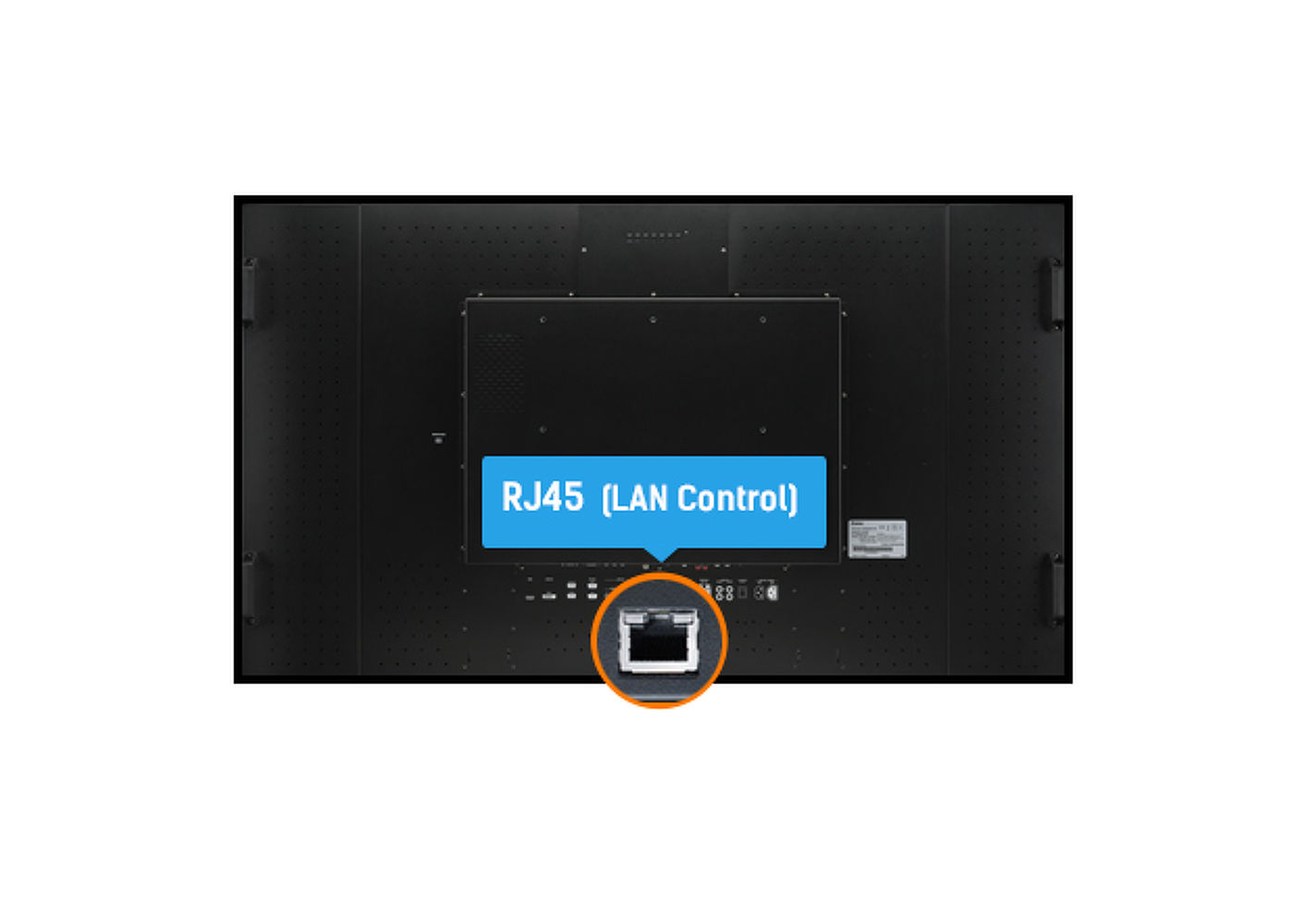
LAN control enables making adjustments in the display OSD menu through your network (software not included).
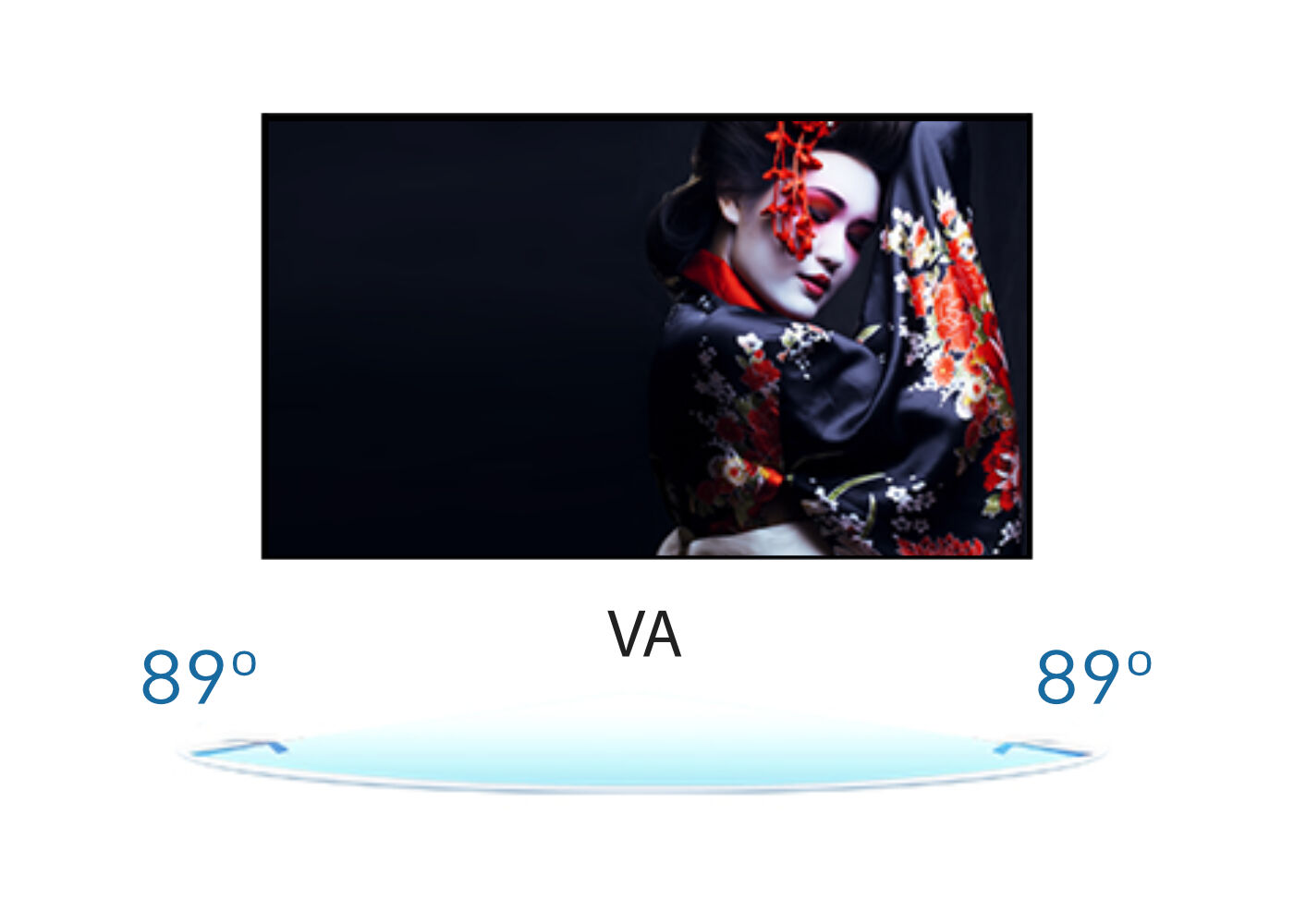
VA panel technology offers higher contrast, darker blacks and much better viewing angles than standard TN technology. The screen will look good no matter what angle you look at it.
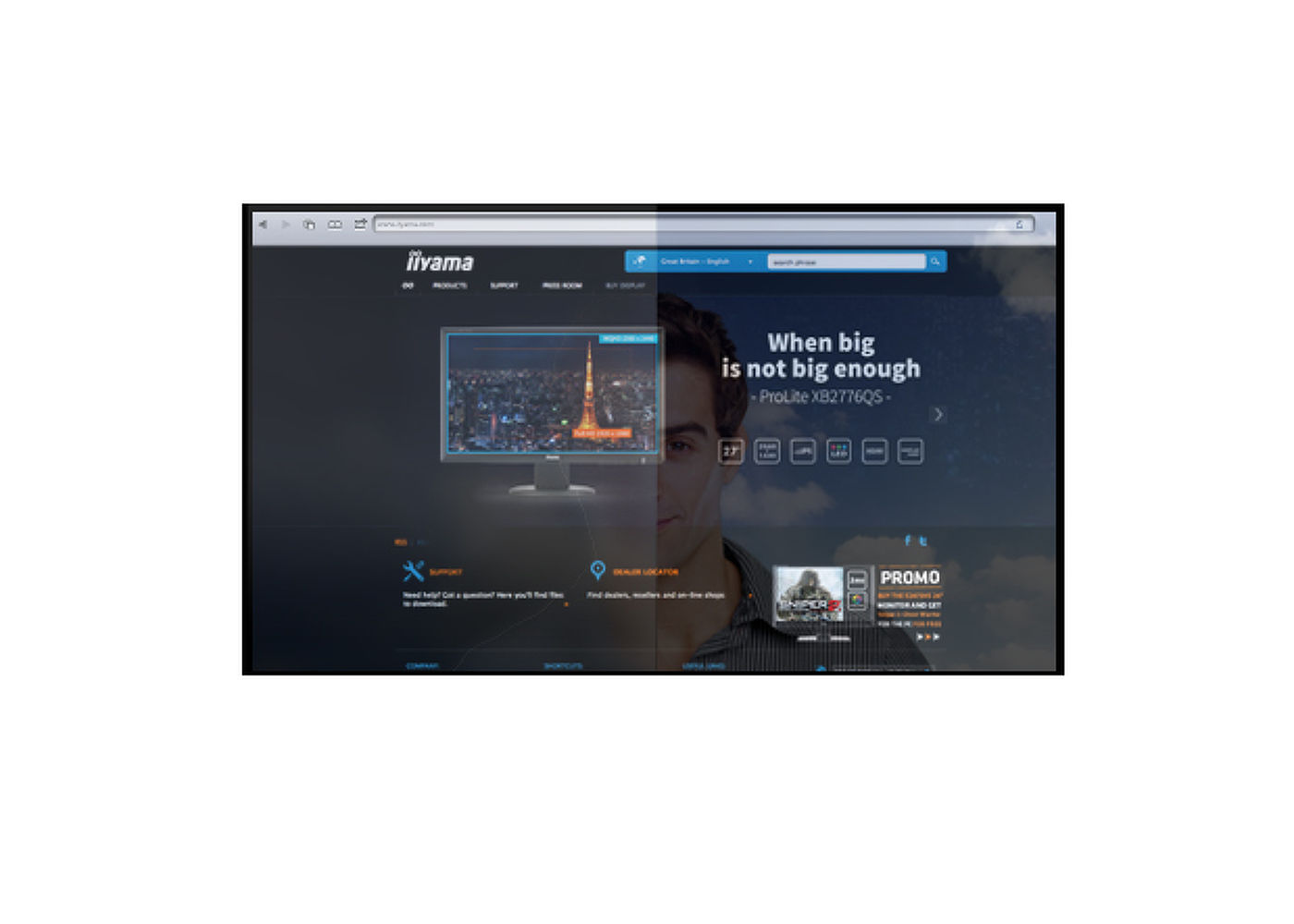
The anti-glare coating is used in professional-grade displays to help avoid issues with reflections and external light sources affecting colour reproduction, contrast and sharpness. It also makes the screen less susceptible to dust, grease and dirt marks.
Play your favourite music and show your most beautiful videos, photos and images directly on screen from a flash drive or internal memory with the built-in media player.



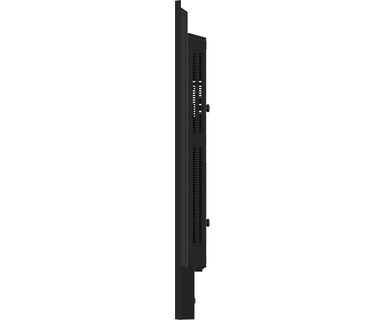
| Design | Thin bezel |
| Diagonal | 50", 125.7cm |
| Panel | VA, Anti-Glare coated glass, matt finish, haze 25% |
| Native resolution | 3840 x 2160 (8.3 megapixel 4K UHD) |
| Aspect ratio | 16:9 |
| Panel brightness | 500 cd/m² |
| Static contrast | 5000:1 |
| Response time (GTG) | 9.5ms |
| Viewing zone | horizontal/vertical: 178°/178°, right/left: 89°/89°, up/down: 89°/89° |
| Colour support | 1.07B 10bit (8bit + Hi-FRC) (NTSC 72%) |
| Horizontal Sync | 30 - 80kHz |
| Viewable area W x H | 1096 x 616.4mm, 43.1 x 24.3" |
| Bezel width (sides, top, bottom) | 13.9mm, 13.9mm, 14.9mm |
| Pixel pitch | 0.285mm |
| Bezel colour and finish | black, glossy |
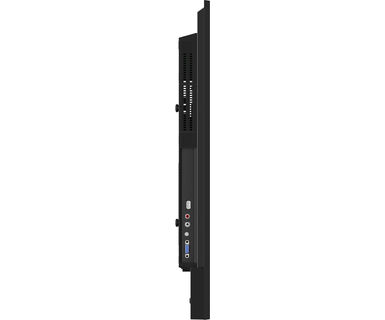
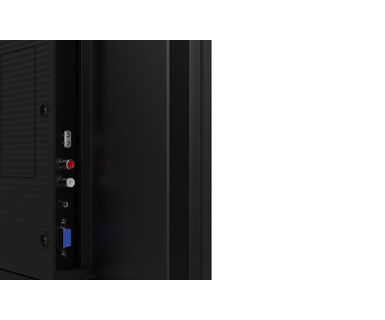
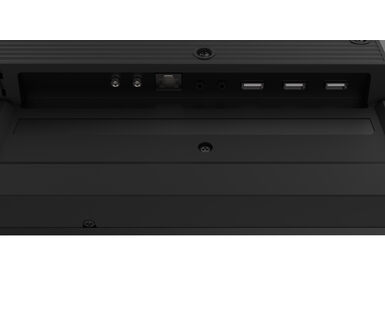
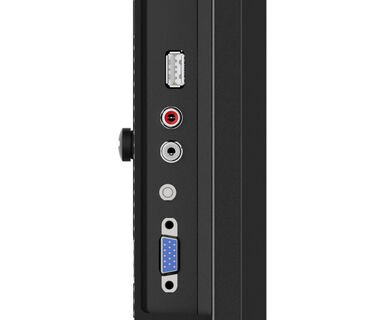
| Analog signal input | VGA x1 (max. 1920x1080 @60Hz) |
| Digital signal input | HDMI x3 (max. 3840x2160 @60Hz) |
| Audio input | Mini jack x1 |
| Monitor control input |
RS-232c x1 RJ45 (LAN) x1 IR x1 |
| Audio output |
RCA (L/R) x1 Speakers 2 x 10W |
| Monitor control output |
RS-232c x1 IR loop through x1 |
| HDCP | 2.2 |
| USB ports | x1 (2.0, FW update support) |
| Max. non-stop operating time | 24/7 |
| Media playback | Yes (in pivot not supported) |
| Housing (bezel) | plastic |
| OSD languages | EN, DE, FR, ES, IT, RU, JP, NL |
| Control buttons | Power |
| User controls | picture (picture format, colour temp., noise reduction, dynamic contrast, gamma, brightness, black level, contrast, colour, hue, sharpness, RGB range, reset), sound (treble, bass, balance, speaker, audio output, reset), general settings (language, clock, schedule, HDMI CEC link, HDMI modes, communication setting, screen (auto adjust, clock, phase, H. position, V. position, reset), auto power off, network standby, power management, auto signal detection, auto play, local KB lock, RC lock, monitor ID, LED, pixel shift, information, factory reset) |
| Orientation | landscape, portrait |
| Fanless design | yes |
| VESA mounting | 400 x 400mm |
| Operation temperature range | 0°C - 40°C |
| Storage temperature range | - 20°C - %2°C |
| MTBF | 50000 hours (excluding backlight) |
| Cables | power, HDMI, RS-232c |
| Guides | quick start guide, safety guide |
| Other | Cable Management |
| Remote control | yes (batteries included) |
| Power supply unit | internal |
| Power supply | AC 100 - 250V, 50/60Hz |
| Power usage | 115W typical, 0.5W stand by, 0.3W off mode |
| Regulations | CE, TÜV-Bauart, RoHS support, ErP, WEEE, REACH, UKCA |
| Energy efficiency class (Regulation (EU) 2017/1369) | G |
| REACH SVHC | above 0.1%: Lead |
| Product dimensions W x H x D | 1122.5 x 643.5 x 55mm |
| Box dimensions W x H x D | 1261 x 761 x 132mm |
| Weight (without box) | 11.1kg |
| EAN code | 4948570123537 |
To fix the issue with rotating the picture displayed on your screen, please note there are two possible methods:
1. If the content is coming from an external source (e.g., a Windows device), the picture orientation must be adjusted in the display settings of that device.
2.If the content source is the monitor itself, the screen content may rotate automatically, depending on the monitor model. In some cases, however, it is necessary to adjust picture orientation in monitor's settings manually. Please note that NOT all monitors support screen rotation or portrait installation. For detailed information, refer to your monitor's user manual.
If you are unable to set the native resolution with the maximum refresh rate on your monitor, try the following troubleshooting steps:
1. Ensure you are using a cable that supports both the native resolution and the desired refresh rate.
2. Visit the product page on our website and check technical specification tab - Interfaces / Connectors / Controls section to see what resolution and refresh rate are supported under the signal input you have seleced (e.g. HDMI signal input does not always support the maxium refresh rate, please check the DisplayPort connection instead).
3. Check the settings and specifications of your PC / graphics card to see if they support the desired resolution or refresh rate.
Please visit the iiyama signup webpage and enter the model name or serial number of your iiyama screen. You will be directed to all available software applications for your product, along with instructions on how to activate them.
All iiyama LFDs and IFP displays can be used in portrait mode, except for products with item names starting with TE or LE, which can only operate in landscape mode. Always follow the installation instructions provided with the monitor and the guidelines in the User Manual.
If you wish to change the settings on your monitor remotely, please refer to the RS232/LAN protocol document available in the DOWNLOAD section on the product page.
The commands can be sent to the screen with a terminal app, for example Hercules SETUP utility. For more information, please refer to the RS232/LAN protocol document available in the DOWNLOAD section on the product page.
If your monitor is displaying a "No Signal" message, please check the following:
1. Ensure the cables are properly connected at both ends.
2. Select the correct signal input (HDMI/DP) or choose AUTO.
For guidance on selecting an input while the screen is in standby mode, please consult the user manual. On desktop monitors, common methods include pressing the INPUT, AUTO, or "2" buttons, or moving the joystick backward.
Yes, your iiyama monitor will work with your Apple Mac system. However, it depends on the signal input how to connect. Since Apple Mac systems from 2020 onwards only have Thunderbolt 3 (USB-C) ports for video output, you have two options:
1. Connect directly to the USB-C signal input on your iiyama monitor.
2. In case your monitor only has HDMI or Displayport, you will need a Mac-compatible dongle that supports one of the video inputs available. Apple offers a USB-C Digital AV Multiport Adapter (MW5M3AM) that can be used for this purpose.
To resolve the issue of a blinking picture, please follow these steps:
1. Inspect the Signal Cable.
Ensure the signal cable is securely connected at both ends and free from any physical damage. Avoid any sharp bends or squishing of the cable.
2. Use a Shorter Cable.
If possible, use a cable shorter than 3 meters and connect the monitor directly to a wall power socket, avoiding the use of adapters.
3. Disable FreeSync/Adaptive Sync.
For desktop or gaming monitors, try disabling FreeSync or Adaptive Sync in the monitor's settings menu.