ProLite XCB3497WQSNP-B1
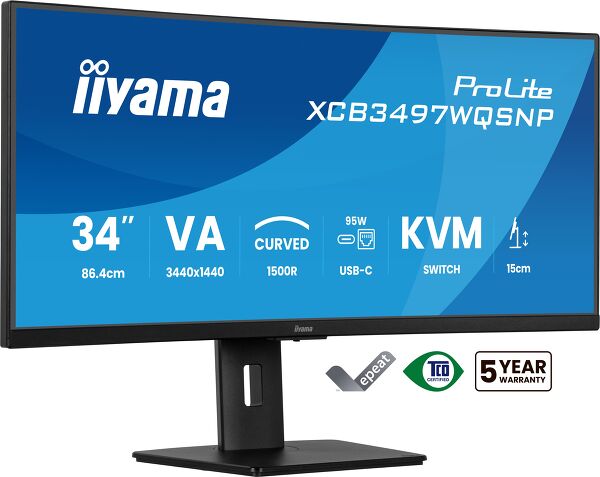
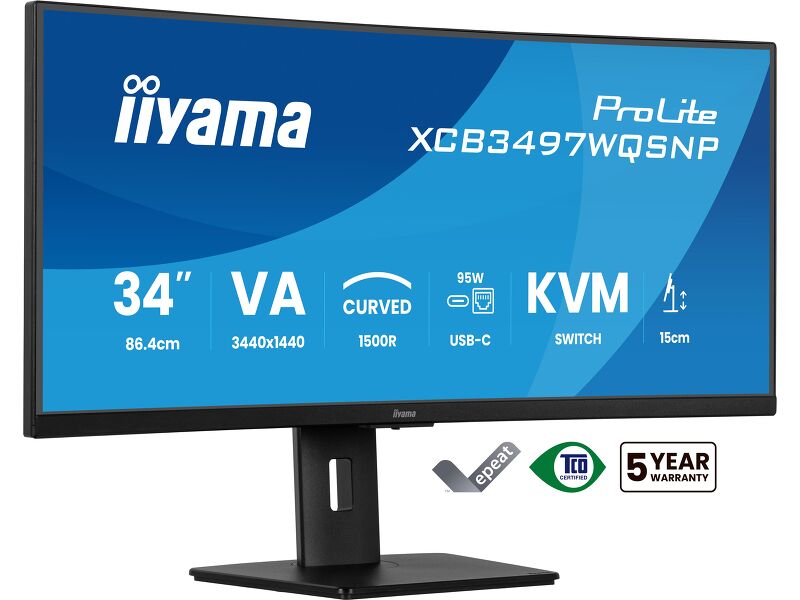
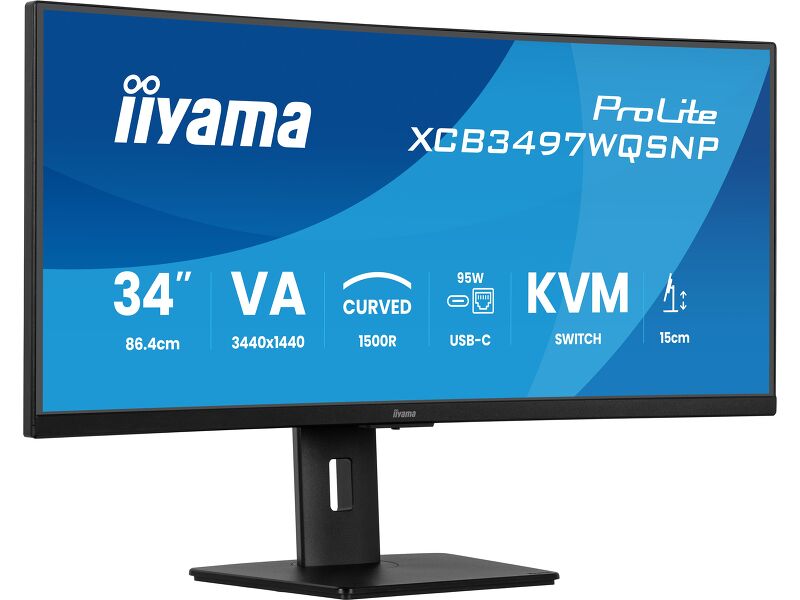
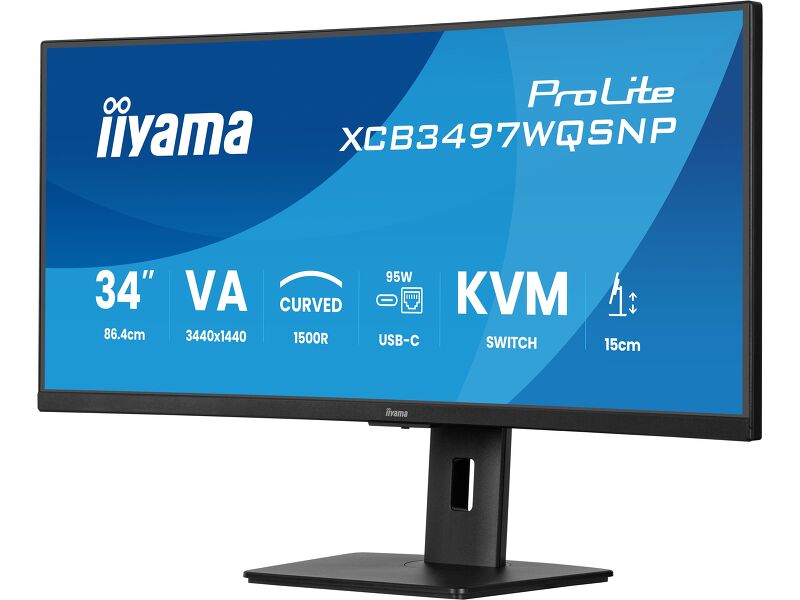
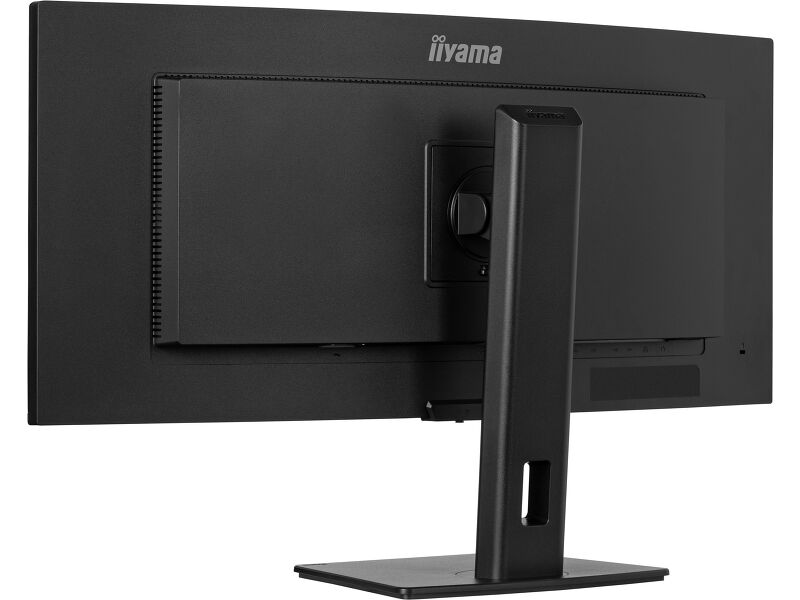
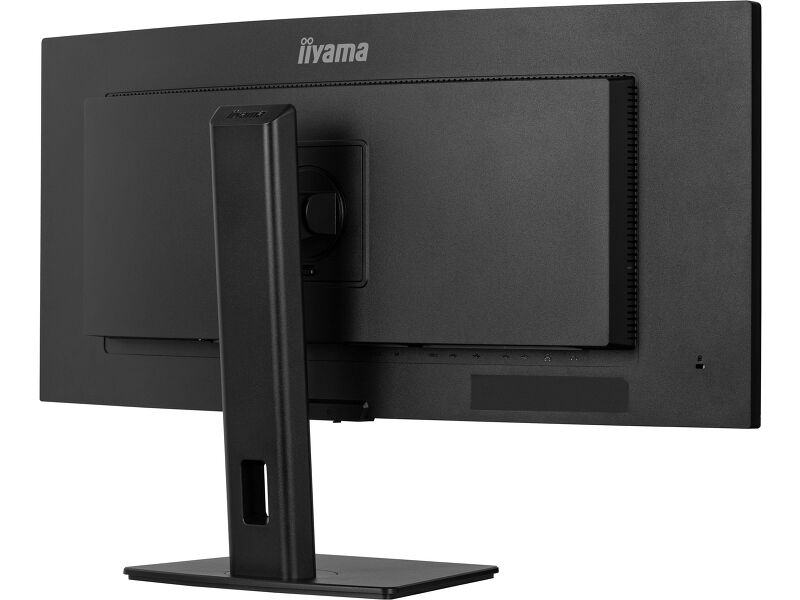
34’’ UWQHD curved with USB-C dock and KVM switch
The XCB3497WQSNP is a 34-inch curved monitor that incorporates a KVM switch and a USB-C dock to simplify your workspace. The KVM switch enhances multitasking by allowing you to control multiple computers from a single monitor, keyboard, and mouse. The USB-C dock reduces cable clutter and simplifies connectivity even further, allowing a single cable to carry video, data, and power to charge your notebook. Additionally, when the monitor is connected to a LAN network, your notebook automatically gains network access. The VA panel technology delivers high contrast and deep black levels and wide viewing angles for consistent image quality regardless of your position for a richer and more vivid viewing experience.
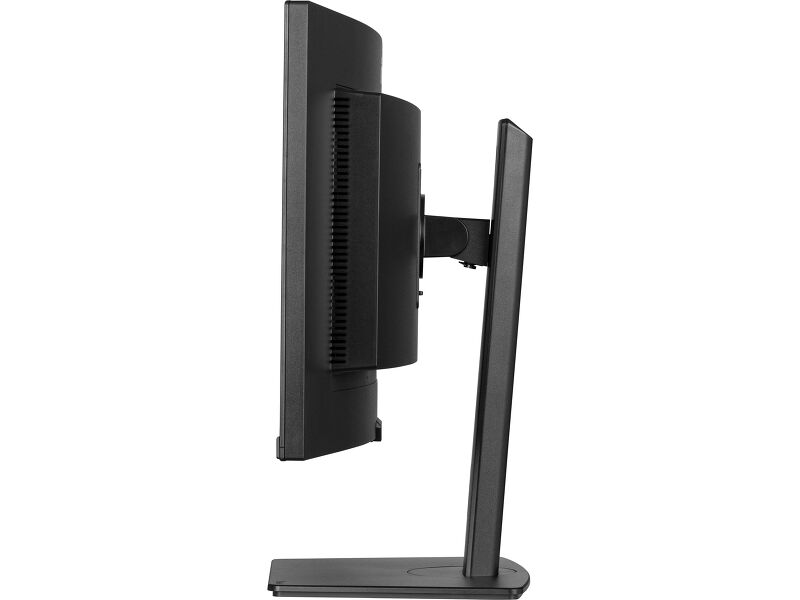
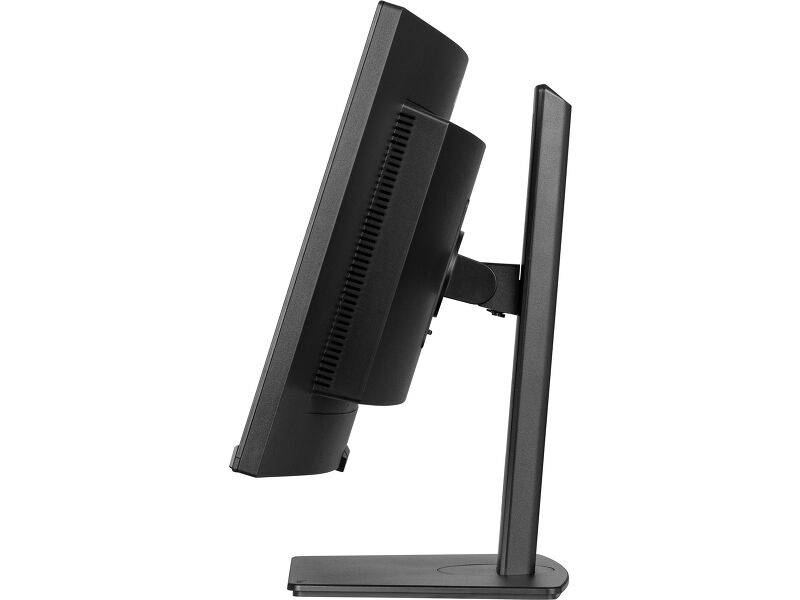
For optimal comfort, the 15cm height-adjustable stand allows you to customize the screen position, while the Flicker-Free panel and Blue Light reduction function help minimize eye strain.
Easy multi-device control with KVM
Easily switch between multiple computers using one monitor, keyboard, and mouse, making multitasking smooth and efficient.
USB-C dock for tidy desk & easy connectivity
Connect everything with just one cable — handle video, data, and power while keeping your desk clean and organized.
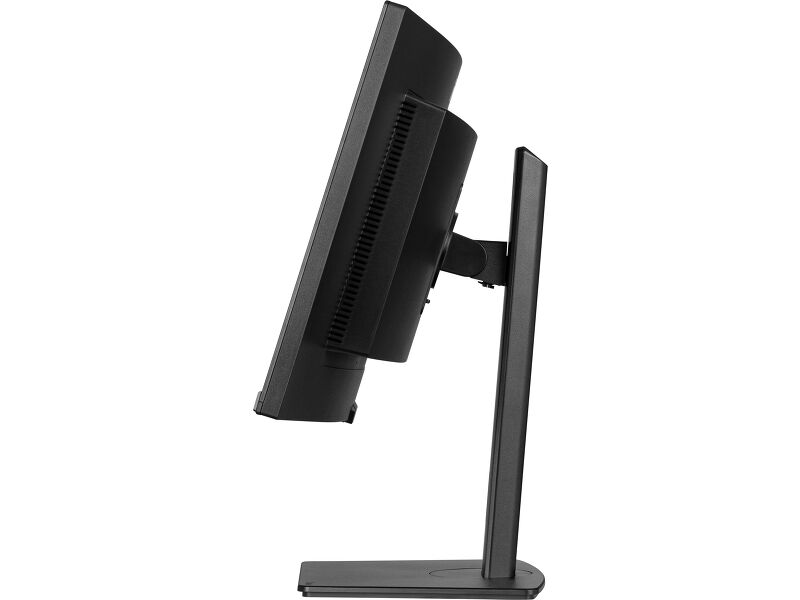
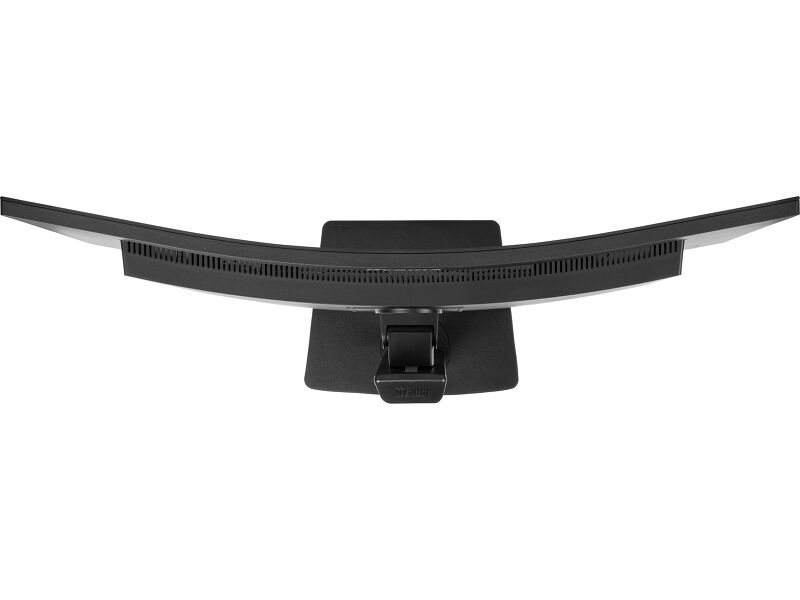
Curved for immersive viewing
Step into an immersive, natural viewing setup that minimizes distortion and reduces eye strain during long work or entertainment sessions.
Multitasking with ultra-wide QHD
Get more space to multitask, compare documents side by side, or fully immerse in your content without switching windows.
Video
Műszaki adatok




KIJELZŐ JELLEMZŐI
| Design | curved |
| Átló | 34", 86.7cm |
| Panel | VA panel, matte finish |
| Hajlított | 1500R |
| Natív felbontás | 3440 x 1440 @120Hz (4.9 megapixel UWQHD, DisplayPort & USB-C) |
| Képarány | 21:9 |
| Fényerő | 350 cd/m² |
| Statikus kontraszt | 3000:1 |
| Speciális kontraszt | 80M:1 |
| Válaszidő (MPRT) | 0.4ms |
| Látótér | horizontális/vertikális: 178°/178°, jobb/bal: 89°/89°, fel/le: 89°/89° |
| Szín támogatás | 16.7mln (sRGB: 99%; NTSC: 93%) |
| Horizontális szinkronizálás | 30 - 180kHz |
| Látható terület Sz x M | 797.2 x 333.7mm, 31.3 x 13.1" |
| Pixel magasság | 0.232mm |
| Szín | matt, fekete |
INTERFÉSZEK / CSATLAKOZÓK / VEZÉRLŐK
| Jelbemenet |
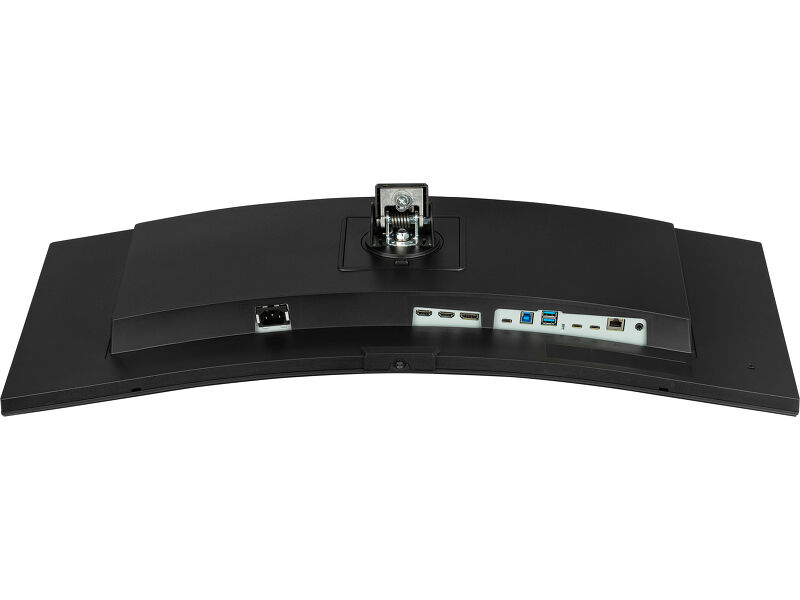
HDMI x2 (1x v.2.0 and 1x v. 1.4, 3440x1440 @100Hz, 2560x1440 @120Hz) DisplayPort x1 (v.1.4, 3440 x 1440@ 120Hz) USB-C x1 (3440 x 1440@ 120Hz, PD 95W) |
| USB HUB | x4 (2x Type A v.3.2 Gen 1 (5Gbps, 4.5W) 2x Type C (5Gbps, 7.5W)) |
| USB-C DOCK | x1 (Power delivery 95W, LAN, USB v. 3.2 (Gen 1, 5Gbit)) |
| HDCP | igen |
| Hangszóró csatlakozó | igen |
| RJ45 (LAN) | x1 |
JELLEMZŐK
| KVM switch | igen |
| Kékfény csökkentés | igen |
| Villogásmentes | igen |
| Adaptive Sync támogatás | FreeSync Premium, HDMI: 2560 x 1440 @48-100Hz, DP / USB-C: 3440 x 1440 @48-120Hz |
| Extra | i-Style Colour |
| OSD nyelvek | EN, DE, FR, ES, IT, RU, JP, CZ, NL, PL |
| Vezérlőgombok | Joystick: Power/Menu (Centre), Forward/Signal Select, Backward, Left/i-Style colour/ECO/BlueLight Reducer, Right/Volume |
| Felhasználói vezérlők | picture adjust (brightness, contrast, Eco, ACR, OD, AdaptiveSync, motion blur reduction, X-Res technology, black tuner), colour settings (6-axis, i-Style colour, blue light reducer, gamma, RGB range, colour temp.,), OSD (OSD H. position, OSD V. position, OSD time, OSD background, DDC/CI control, display information), language, miscellaneous (sharpness, video mode adjust, opening logo, power LED, Mac address, USB charge, USB C speed), KVM (HDMI1, HDMI2, DisplayPort, USB C), input select, audio settings (volume, mute audio), recall |
| Hangszórók | 2 x 5W |
| Kényelem | Kensington-lock™ előkészítve, DDC2B |
MECHANIKUS
| Kijelző helyzetének beállításai | forgatható, billenthető |
| Magasság beállítása | 150mm |
| Forgó állvány | 90°; 45° bal; 45° jobb |
| Hajlásszög | 23° fel; 5° le |
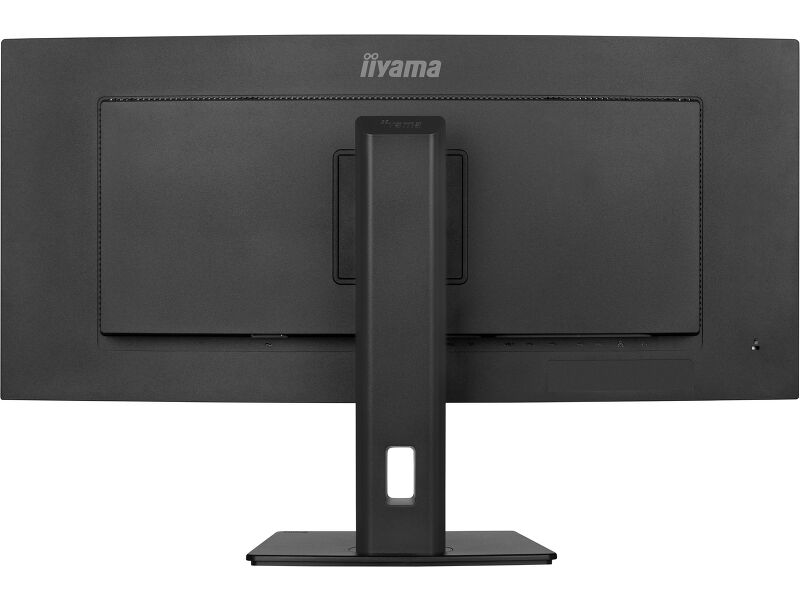
| VESA állvány | 100 x 100mm |
| Kábelkezelő rendszer | igen |
TARTOZÉKOKAT TARTALMAZZA
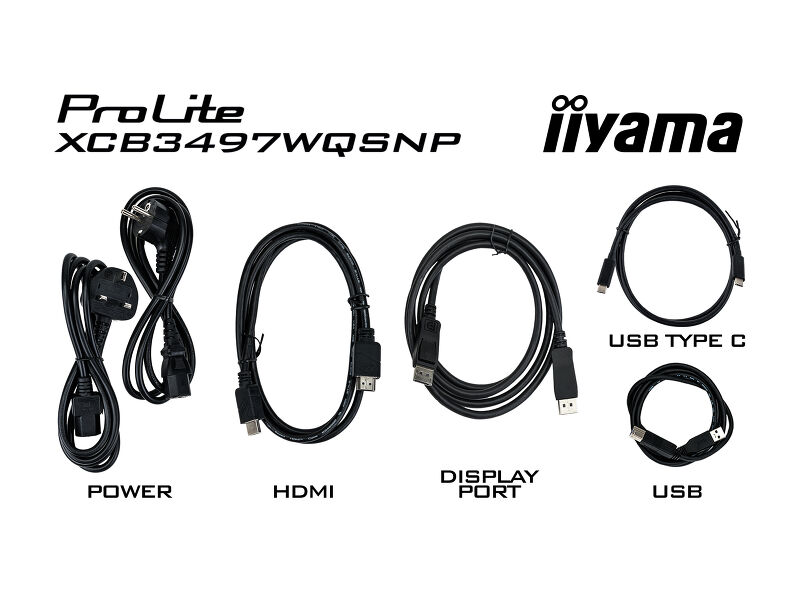
| Kábelek | áramellátás, USB, HDMI, DP, USB-C |
| Egyéb | gyors üzembe helyezési útmutató, biztonsági útmutató |
ENERGIAGAZDÁLKODÁS
| Tápegység | belső |
| Áramellátás | AC 100 - 240V, 50/60Hz |
| Áramfogyasztás | 32W default , 0.5W készenlét, 0.3W kikapcsolva |
FENNTARTHATÓSÁG
| Előírások | TCO Certified, CE, TÜV-GS, EAC, VCCI-B, PSE, RoHS támogatás, ErP, WEEE, HATÓTÁVOLSÁG, UKCA |
| Energiahatékonysági osztály ((EU) 2017/1369 rendelet) | F |
| EPEAT Ezüst | *registration varies by country, go to www.epeat.net for details |
MÉRETEK / SÚLY
| Termék méretei Sz x H x M | 807 x 426 (576) x 245.5mm |
| Doboz mértei Sz x H x M | 928 x 480 x 186mm |
| Súly (doboz nélkül) | 9.7kg |
| Súly (dobozzal) | 14.1kg |
| EAN kód | 4948570125142 |


Letöltések
| Használati utasítás | XCB3494WQSU_XCB3497WQSNP_XCB3497WQSNPH-B1-usermanual-e.pdf | Letöltés |
| Műszaki adatok | ProLite XCB3497WQSNP-B1 - hu_hu.pdf | Letöltés |
| Rajz | XCB3497WQSNP-B1.pdf | Letöltés |
| EU Energiacimke | XCB3497WQSNP-B1 EU Energy Label (2203605).pdf | Letöltés |
| UK Energiacimke | XCB3497WQSNP-B1 UK Energy Label (2203605).pdf | Letöltés |
| Disassembly manual | Disassembly Manual- XCB3497WQSNP-B1.pdf | Letöltés |
| Guarantee label | XCB3497WQSNP-B1.pdf | Letöltés |
Sustainability & Environmental Documents
| Carbon Footprint | XCB3497WQSNP-B1.pdf | Letöltés |
FAQS
Why can't I set the native resolution with the maximum refresh rate on my monitor?
+If you are unable to set the native resolution with the maximum refresh rate on your monitor, try the following troubleshooting steps:
1. Ensure you are using a cable that supports both the native resolution and the desired refresh rate.
2. Visit the product page on our website and check technical specification tab - Interfaces / Connectors / Controls section to see what resolution and refresh rate are supported under the signal input you have seleced (e.g. HDMI signal input does not always support the maxium refresh rate, please check the DisplayPort connection instead).
3. Check the settings and specifications of your PC / graphics card to see if they support the desired resolution or refresh rate.
Why isn’t my notebook charging when connected to the USB-C input of my monitor in standby mode?
+To resolve the issue of your laptop not charging, please try the following steps:
1. Activate USB BC or disable USB standby mode in the monitor’s settings menu.
2. Update your PC’s BIOS/UEFI.
How can I recognize which iiyama monitor has a USB-C Dock and LAN support?
+iiyama monitors with USB-C Dock capabilities can be recognized by an "N" in their model names, such as HSN or QSN. For example, XUB****HSN. You can also visit our product selector page and use the available filters.
How to use the USB-C dock?
+To explore the features and benefits of a monitor with a USB-C dock, please watch the video below.
The DP-out currently mirrors the main monitor. How can I change it to extend the desktop instead?
+To extend the desktop via DP-out, enable the MST function in the screen settings. For detailed instructions, please refer to your user manual.
Is Adaptive Sync compatible with AMD FreeSync or NVIDIA G-Sync?
+Yes, Adaptive Sync is compatible with AMD FreeSync and NVIDIA G-Sync.
Why can't I select MBR when FreeSync/Adaptive Sync is activated?
+MBR cannot be selected when FreeSync/AdaptiveSync is activated, because MBR can interfere with the FreeSync/Adaptive Sync technology as they have different methods of improving motion clarity. MBR reduces motion blur (response time), while Adaptive Sync/FreeSync addresses stuttering. We recommend activating Adaptive Sync/FreeSync on systems with fluctuating or unstable frame rates. MBR performs best on powerful systems that maintain a consistently high frame rate.
Why is my monitor displaying a "No Signal" message?
+If your monitor is displaying a "No Signal" message, please check the following:
1. Ensure the cables are properly connected at both ends.
2. Select the correct signal input (HDMI/DP) or choose AUTO.
For guidance on selecting an input while the screen is in standby mode, please consult the user manual. On desktop monitors, common methods include pressing the INPUT, AUTO, or "2" buttons, or moving the joystick backward.
I have an Apple MAC-system, will my iiyama monitor work?
+Yes, your iiyama monitor will work with your Apple Mac system. However, it depends on the signal input how to connect. Since Apple Mac systems from 2020 onwards only have Thunderbolt 3 (USB-C) ports for video output, you have two options:
1. Connect directly to the USB-C signal input on your iiyama monitor.
2. In case your monitor only has HDMI or Displayport, you will need a Mac-compatible dongle that supports one of the video inputs available. Apple offers a USB-C Digital AV Multiport Adapter (MW5M3AM) that can be used for this purpose.
3. If your iiyama monitor has touchscreen capabilities, please refer to the user manual to verify touch functionality compatibility with your Mac system.
The picture on my monitor is flickering. What steps can I take to fix it?
+To resolve the issue of a blinking picture, please follow these steps:
1. Inspect the Signal Cable.
Ensure the signal cable is securely connected at both ends and free from any physical damage. Avoid any sharp bends or squishing of the cable.
2. Use a Shorter Cable.
If possible, use a cable shorter than 3 meters and connect the monitor directly to a wall power socket, avoiding the use of adapters.
3. Disable FreeSync/Adaptive Sync.
For desktop or gaming monitors, try disabling FreeSync or Adaptive Sync in the monitor's settings menu.
Kompatibilis tartozékok