Subscribe to our newsletter
Keep up #withiiyama
You have successfully subscribed to our newsletter.
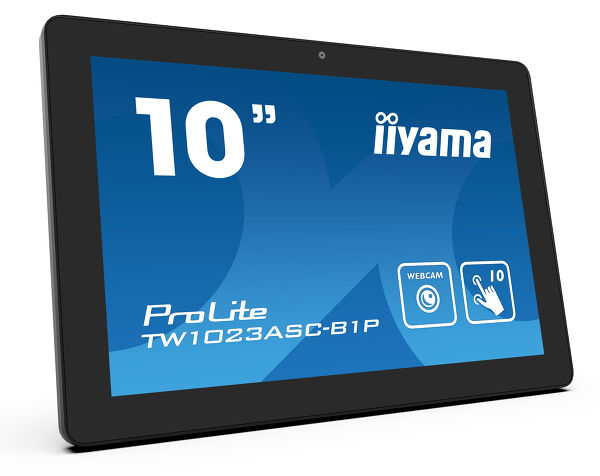
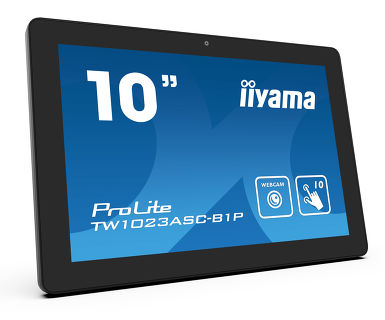
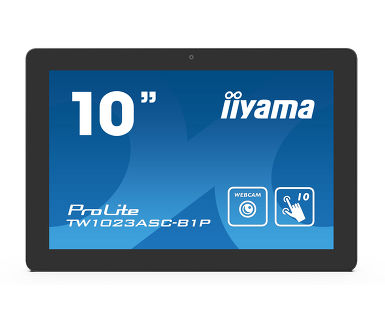
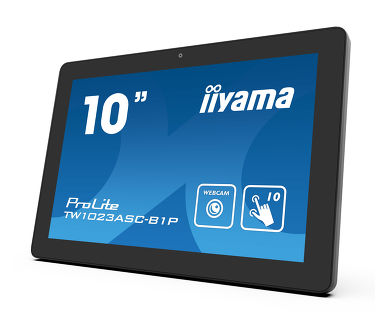
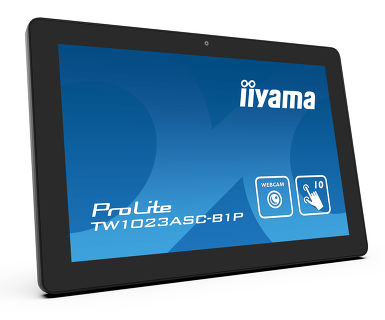
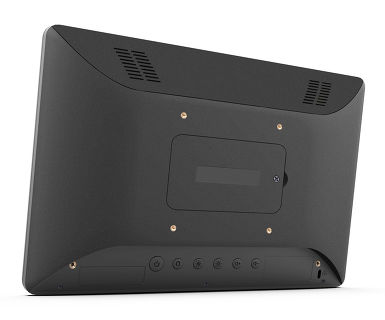
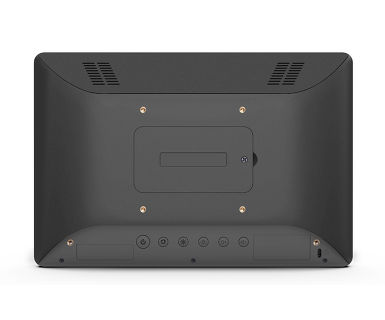
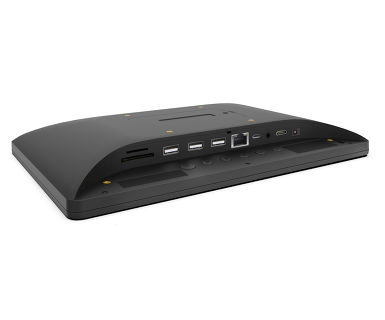
10.1” PCAP 10pt touch screen with Android and Power over Ethernet Technology
The ProLite TW1023ASC-B1P touch panel PC is a perfect choice for high-use environments such as retail, interactive POS, information desks or hospitality applications. Thanks to the pre-installed Android operating system, it is possible to easily customize the monitor by installing applications directly to it.
The Power over Ethernet technology (POE) allows to provide both data connection and power by a single cable, simplifying all installations. This monitor can operate in landscape, portrait or face-up orientation. Together with the built-in camera, microphone and speakers it offers limitless, interactive installation possibilities.
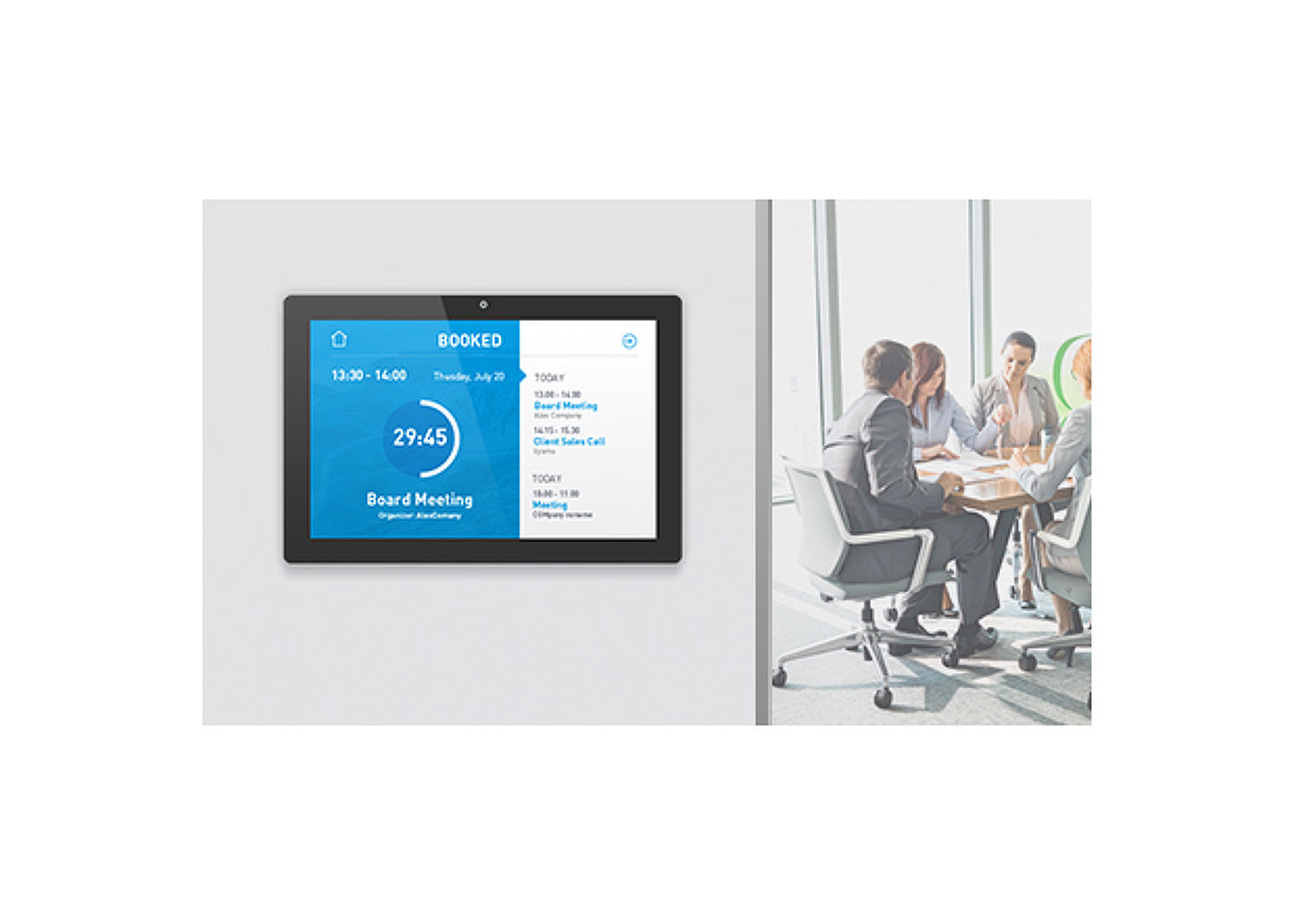
Az Power over Ethernet technológiát (POE) támogató RJ45 (LAN) csatlakozó lehetővé teszi az adatkapcsolat és az áramellátás egyetlen kábellel történő ellátását, ami egyszerűbbé teszi a telepítését olyan helyeken, ahol sok kábel használata nem lehetséges.
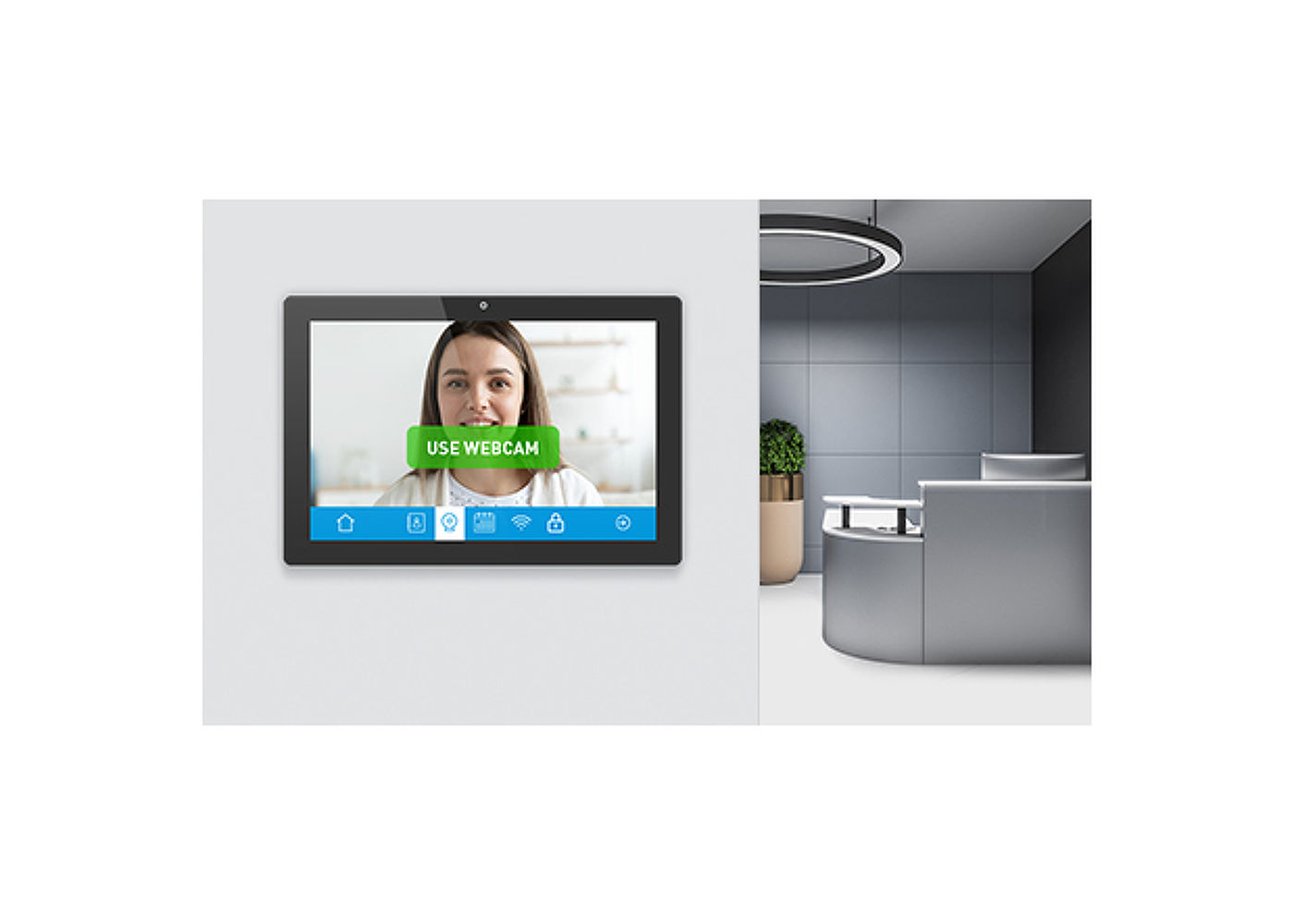
Tökéletes megoldás arra, hogy a képernyőt félig vagy teljesen automatizált félfogadási megoldásokhoz használják a vállalkozások azáltal, hogy az lehetővé teszi az ügyfélfogadó térben a látogatói forgalom követését és kezelését anélkül, hogy veszélyeztetnék a személyzet, a látogatók vagy a vállalati eszközök biztonságát.
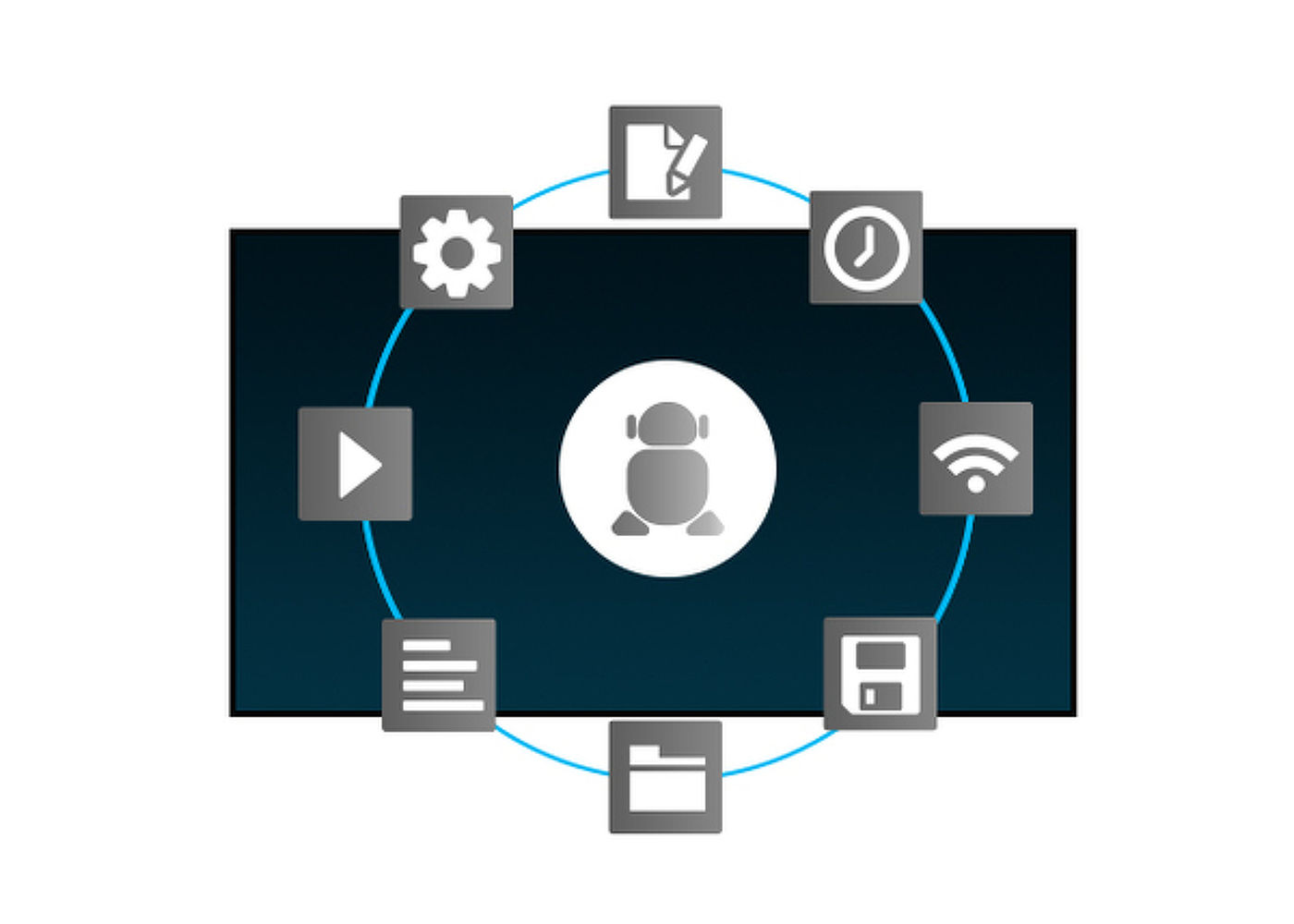
Az Android OS-nek köszönhetően a kijelző könnyedén testre szabhó az Ön igényeinek megfelelően úgy, hogy közvetlenül telepít rá alkalmazásokat.


| Dizájn | Széltől szélig érő üveg |
| Átló | 10.1", 25.5cm |
| Panel | IPS Panel Technology, LED |
| Natív felbontás | 1280 x 800 (1 megapixel HD) |
| Képarány | 16:10 |
| Fényerő | 450 cd/m² |
| Fényerősség | 385 cd/m² érintéssel |
| Fényáteresztés | 85% |
| Statikus kotraszt | 1000:1 érintéssel |
| Válaszidő (GTG) | 25ms |
| Látótér | horizontális/vertikális: 160°/160°, jobb/bal: 80°/80°, fel/le: 80°/80° |
| Szín támogatás | 16.7mln 8bit |
| Látható terület Sz x M | 216.6 x 135.4mm, 8.5 x 5.3" |
| Pixel magasság | 0.1692mm |
| Káva színe és felülete | fekete, matt |
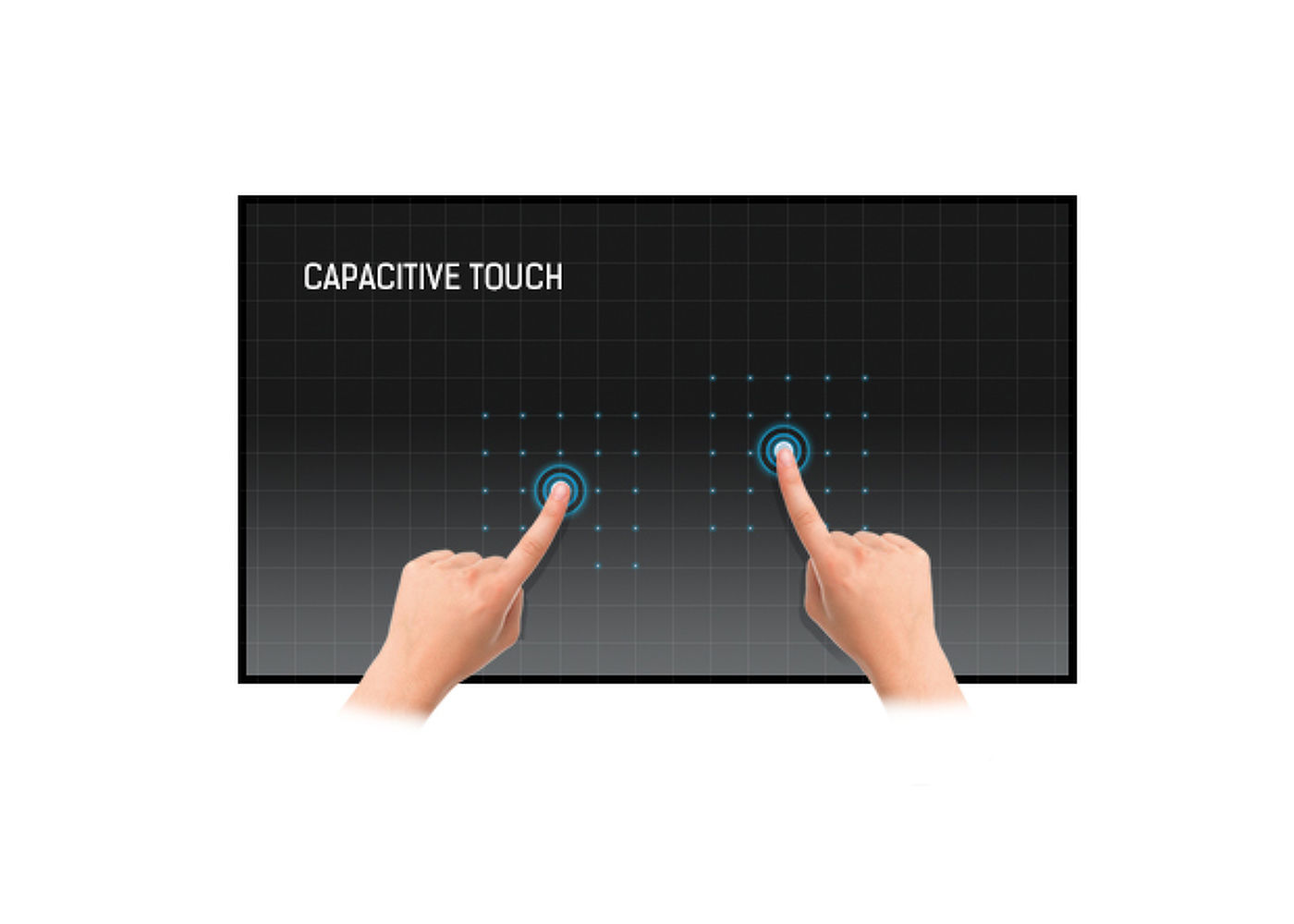
| Éríntőképernyős technológia | projektív kapacitív |
| Érintőpontok | 10 |
| Érintési mód | újj, kesztyű (latex), érintőceruza |
| Érintőképernyő interfész | USB |
| Digitális jelkimenet | HDMI x1 (mini HDMI, 1280x720 @60Hz) |
| Audio kimenet | Hangszórók 2 x 1.5W |
| USB portok | x2 (2.0, 1 x MICRO sa OTG) |
| RJ45 (LAN) | x1 (PoE - IEEE802.3af/15.4W) |
| Microphone | 1 |
| Beépített szoftver | Android 11 |
| CPU | Rockchip RK3288 Quad-core A17*4 |
| GPU | T764 |
| Tárhely | 16GB eMMC |
| Memória | 2GB DDR3 |
| WiFi | IEEE802.11b/g/n |
| Bluetooth | 4.0 |
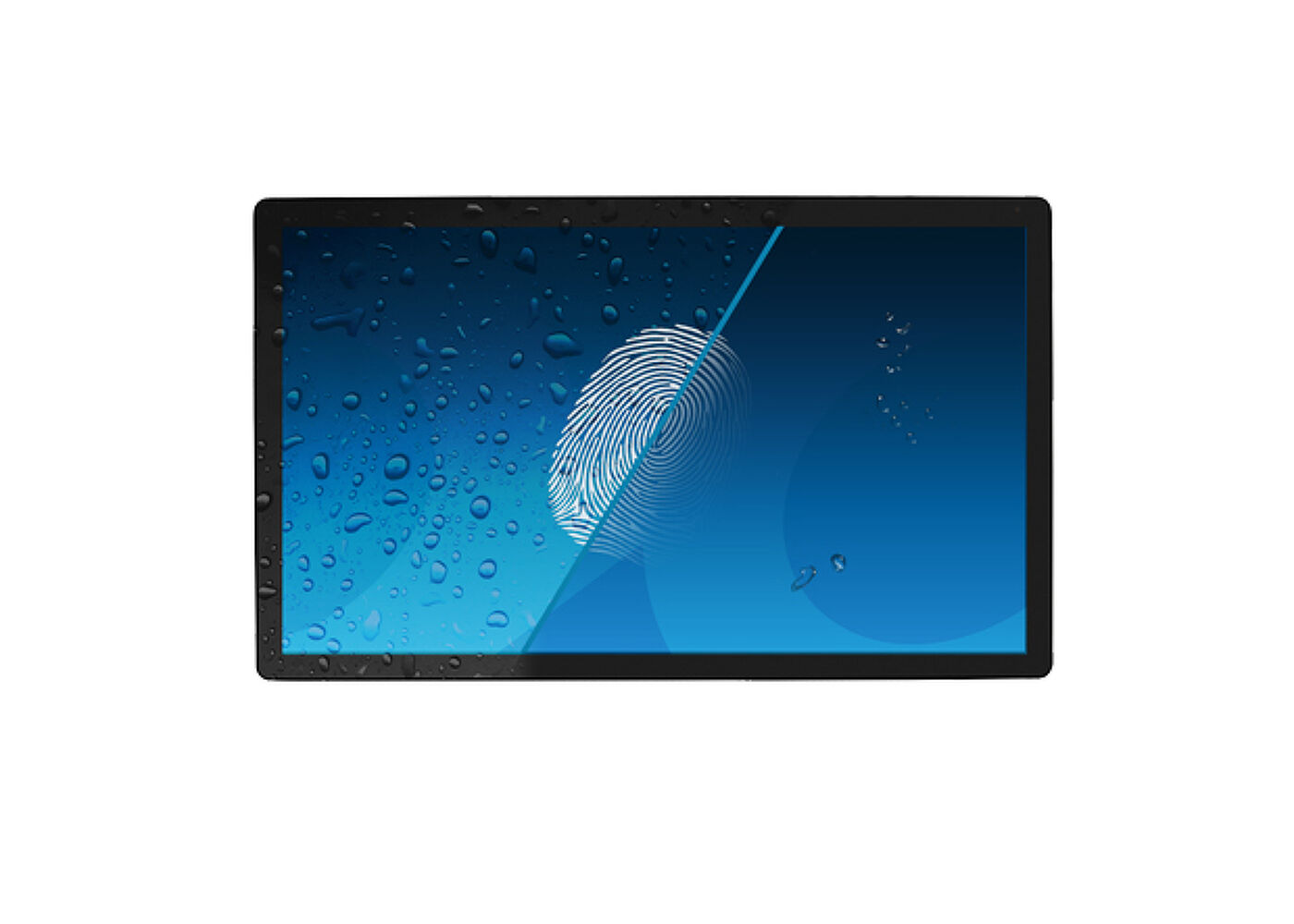
| Extra | auto-rotation, webcam (2 megapixel), microphone, SD card slot, anti-fingerprint coating |
| Max. non-stop üzemidő | 24/7 |
| Üveg vastagsága | 1.25mm |
| Üveg keménysége | 7H |
| Alkalmazások | install new application / manage application, lock application, calculator, calendar, camera, chrome, alarm / clock / timer / stopwatch, email, manage files and folders, manage images / video / audio, organize albums, manage power on/off time, play audio files, search engine, system preferences, sound recorder, play video files |
| Tájolás | tájkép, portré, oldalával felfelé |
| VESA állvány | 75 x 75mm |
| Útmutatók | gyors üzembe helyezési útmutató, biztonsági útmutató |
| Egyéb | AC adapter |
| Kábel takaró | igen |
| Tápegység | külső |
| Tápellátás | DC 12 V |
| Energiafogyasztás | 7W jellemző |
| Előírások | CE, RoHS támogatás, ErP, WEEE, HATÓTÁVOLSÁG |
| REACH SVHC | 0,1% felett: Vezet |
| Termék méretei Sz x H x M | 255 x 172 x 30.5mm |
| Doboz mértei Sz x H x M | 398 x 223 x 68mm |
| Raklap térfogata | 256db |
| Raklap méretei Sz x H x M | 1000 x 1200 x 2150mm |
| Súly (doboz nélkül) | 0.8kg |
| Súly (dobozzal) | 1.36kg |
| EAN kód | 4948570117116 |
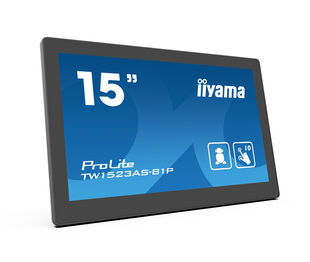
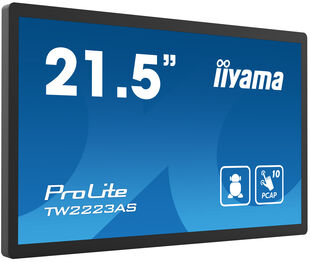
| Terméksorozatok | ProLite TW1523AS-B1P, ProLite TW2223AS-B1 |

You can install apps on your iiyama monitor through the official Google Play Store. However, the functionality of these apps may vary, depending on the specific app you wish to install.
Please visit the iiyama signup webpage and enter the model name or serial number of your iiyama screen. You will be directed to all available software applications for your product, along with instructions on how to activate them.
MBR cannot be selected when FreeSync/AdaptiveSync is activated, because MBR can interfere with the FreeSync/Adaptive Sync technology as they have different methods of improving motion clarity. MBR reduces motion blur (response time), while Adaptive Sync/FreeSync addresses stuttering. We recommend activating Adaptive Sync/FreeSync on systems with fluctuating or unstable frame rates. MBR performs best on powerful systems that maintain a consistently high frame rate.
Yes, Adaptive Sync is compatible with AMD FreeSync and NVIDIA G-Sync.
If your touch functionality is not working, please check the following:
1. Ensure your PC is connected to the monitor with the supplied USB cable.
2. Verify in the user manual that your operating system is supported by the screen.
When cleaning, please follow these guidelines to avoid damaging your Touch monitor:
1. Avoid using paper towels, abrasive cloths, or any harsh cleaning agents, as they can scratch the screen or damage the touch sensors.
2. Do not spray the cleaning solution directly onto the screen to prevent liquid from seeping into the monitor.
3. Avoid excessive cleaning, as it can wear out the screen over time.
4. For more details, please check our dedicated Cleaning page.
If your monitor is displaying a "No Signal" message, please check the following:
1. Ensure the cables are properly connected at both ends.
2. Select the correct signal input (HDMI/DP) or choose AUTO.
For guidance on selecting an input while the screen is in standby mode, please consult the user manual. On desktop monitors, common methods include pressing the INPUT, AUTO, or "2" buttons, or moving the joystick backward.
Yes, your iiyama monitor will work with your Apple Mac system. However, it depends on the signal input how to connect. Since Apple Mac systems from 2020 onwards only have Thunderbolt 3 (USB-C) ports for video output, you have two options:
1. Connect directly to the USB-C signal input on your iiyama monitor.
2. In case your monitor only has HDMI or Displayport, you will need a Mac-compatible dongle that supports one of the video inputs available. Apple offers a USB-C Digital AV Multiport Adapter (MW5M3AM) that can be used for this purpose.
3. If your iiyama monitor has touchscreen capabilities, please refer to the user manual to verify touch functionality compatibility with your Mac system.
To resolve the issue of a blinking picture, please follow these steps:
1. Inspect the Signal Cable.
Ensure the signal cable is securely connected at both ends and free from any physical damage. Avoid any sharp bends or squishing of the cable.
2. Use a Shorter Cable.
If possible, use a cable shorter than 3 meters and connect the monitor directly to a wall power socket, avoiding the use of adapters.
3. Disable FreeSync/Adaptive Sync.
For desktop or gaming monitors, try disabling FreeSync or Adaptive Sync in the monitor's settings menu.
iiyama monitors with USB-C Dock capabilities can be recognized by an "N" in their model names, such as HSN or QSN. For example, XUB****HSN. You can also visit our product selector page and use the available filters.
To explore the features and benefits of a monitor with a USB-C dock, please watch the video below.
To extend the desktop via DP-out, enable the MST function in the screen settings. For detailed instructions, please refer to your user manual.