Subscribe to our newsletter
Keep up #withiiyama
You have successfully subscribed to our newsletter.
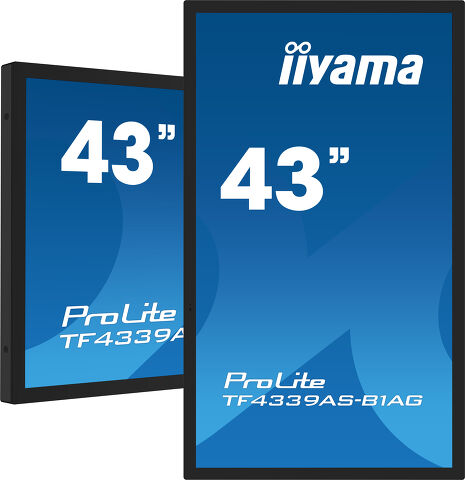
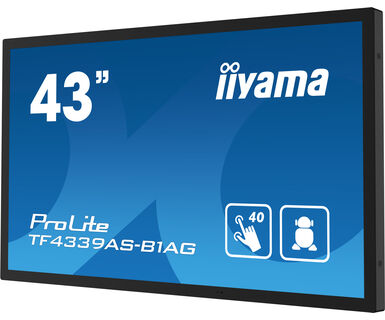
43" Minden-az-egyben PCAP interaktív kijelző, technológia által inspirált, kreatív terekhez és megosztáshoz tervezve
Enjoy an all-in-one interactive display that combines the best in PCAP Touchscreen technology, offering the versatility and freedom of Android OS, easily customized to your needs by installing applications directly to it. Offering a powerful, yet flexible user experience, fostering creative communication with the benefits of a secure and controllable Touchscreen.
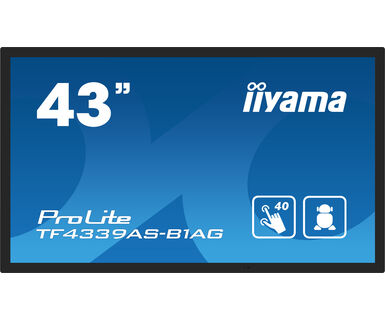
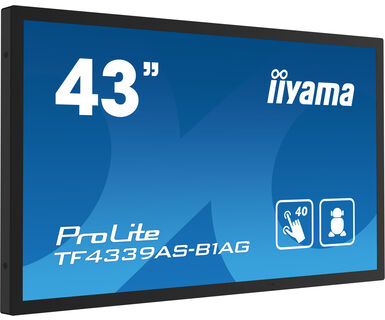
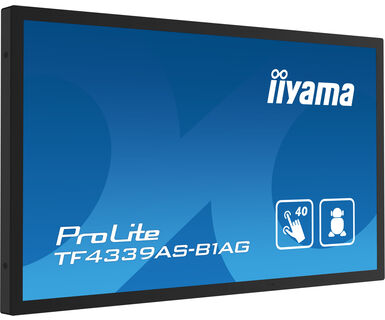
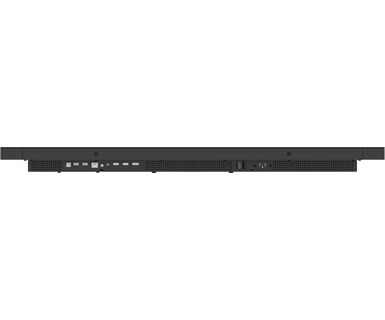
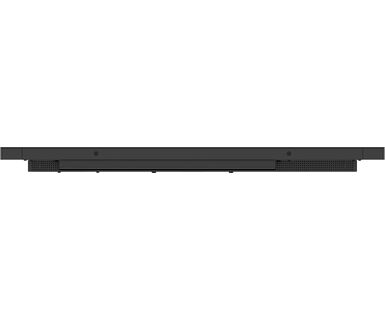
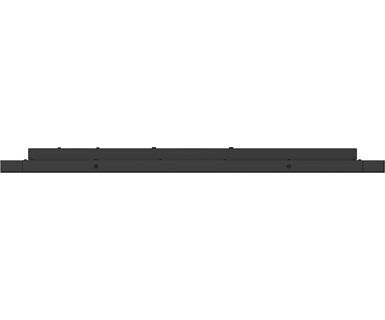
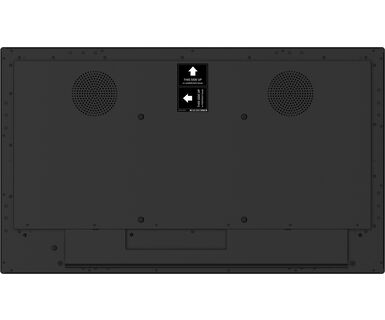
The refined edge-to-edge glass design of the TF4339AS-B1AG lends itself for integration into a large variety of environments where polished design and functionality are needed, like Huddle spaces in the modern office space, Retail shops and Kiosks.
The on-board iiSignage² CMS (Content Management System) gives you total control of your messaging and advertising, remotely and safely. The EShare App enables you to bring effortless ideation and efficient collaboration in your enterprise or school. You can start sharing wireless easier than ever before; while the FailOver feature ensures your content is always actively displayed through your choice of inputs
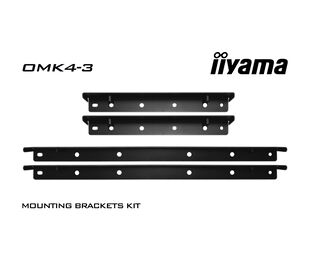
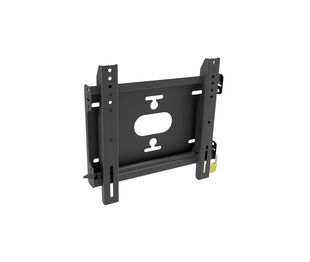
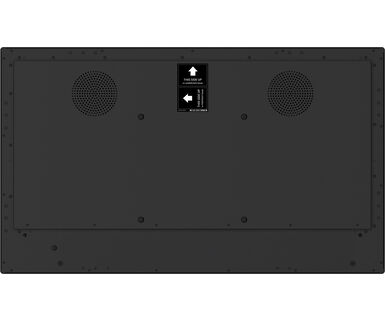
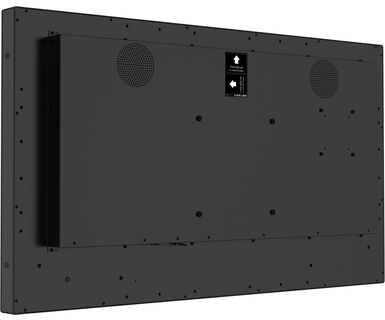
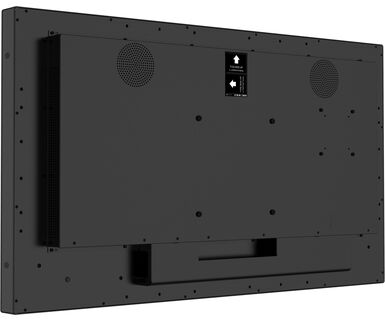
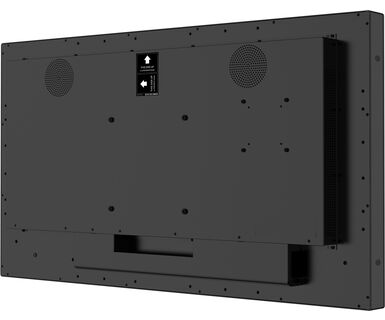
For ease of integration, the TF4339AS-B1AG can be equipped with optional external mounting brackets (OMK4-3).
Thanks to Android OS, you can easily customize the display to your needs by installing applications directly to it.
iiSignage² is our digital signage content management platform to easily show and control your content and to manage your displays in a secure way. The Content Management System (CMS) gives you total control of your messaging and advertising remotely and safely.
FailOver is a feature which automatically detects input sources. When there is no signal on the default input it will automatically switch to the next available input. FailOver allows customers to prioritize a number of inputs (incl. Browser, Media Player and Custom) and ensures your content is always actively displayed, assuring active content at all times.
Ez az üvegen keresztüli érintő funkció közvetlenül az üvegen keresztül működik, és az üvegfelületeket interaktív érintőképernyővé alakíthatja. Használja kirakati ablakokon, ingatlanirodában, üzlethelyiségekben vagy éttermekben.
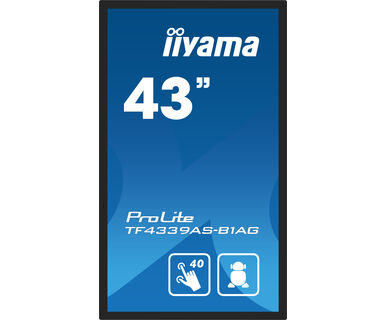
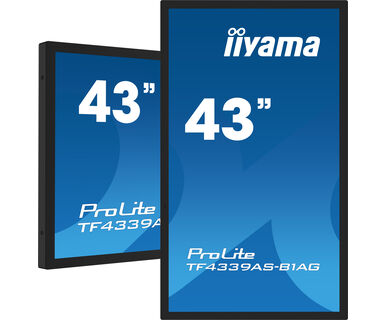
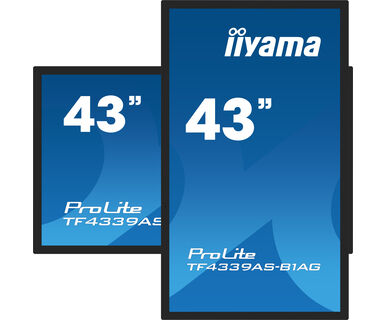
The interactive 4K Touchscreens are the key for immersive interactive experiences for spatial retail design. Allow customers to explore your website right there and then or engage with a range of creative or experiential applications you want to host. The flexibility of either landscape or portrait modes with 24/7 Operation, built-in Android and MediaPlayer make this SERIES displays one of the most adaptable Touchscreens solutions around.



| Dizájn | Széltől szélig érő üveg, Open Frame |
| Átló | 42.5", 108cm |
| Panel | IPS LED, AG coated glass, matte finish |
| Natív felbontás | 3840 x 2160 @60Hz (8.3 megapixel 4K UHD) |
| Képarány | 16:9 |
| Fényerő | 500 cd/m² |
| Fényerősség | 435 cd/m² érintéssel |
| Fényáteresztés | 87% |
| Statikus kontraszt | 1200:1 |
| Válaszidő (GTG) | 8ms |
| Látótér | horizontális/vertikális: 178°/178°, jobb/bal: 89°/89°, fel/le: 89°/89° |
| Szín támogatás | 16.7mln 8bit (72% NTSC) |
| Horizontális szinkronizálás | 28 - 160kHz |
| Látható terület Sz x M | 941.2 x 529.4mm, 37 x 20.8" |
| Káva szélessége (oldal, felső, alsó) | 26mm, 26mm, 26mm |
| Pixel magasság | 0.245mm |
| Káva színe és felülete | fekete, matt |
| Éríntőképernyős technológia | kötött PCAP |
| Érintőpontok | 40 |
| Érintés pontossága | +- 2.5mm |
| Érintési mód | ceruza, újj, kesztyű (latex) |
| Érintőképernyő interfész | USB |
| Támogatott operációs rendszerek | Minden iiyama monitor Plug & Play funkcióval rendelkezik, és kompatibilis a Windows és a Linux rendszerekkel. Az érintőképernyős modellek által támogatott operációs rendszerekre vonatkozó részletes információk a letöltések részben található illesztőprogram-fájlban találhatók. |
| Üvegen keresztüli érintés | 6mm |
| Tenyérérzékelés elutasítása | igen |
| Digitális jelbemenet |
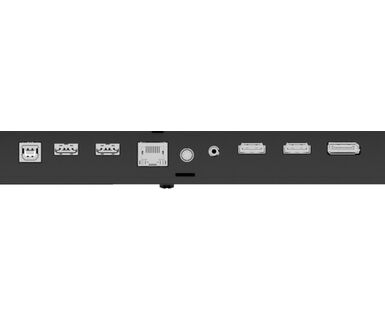
HDMI x2 (2.0, max. 3840x2160 @60Hz) DisplayPort x1 (1.2, max. 3840x2160 @60Hz) |
| Monitor vezérlő bemenet |
RS-232c x1 (Get/Set Command) RJ45 (LAN) x1 (Control and Internet) |
| Audio kimenet |
Mini jack x1 Hangszórók 2 x 10W |
| HDCP | 2.2 |
| USB portok | x2 (2.0 x2 (Type A)) |
| Beépített szoftver | Android 11 OS, iiSignage², EShare, FailOver |
| Hardver | CPU: A73*4+A53*4, GPU: G52 MP8, RAM: 4GB, ROM: 32GB |
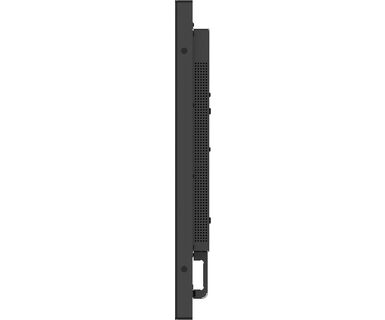
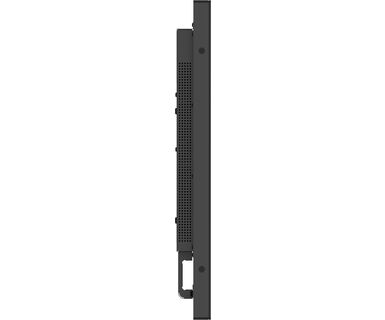
| Extra | fogantyúk, üvegen keresztüli érintőképernyő |
| Kioszk mód | igen |
| Max. non-stop üzemidő | 24/7 |
| Anti képmegőrzés | igen |
| Üveg vastagsága | 3mm |
| Üveg keménysége | 7H |
| 60950 Ball drop teszt | igen |
| Víz- és porvédelem | IP65 (elől) |
| Ház (káva) | fém |
| OSD billentyűzár | igen |
| Távirányító lezárás | igen |
| Képernyőn megjelenő nyelvek | EN, DE, FR, ES, IT, RU, CZ, NL, PL, SV, FI, DA, NB |
| Felhasználói vezérlők | picture (brightness, contrast, sharpness, back level, tint, colour, noise reduction, gamma selection, low blue light, colour temp., colour control, overscan, picture reset), screen (zoom mode, custom zoom, screen reset), audio (balance, treble, bass, volume, audio out (line out), max. volume, min. volume, mute, audio reset, audio out sync, speaker setting), configuration 1 (Android launcher, switch on state, Touch lock, Touch mode, mouse mode, panel saving, RS232 routing, boot on source, WOL, conf.1 reset, factory reset), configuration 2 (OSD timeout, OSD H position, OSD V position, system rotation, info OSD, logo and animation, logo setting, animation setting, monitor ID, monitor info, HDMI version, conf. 2 reset), advanced options (kiosk mode, side bar, no signal image, motorized stand, IR control, power LED light, fan, off timer, schedule, HDMI with one wire, HDMI with one wire off, failover, language, OSD transparency, power saving, advanced options reset) |
| Plug&Play | DDC2B |
| Tájolás | tájkép, portré, oldalával felfelé |
| VESA állvány | 200 x 200mm |
| Mini PC tartó | VESA 100 x 100, NUC INTEL |
| Működési hőmérséklet tartomány | 0°C - 40°C |
| Tárolási hőmérséklet tartomány | - 20°C - 60°C |
| MTBF | 50000 óra (kivéve háttérvilágítás) |
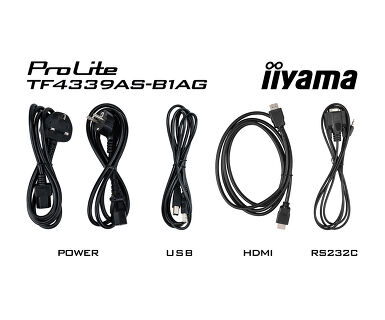
| Kábelek | áramellátás (1.8m), USB (1.8m), HDMI (1.8m) |
| Útmutatók | gyors üzembe helyezési útmutató, biztonsági útmutató |
| Kábel takaró | igen |
| Távirányító | igen (elemeket tartalmazza) |
| Tápegység | belső |
| Áramellátás | AC 100 - 240V, 50/60Hz |
| Energiafogyasztás | 116W jellemző, 0.5W készenlét, 0.3W kikapcsolva |
| Áramfogyasztás | 0.5W készenlét |
| Előírások | CB, CE, TÜV-Bauart, EAC, RoHS támogatás, ErP, WEEE, HATÓTÁVOLSÁG, UKCA, cTUVus |
| Energiahatékonysági osztály ((EU) 2017/1369 rendelet) | F |
| REACH SVHC | 0,1% felett: Vezet |
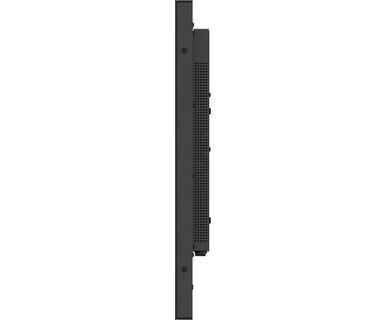
| Termék méretei Sz x H x M | 997.2 x 585.4 x 63.4mm |
| Doboz mértei Sz x H x M | 1105 x 712 x 157mm |
| Súly (doboz nélkül) | 22.1kg |
| Súly (dobozzal) | 27kg |
| EAN kód | 4948570123872 |
| Tartók / állványok / konzolok | MD-WM2020, MD-WLIFT2031-W1, MD-CAR2031-B1 |
No, you cannot install apps on your iiyama monitor through the official Google Play Store. However, you do have the option to sideload applications onto your display.
Please visit the iiyama signup webpage and enter the model name or serial number of your iiyama screen. You will be directed to all available software applications for your product, along with instructions on how to activate them.
All iiyama LFDs and IFP displays can be used in portrait mode, except for products with item names starting with TE or LE, which can only operate in landscape mode. Always follow the installation instructions provided with the monitor and the guidelines in the User Manual.
If you wish to change the settings on your monitor remotely, please refer to the RS232/LAN protocol document available in the DOWNLOAD section on the product page.
The commands can be sent to the screen with a terminal app, for example Hercules SETUP utility. For more information, please refer to the RS232/LAN protocol document available in the DOWNLOAD section on the product page.
If your touch functionality is not working, please check the following:
1. Ensure your PC is connected to the monitor with the supplied USB cable.
2. Verify in the user manual that your operating system is supported by the screen.
When cleaning, please follow these guidelines to avoid damaging your Touch monitor:
1. Avoid using paper towels, abrasive cloths, or any harsh cleaning agents, as they can scratch the screen or damage the touch sensors.
2. Do not spray the cleaning solution directly onto the screen to prevent liquid from seeping into the monitor.
3. Avoid excessive cleaning, as it can wear out the screen over time.
4. For more details, please check our dedicated Cleaning page.
If your monitor is displaying a "No Signal" message, please check the following:
1. Ensure the cables are properly connected at both ends.
2. Select the correct signal input (HDMI/DP) or choose AUTO.
For guidance on selecting an input while the screen is in standby mode, please consult the user manual. On desktop monitors, common methods include pressing the INPUT, AUTO, or "2" buttons, or moving the joystick backward.
Yes, your iiyama monitor will work with your Apple Mac system. However, it depends on the signal input how to connect. Since Apple Mac systems from 2020 onwards only have Thunderbolt 3 (USB-C) ports for video output, you have two options:
1. Connect directly to the USB-C signal input on your iiyama monitor.
2. In case your monitor only has HDMI or Displayport, you will need a Mac-compatible dongle that supports one of the video inputs available. Apple offers a USB-C Digital AV Multiport Adapter (MW5M3AM) that can be used for this purpose.
3. If your iiyama monitor has touchscreen capabilities, please refer to the user manual to verify touch functionality compatibility with your Mac system.
To resolve the issue of a blinking picture, please follow these steps:
1. Inspect the Signal Cable.
Ensure the signal cable is securely connected at both ends and free from any physical damage. Avoid any sharp bends or squishing of the cable.
2. Use a Shorter Cable.
If possible, use a cable shorter than 3 meters and connect the monitor directly to a wall power socket, avoiding the use of adapters.
3. Disable FreeSync/Adaptive Sync.
For desktop or gaming monitors, try disabling FreeSync or Adaptive Sync in the monitor's settings menu.