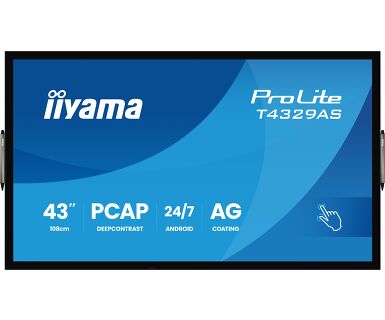
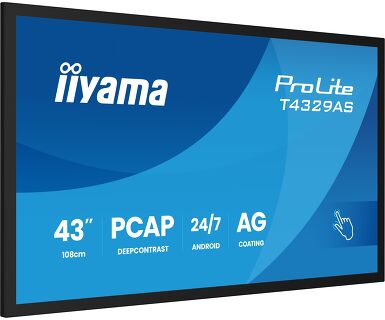
ProLite T4329AS-B1AG
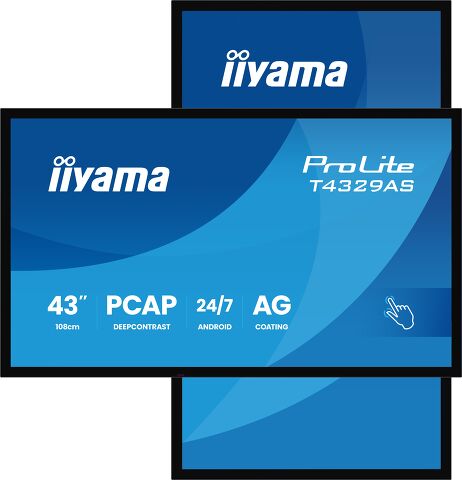
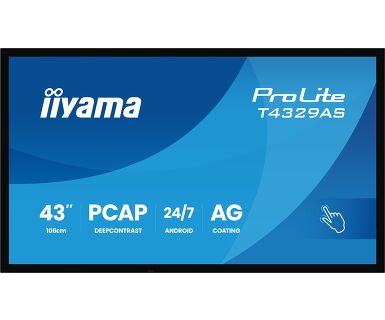
43" All-in-One PCAP Interactive Display for Smart Collaboration Spaces
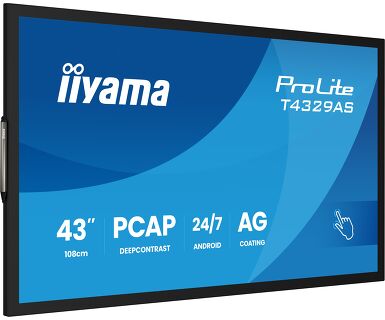
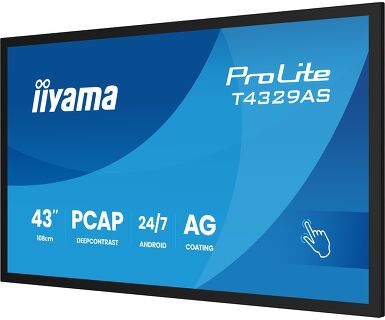
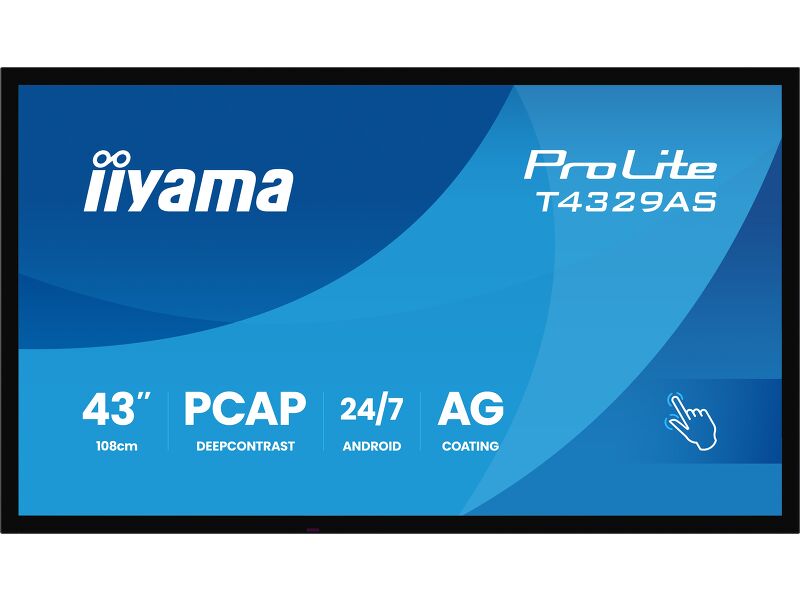
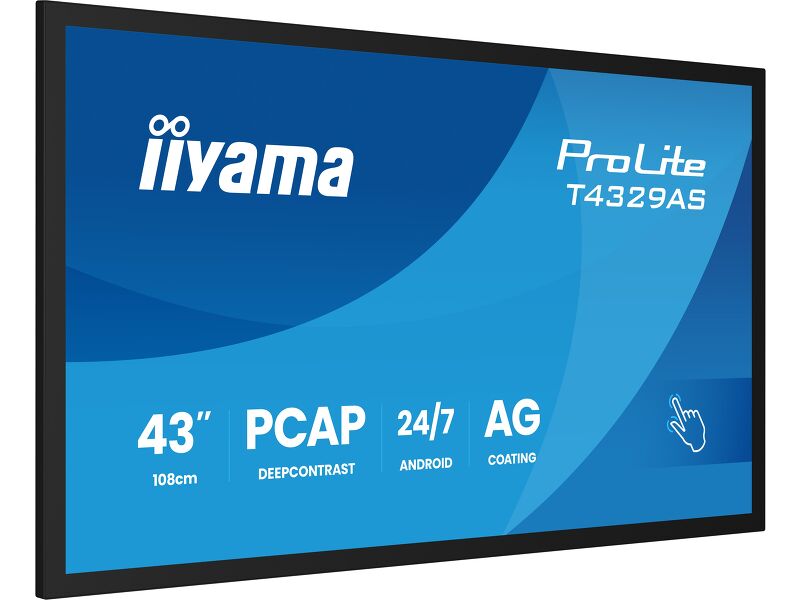
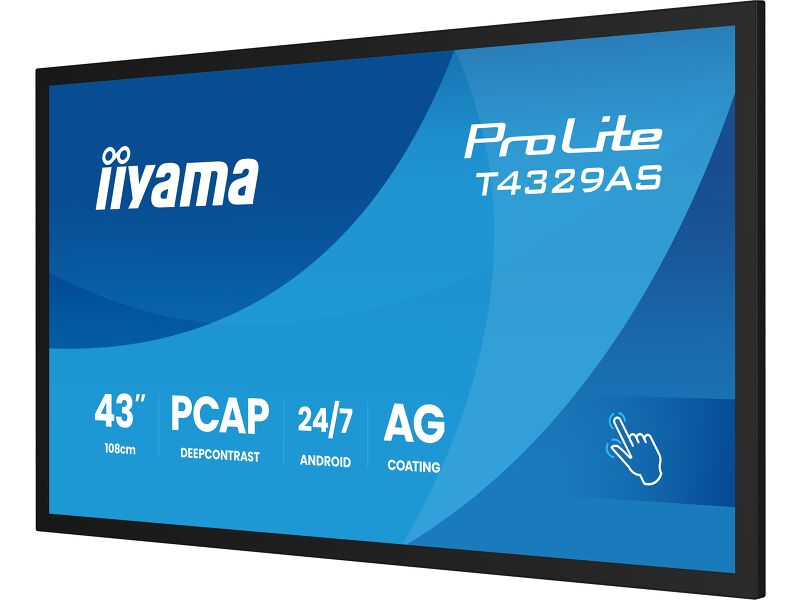
The ProLite T4329AS-B1AG is a 43" all-in-one PCAP touchscreen display built for the evolving needs of modern workspaces, especially huddle spaces where creativity, flexibility, and seamless sharing take center stage.
Powered by Android OS, this interactive display delivers a user-friendly and highly adaptable experience. You can install your preferred apps directly on the device, enabling customized workflows tailored to your environment — whether in a collaborative meeting area, an enterprise innovation hub, or an educational breakout room.
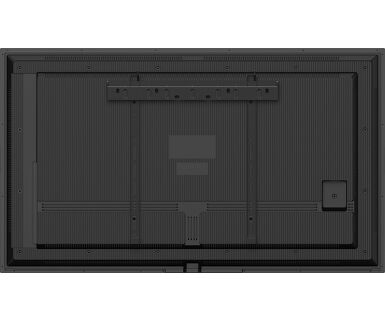
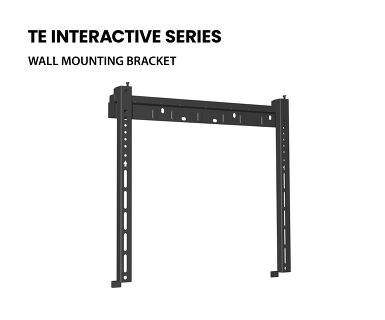
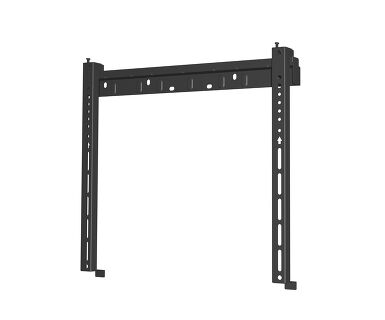
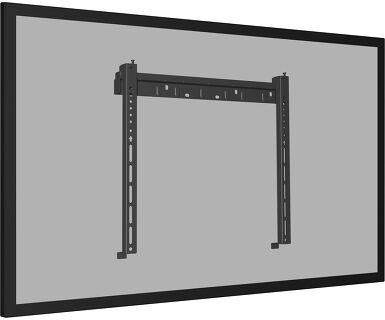
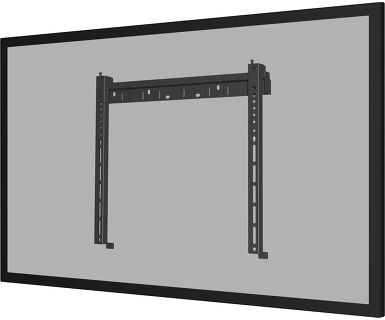
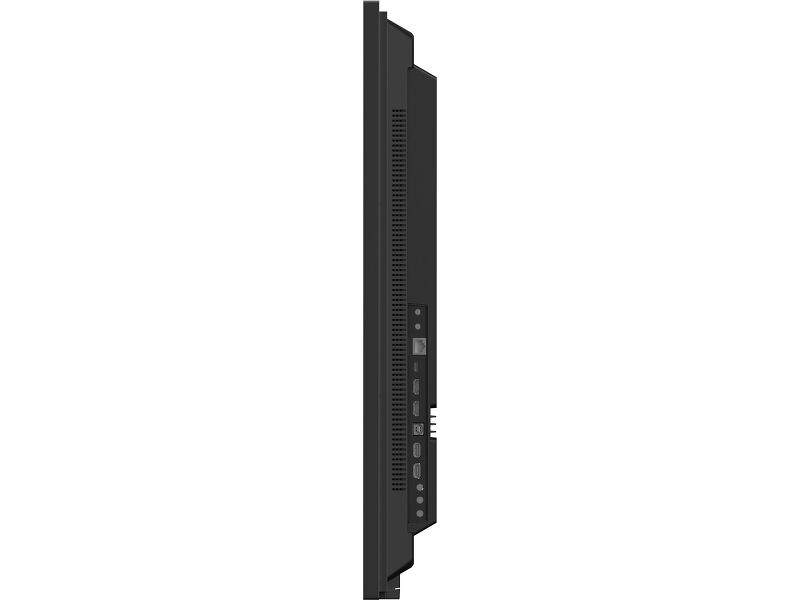
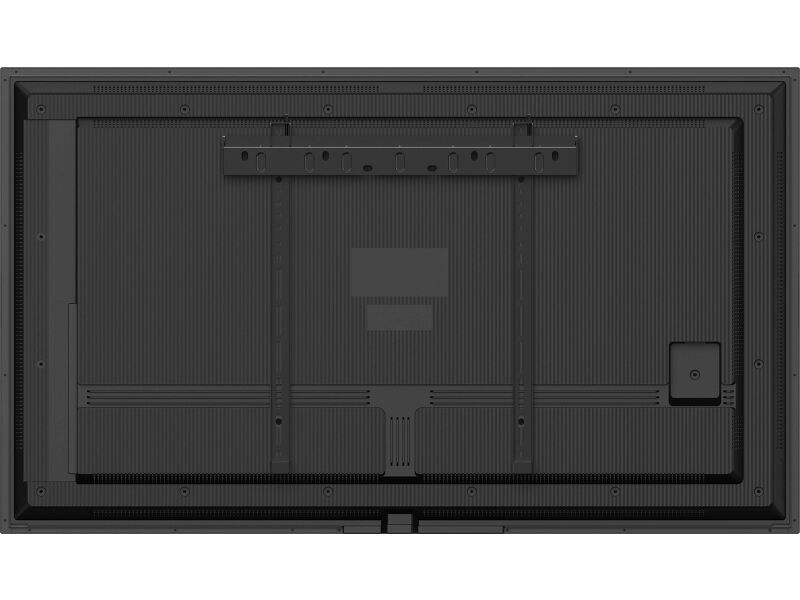
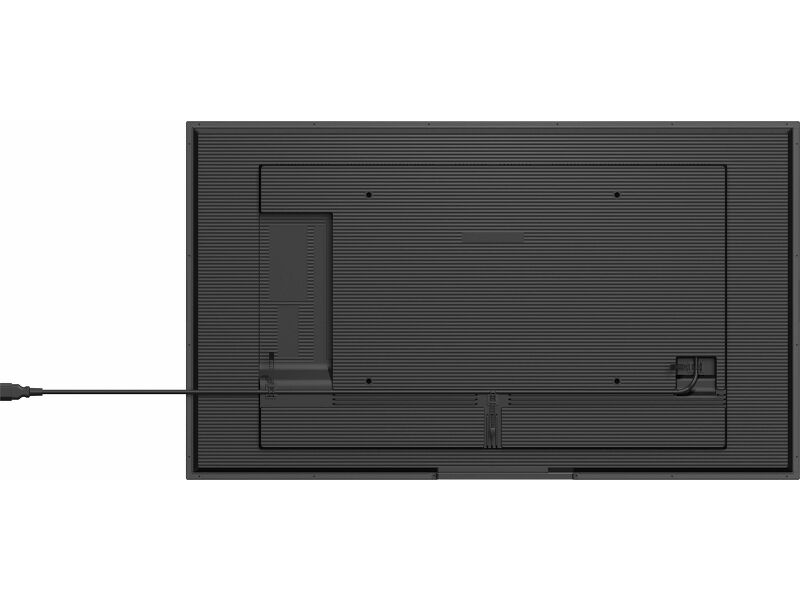
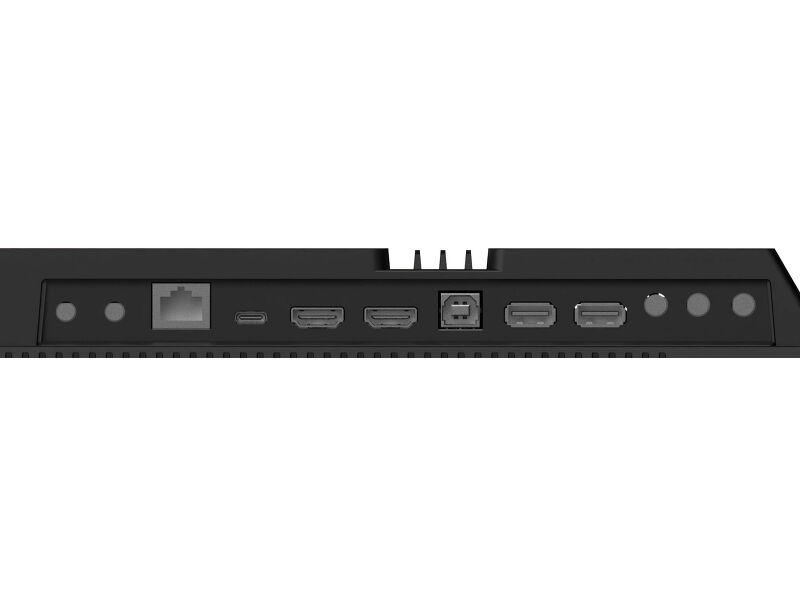
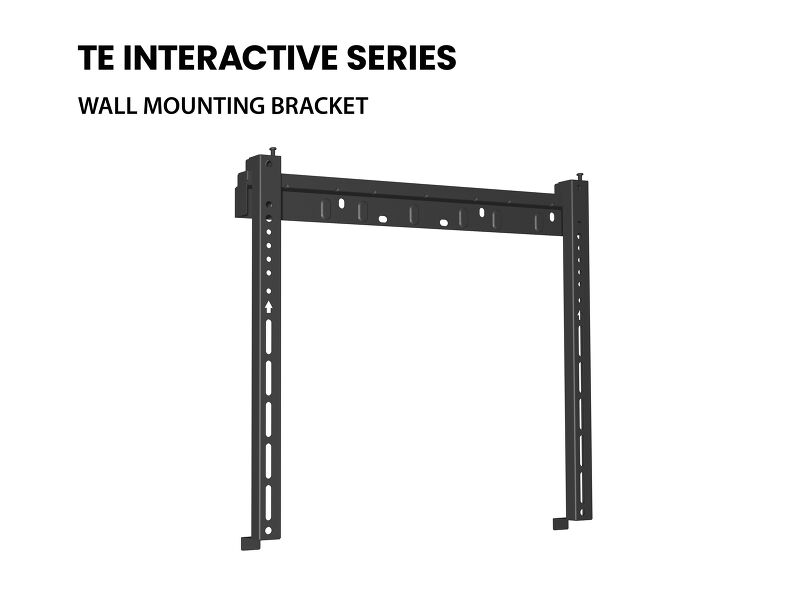
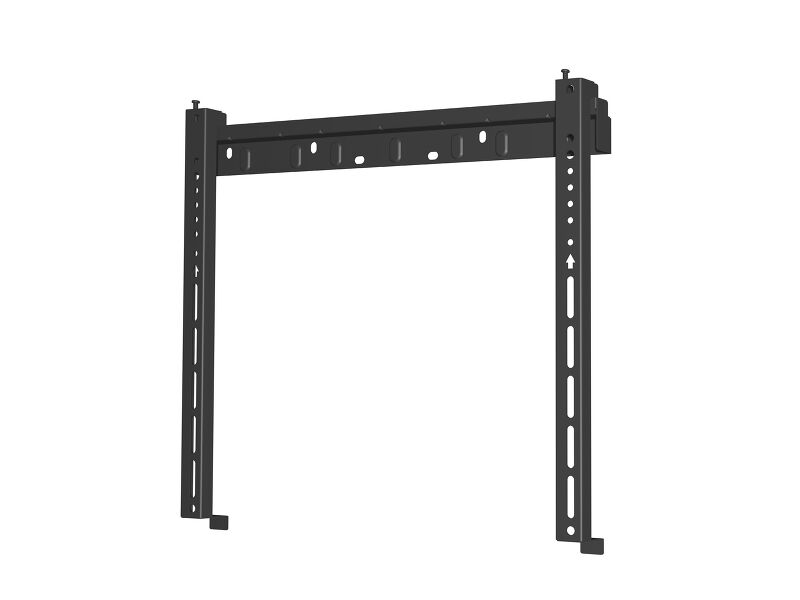
The USB-C loop-through feature simplifies connectivity by allowing multiple displays to be easily daisy-chained while transmitting power, data, and video — all through a single cable. This reduces cable clutter and setup time, making it ideal for dynamic workspaces. The included wall mounting bracket makes installation straightforward and secure.
With iiSignage² (CMS), iiControl (DMS), and iiShare (Wireless Presentation) you gain full control over content and messaging, even remotely — perfect for updating shared information or branded visuals on the fly. The integrated EShare app brings wireless screen sharing and collaboration to life, supporting multi-user interaction and real-time ideation.
The T4329AS-B1AG isn’t just a display — it’s a collaboration tool designed to empower teams, streamline communication, and make every meeting count.
Android OS
Thanks to Android OS, you can easily customize the display to your needs by installing applications directly to it.
iiSignage²
iiSignage² is our digital signage content management platform to easily show and control your content and to manage your displays in a secure way. The Content Management System (CMS) gives you total control of your messaging and advertising remotely and safely.
USB-C Loop Through
One cable, zero clutter. USB-C Loop Through lets you connect and daisy-chain devices with ease—video, data, and power all in one go. It’s plug, play, and pass it on. Smart connectivity that keeps your setup clean and simple.
Touch Pens
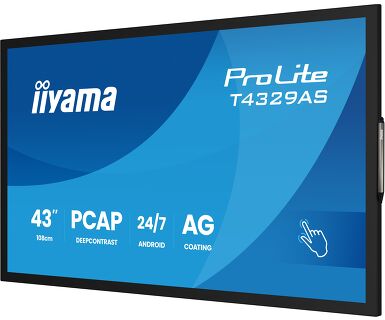
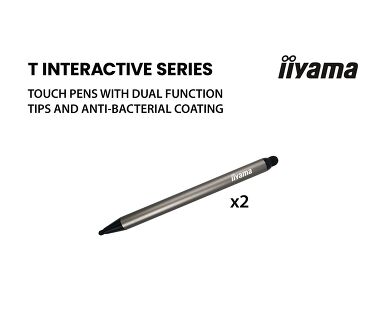
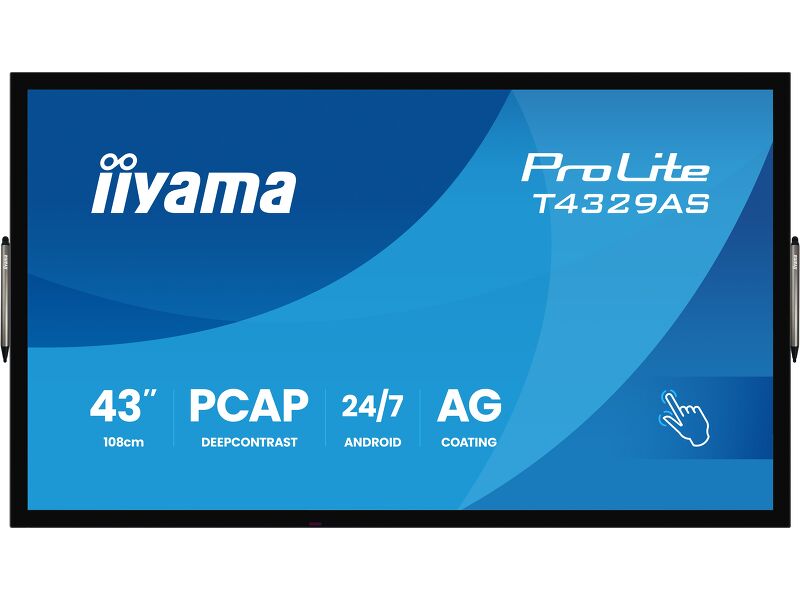
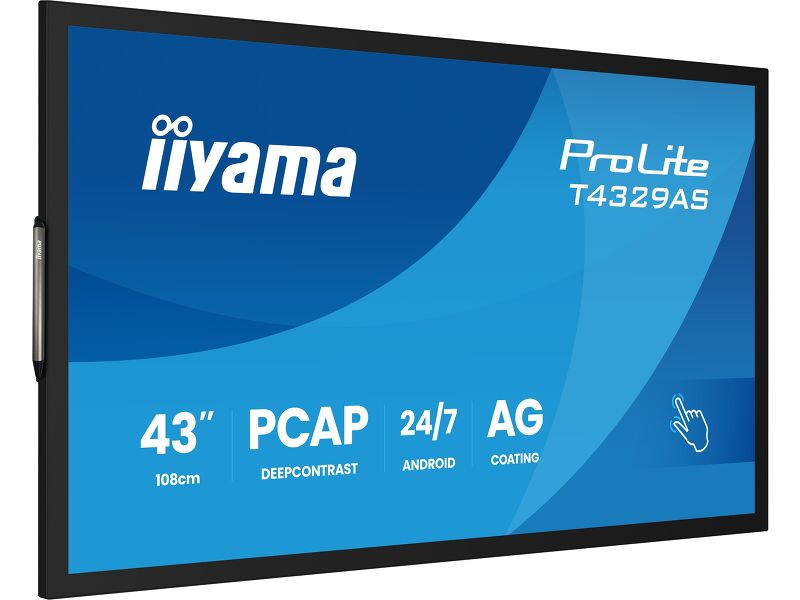
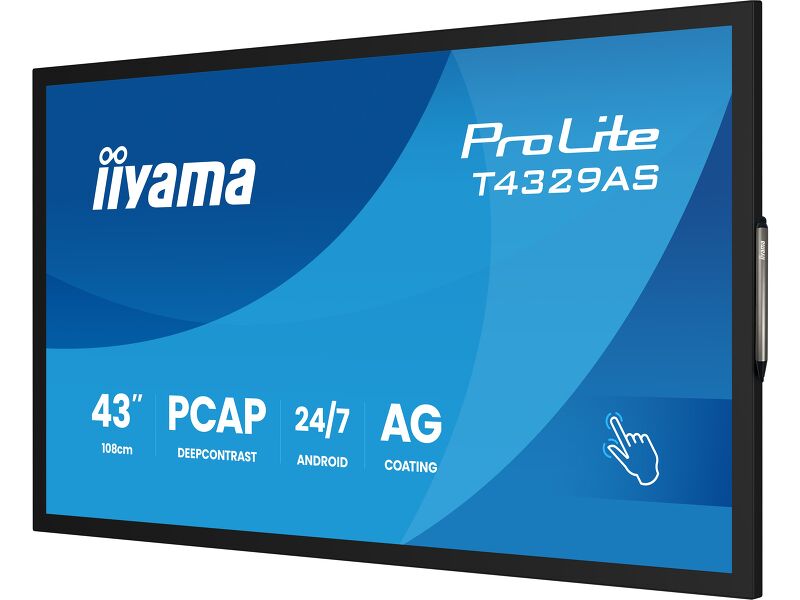
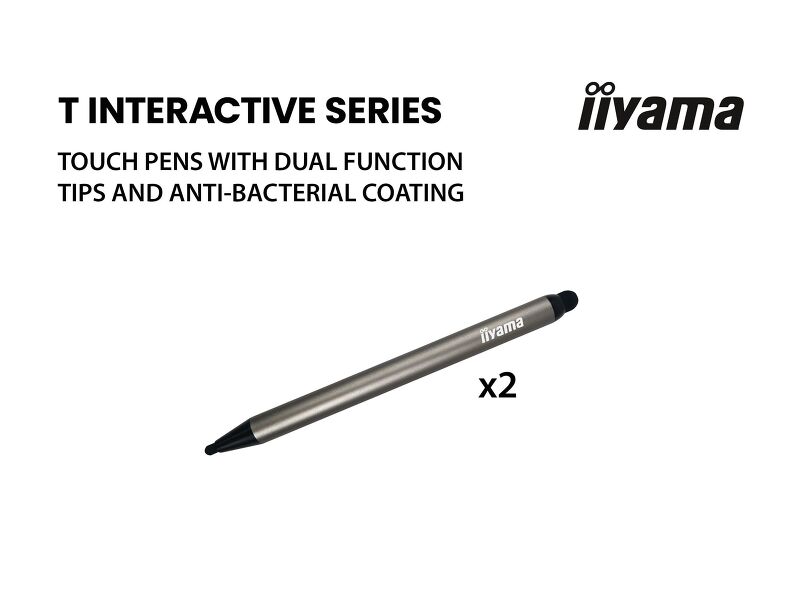
Two stylish dual tip Touch pens are included and they can be placed at both sides of the display at the magnetic holding spots.
Huddle Spaces
Turn these small meeting rooms into neat Collaboration spaces by employing the embedded applications like Android OS, EShare and Whiteboard, a selection of intuitive and practical tools installed on our PCAP interactive Touchscreens. With Android OS you can easily customize the display by installing applications directly to it. With the EShare app you can share, stream and edit content from any device directly on screen and transform your team meetings into an easy, fast and seamless interactive session.
Signal FailOver
FailOver is a feature which automatically detects input sources. When there is no signal on the default input it will automatically switch to the next available input. FailOver allows customers to prioritize a number of inputs (incl. Browser, Media Player and Custom) and ensures your content is always actively displayed, assuring active content at all times.
Technical specification



DISPLAY CHARACTERISTICS
| Design | Edge to edge glass |
| Diagonal | 42.5", 108cm |
| Panel | VA, DLED |
| Touch Glass | Anti-Glare Glass with Anti-Gloss treatment, Smooth writing, Zero Gap - Air Bonded, DeepContrast PCAP |
| Native resolution | 3840 x 2160 (8.3 MegaPixels 4K UHD) |
| Aspect ratio | 16:9 |
| Panel brightness | 500 cd/m² |
| Brightness | 420 cd/m² with touch |
| Light transmittance | 83% |
| Static contrast | 4000:1 |
| Response time (GTG) | 6.5ms |
| Viewing zone | horizontal/vertical: 178°/178°, right/left: 89°/89°, up/down: 89°/89° |
| Colour support | 1.07G (8 Bits+FRC) (NTSC 72%) |
| Horizontal Sync | 28 - 160kHz |
| Viewable area W x H | 941.2 x 529.4mm, 37 x 20.8" |
| Pixel pitch | 0.245mm |
| Bezel colour and finish | black, matte |
TOUCH
| Touch technology | DeepContrast-PCAP |
| Touch points | 20 (HID, only with supported OS) |
| Touch accuracy | +- 2.5mm |
| Touch method | stylus, finger |
| Touch interface | USB |
| Supported operating systems | All iiyama monitors are Plug & Play and compatible with Windows and Linux. For details regarding the supported OS for the touch models, please refer to the driver instruction file available in the downloads section. |
| Palm rejection | yes |
INTERFACES / CONNECTORS / CONTROLS
| Digital signal input |
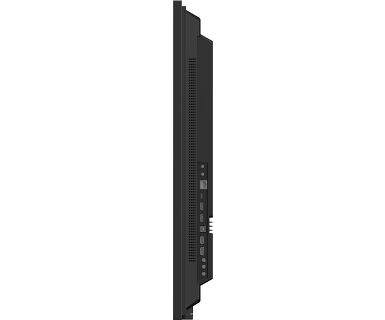
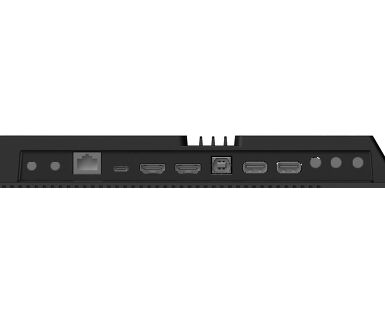
HDMI x2 (1.4/ 2.0, max. 3840;2160 @60Hz) USB-C x1 (3.2, DP 1.2 Alt mode, 15W PD) |
| Monitor control input |
RS-232c x1 RJ45 (LAN) x1 IR x1 (3.5mm) |
| Audio output | Speakers 2 x 10W |
| Monitor control output |
RS-232c x1 IR loop through x1 (3.5mm) |
| HDCP | 1.4 / 2.2 |
| USB ports | x2 (2.0 with Multi-Media support) |
| RS-232c | x1 |
FEATURES
| Integrated software | Android 14 OS, Whiteboard, iiSignage², iiControl, iiShare, EShare, FailOver, TeamViewer, Web-, PDF & Media Player, iiBrowser, File manager |
| WiFi | WiFi 5 @ 2.4G / 5G |
| Hardware | CPU: MTK9679 Quad-core A73*4, GPU: Mali G51, RAM: 4GB, ROM: 32GB |
| Kiosk mode | yes |
| Max. non-stop operating time | 24/7 |
| Anti image retention | yes |
| Glass thickness | 3.7mm |
| Glass hardness | 8H |
| Water and dust protection | IP5X (front) |
| Housing (bezel) | metal (front) |
| OSD key lock | yes |
| Remote control lock | yes |
GENERAL
| OSD languages | EN, DE, FR, ES, RU, JP, NL, PL |
| Control buttons | Power (long press for Quick Menu (source, volume +, volume -, brightness +, brightness -, Touch unlock) |
| User controls | picture (brightness, contrast, sharpness, black level, tint, colour, noice reduction, gamma selection, low blue light, color temp., color control, picture reset), audio (balance, treble, bass,volume, audio out, max. volume, min. volume, mute, speakers setting audio reset), OSD setting (OSD timeout, OSD H position, OSD V position, OSD transparency, information OSD, side bar), general (logo and animation, wallpaper, no signal image, schedule, off timer), screen (zoom mode, custom zoom, system rotation, scree reset), device (power on status, RS232 routing, IR control, Physical button, motorized stand, power saving, panel saving, monitor info, Touch lock, other), system (language, system update, settng reset, factory reset, Android setting), admin (menu lock, meeting lock, HDMI CEC, kiosk mode, screen share, Miracast standby, log export) |
| Plug&Play | DDC2B |
MECHANICAL
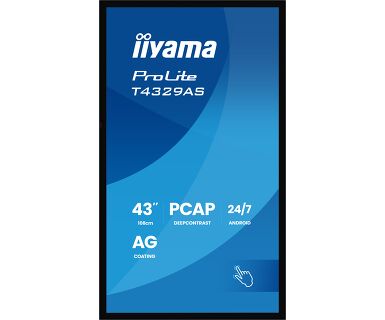
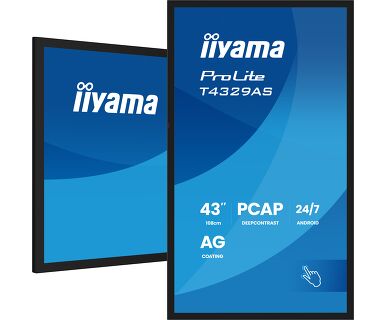
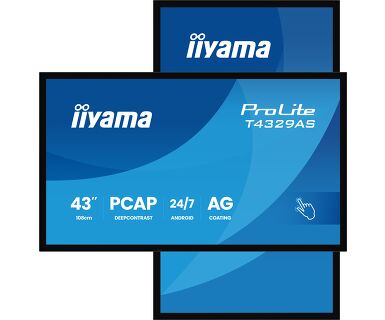
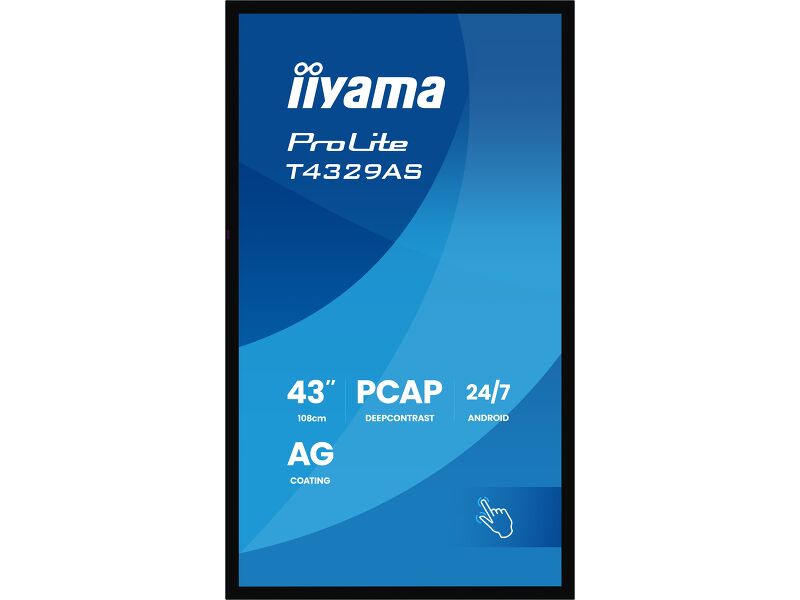
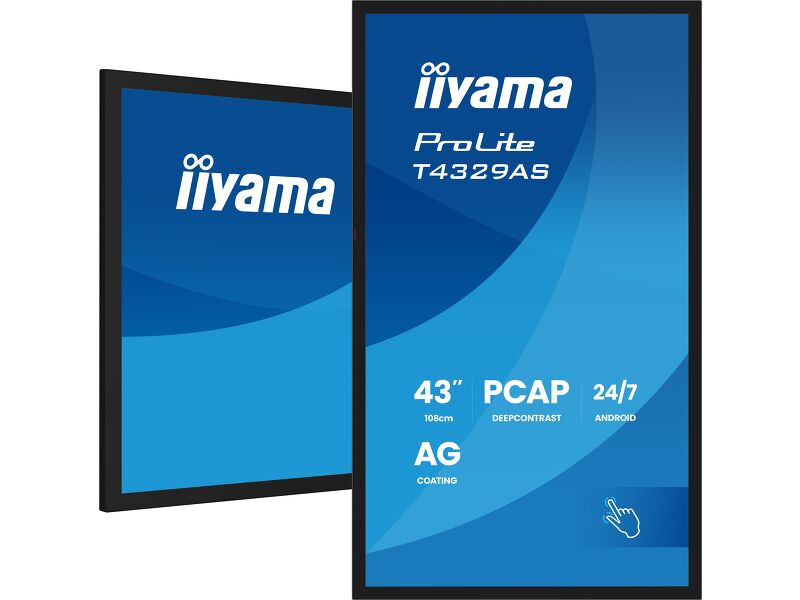
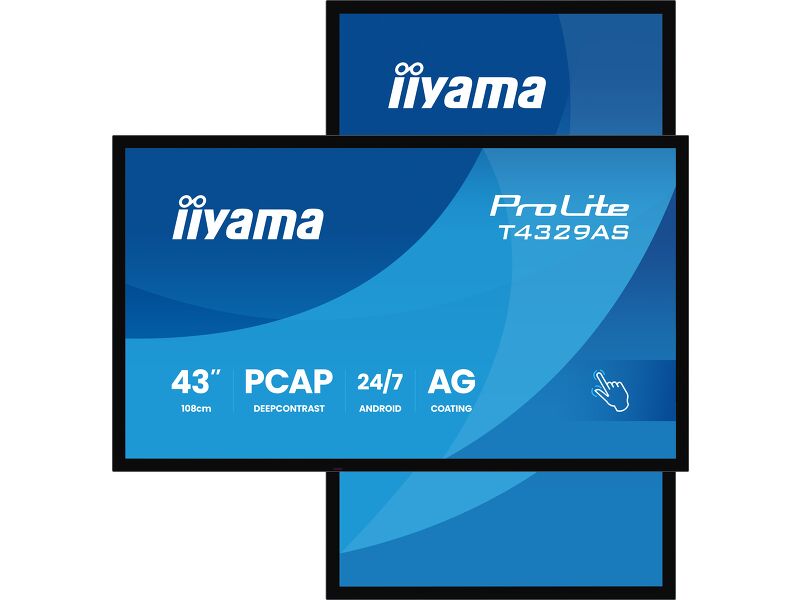
| Orientation | landscape, portrait |
| Fanless design | yes |
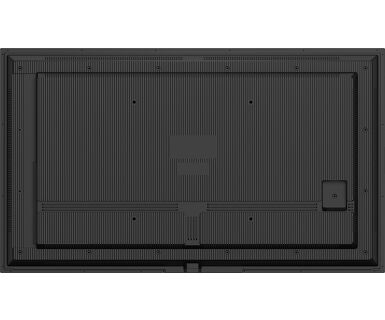
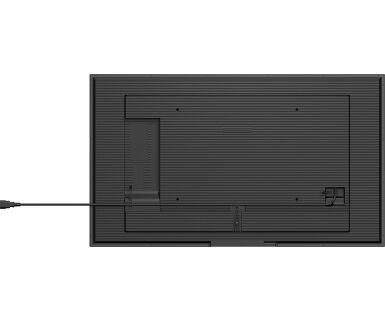
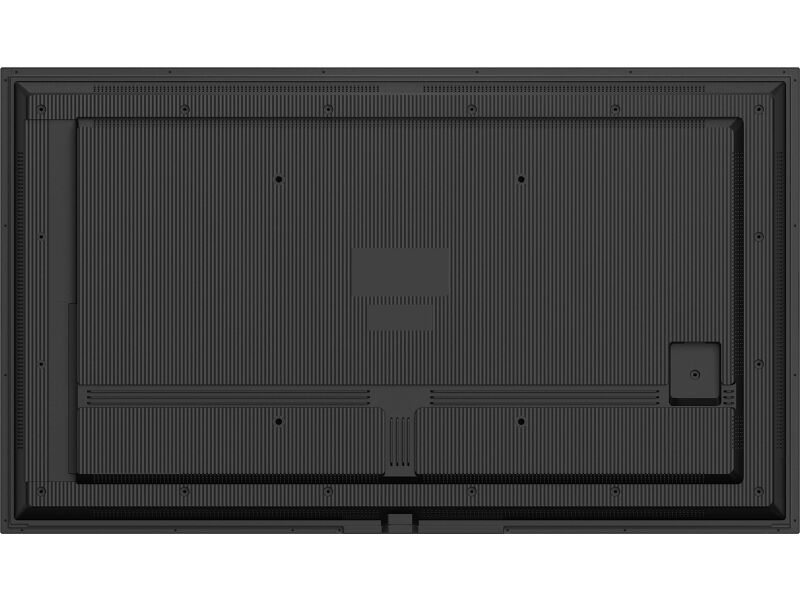
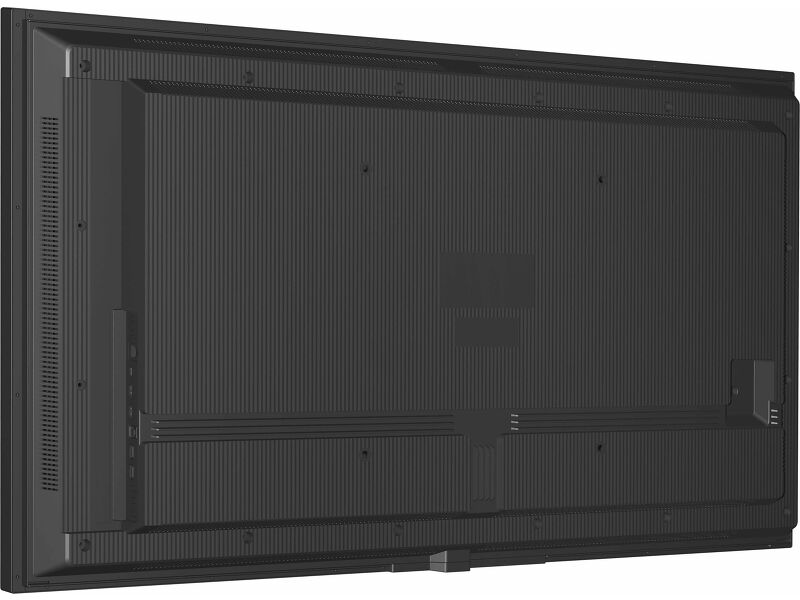
| VESA mounting | 300 x 300mm |
| Operation temperature range | 0°C - 40°C |
| Operation temperature range (-°/+°) | -20°C - 60°C |
| MTBF | 50000 hours (excluding backlight) |
ACCESSORIES INCLUDED
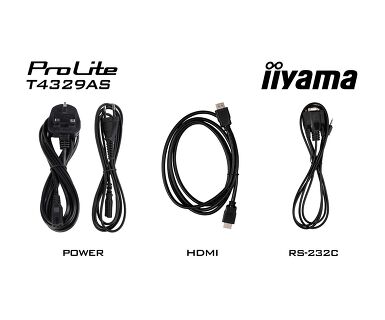
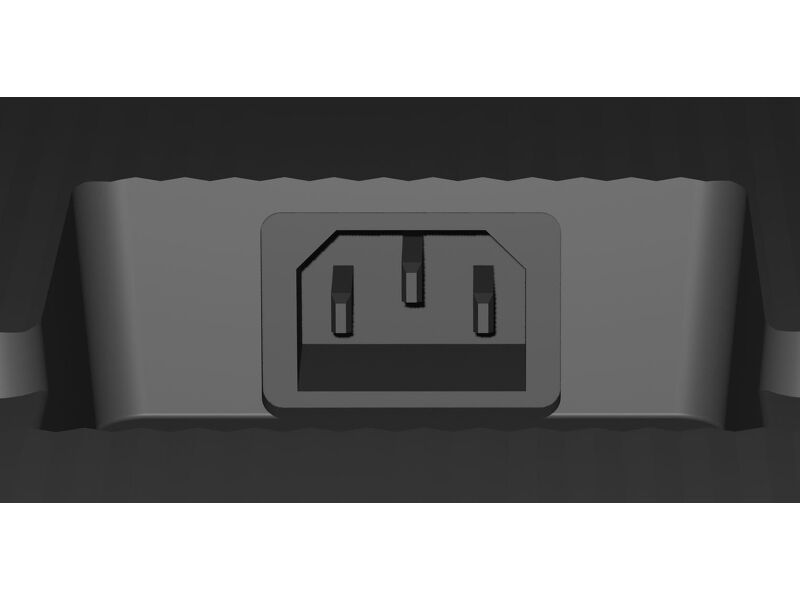
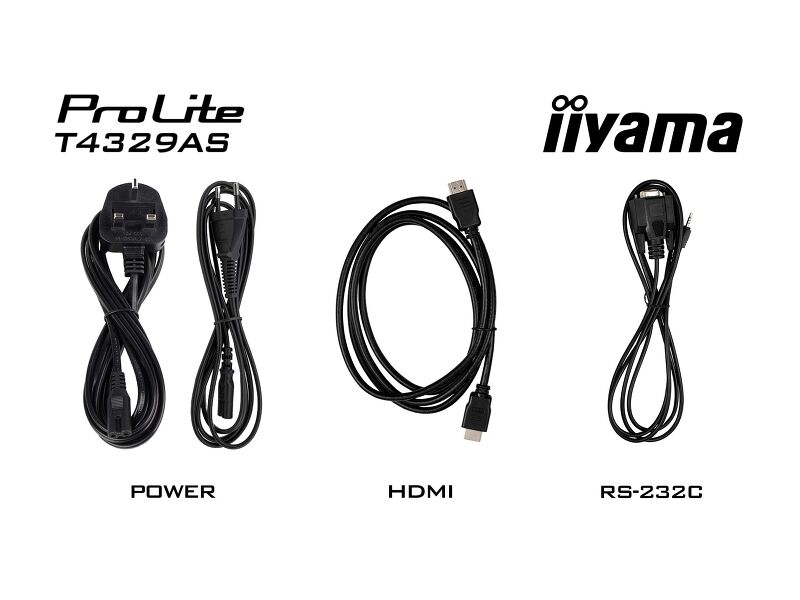
| Cables | power (1.8m), HDMI (1.8m), RS-232c (1.8m) |
| Touch pen | x2 (Dual tips) |
| Guides | quick start guide, safety guide |
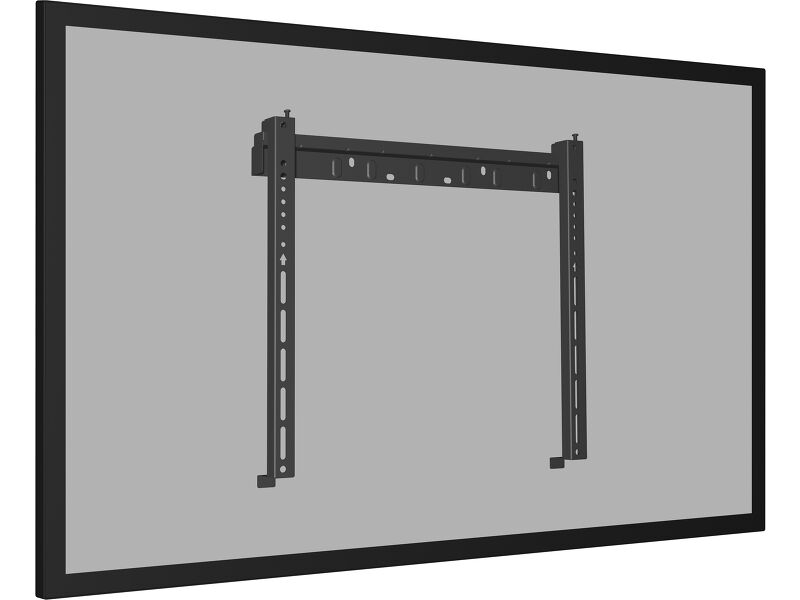
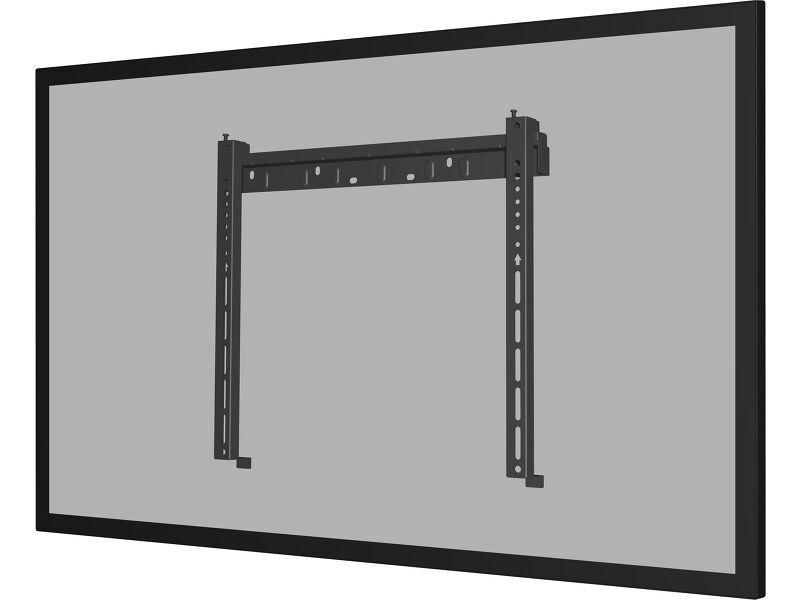
| Other | Wall Mounting Bracket (VESA 300x300), Magnetic holding places for Touch pens (on sides in landscape) |
| Remote control | yes (batteries included) |
POWER MANAGEMENT
| Power supply unit | internal |
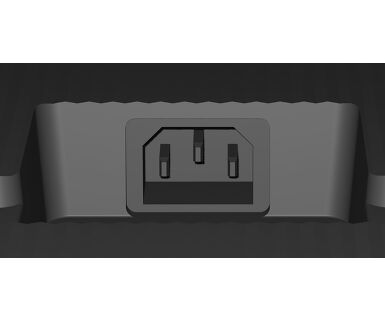
| Power supply | AC 100 - 240V, 50/60Hz |
| Power usage | 98W typical, 0.5W stand by, 0.3W off mode |
SUSTAINABILITY
| Regulations | CB, CE, TÜV-Bauart, EAC, RoHS support, ErP, WEEE, REACH, UKCA, cTUVus |
| Energy efficiency class (Regulation (EU) 2017/1369) | G |
| REACH SVHC | above 0.1%: Lead, Lead monoxide |
DIMENSIONS / WEIGHT
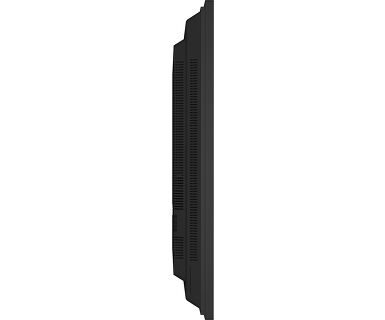
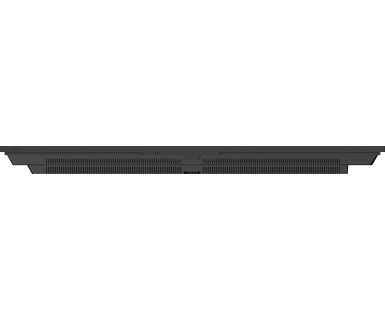
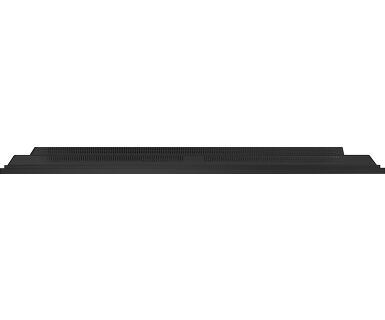
| Product dimensions W x H x D | 989.6 x 577.8 x 72.8mm |
| Box dimensions W x H x D | 1115 x 730 x 144mm |
| Weight (without box) | 13.7kg |
| Weight (with box) | 17.6kg |
| EAN code | 4948570125579 |
RELATED INFORMATION
| Product series | ProLite T5529AS-B1AG, ProLite T6529AS-B1AG |
Downloads
| User manual | T43_55_6529AS-usermanual-e-revC.pdf | Download |
| Technical specification | ProLite T4329AS-B1AG - en.pdf | Download |
| Drawing | T4329AS-B1AG_Drawing.pdf | Download |
| EU Energy Label | T4329AS-B1AG EU Energy Label (2235455).pdf | Download |
| UK Energy Label | T4329AS-B1AG UK Energy Label (2235455).pdf | Download |
| Drawing | T4329AS-B1AG_Wall Mounting bracket Drawing.pdf | Download |
| TF29AS SERIES RS232 - LAN Protocol | RS232-LAN_commands_2026_08_Txx29AS_LHxx66_LHxx81.pdf | Download |
| TF29AS SERIES RS232 - LAN Protocol | RS232-LAN_commands_2026_08_Txx29AS_LHxx66_LHxx81.pdf | Download |
| TF29AS SERIES RS232 - LAN Protocol | RS232-LAN_commands_2026_08_Txx29AS_LHxx66_LHxx81.pdf | Download |
| TF29AS SERIES RS232 - LAN Protocol | RS232-LAN_commands_2026_08_Txx29AS_LHxx66_LHxx81.pdf | Download |
| TF29AS SERIES RS232 - LAN Protocol | RS232-LAN_commands_2026_08_Txx29AS_LHxx66_LHxx81.pdf | Download |
| TF29AS SERIES RS232 - LAN Protocol | RS232-LAN_commands_2026_08_Txx29AS_LHxx66_LHxx81.pdf | Download |
| Guarantee label | T4329AS-B1AG-A.pdf | Download |
Catalogues & leaflets
| Android Touch Displays - One Pager | ii_T_TF_TW_one_pager_A4_03_2025_EN_web.pdf | Download |
Technical support & Certificates
| CE Document | T4329AS CE DoC.pdf | Download |
FAQS
Why is the Touch functionality not working?
+If your touch functionality is not working, please check the following:
1. Ensure your PC is connected to the monitor with the supplied USB cable.
2. Verify in the user manual that your operating system is supported by the screen.
How should I clean my Touch monitor?
+When cleaning, please follow these guidelines to avoid damaging your Touch monitor:
1. Avoid using paper towels, abrasive cloths, or any harsh cleaning agents, as they can scratch the screen or damage the touch sensors.
2. Do not spray the cleaning solution directly onto the screen to prevent liquid from seeping into the monitor.
3. Avoid excessive cleaning, as it can wear out the screen over time.
4. For more details, please check our dedicated Cleaning page.
Why is my monitor displaying a "No Signal" message?
+If your monitor is displaying a "No Signal" message, please check the following:
1. Ensure the cables are properly connected at both ends.
2. Select the correct signal input (HDMI/DP) or choose AUTO.
For guidance on selecting an input while the screen is in standby mode, please consult the user manual. On desktop monitors, common methods include pressing the INPUT, AUTO, or "2" buttons, or moving the joystick backward.
I have an Apple MAC-system, will my iiyama monitor work?
+Yes, your iiyama monitor will work with your Apple Mac system. However, it depends on the signal input how to connect. Since Apple Mac systems from 2020 onwards only have Thunderbolt 3 (USB-C) ports for video output, you have two options:
1. Connect directly to the USB-C signal input on your iiyama monitor.
2. In case your monitor only has HDMI or Displayport, you will need a Mac-compatible dongle that supports one of the video inputs available. Apple offers a USB-C Digital AV Multiport Adapter (MW5M3AM) that can be used for this purpose.
3. If your iiyama monitor has touchscreen capabilities, please refer to the user manual to verify touch functionality compatibility with your Mac system.
The picture on my monitor is flickering. What steps can I take to fix it?
+To resolve the issue of a blinking picture, please follow these steps:
1. Inspect the Signal Cable.
Ensure the signal cable is securely connected at both ends and free from any physical damage. Avoid any sharp bends or squishing of the cable.
2. Use a Shorter Cable.
If possible, use a cable shorter than 3 meters and connect the monitor directly to a wall power socket, avoiding the use of adapters.
3. Disable FreeSync/Adaptive Sync.
For desktop or gaming monitors, try disabling FreeSync or Adaptive Sync in the monitor's settings menu.
Compatible accessories
Related products