Subscribe to our newsletter
Keep up #withiiyama
You have successfully subscribed to our newsletter.
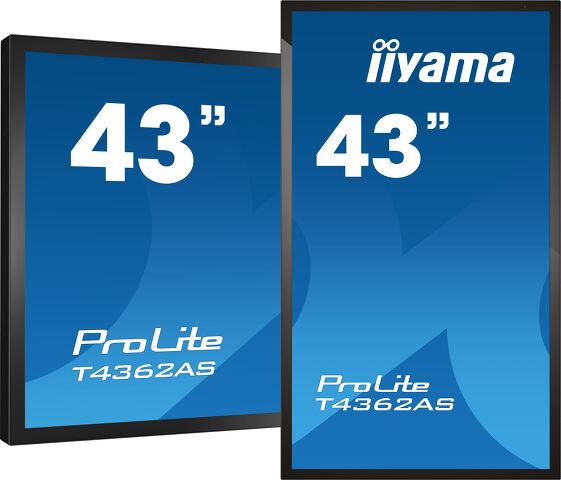
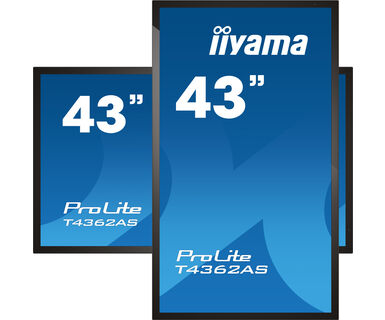
All-in-one PCAP Interactive Display inspired by technology and designed for creative spaces and sharing
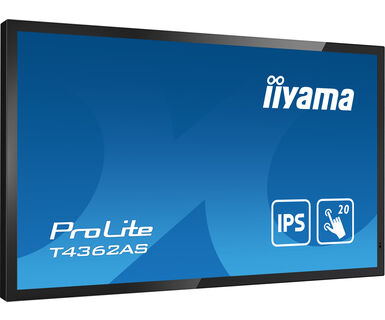
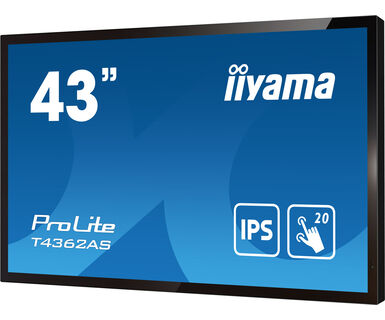
Enjoy an all-in-one interactive display that combines the best in PCAP Touchscreen technology, offering the versatility and freedom of Android OS, easily customized to your needs by installing applications directly to it. Offering a powerful, yet flexible user experience, fostering creative communication with the benefits of a secure and controllable Touchscreen.
The refined design of the T4362AS-B1 lends itself for integration into a large variety of environments where polished design and functionality are needed, like Huddle spaces in the modern office space, Retail shops and Kiosks.
With the EShare app you bring effortless ideation and efficient collaboration in your enterprise or school. You can start sharing wirelessly easier than ever before.
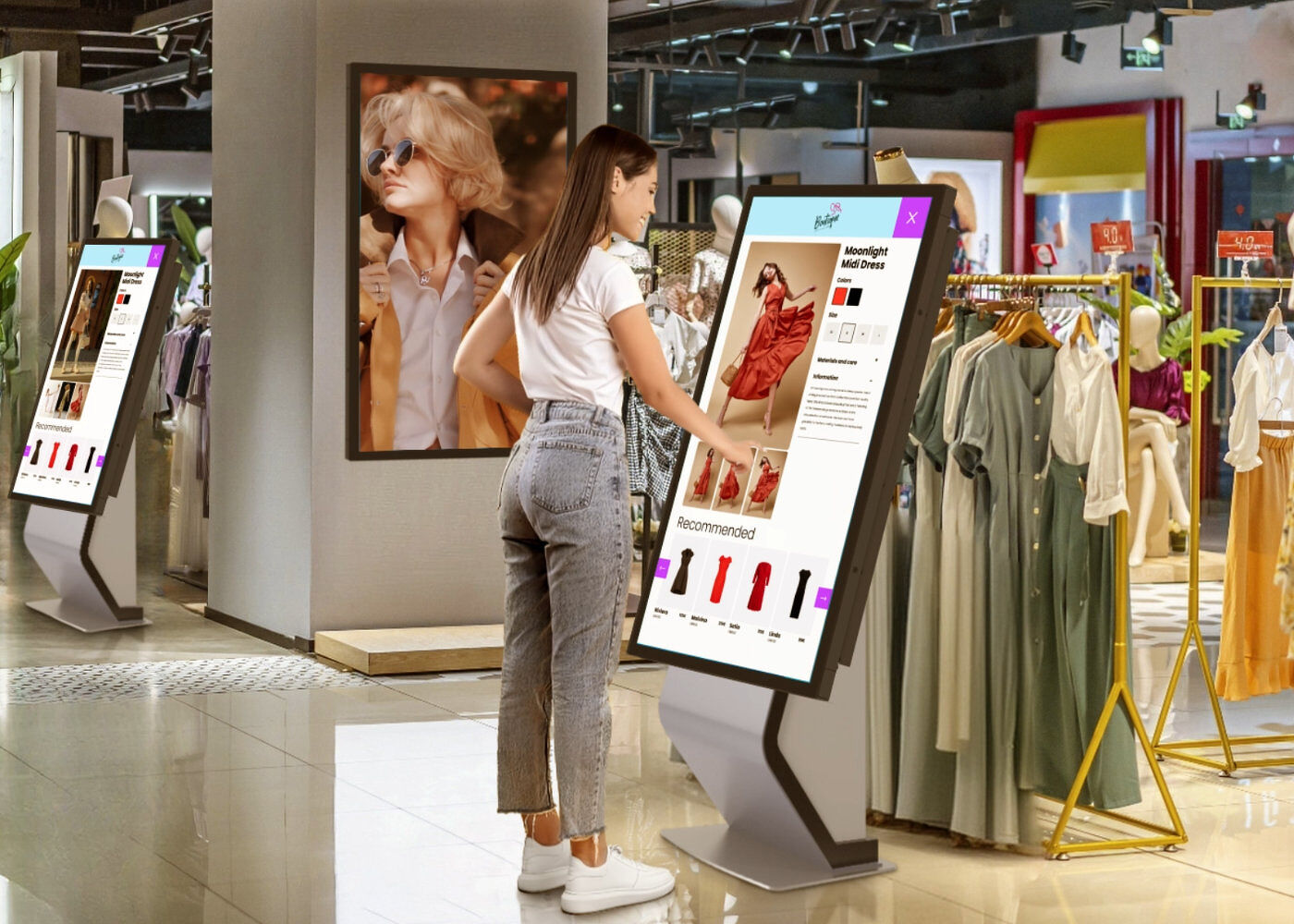
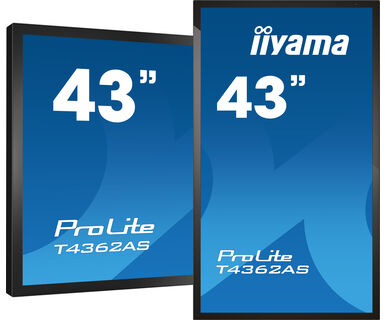
The interactive 4K Touchscreens are the key for immersive interactive experiences for spatial retail design. Allow customers to explore your website right there and then or engage with a range of creative or experiential applications you want to host. The flexibility of either landscape or portrait modes with 24/7 Operation, built-in Android and MediaPlayer make this SERIES displays one of the most adaptable Touchscreens solutions around.
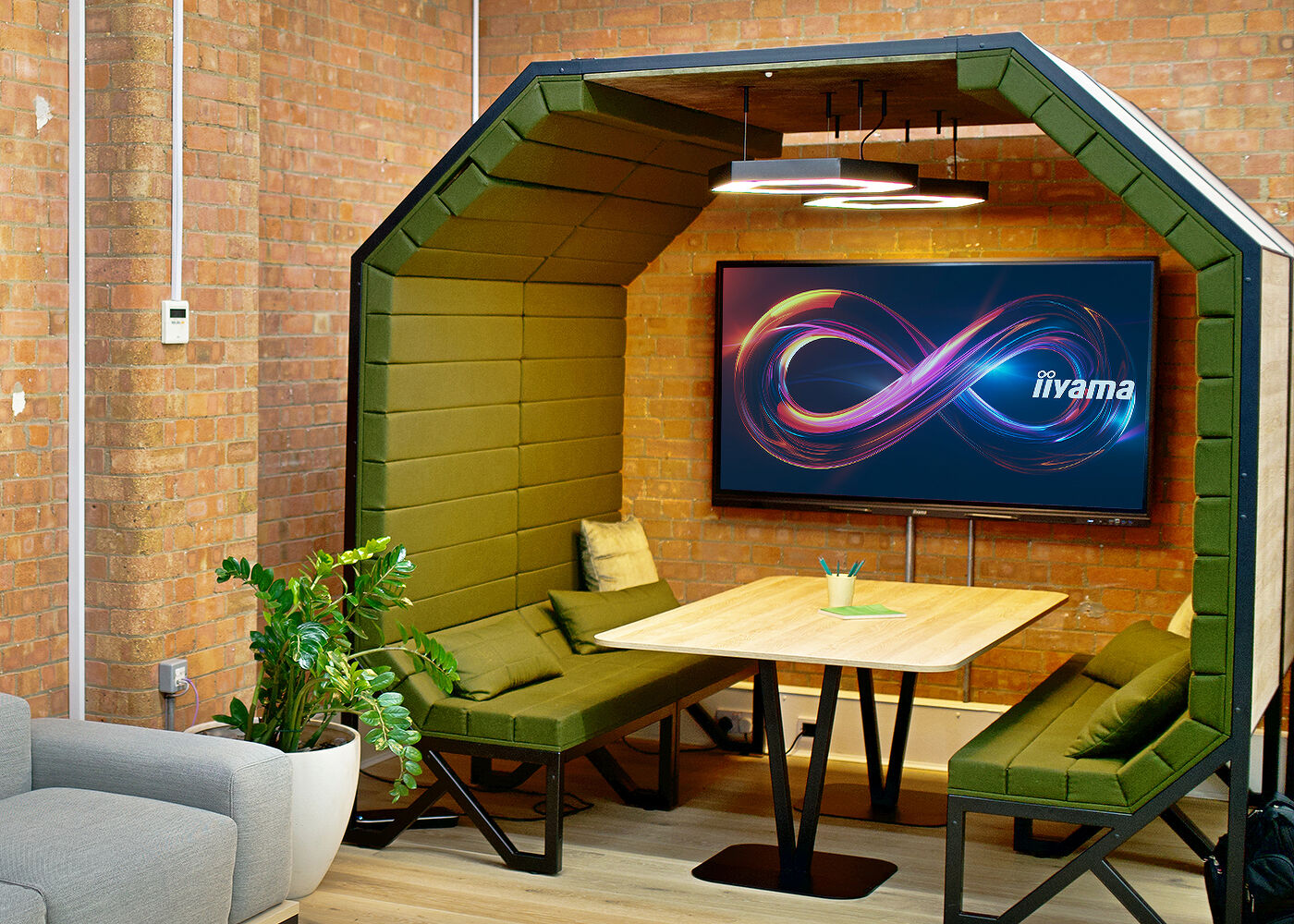
Turn these small meeting rooms into neat Collaboration spaces by employing the embedded applications like Android OS, EShare and Whiteboard, a selection of intuitive and practical tools installed on our PCAP interactive Touchscreens. With Android OS you can easily customize the display by installing applications directly to it. With the EShare app you can share, stream and edit content from any device directly on screen and transform your team meetings into an easy, fast and seamless interactive session.
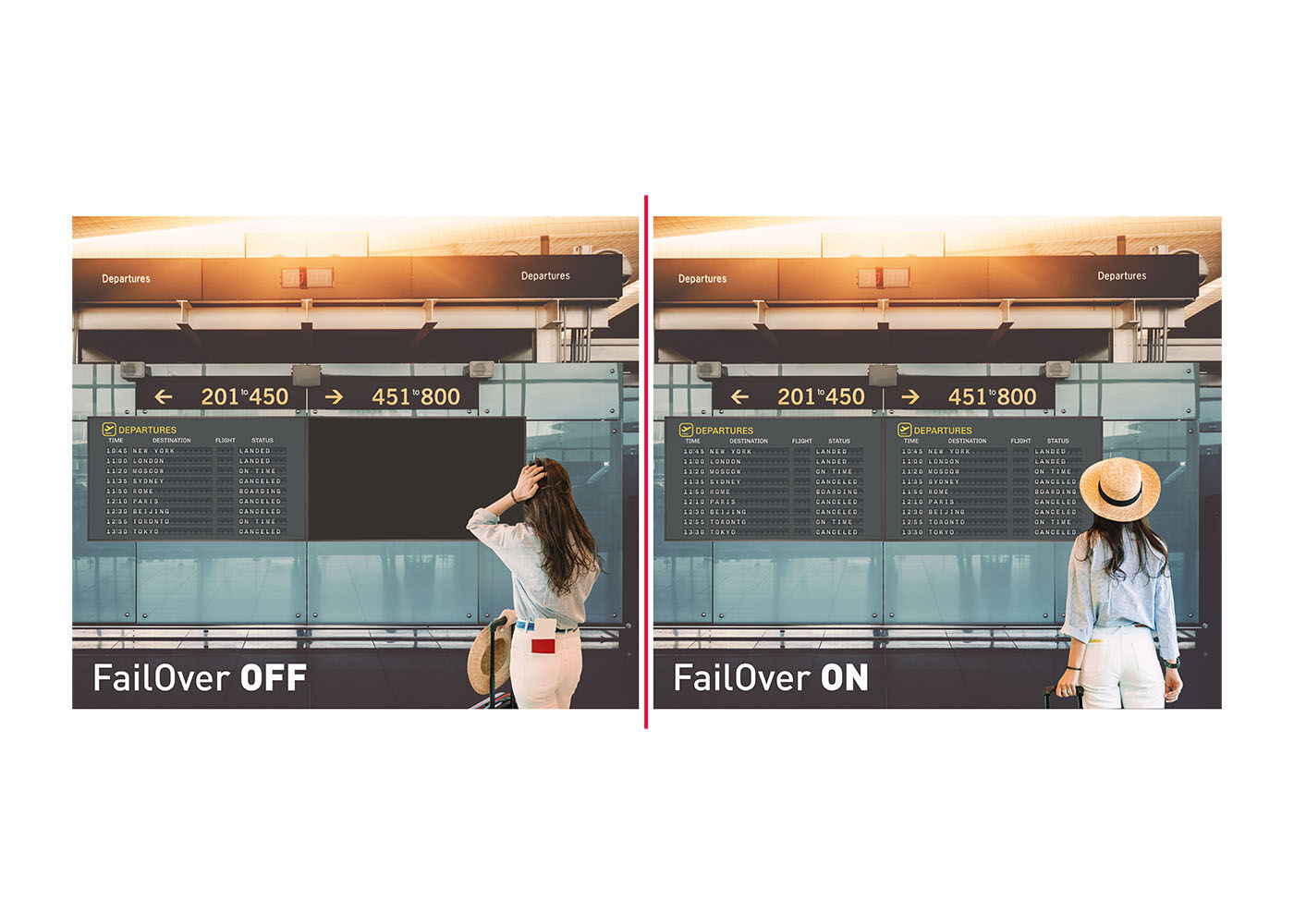
FailOver is a feature which automatically detects input sources. When there is no signal on the default input it will automatically switch to the next available input. FailOver allows customers to prioritize a number of inputs (incl. Browser, Media Player and Custom) and ensures your content is always actively displayed, assuring active content at all times.
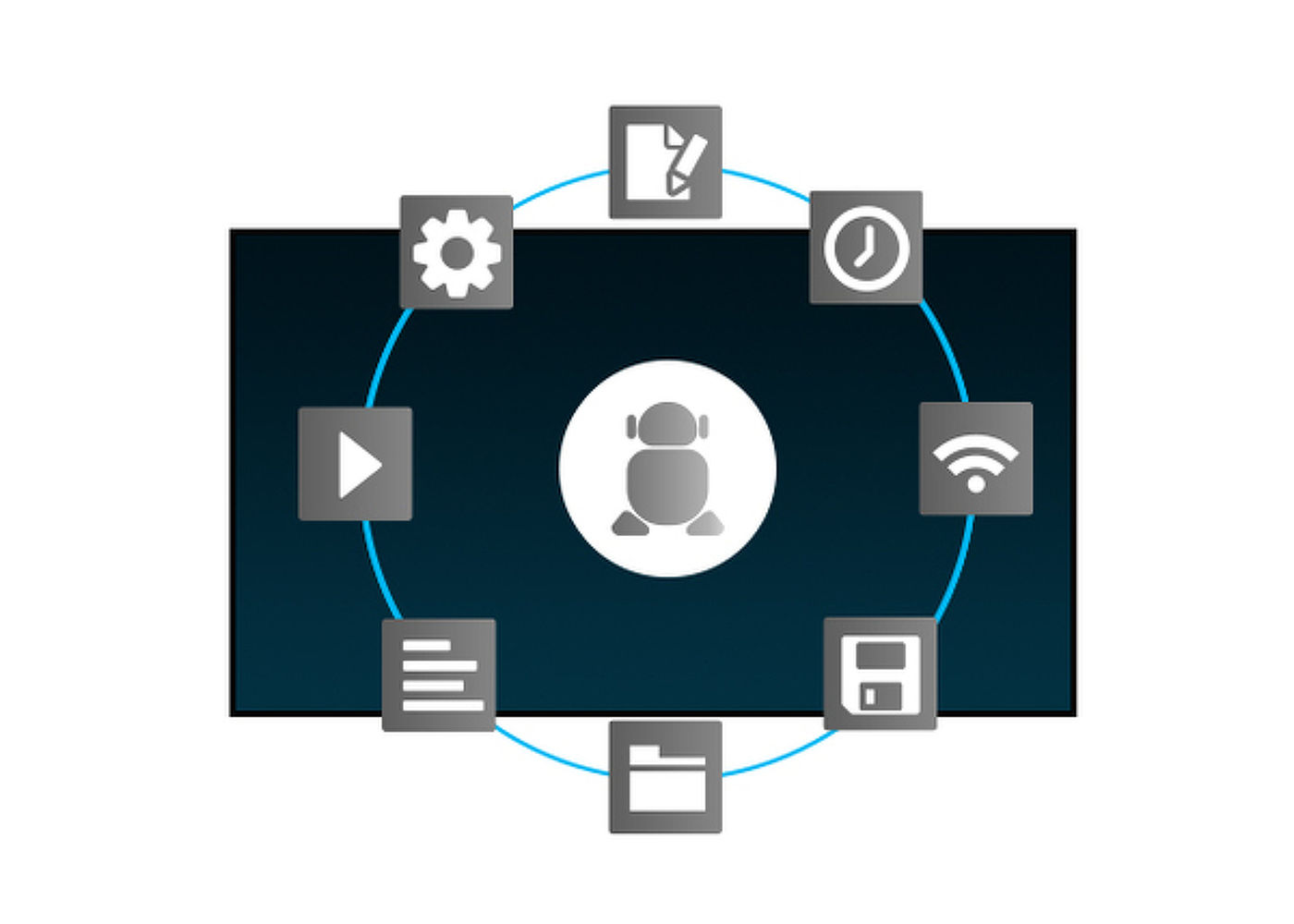
Thanks to Android OS, you can easily customize the display to your needs by installing applications directly to it.
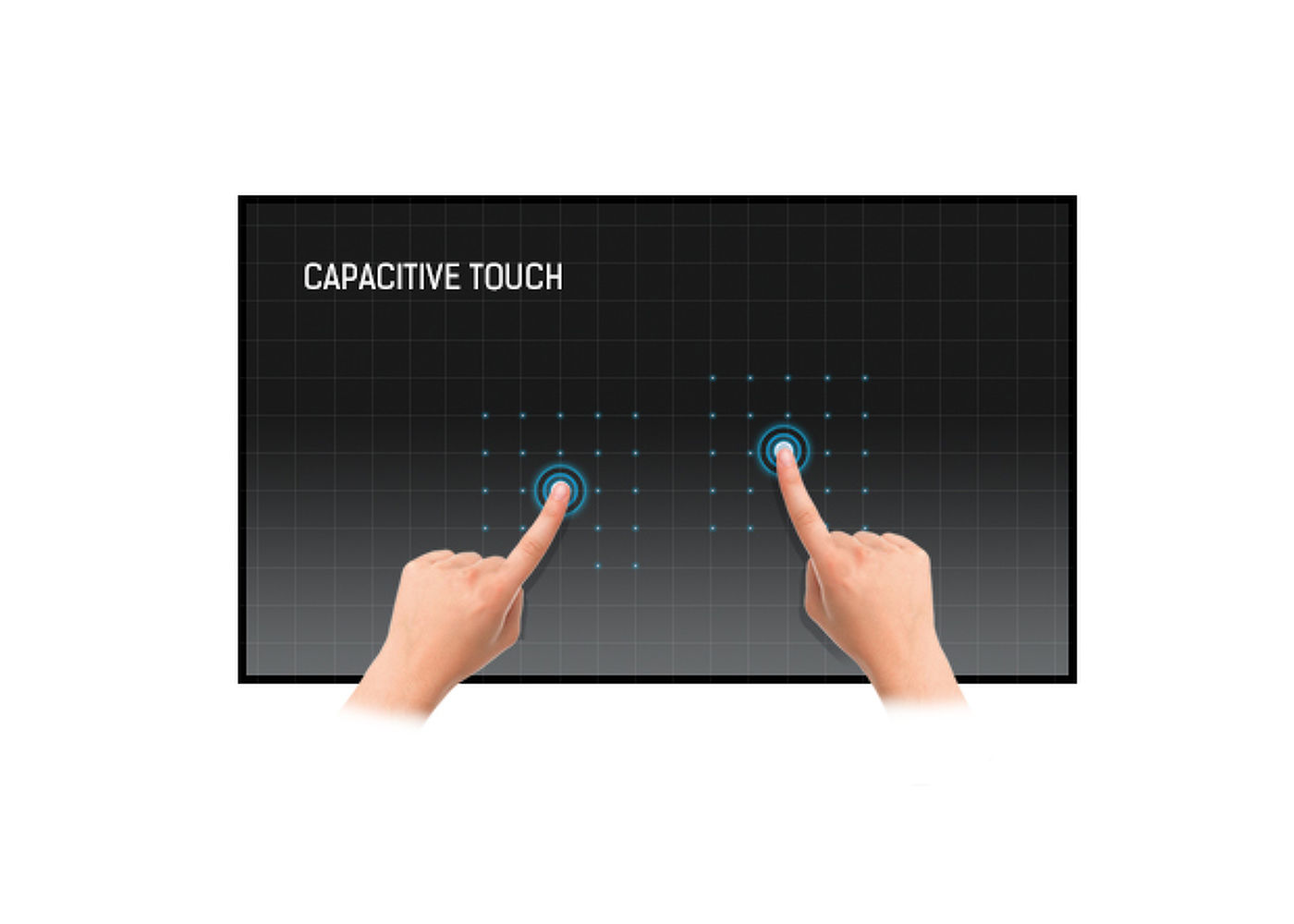
This technology uses a sensor-grid of micro-fine wires integrated into the glass that covers the screen. Touch is detected because electrical characteristics of the sensor grid change when human finger is placed on the glass. Thanks to the glass overlay this technology is highly durable, and the touch function remains unaffected even if the glass is scratched. It offers perfect picture performance and will work with human finger (also latex gloved) and stylus-pen.


| Diagonal | 42.5", 108cm |
| Panel | IPS LED, AG Coating |
| Native resolution | 3840 x 2160 @60Hz (8.3 MegaPixels 4K UHD) |
| Aspect ratio | 16:9 |
| Panel brightness | 500 cd/m² |
| Light transmittance | 84% |
| Static contrast | 1200:1 |
| Response time (GTG) | 8ms |
| Viewing zone | horizontal/vertical: 178°/178°, right/left: 89°/89°, up/down: 89°/89° |
| Colour support | 1.07G (8 Bits+FRC) (NTSC 72%) |
| Horizontal Sync | 30 - 135kHz |
| Viewable area W x H | 941.2 x 529.4mm, 37 x 20.8" |
| Pixel pitch | 0.245mm |
| Bezel colour and finish | black, matte |
| Touch technology | PCAP |
| Touch points | 20 (HID, only with supported OS) |
| Touch method | finger, glove |
| Touch interface | USB |
| Supported operating systems | Compatible with Windows 10/11 and Linux (Kernel 3.0 and higher). MacOS not supported. |
| Palm rejection | yes |
| Digital signal input | HDMI x3 (3840x2160@60Hz) |
| Monitor control input |
RS-232c x1 RJ45 (LAN) x1 IR x1 (3.5mm stereo mini) |
| Audio output | Speakers 2 x 10W |
| Monitor control output |
RS-232c x1 IR loop through x1 (3.5mm stereo mini) |
| HDCP | 2.2 |
| USB ports | x2 (2.0 with Multimedia supp.) |
| RS-232c | x1 |
| Integrated software | Android 8.0, Signal FailOver |
| CPU | CA73*2 + A53*2 |
| GPU | MALI G51 |
| Storage | 16GB eMMC |
| Memory | 2GB RAM + 1GB Embedded |
| Extra | Micro SD card slot |
| Kiosk mode | yes |
| Max. non-stop operating time | 24/7 |
| Anti image retention | yes |
| Glass thickness | 3.4mm |
| Glass hardness | 6H |
| OSD languages | EN, DE, FR, ES, RU, JP, NL, PL |
| Control buttons | Power, Mute, Input select, +, -, Up, Down, Menu |
| User controls | picture (brightness, contrast, sharpness, black level, tint, colour, noise reduction gamma selection, colour temp., colour control, smart power, overscan, reset), screen (zoom mode, custom zoom, reset), audio (balance, treble, bass, volume, max. volume, min. volume, mute, reset), configuration1 (switch on state, panel saving, RS32-routing, boot on source, WOL, RGB range, reset, factory reset), configuration2 (OSD turn off, OSD H position, OSD V position, system rotation, information OSD, logo, monitor ID, heat status, monitor info, HDMI version, reset), advanced option (IR control, power LED light, keyboard control, off timer, date and time, schedule, HDMI with One Wire, auto signal detection, language, OSD transparency, power save, reset), Android settings, display mode |
| Orientation | landscape, portrait |
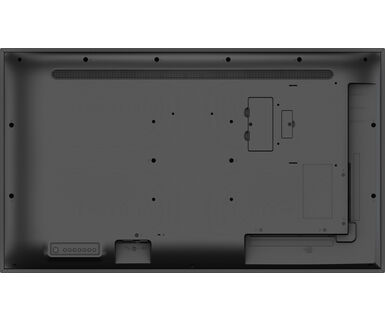
| VESA mounting | 200 x 200mm |
| Operation temperature range | 0°C - 40°C |
| Operation temperature range (-°/+°) | -20°C - 60°C |
| MTBF | 50000 hours (excluding backlight) |
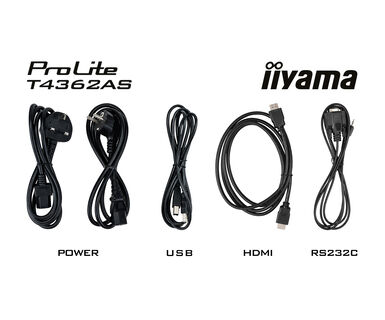
| Cables | power, USB, HDMI, RS-232c |
| Guides | quick start guide, safety guide |
| Remote control | yes (batteries included) |
| Power supply unit | internal |
| Power supply | AC 100 - 240V, 50/60Hz |
| Power usage | 75W typical, 1.5W stand by, 0.3W off mode |
| Regulations | CB, CE, TÜV-Bauart, EAC, RoHS support, ErP, WEEE, REACH |
| REACH SVHC | above 0.1%: Lead |
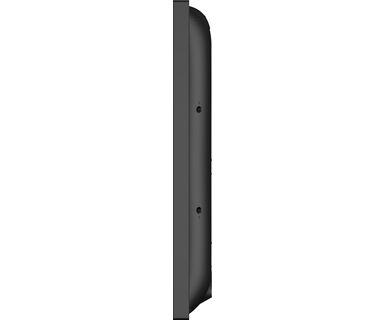
| Product dimensions W x H x D | 990 x 578.2 x 70.2mm |
| Box dimensions W x H x D | 1070 x 702 x 186mm |
| Pallet dimensions W x H x D | 1140 x 130 x 1080mm |
| Weight (without box) | 18kg |
| Weight (with box) | 20.5kg |
| EAN code | 4948570120468 |

To fix the issue with rotating the picture displayed on your screen, please note there are two possible methods:
1. If the content is coming from an external source (e.g., a Windows device), the picture orientation must be adjusted in the display settings of that device.
2.If the content source is the monitor itself, the screen content may rotate automatically, depending on the monitor model. In some cases, however, it is necessary to adjust picture orientation in monitor's settings manually. Please note that NOT all monitors support screen rotation or portrait installation. For detailed information, refer to your monitor's user manual.
No, you cannot install apps on your iiyama monitor through the official Google Play Store. However, you do have the option to sideload applications onto your display.
Please visit the iiyama signup webpage and enter the model name or serial number of your iiyama screen. You will be directed to all available software applications for your product, along with instructions on how to activate them.
All iiyama LFDs and IFP displays can be used in portrait mode, except for products with item names starting with TE or LE, which can only operate in landscape mode. Always follow the installation instructions provided with the monitor and the guidelines in the User Manual.
If you wish to change the settings on your monitor remotely, please refer to the RS232/LAN protocol document available in the DOWNLOAD section on the product page.
The commands can be sent to the screen with a terminal app, for example Hercules SETUP utility. For more information, please refer to the RS232/LAN protocol document available in the DOWNLOAD section on the product page.
If your touch functionality is not working, please check the following:
1. Ensure your PC is connected to the monitor with the supplied USB cable.
2. Verify in the user manual that your operating system is supported by the screen.
When cleaning, please follow these guidelines to avoid damaging your Touch monitor:
1. Avoid using paper towels, abrasive cloths, or any harsh cleaning agents, as they can scratch the screen or damage the touch sensors.
2. Do not spray the cleaning solution directly onto the screen to prevent liquid from seeping into the monitor.
3. Avoid excessive cleaning, as it can wear out the screen over time.
4. For more details, please check our dedicated Cleaning page.
If your monitor is displaying a "No Signal" message, please check the following:
1. Ensure the cables are properly connected at both ends.
2. Select the correct signal input (HDMI/DP) or choose AUTO.
For guidance on selecting an input while the screen is in standby mode, please consult the user manual. On desktop monitors, common methods include pressing the INPUT, AUTO, or "2" buttons, or moving the joystick backward.
Yes, your iiyama monitor will work with your Apple Mac system. However, it depends on the signal input how to connect. Since Apple Mac systems from 2020 onwards only have Thunderbolt 3 (USB-C) ports for video output, you have two options:
1. Connect directly to the USB-C signal input on your iiyama monitor.
2. In case your monitor only has HDMI or Displayport, you will need a Mac-compatible dongle that supports one of the video inputs available. Apple offers a USB-C Digital AV Multiport Adapter (MW5M3AM) that can be used for this purpose.
To resolve the issue of a blinking picture, please follow these steps:
1. Inspect the Signal Cable.
Ensure the signal cable is securely connected at both ends and free from any physical damage. Avoid any sharp bends or squishing of the cable.
2. Use a Shorter Cable.
If possible, use a cable shorter than 3 meters and connect the monitor directly to a wall power socket, avoiding the use of adapters.
3. Disable FreeSync/Adaptive Sync.
For desktop or gaming monitors, try disabling FreeSync or Adaptive Sync in the monitor's settings menu.