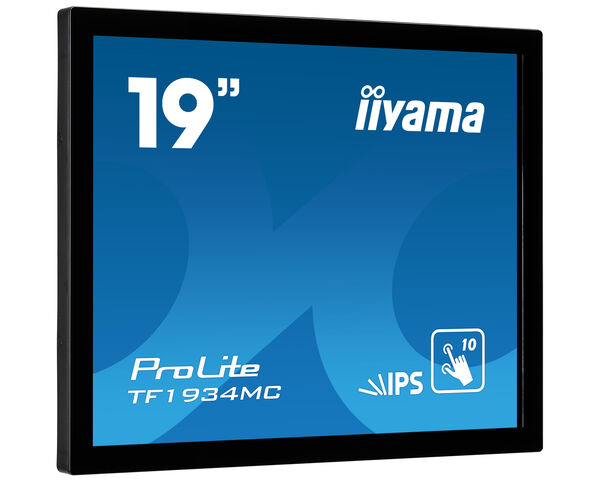
ProLite TF1934MC-B7X
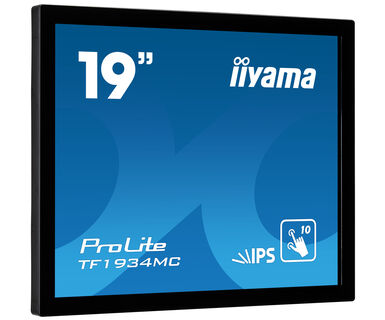
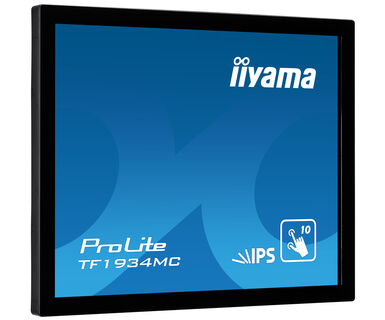
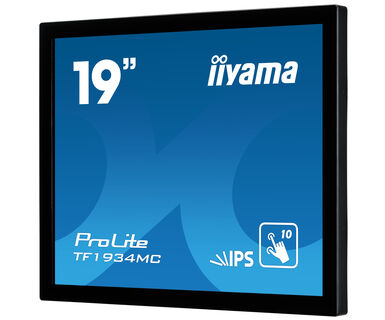
10pt touch Open Frame monitor with IPS panel and touch through glass function
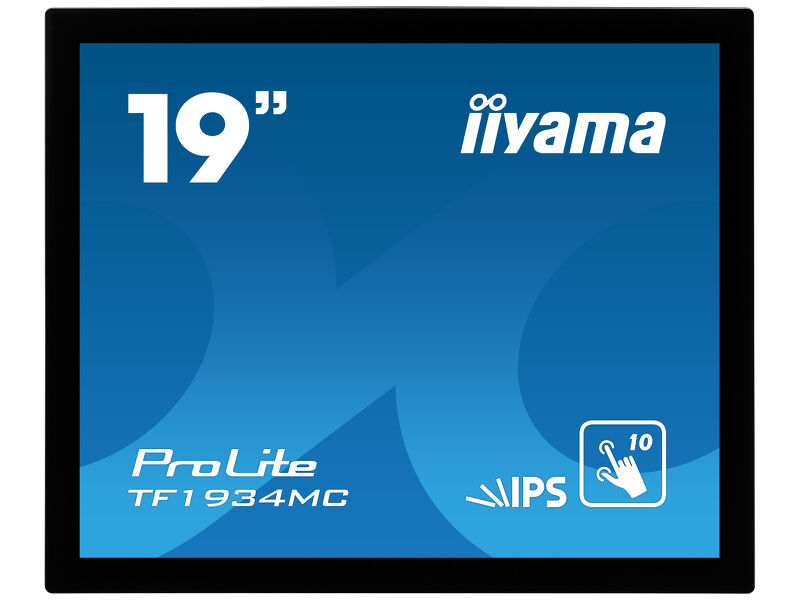
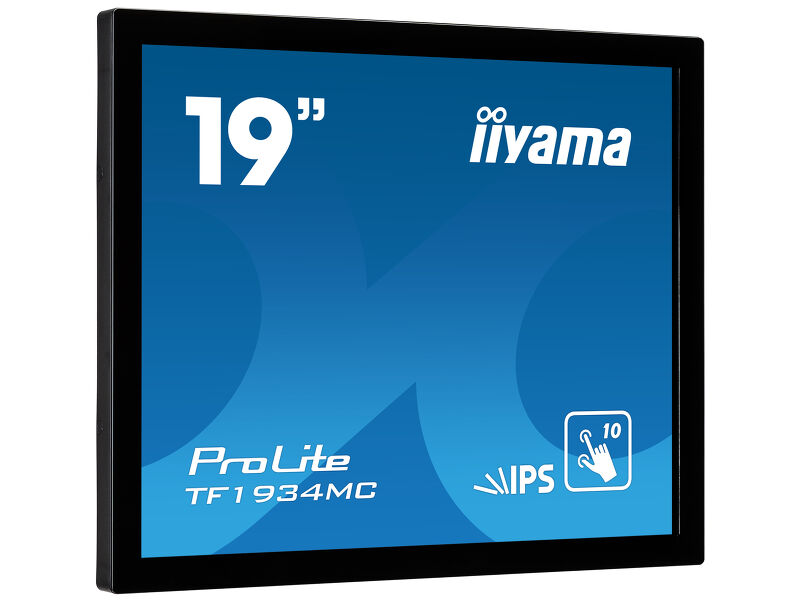
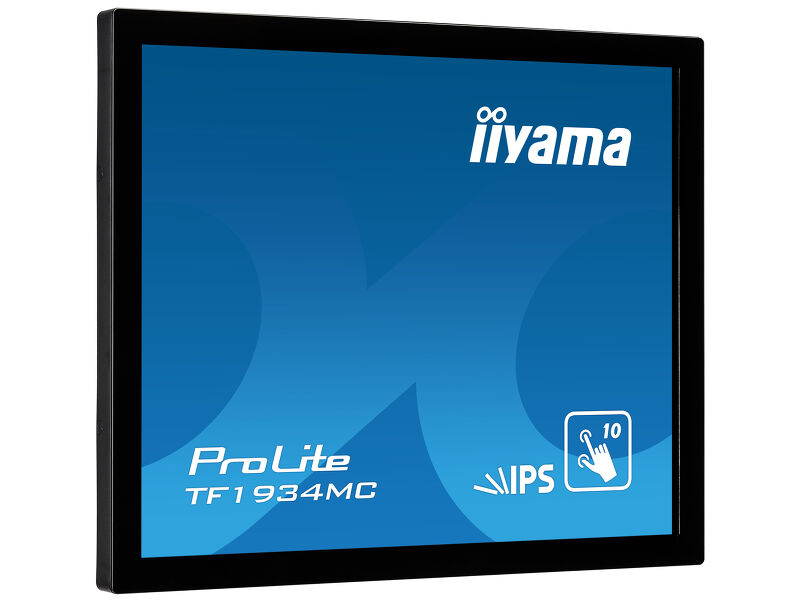
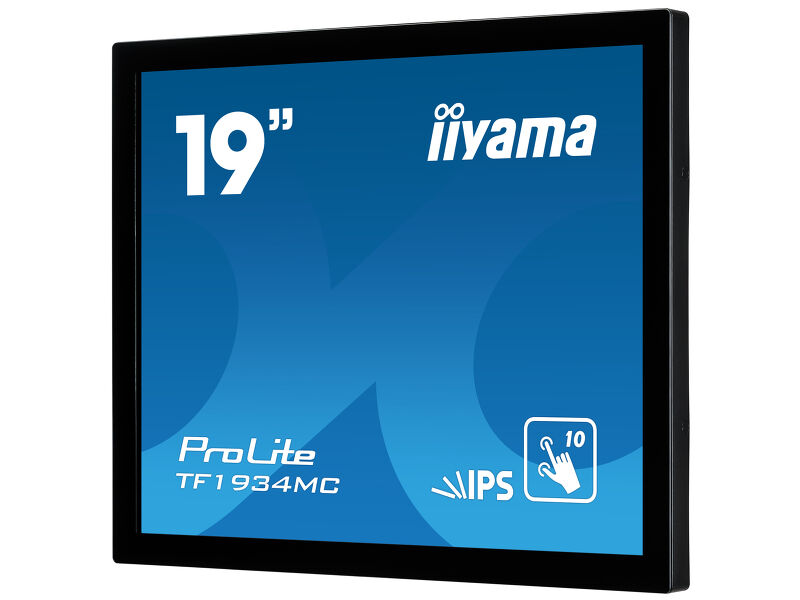
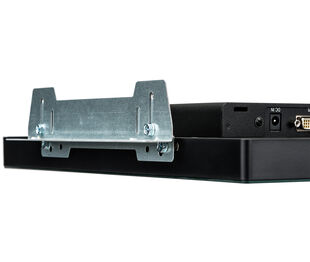
ProLite TF1934MC-B7X uses Projective Capacitive touch technology, built into an eye catching bezel with edge-to-edge glass. Featuring IPS LCD screen technology, it offers exceptional colour performance and wide viewing angles, making it a perfect interactive display for Interactive Digital Signage. In addition to the superb image quality, the screen comes with an IP65 Rating, making it dust and water resistant. Equipped with a rugged bezel making it suitable for demanding environments. The ProLite TF1934MC-B7X is the ideal screen for the kiosk integrators and a solution for Interactive Digital Signage, Instore Retail, Gaming and Interactive Presentations. For ease of integration, the TF1934MC-B7X can be equipped with optional external mounting brackets (OMK1-1) making it an ideal solution for kiosk integrators and Instore Retail.
-
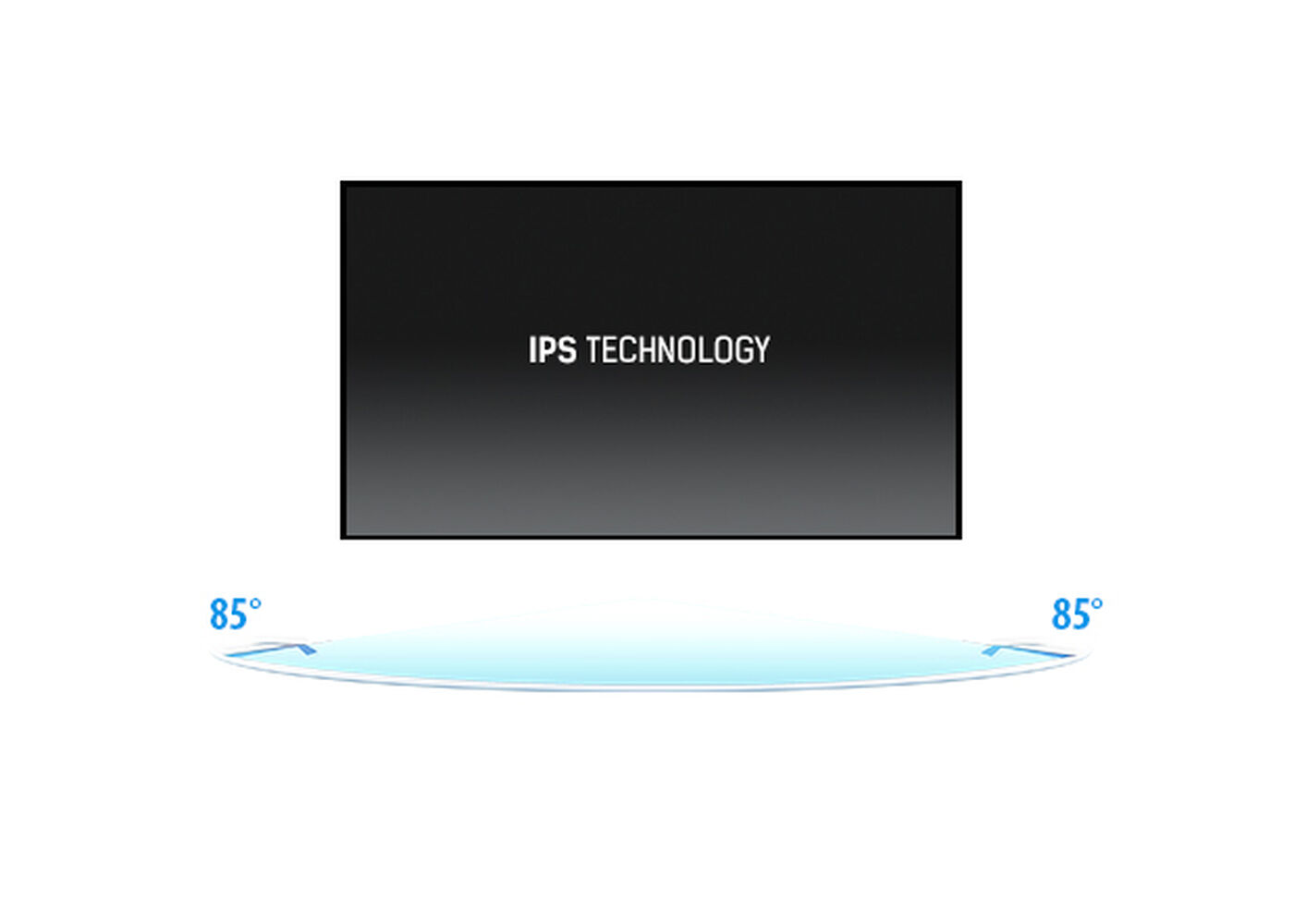
IPS Technology
IPS displays are best known for wide viewing angles and natural, highly accurate colours. They are especially suited for colour-critical applications.
-
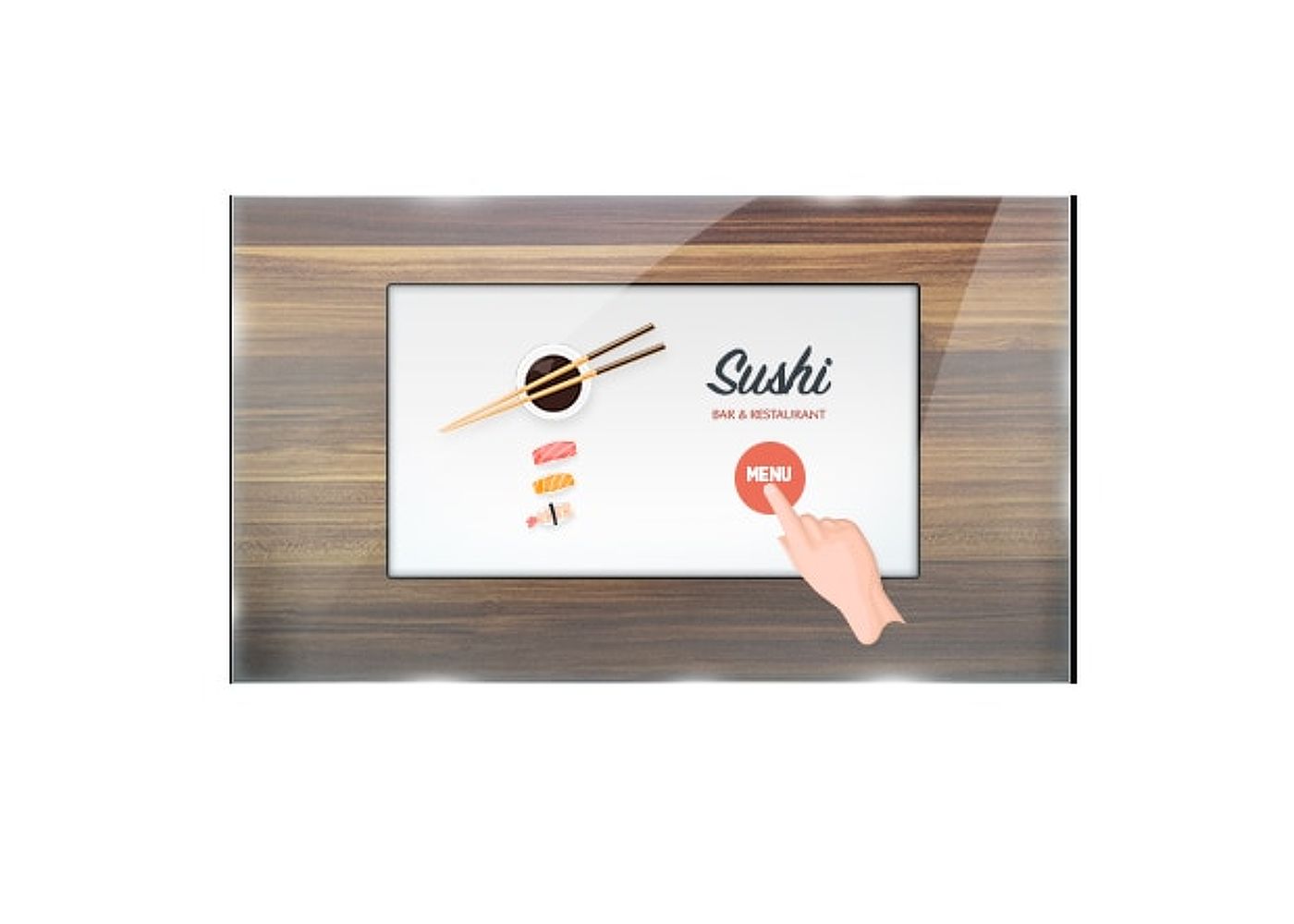
Touch Through-Glass
This through glass touch screen works right through glass and can turn glass surfaces into an interactive touch screen display. Use it on storefront windows, real estate office, in-store for POS or restaurants.
-

Touch technology - Capacitive
This technology uses a sensor-grid of micro-fine wires integrated into the glass that covers the screen. Touch is detected because electrical characteristics of the sensor grid change when human finger is placed on the glass. Thanks to the glass overlay this technology is highly durable, and the touch function remains unaffected even if the glass is scratched. It offers perfect picture performance and will work with human finger (also latex gloved) and stylus-pen.
-

Scratch resistance
Scratch resistance is a critical requirement for touch solutions deployed in commercial, educational, and industrial environments. A protective glass overlay covering the screen provides enhanced durability, ensuring reliable touch performance over time. The touch functionality remains fully operational and unaffected.
-

Anti-fingerprint coating
This special Nano coating ensures a smoother touch and less resistance in the swipe. It makes the screen less static and susceptible to dirt, dust, fingerprints and it improves the clarity of the content displayed on the screen.
Technical specification



DISPLAY CHARACTERISTICS
| Design | Open Frame |
| Diagonal | 19", 48cm |
| Panel | IPS LED |
| Native resolution | 1280 x 1024 (1.3 megapixel) |
| Aspect ratio | 5:4 |
| Panel brightness | 350 cd/m² |
| Brightness | 315 cd/m² with touch |
| Light transmittance | 90% |
| Static contrast | 1000:1 |
| Response time (GTG) | 14ms |
| Viewing zone | horizontal/vertical: 178°/178°, right/left: 89°/89°, up/down: 89°/89° |
| Colour support | 16.7mln |
| Horizontal Sync | 31.4 - 80kHz |
| Viewable area W x H | 376.5 x 301.1mm, 14.8 x 11.9" |
| Pixel pitch | 0.294mm |
| Bezel colour and finish | black, matte |
TOUCH
| Touch technology | projective capacitive |
| Touch points | 10 (HID, only with supported OS) |
| Touch accuracy | +- 2mm |
| Touch method | stylus, finger, glove (latex) |
| Touch interface | USB |
| Supported operating systems | All iiyama monitors are Plug & Play and compatible with Windows and Linux. For details regarding the supported OS for the touch models, please refer to the driver instruction file available in the downloads section. |
| Through-Glass | 6mm |
| Palm rejection | yes |
INTERFACES / CONNECTORS / CONTROLS
| Analog signal input | VGA x1 |
| Digital signal input |
HDMI x1 DisplayPort x1 |
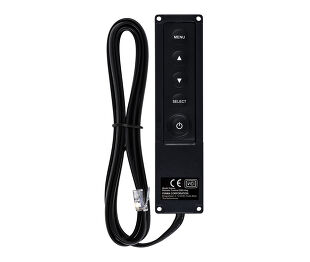
| Monitor control input | External control pad RJ11 |
| HDCP | yes |
FEATURES
| Extra | anti-fingerprint coating, touch through-glass |
| 60950 Ball drop test | yes |
| Water and dust protection | IP65 (front) |
| OSD key lock | yes |
GENERAL
| OSD languages | EN, DE, FR, ES, IT, CN, JP |
| Control buttons | Menu, Scroll up/ Brightness, Scroll down/ Contrast, Select, Power |
| User controls | picture (contrast, brightness, H.position, V.position, phase, clock, auto adjust), advanced (color temp., sharpness), OSD (time out, position, H-position, V-position, touch switch), option (reset, language, source select, display mode, factory) |
| Convenience | Kensington-lock™ prepared |
| Blue light reducer | yes |
| Flicker free | yes |
| Plug&Play | DDC2B |
MECHANICAL
| Orientation | landscape, portrait, face-up |
| VESA mounting | 100 x 100mm |
| Cable management system | yes |
| MTBF | 50000 hours (excluding backlight) |
ACCESSORIES INCLUDED
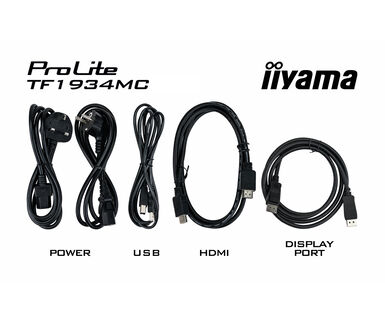
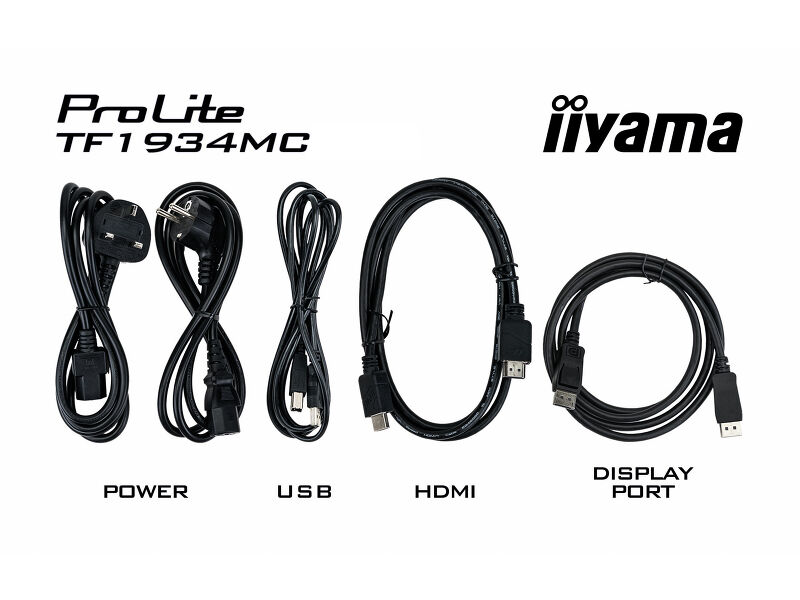
| Cables | power (1.8m), USB (1.8m), HDMI (1.8m), DP (1.8m) |
| Guides | quick start guide, safety guide |
| Other | AC adapter, Touch Panel Driver Disk (CD-ROM) |
| Cable cover | yes |
POWER MANAGEMENT
| Power supply unit | external |
| Power supply | DC 12 V |
| Power usage | 21W typical, 1.5W stand by, 1.5W off mode |
SUSTAINABILITY
| Regulations | CE, EAC, RoHS support, ErP, WEEE, cULus, REACH |
| Energy efficiency class (Regulation (EU) 2017/1369) | E |
| REACH SVHC | above 0.1%: Lead |
DIMENSIONS / WEIGHT
| Product dimensions W x H x D | 416 x 344 x 46.5mm |
| Box dimensions W x H x D | 500 x 133 x 425mm |
| Weight (without box) | 4.4kg |
| Weight (with box) | 6.3kg |
| EAN code | 4948570118403 |
COMPATIBLE ACCESSORIES
| Mounts / Stands / Brackets | OMK1-1 |
RELATED INFORMATION
| Related products | RC TOUCHV01, OMK1-1 |
FAQS
Why is the Touch functionality not working?
+If your touch functionality is not working, please check the following:
1. Ensure your PC is connected to the monitor with the supplied USB cable.
2. Verify in the user manual that your operating system is supported by the screen.
How should I clean my Touch monitor?
+When cleaning, please follow these guidelines to avoid damaging your Touch monitor:
1. Avoid using paper towels, abrasive cloths, or any harsh cleaning agents, as they can scratch the screen or damage the touch sensors.
2. Do not spray the cleaning solution directly onto the screen to prevent liquid from seeping into the monitor.
3. Avoid excessive cleaning, as it can wear out the screen over time.
4. For more details, please check our dedicated Cleaning page.
Why is my monitor displaying a "No Signal" message?
+If your monitor is displaying a "No Signal" message, please check the following:
1. Ensure the cables are properly connected at both ends.
2. Select the correct signal input (HDMI/DP) or choose AUTO.
For guidance on selecting an input while the screen is in standby mode, please consult the user manual. On desktop monitors, common methods include pressing the INPUT, AUTO, or "2" buttons, or moving the joystick backward.
I have an Apple MAC-system, will my iiyama monitor work?
+Yes, your iiyama monitor will work with your Apple Mac system. However, it depends on the signal input how to connect. Since Apple Mac systems from 2020 onwards only have Thunderbolt 3 (USB-C) ports for video output, you have two options:
1. Connect directly to the USB-C signal input on your iiyama monitor.
2. In case your monitor only has HDMI or Displayport, you will need a Mac-compatible dongle that supports one of the video inputs available. Apple offers a USB-C Digital AV Multiport Adapter (MW5M3AM) that can be used for this purpose.
3. If your iiyama monitor has touchscreen capabilities, please refer to the user manual to verify touch functionality compatibility with your Mac system.
The picture on my monitor is flickering. What steps can I take to fix it?
+To resolve the issue of a blinking picture, please follow these steps:
1. Inspect the Signal Cable.
Ensure the signal cable is securely connected at both ends and free from any physical damage. Avoid any sharp bends or squishing of the cable.
2. Use a Shorter Cable.
If possible, use a cable shorter than 3 meters and connect the monitor directly to a wall power socket, avoiding the use of adapters.
3. Disable FreeSync/Adaptive Sync.
For desktop or gaming monitors, try disabling FreeSync or Adaptive Sync in the monitor's settings menu.
Related products
Downloads
| User manual | TF15_17_1934MC-B7X-usermanual-e.pdf | Download |
| Technical specification | ProLite TF1934MC-B7X - en.pdf | Download |
| Drawing | TF1934MC_drawing.pdf | Download |
| EU Energy Label | TF1934MC-B7X B EU Energy Label (1305264).pdf | Download |
| UK Energy Label | TF1934MC-B7X B UK Energy Label (1305264).pdf | Download |
Drivers/ Firmware / Software
Technical support & Certificates
| CE | TF1934MC-7XC CE DoC.pdf | Download |

