Subscribe to our newsletter
Keep up #withiiyama
You have successfully subscribed to our newsletter.
Reliable office solution
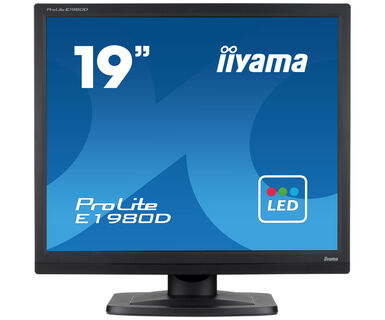
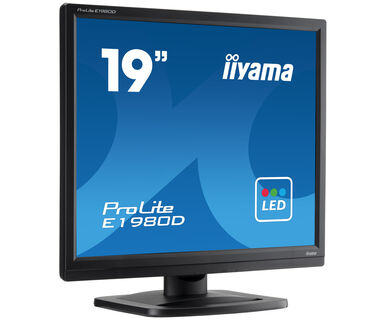
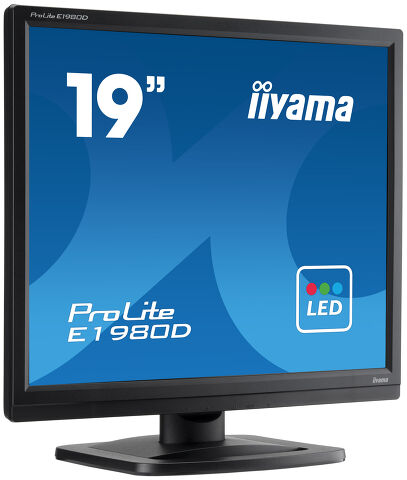
The 19’’ Prolite E1980D is an LED-backlit monitor with good response time, high contrast and sRGB and gamma correction functions that permit even the finest nuances of colour to be set accurately.
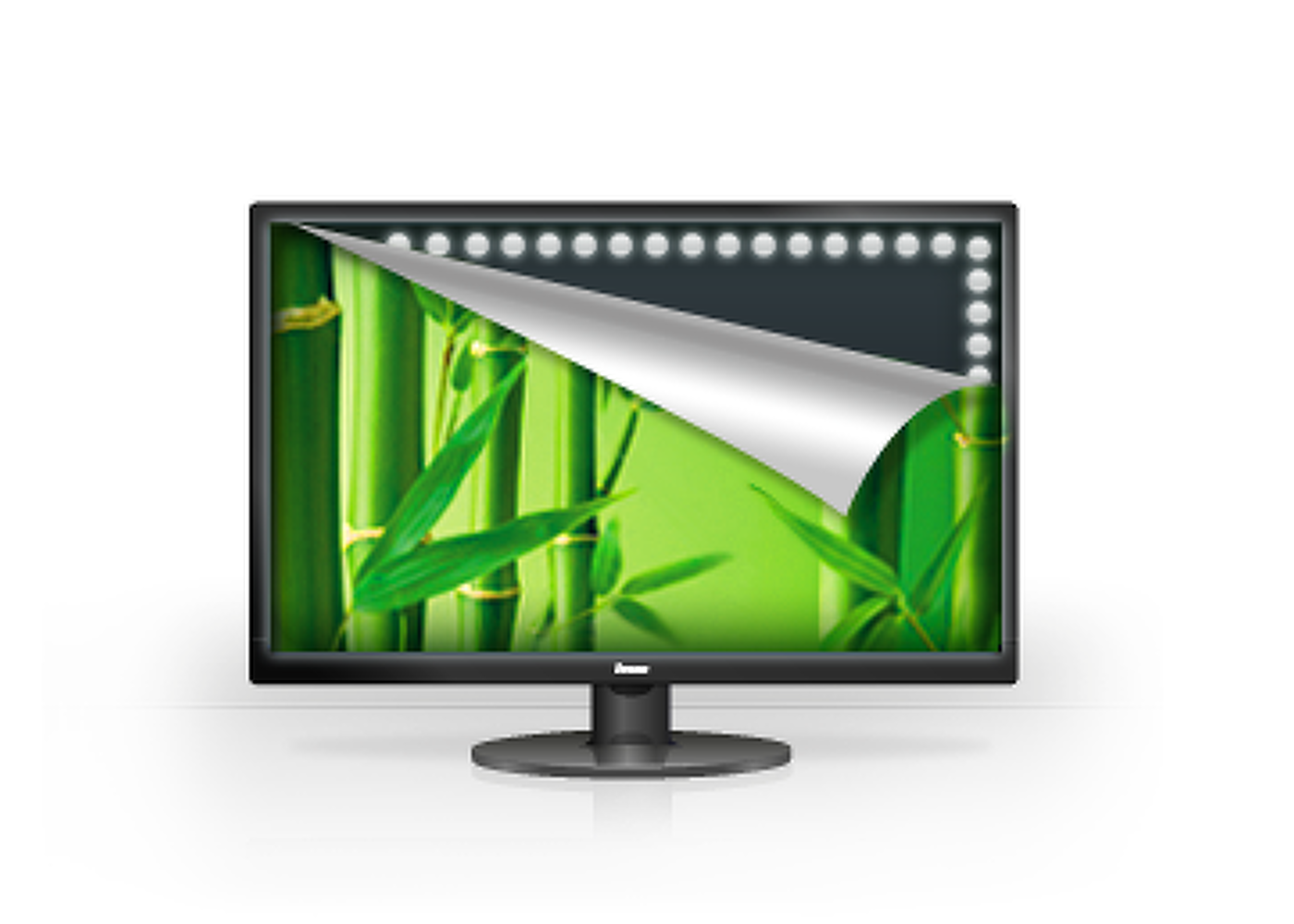
A typical CCFL LCD uses four backlight lamps. Using LED diodes considerably lowers the power consumption and reduces the CO2 emission into the environment making this LCD a true ECO-Friendly product.
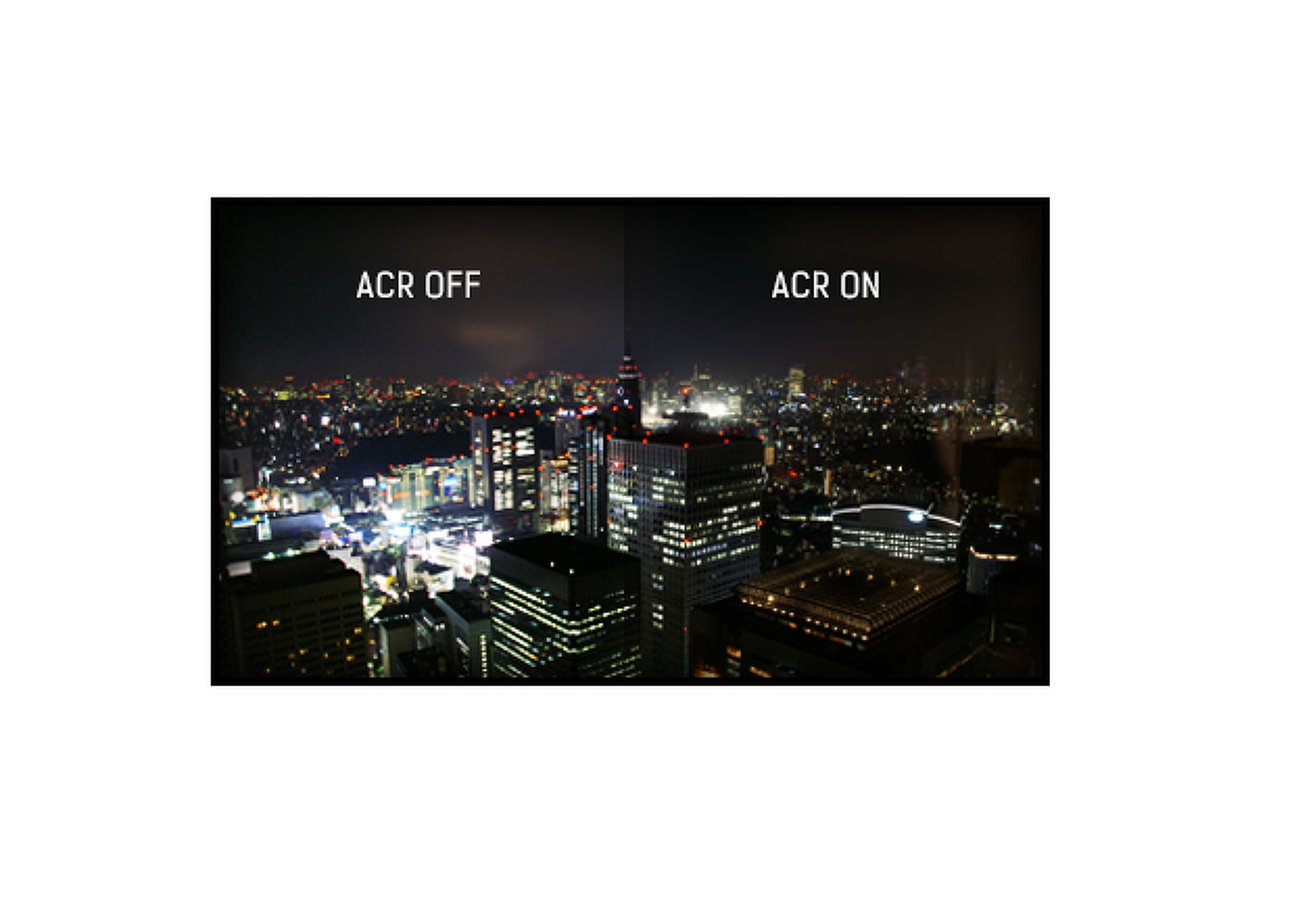
Contrast Ratio is a measurement of the difference between the darkest black and the brightest white your monitor can display. Advanced Contrast Ratio is a feature that automatically adjusts contrast and brightness of the screen to assure perfect picture quality while watching films and playing games.
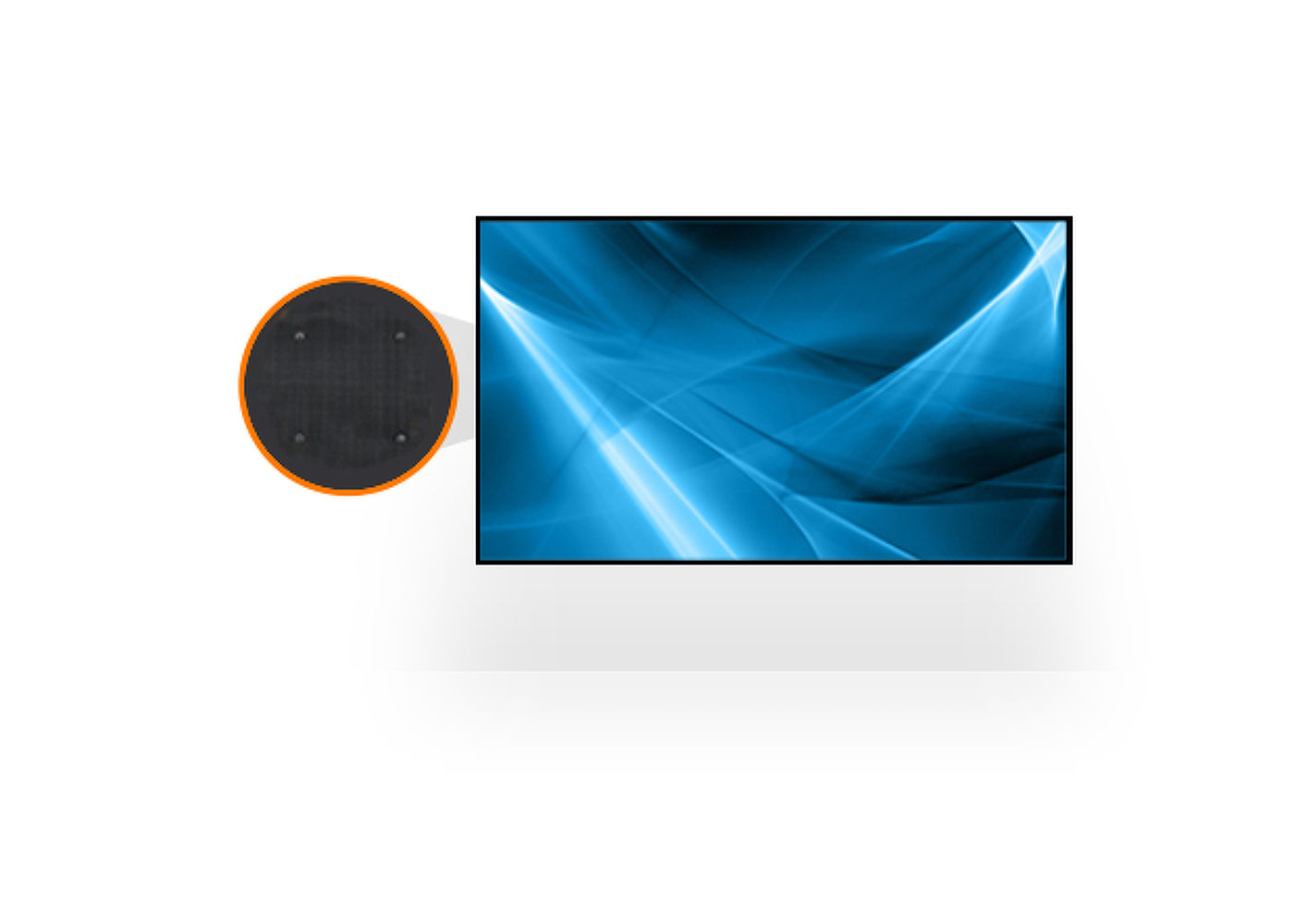
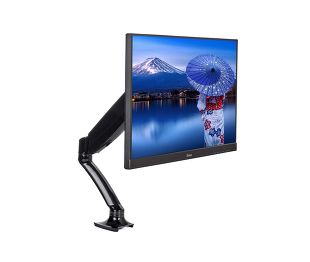
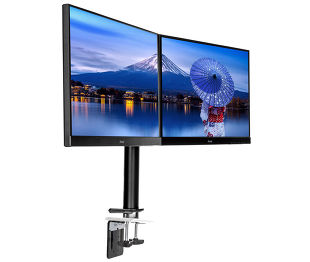
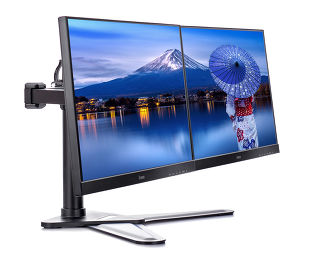
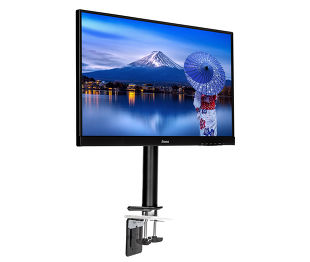
VESA mount compliance means you can easily mount the display to any mounting that complies with the VESA standard.
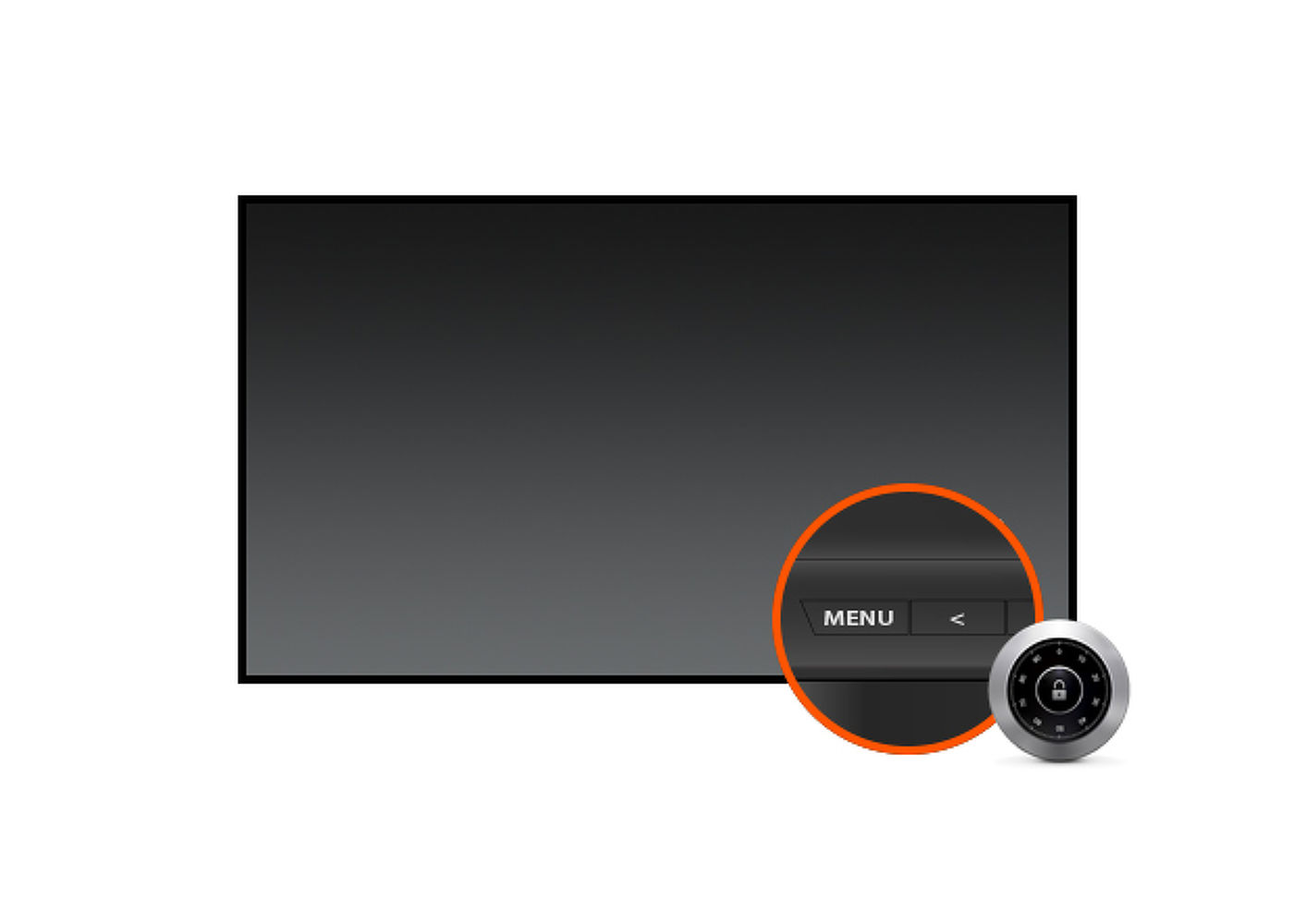
You can easily lock and unlock the controls preventing unauthorised changes to settings you made.



| Diagonal | 19", 48cm |
| Panel | TN |
| Native resolution | 1280 x 1024 (1.3 megapixel) |
| Aspect ratio | 5:4 |
| Panel brightness | 250 cd/m² |
| Static contrast | 1000:1 |
| Advanced contrast | 12M:1 |
| Response time (GTG) | 5ms |
| Viewing zone | horizontal/vertical: 170°/160°, right/left: 85°/85°, up/down: 80°/80° |
| Colour support | 16.7mln (sRGB: 99%; NTSC: 72%) |
| Horizontal Sync | 24 - 83kHz |
| Viewable area W x H | 376.32 x 301.05mm, 14.8 x 11.9" |
| Pixel pitch | 0.294mm |
| Colour | matte, black |
| Signal input |
VGA x1 DVI x1 |
| HDCP | yes |
| OSD languages | EN, DE, FR, ES, IT, PT, CN, RU, JP |
| Control buttons | Power, Menu, +, -/ ECO, AUTO |
| User controls | luminance (contrast, brightness, ECO, i-Style colour, ACR), image setup (clock, phase, H. position, V. position), colour adjust (gamma, colour temperature, sRGB), OSD setup (H. position, V. position, timeout, language), others (reset, signal select, information), auto adjust |
| Convenience | Kensington-lock™ prepared, DDC2B, Mac OSX |
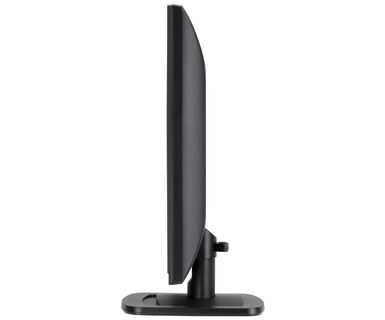
| Display position adjustments | tilt |
| Tilt angle | 21° up; 4° down |
| VESA mounting | 100 x 100mm |
| Cables | power, DVI |
| Other | quick start guide, safety guide |
| Power supply unit | internal |
| Power supply | AC 100 - 240V, 50/60Hz |
| Power usage | 16W typical, 0.5W stand by, 0.5W off mode |
| Regulations | CE, TÜV-GS, RoHS support, ErP, WEEE, REACH, UKCA |
| Energy efficiency class (Regulation (EU) 2017/1369) | E |
| REACH SVHC | above 0.1%: Lead |
| Product dimensions W x H x D | 411 x 402 x 204.5mm |
| Box dimensions W x H x D | 474 x 427 x 122mm |
| Weight (without box) | 3.2kg |
| Weight (with box) | 4.6kg |
| EAN code | 4948570119332 |

If your monitor is displaying a "No Signal" message, please check the following:
1. Ensure the cables are properly connected at both ends.
2. Select the correct signal input (HDMI/DP) or choose AUTO.
For guidance on selecting an input while the screen is in standby mode, please consult the user manual. On desktop monitors, common methods include pressing the INPUT, AUTO, or "2" buttons, or moving the joystick backward.
Yes, your iiyama monitor will work with your Apple Mac system. However, it depends on the signal input how to connect. Since Apple Mac systems from 2020 onwards only have Thunderbolt 3 (USB-C) ports for video output, you have two options:
1. Connect directly to the USB-C signal input on your iiyama monitor.
2. In case your monitor only has HDMI or Displayport, you will need a Mac-compatible dongle that supports one of the video inputs available. Apple offers a USB-C Digital AV Multiport Adapter (MW5M3AM) that can be used for this purpose.
3. If your iiyama monitor has touchscreen capabilities, please refer to the user manual to verify touch functionality compatibility with your Mac system.
To resolve the issue of a blinking picture, please follow these steps:
1. Inspect the Signal Cable.
Ensure the signal cable is securely connected at both ends and free from any physical damage. Avoid any sharp bends or squishing of the cable.
2. Use a Shorter Cable.
If possible, use a cable shorter than 3 meters and connect the monitor directly to a wall power socket, avoiding the use of adapters.
3. Disable FreeSync/Adaptive Sync.
For desktop or gaming monitors, try disabling FreeSync or Adaptive Sync in the monitor's settings menu.