Subscribe to our newsletter
Keep up #withiiyama
You have successfully subscribed to our newsletter.
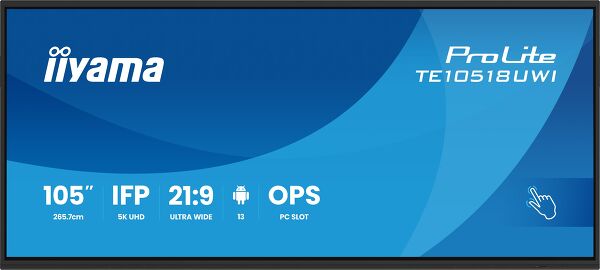
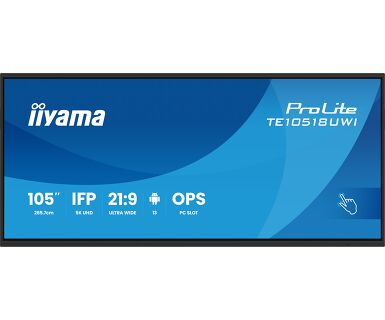
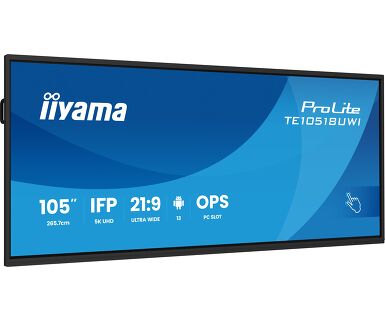
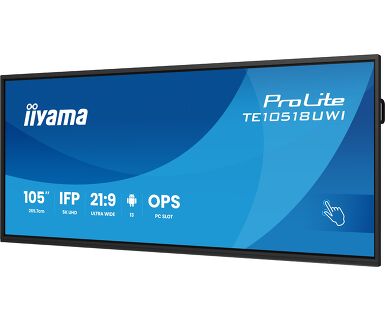
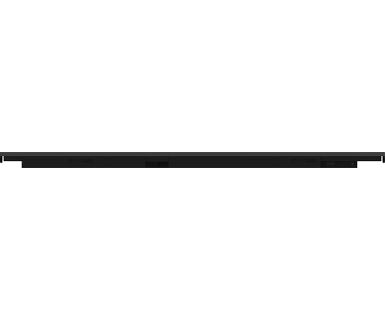
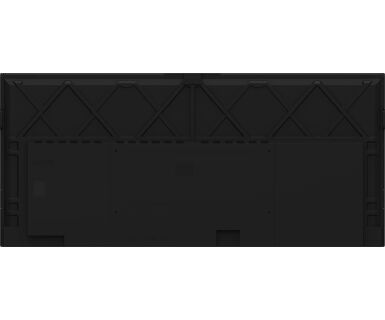
105” Ultra-wide Interactive 5K UHD display with 21:9 panoramic view
Take your collaboration to the next level with your preferred integration of Microsoft Teams Front Row. This feature allows you to seamlessly host or join virtual meetings and video conferences using the interactive touchscreen as your central communication hub.
With an ultra-wide aspect ratio, this interactive touchscreen provides an expansive canvas to accommodate multiple content windows side-by-side, enhancing multitasking capabilities. The 21:9 Ultra Wide format is also the perfect optimisation for Microsoft Teams Front Row delivering an exceptional experience and meeting room equity for all attendees.
Experience stunning visuals with the 5K UHD resolution, offering crisp and clear images for a truly immersive viewing experience.
The state-of-the-art PureTouch-IR+ technology ensures accurate and precise touch responses, enabling effortless interaction and annotation.
Empower your presentations with iiWare 11, featuring Note, Browser, Cloud Drive via an intuitive and user-friendly software that allows you to effortlessly manage, customize, and access various applications with ease.
Delivers the latest in video, audio and Touch signal, all through one port and even charges your device with 100W power delivery.
The built-in speakers and subwoofer offer high-quality sound, ensuring crystal-clear audio during presentations, video conferences, or multimedia playback.
The integrated 8-array microphone provides exceptional audio clarity, making sure your voice is heard loud and clear during virtual meetings and conferences.


| Design | Thin bezel |
| Diagonal | 104.6", 265.7cm |
| Panel | VA |
| Touch Glass | AG coated glass, Anti-Gloss finish with excellent smooth writing (Anti-glare glass with Matt polish finish) |
| Panel | VA |
| Native resolution | 5120 x 2160 (14.75 megapixel, 5K UHD) |
| Aspect ratio | 21:9 |
| Panel brightness | 450 cd/m² |
| Light transmittance | 92% |
| Static contrast | 4000:1 |
| Dynamic contrast | 5000:1 |
| Response time (GTG) | 6.5ms |
| Viewing zone | horizontal/vertical: 178°/178°, right/left: 89°/89°, up/down: 89°/89° |
| Colour support | 1.07B 10bit (NTSC 90%) |
| Horizontal Sync | 30 - 135kHz |
| Viewable area W x H | 2450 x 1033.6mm, 96.5 x 40.7" |
| Pixel pitch | 0.479mm |
| Bezel colour and finish | black, matte |
| Touch technology | PureTouch-IR⁺ |
| Touch points | 40, 32pt writing (HID, only with supported OS) |
| Touch accuracy | +- 1mm |
| Touch method | stylus, finger, glove |
| Touch interface | USB |
| Supported operating systems | All iiyama monitors are Plug & Play and compatible with Windows and Linux. For details regarding the supported OS for the touch models, please refer to the driver instruction file available in the downloads section. |
| Palm rejection | yes |
| Digital signal input |
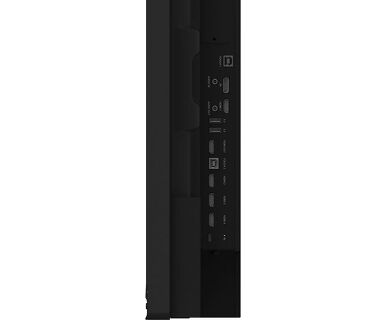
HDMI x4 (1x 2.1, max. 5120x2160 @60Hz; 3x 2.0, max. 3840x2160 @60Hz, YUV444) DisplayPort x1 (1.4, max. 5120x2160 @60Hz) USB-C x2 (3.2 Gen 1, 3840x2160 @60Hz, DP Alt mode 1.2, Touch, front: 15W PD, back: 100W PD) |
| Audio input | Mini jack x1 |
| Monitor control input | RS-232c x1 |
| Digital signal output |
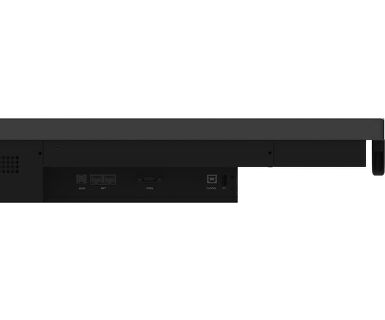
HDMI x1 (3840x2160 @60Hz, YUV/RGB444) USB-C x1 (3.2 Gen 1, 3840x2160 @60Hz (DP 1.2 Alt mode, Touch, 5W PD, MSD (Multi-Screen Display)) |
| Audio output |
S/PDIF (Optical) x1 Mini jack x1 Speakers 2 x 16W (Front + 16W Subwoofer) |
| HDCP | HDMI, DP & USB-C: 2.3 |
| USB ports | x8 (media playback / peripherals / storage – front: 2x 3.2 (Gen 1, 5Gbit), 1x USB-C 3.2 (Gen 1, 15W PD), back side: 2x 3.2 (Gen 1, 5Gbit), 1x USB-C 3.2 (Gen 1, 100W PD), top side: 2x 3.2 (Gen 1, 5Gbit)) |
| RJ45 (LAN) | x2 (IN/OUT, Auto switch for PC & Android, 1000MB) |
| Microphone | 8-Array (8m voice pick-up, Front facing) |
| Integrated software | iiWare 11 (Android 13 OS) featuring iiyama DMS, iiyama OS, iiyama Class, Note, web browser, file manager, cloud drives, WPS office, iiyama Share and EShare for wireless connection with Windows/iOS/Android devices |
| WiFi | yes (WiFi 6 Module OWM002 - Dual WiFi Bandwidth: 2.4GHz/5GHz, WiFi Standard: IIEEE 802.11 a/b/g/n/ac/ax, Bluetooth Support: 2.1+EDR/ 3.0/ 4.x/ 5.0) |
| Hardware | CPU: A311D2, A76*4+A55*4(2.4GHz), GPU: Mali G610, RAM: 8GB, ROM: 64GB |
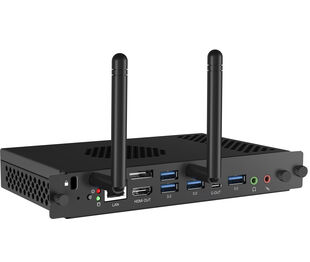
| Extra | WiFi 6 Module (OWM002), Slot for optional OPS Slot PC, 4x Touch pen |
| Kiosk mode | yes |
| Max. non-stop operating time | 16/7 |
| Anti image retention | yes |
| Media playback | yes |
| Glass thickness | 3mm |
| Glass hardness | 7H |
| Housing (bezel) | metal |
| OSD key lock | yes |
| OSD languages | EN, DE, FR, ES, IT, RU, CZ, NL, PL, CAT, SV, FI, DA, NB |
| Control buttons | Power, Power Indicator, Remote Sensor, Ambient Light Sensor, USB-C Connector (3.2), USB Connector (3.2), Microphone Indicator |
| User controls | common settings (input, volume, backlight), audio settings (volume, bass, treble, balance, sound mode, mute), screen settings (pixel shift, eye care, auto light, ECO, ECR, auto colour temp.), display settings (brightness, contrast, hue, sharpness, display mode, colour temp.), settings (wireless & networks, personal, input & output, application, system) |
| Blue light reducer | yes |
| Plug&Play | DDC2B |
| Warranty | 5 years (for details and eligible countries please check the Warranty section of our website) |
| Orientation | landscape |
| Fanless design | yes |
| VESA mounting | 1000 x 400mm |
| Operation temperature range | 0°C - 40°C |
| Storage temperature range | - 20°C - 60°C |
| MTBF | 50.000 hours (excluding backlight) |
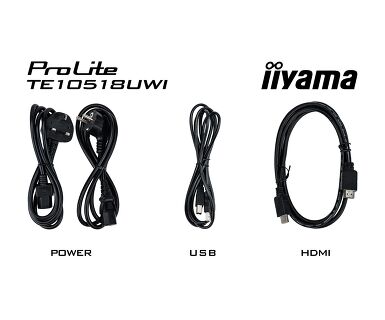
| Cables | power, USB, HDMI |
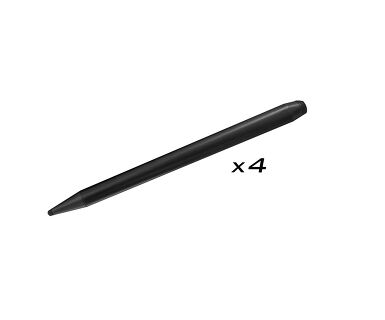
| Touch pen | x4 (Dual function tips, Anti-Bacterial) |
| Guides | quick start guide, safety guide |
| Other | WiFi Module (OWM002), Wall Mounting Bracket (VESA 1000x400mm), Mounting bracket for NUC, Mounting bracket for webcam |
| Remote control | yes (batteries included) |
| Power supply unit | internal |
| Power supply | AC 100 - 240V, 50/60Hz |
| Power usage | 282W typical, 0.5W stand by, 0.3W off mode |
| Regulations | CB, CE, TÜV-Bauart, EAC, RoHS support, ErP, WEEE, REACH (RoHS) |
| REACH SVHC | above 0.1%: Lead |
| Product dimensions W x H x D | 2507.2 x 1130.1 x 103mm |
| Box dimensions W x H x D | 2668 x 1305 x 280mm |
| Weight (without box) | 91.4kg |
| Weight (with box) | 119.5kg |
| EAN code | 4948570122011 |
If you are unable to set the native resolution with the maximum refresh rate on your monitor, try the following troubleshooting steps:
1. Ensure you are using a cable that supports both the native resolution and the desired refresh rate.
2. Visit the product page on our website and check technical specification tab - Interfaces / Connectors / Controls section to see what resolution and refresh rate are supported under the signal input you have seleced (e.g. HDMI signal input does not always support the maxium refresh rate, please check the DisplayPort connection instead).
3. Check the settings and specifications of your PC / graphics card to see if they support the desired resolution or refresh rate.
No, you cannot install apps on your iiyama monitor through the official Google Play Store. However, you do have the option to sideload applications onto your display.
Please visit the iiyama signup webpage and enter the model name or serial number of your iiyama screen. You will be directed to all available software applications for your product, along with instructions on how to activate them.
All iiyama LFDs and IFP displays can be used in portrait mode, except for products with item names starting with TE or LE, which can only operate in landscape mode. Always follow the installation instructions provided with the monitor and the guidelines in the User Manual.
If you wish to change the settings on your monitor remotely, please refer to the RS232/LAN protocol document available in the DOWNLOAD section on the product page.
The commands can be sent to the screen with a terminal app, for example Hercules SETUP utility. For more information, please refer to the RS232/LAN protocol document available in the DOWNLOAD section on the product page.
If your touch functionality is not working, please check the following:
1. Ensure your PC is connected to the monitor with the supplied USB cable.
2. Verify in the user manual that your operating system is supported by the screen.
When cleaning, please follow these guidelines to avoid damaging your Touch monitor:
1. Avoid using paper towels, abrasive cloths, or any harsh cleaning agents, as they can scratch the screen or damage the touch sensors.
2. Do not spray the cleaning solution directly onto the screen to prevent liquid from seeping into the monitor.
3. Avoid excessive cleaning, as it can wear out the screen over time.
4. For more details, please check our dedicated Cleaning page.
If your monitor is displaying a "No Signal" message, please check the following:
1. Ensure the cables are properly connected at both ends.
2. Select the correct signal input (HDMI/DP) or choose AUTO.
For guidance on selecting an input while the screen is in standby mode, please consult the user manual. On desktop monitors, common methods include pressing the INPUT, AUTO, or "2" buttons, or moving the joystick backward.
Yes, your iiyama monitor will work with your Apple Mac system. However, it depends on the signal input how to connect. Since Apple Mac systems from 2020 onwards only have Thunderbolt 3 (USB-C) ports for video output, you have two options:
1. Connect directly to the USB-C signal input on your iiyama monitor.
2. In case your monitor only has HDMI or Displayport, you will need a Mac-compatible dongle that supports one of the video inputs available. Apple offers a USB-C Digital AV Multiport Adapter (MW5M3AM) that can be used for this purpose.
To resolve the issue of a blinking picture, please follow these steps:
1. Inspect the Signal Cable.
Ensure the signal cable is securely connected at both ends and free from any physical damage. Avoid any sharp bends or squishing of the cable.
2. Use a Shorter Cable.
If possible, use a cable shorter than 3 meters and connect the monitor directly to a wall power socket, avoiding the use of adapters.
3. Disable FreeSync/Adaptive Sync.
For desktop or gaming monitors, try disabling FreeSync or Adaptive Sync in the monitor's settings menu.