Subscribe to our newsletter
Keep up #withiiyama
You have successfully subscribed to our newsletter.
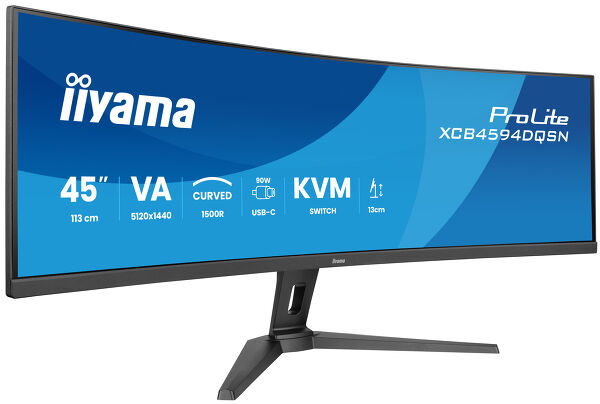
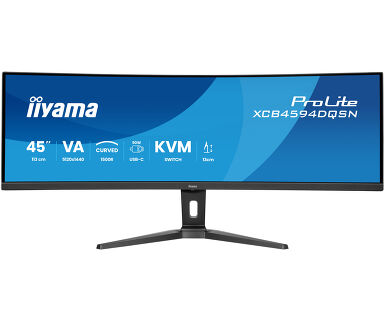
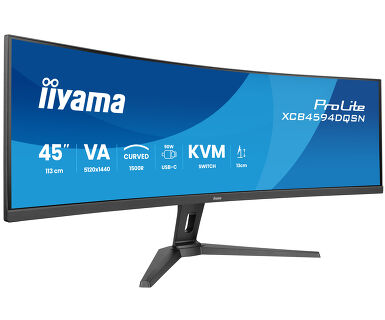
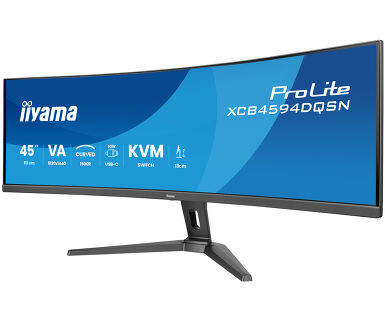
45’’ Dual QHD VA panel with KVM switch, USB-C dock and RJ45 (LAN) and height adjustable stand
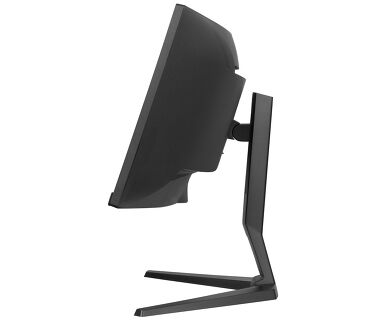
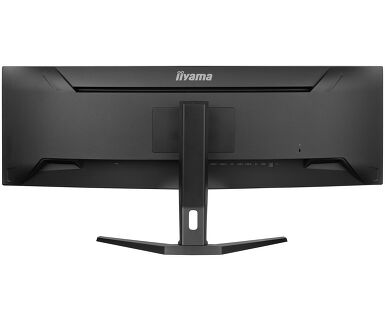
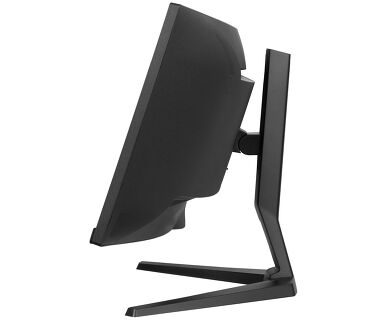
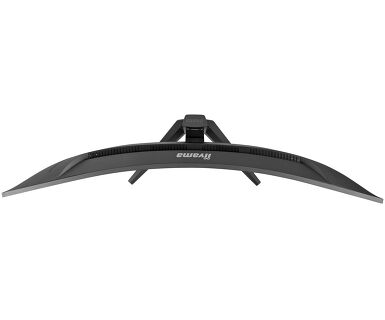
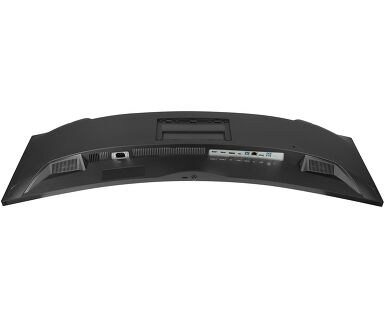
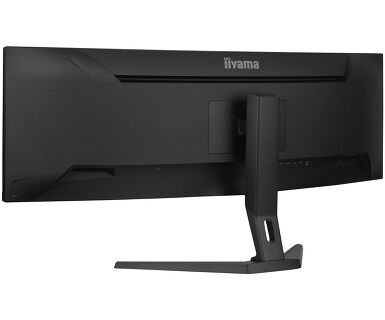
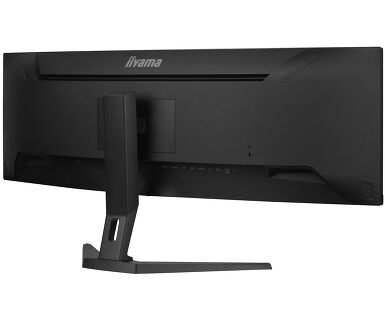
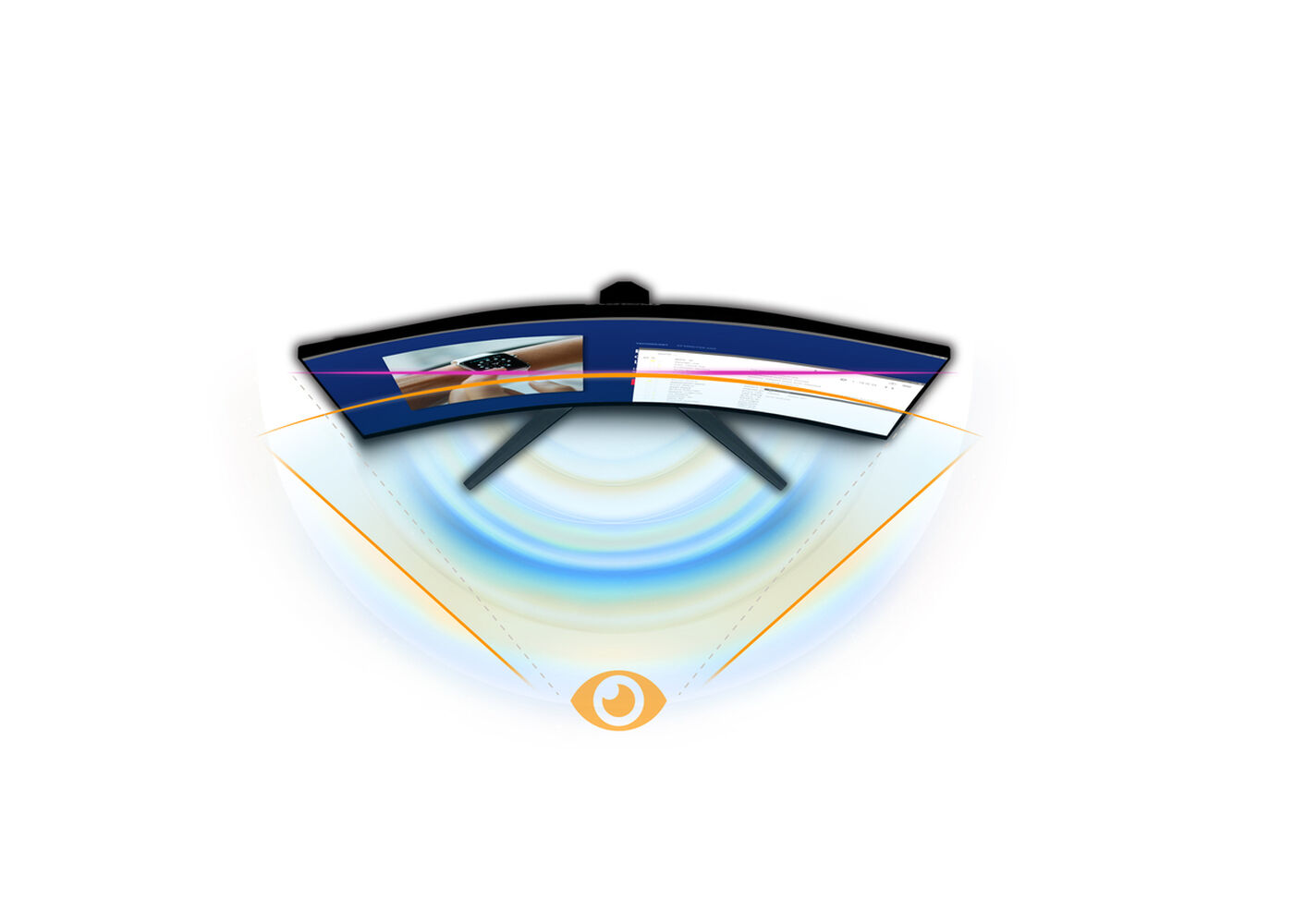
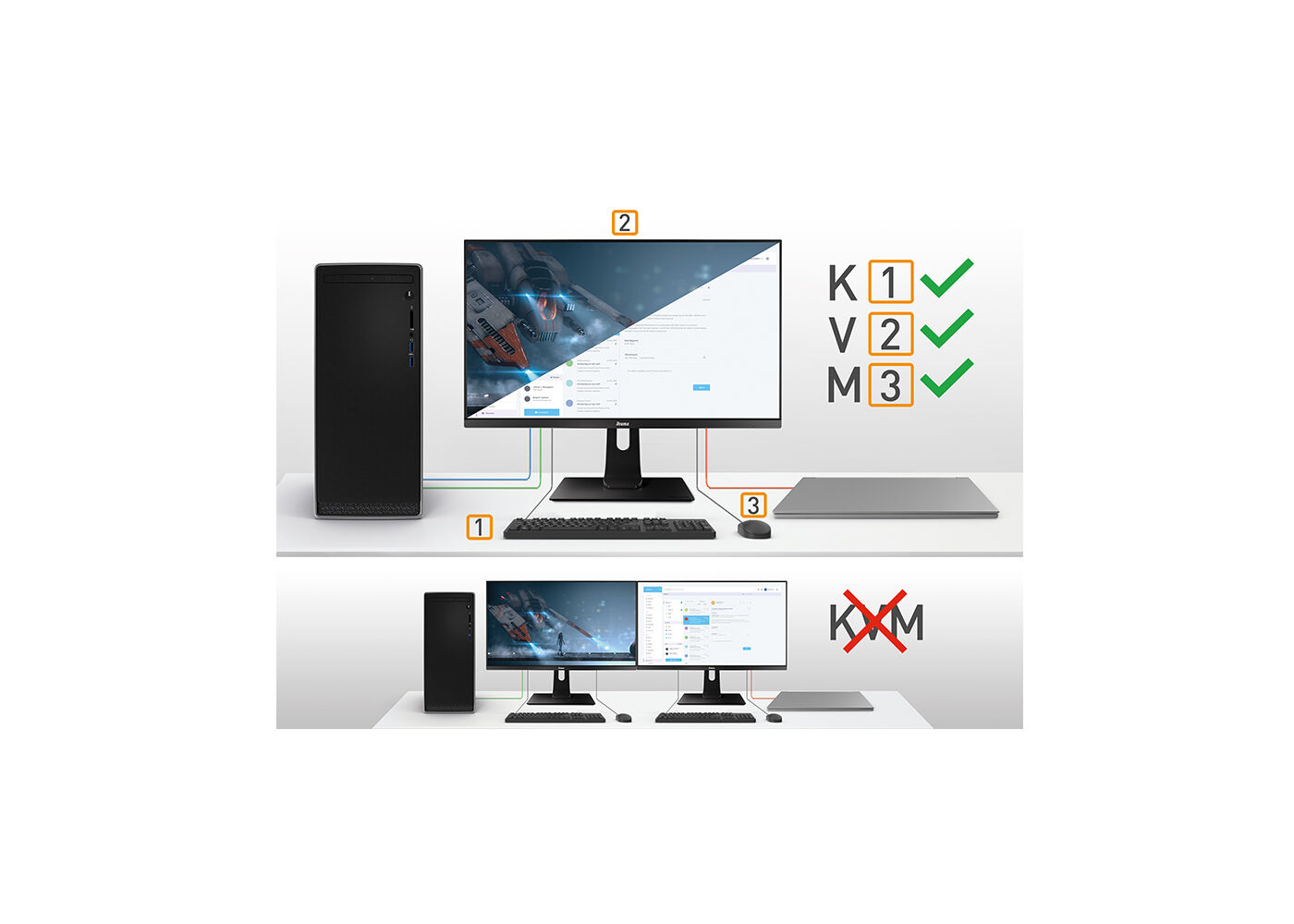
The XCB4594DQSN features a 1500R curved VA panel with a 165Hz refresh rate, 0.8ms MPRT, and a 5120x1440 (DQHD) resolution for superb image quality. The KVM switch allows you to connect multiple computers that can be operated over one console (monitor, keyboard, mouse). The USB-C dock simplifies setup with one cable for laptop signal transmission, power, and charging. Connecting to the Internet via LAN automatically links your notebook to the network. The VA panel ensures expansive viewing angles and vivid colours, and the 1500R curvature minimizes eye strain for a lifelike and fully immersive gaming experience. The dual QHD resolution provides sharp visuals, and the height-adjustable stand adds a comfortable and highly ergonomic experience.
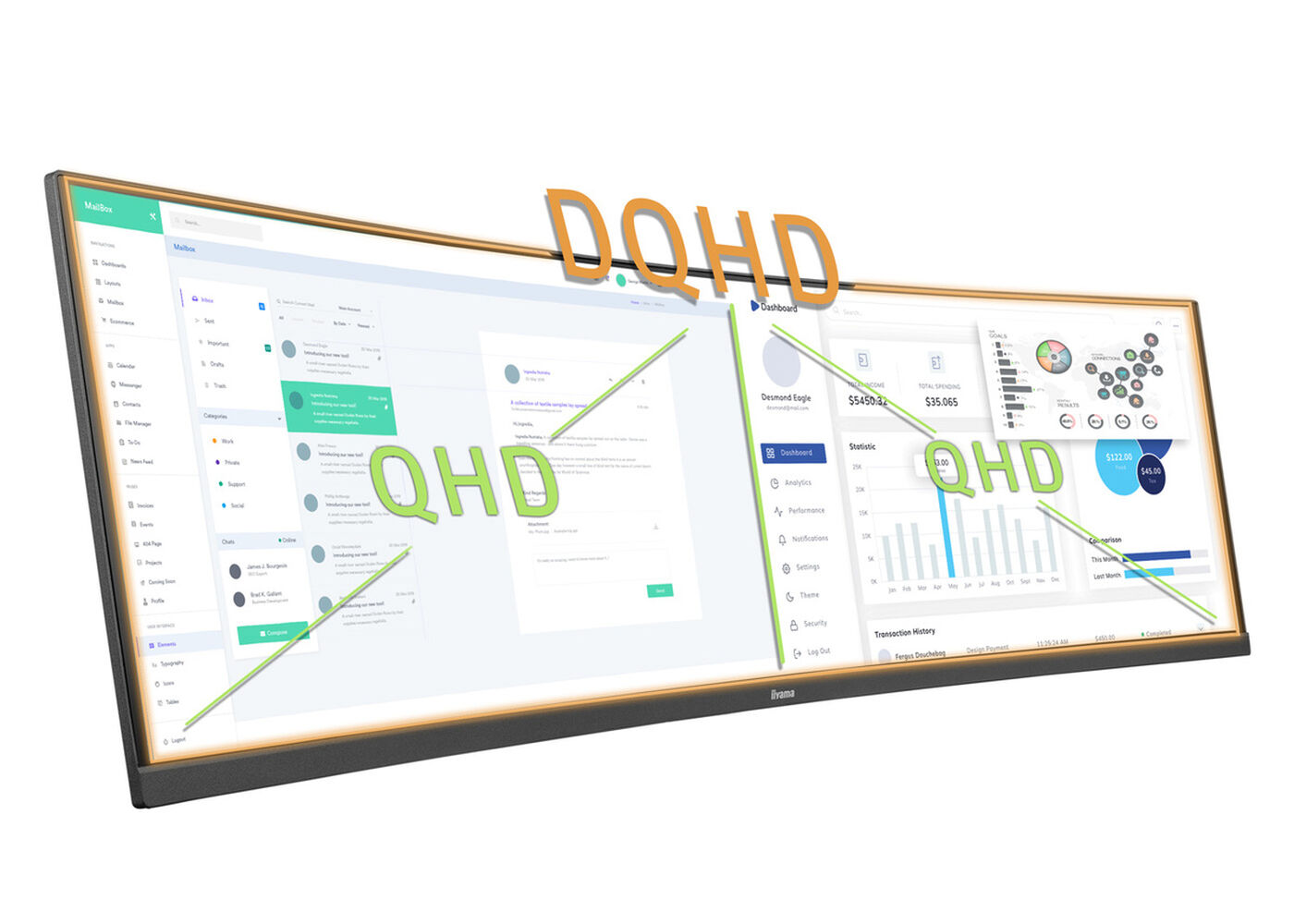
Ultra-wide 32:9 monitors with a DQHD 5120x1440 resolution, also called dual QHD, deliver razor-sharp images. They make it possible to divide the workspace into multiple windows and simultaneously open all the documents you need.
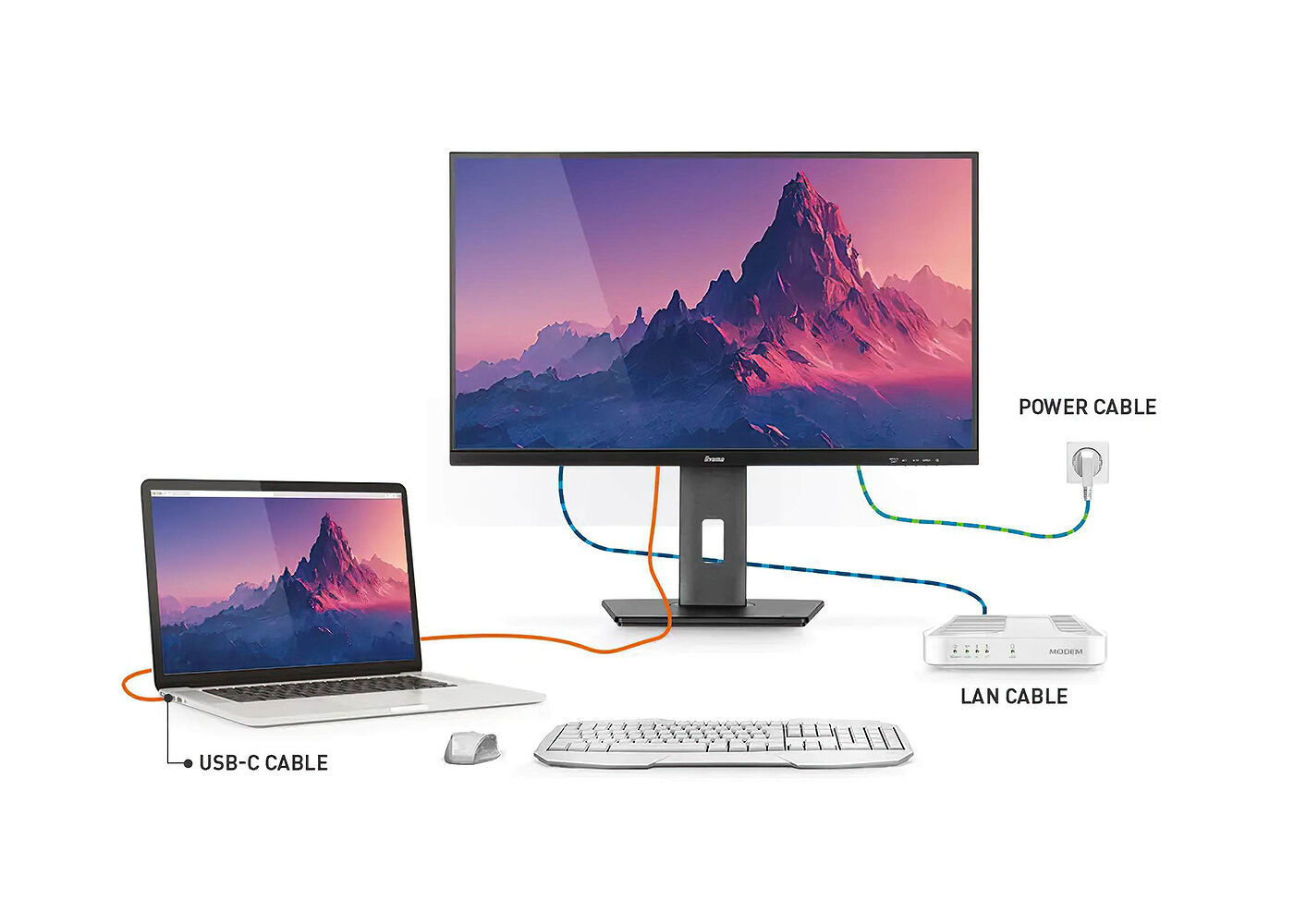
Az aljzat segítségével egyetlen kábellel csatlakoztathatja laptopját a monitorhoz, így biztosítva annak feltöltését úgy, hogy a vezetékes hálózathoz csatlakozik, valamint a laptopból érkező jelnek a monitorra való eljuttatását. További USB-portokkal pedig az egér, a billentyűzet vagy a webkamera is csatlakoztatható a monitorhoz. Mindez egyetlen kábelnek köszönhető, amely a laptopot* a monitor USB-C aljzatához köti.
* A funkciók a laptop USB-C támogatásától függően változhatnak.



| Design | 3-side borderless |
| Átló | 44.5", 113cm |
| Panel | VA, matte finish |
| Hajlított | 1500R |
| Natív felbontás | 5120 x 1440 @165Hz (7.4 megapixel DQHD) |
| Képarány | 32:9 |
| Fényerő | 450 cd/m² |
| Statikus kontraszt | 3000:1 |
| Speciális kontraszt | 80M:1 |
| Válaszidő (MPRT) | 0.8ms |
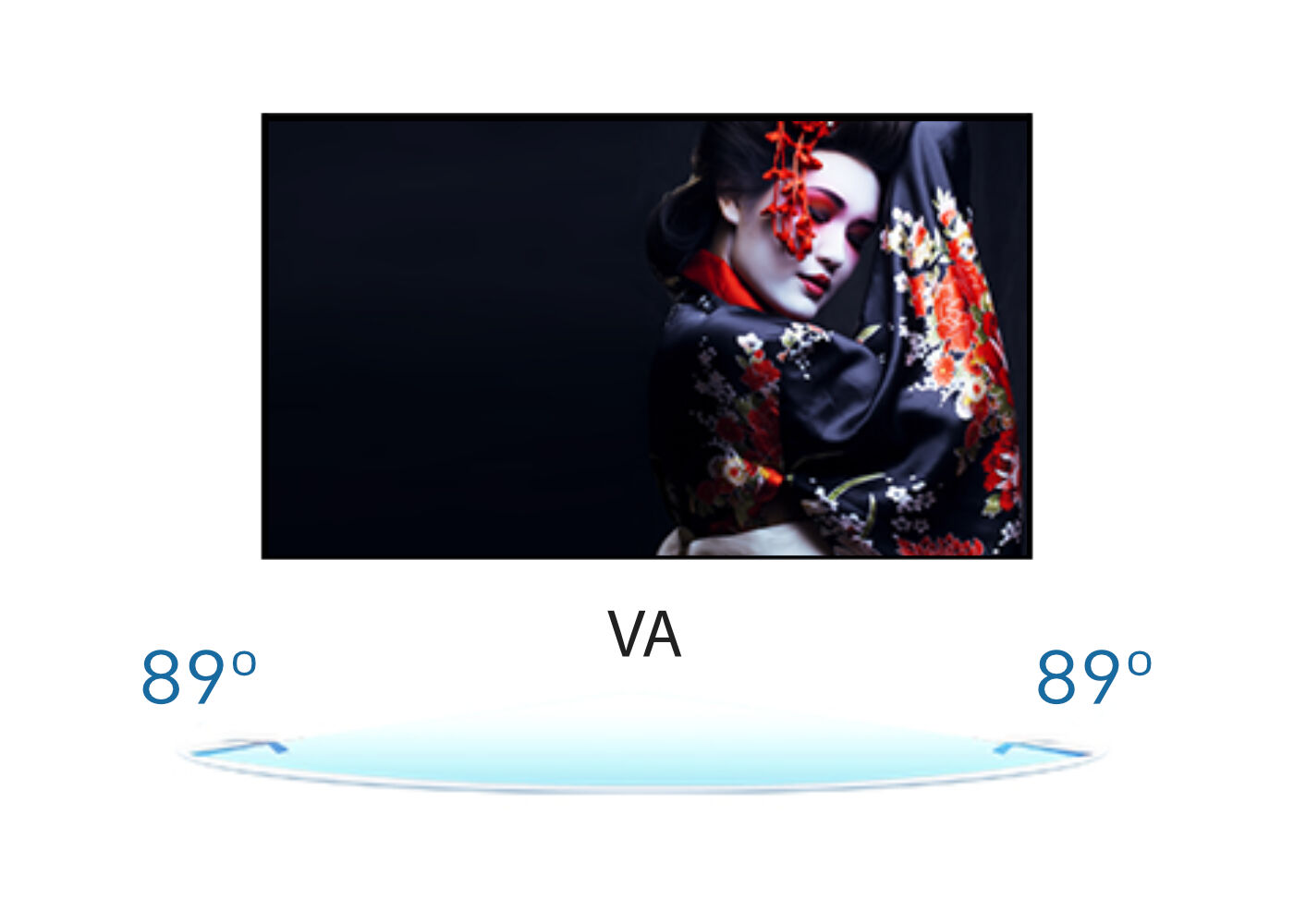
| Látótér | horizontális/vertikális: 178°/178°, jobb/bal: 89°/89°, fel/le: 89°/89° |
| Szín támogatás | 16.7mln 8bit (sRGB: 100%; NTSC: 80%) |
| Horizontális szinkronizálás | 30 - 260kHz |
| Látható terület Sz x M | 1087.5 x 305.9mm, 42.8 x 12" |
| Pixel magasság | 0.212mm |
| Szín | matt, fekete |
| Jelbemenet |
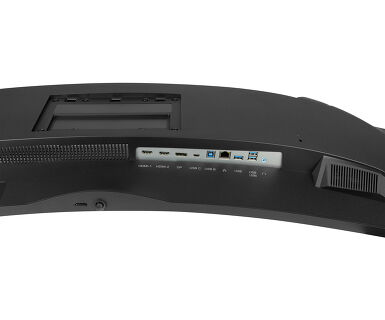
HDMI x2 (v.2.1) DisplayPort x1 (v.1.4) USB-C x1 (Power delivery 90W) |
| USB HUB | x3 (v.3.2 (Gen 1, 5Gbit; DC5V, 900mA)) |
| USB-C DOCK | x1 (Power delivery 90W, LAN, USB v. 3.2 (Gen 1, 5Gbit)) |
| HDCP | igen |
| Hangszóró csatlakozó | igen |
| RJ45 (LAN) | x1 |
| KVM switch | igen |
| Kékfény csökkentés | igen |
| Villogásmentes | igen |
| Adaptive Sync támogatás | igen |
| Extra | i-Style Colour |
| HDR | 400 |
| OSD nyelvek | EN, DE, FR, ES, IT, PT, RU, JP, CZ, NL, PL |
| Vezérlőgombok | navigation button: Menu/Execution, Down (i-Style Colour), Up (Input Select), Right (Volume), Left (ECO Mode), Power |
| Felhasználói vezérlők | picture (brightness, contrast, black tuner, sharpness, OD, ACR, ECO Mode, X-Res technology), colour (warm, normal, cool, user colour, i-Style colour, blue light reducer), input select, PBP (PBP mode, sub win input, PBP swap, audio input), audio (volume, mute), language, OSD settings (OSD H. position, OSD V. position, OSD background, OSD time out, information), setup menu 1 (MST, DSC, KVM, USB-C, USB BC), setup menu 2 (video mode adjust, HDMI RGB range, direct drive, adaptive sync, MBR, HDR, opening logo, LED, memory recall) |
| Hangszórók | 2 x 3W |
| Kényelem | Kensington-lock™ előkészítve, DDC/CI, DDC2B, Mac OSX |
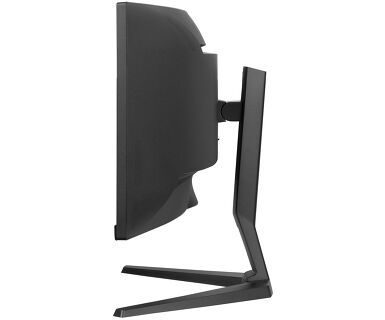
| Kijelző helyzetének beállításai | magasság, billenthető |
| Magasság beállítása | 130mm |
| Hajlásszög | 20° fel; 3° le |
| VESA állvány | 100 x 100mm, 200 x 100mm |
| Kábelkezelő rendszer | igen |
| Kábelek | áramellátás, USB, HDMI, DP, USB-C |
| Egyéb | gyors üzembe helyezési útmutató, biztonsági útmutató |
| Tápegység | belső |
| Áramellátás | AC 100 - 240V, 50/60Hz |
| Áramfogyasztás | 37W default , 0.5W készenlét, 0.3W kikapcsolva |
| Előírások | CE, TÜV-Bauart, EAC, PSE, RoHS támogatás, ErP, WEEE, VCCI, HATÓTÁVOLSÁG, UKCA |
| Energiahatékonysági osztály ((EU) 2017/1369 rendelet) | F |
| REACH SVHC | 0,1% felett: Vezet |
| Termék méretei Sz x H x M | 1090 x 409 (539) x 275mm |
| Doboz mértei Sz x H x M | 1260 x 470 x 315mm |
| Súly (doboz nélkül) | 11.2kg |
| Súly (dobozzal) | 16.4kg |
| EAN kód | 4948570122271 |


To configure your 5K monitor to work as two QHD monitors, please refer to the guidelines provided in the attached document.
To resolve the issue of your laptop not charging, please try the following steps:
1. Activate USB BC or disable USB standby mode in the monitor’s settings menu.
2. Update your PC’s BIOS/UEFI.
iiyama monitors with USB-C Dock capabilities can be recognized by an "N" in their model names, such as HSN or QSN. For example, XUB****HSN. You can also visit our product selector page and use the available filters.
To explore the features and benefits of a monitor with a USB-C dock, please watch the video below.
To extend the desktop via DP-out, enable the MST function in the screen settings. For detailed instructions, please refer to your user manual.
Yes, Adaptive Sync is compatible with AMD FreeSync and NVIDIA G-Sync.
MBR cannot be selected when FreeSync/AdaptiveSync is activated, because MBR can interfere with the FreeSync/Adaptive Sync technology as they have different methods of improving motion clarity. MBR reduces motion blur (response time), while Adaptive Sync/FreeSync addresses stuttering. We recommend activating Adaptive Sync/FreeSync on systems with fluctuating or unstable frame rates. MBR performs best on powerful systems that maintain a consistently high frame rate.
If your monitor is displaying a "No Signal" message, please check the following:
1. Ensure the cables are properly connected at both ends.
2. Select the correct signal input (HDMI/DP) or choose AUTO.
For guidance on selecting an input while the screen is in standby mode, please consult the user manual. On desktop monitors, common methods include pressing the INPUT, AUTO, or "2" buttons, or moving the joystick backward.
Yes, your iiyama monitor will work with your Apple Mac system. However, it depends on the signal input how to connect. Since Apple Mac systems from 2020 onwards only have Thunderbolt 3 (USB-C) ports for video output, you have two options:
1. Connect directly to the USB-C signal input on your iiyama monitor.
2. In case your monitor only has HDMI or Displayport, you will need a Mac-compatible dongle that supports one of the video inputs available. Apple offers a USB-C Digital AV Multiport Adapter (MW5M3AM) that can be used for this purpose.
3. If your iiyama monitor has touchscreen capabilities, please refer to the user manual to verify touch functionality compatibility with your Mac system.
To resolve the issue of a blinking picture, please follow these steps:
1. Inspect the Signal Cable.
Ensure the signal cable is securely connected at both ends and free from any physical damage. Avoid any sharp bends or squishing of the cable.
2. Use a Shorter Cable.
If possible, use a cable shorter than 3 meters and connect the monitor directly to a wall power socket, avoiding the use of adapters.
3. Disable FreeSync/Adaptive Sync.
For desktop or gaming monitors, try disabling FreeSync or Adaptive Sync in the monitor's settings menu.