Subscribe to our newsletter
Keep up #withiiyama
You have successfully subscribed to our newsletter.
Reliabale office solutions
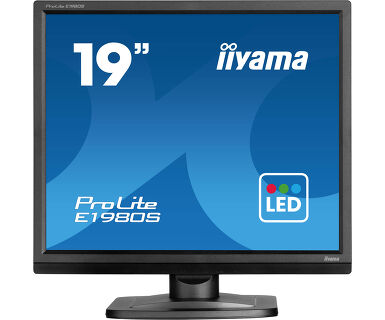
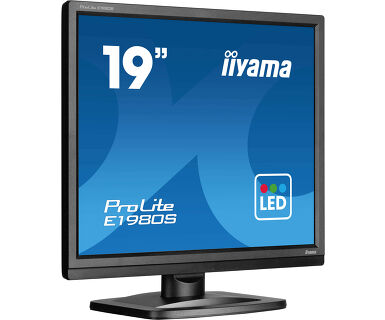
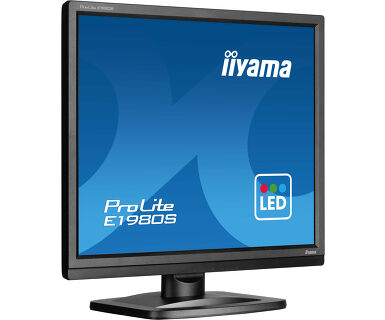
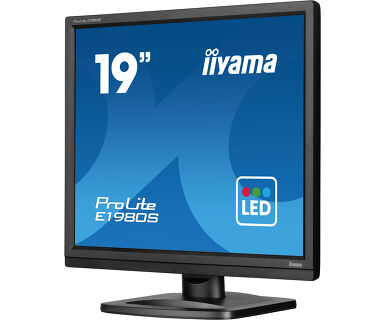
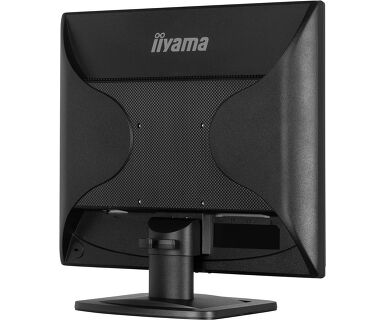
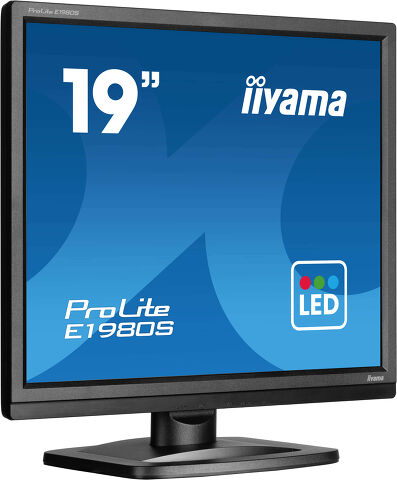
The 19’’ ProLite E1980S is an LED-backlit monitor featuring a good response time, high contrast, as well as sRGB and gamma correction functions that allow even the finest color nuances to be adjusted with precision. Additionally, this monitor comes equipped with integrated speakers.
Szintén elérhető állítható magasságú állvánnyal: ProLite B1980S-B1


| Átló | 19", 48cm |
| Panel | TN |
| Natív felbontás | 1280 x 1024 @75Hz (1.3 megapixel) |
| Képarány | 5:4 |
| Fényerő | 250 cd/m² |
| Statikus kontraszt | 1000:1 |
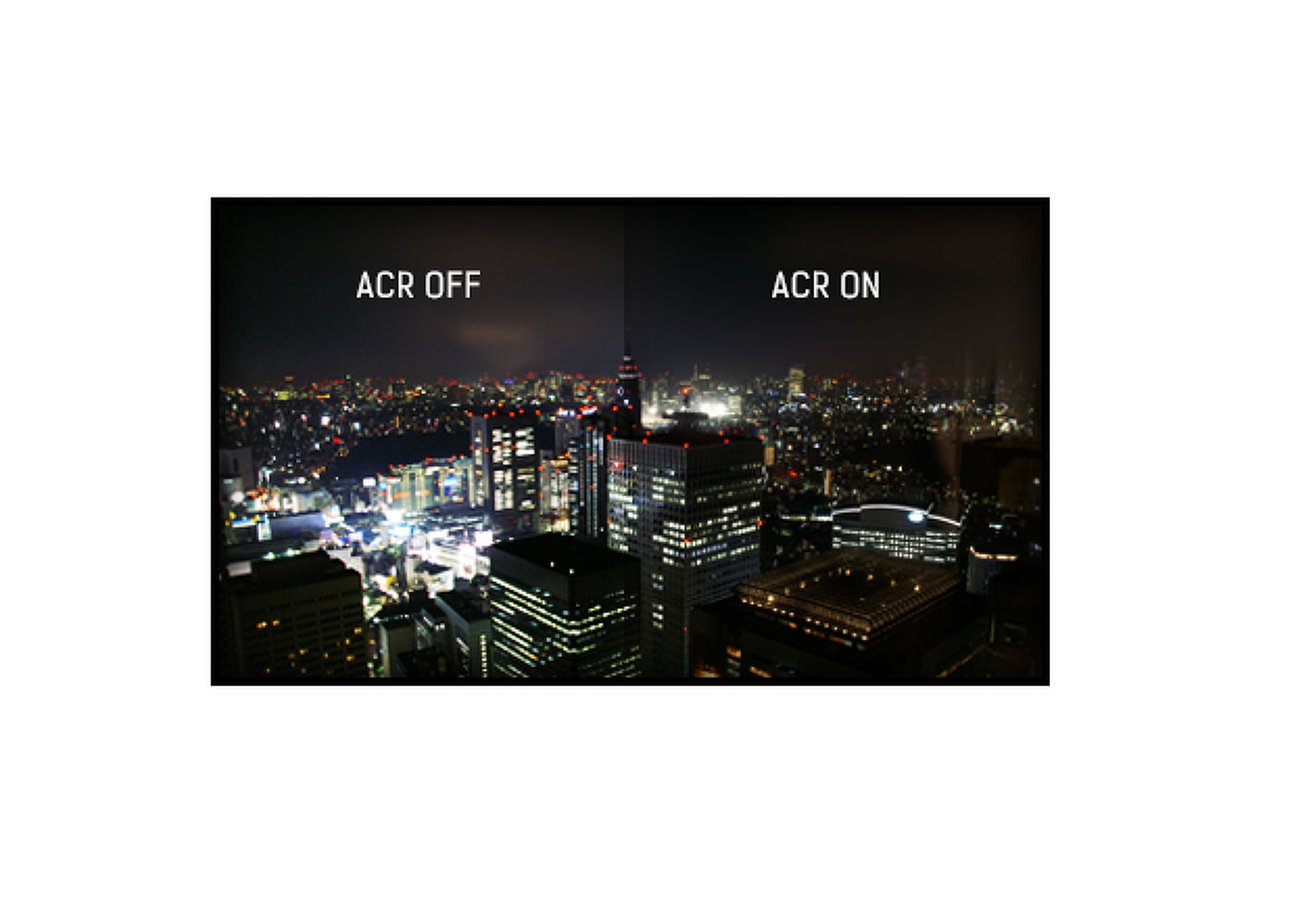
| Speciális kontraszt | 12M:1 |
| Válaszidő (GTG) | 3ms |
| Látótér | horizontális/vertikális: 170°/160°, jobb/bal: 85°/85°, fel/le: 80°/80° |
| Szín támogatás | 16.7mln (sRGB: 99%; NTSC: 72%) |
| Horizontális szinkronizálás | 30 - 80kHz |
| Látható terület Sz x M | 376.32 x 301.05mm, 14.8 x 11.9" |
| Pixel magasság | 0.294mm |
| Szín | matt, fekete |
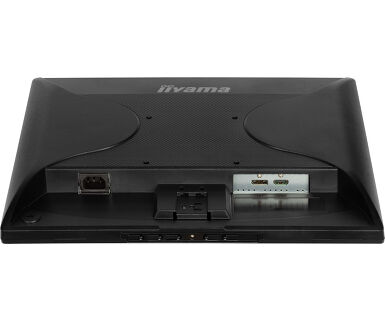
| Jelbemenet |
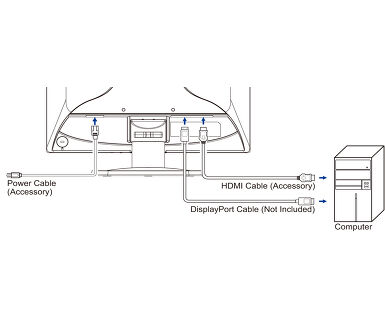
HDMI x1 DisplayPort x1 |
| HDCP | igen |
| OSD nyelvek | EN, DE, FR, ES, IT, PT, RU, JP, CZ, NL, PL |
| Vezérlőgombok | Power, Menu, + / Volume, -/ Eco, Signal Select (Auto) |
| Felhasználói vezérlők | picture adjust (contrast, brightness, i-Style colour, ACR, Eco, OD, X-Res technology), image setup (blue light reducer, sharpness), colour settings (gamma, 6-axis, colour temp.), audio settings (volume, mute), OSD settings (H. position, V. position, OSD time, language), extra (reset, DDC/CI control, signal select, HDMI range, opening logo, power LED, information) |
| Hangszórók | 2 x 2W |
| Kényelem | Kensington-lock™ előkészítve, DDC2B, Mac OSX |
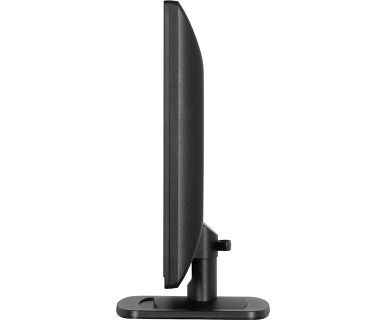
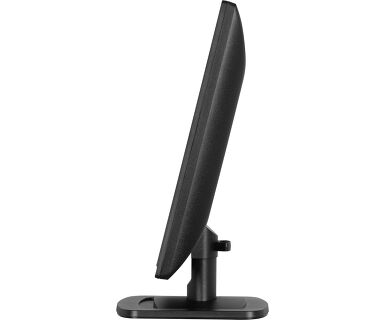
| Kijelző helyzetének beállításai | billenthető |
| Hajlásszög | 21° fel; 4° le |
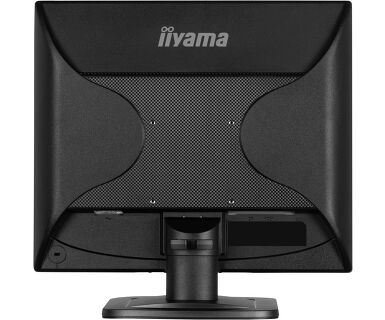
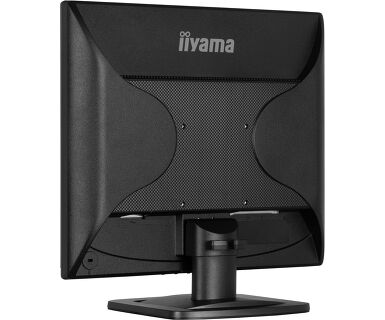
| VESA állvány | 100 x 100mm |
| Kábelkezelő rendszer | igen |
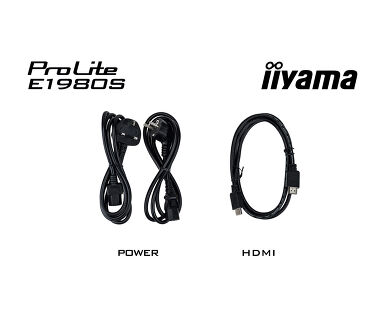
| Kábelek | áramellátás, HDMI |
| Egyéb | gyors üzembe helyezési útmutató, biztonsági útmutató |
| Tápegység | belső |
| Áramellátás | AC 100 - 240V, 50/60Hz |
| Energiafogyasztás | 12W jellemző, 0.5W készenlét, 0.3W kikapcsolva |
| Áramfogyasztás | 0.5W készenlét |
| Előírások | CE, TÜV-GS, RoHS támogatás, ErP, WEEE, HATÓTÁVOLSÁG, UKCA |
| Energiahatékonysági osztály ((EU) 2017/1369 rendelet) | D |
| EPEAT | *registration varies by country, go to www.epeat.net for details |
| REACH SVHC | 0,1% felett: Vezet |
| Termék méretei Sz x H x M | 411 x 402 x 204.5mm |
| Doboz mértei Sz x H x M | 474 x 427 x 122mm |
| Súly (doboz nélkül) | 3.1kg |
| Súly (dobozzal) | 4.1kg |
| EAN kód | 4948570125418 |

If your monitor is displaying a "No Signal" message, please check the following:
1. Ensure the cables are properly connected at both ends.
2. Select the correct signal input (HDMI/DP) or choose AUTO.
For guidance on selecting an input while the screen is in standby mode, please consult the user manual. On desktop monitors, common methods include pressing the INPUT, AUTO, or "2" buttons, or moving the joystick backward.
Yes, your iiyama monitor will work with your Apple Mac system. However, it depends on the signal input how to connect. Since Apple Mac systems from 2020 onwards only have Thunderbolt 3 (USB-C) ports for video output, you have two options:
1. Connect directly to the USB-C signal input on your iiyama monitor.
2. In case your monitor only has HDMI or Displayport, you will need a Mac-compatible dongle that supports one of the video inputs available. Apple offers a USB-C Digital AV Multiport Adapter (MW5M3AM) that can be used for this purpose.
3. If your iiyama monitor has touchscreen capabilities, please refer to the user manual to verify touch functionality compatibility with your Mac system.
To resolve the issue of a blinking picture, please follow these steps:
1. Inspect the Signal Cable.
Ensure the signal cable is securely connected at both ends and free from any physical damage. Avoid any sharp bends or squishing of the cable.
2. Use a Shorter Cable.
If possible, use a cable shorter than 3 meters and connect the monitor directly to a wall power socket, avoiding the use of adapters.
3. Disable FreeSync/Adaptive Sync.
For desktop or gaming monitors, try disabling FreeSync or Adaptive Sync in the monitor's settings menu.