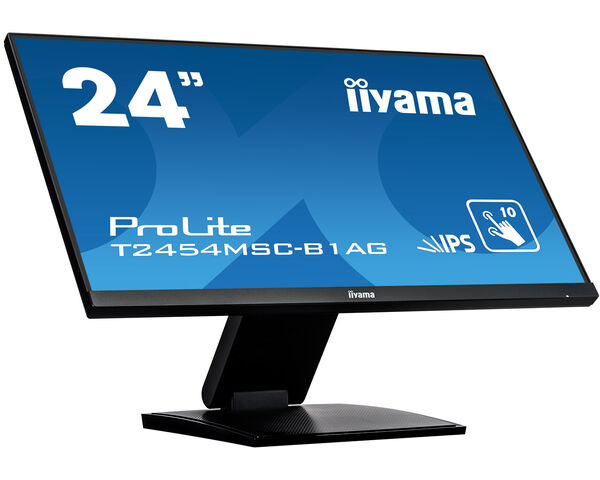
ProLite T2454MSC-B1AG (EOL) Replaced by: ProLite T2454MSC-B3AG
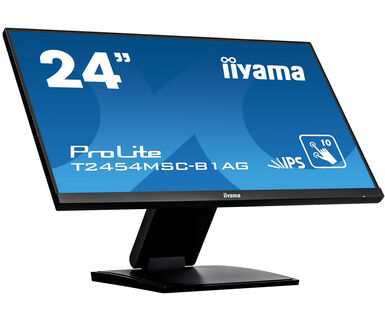
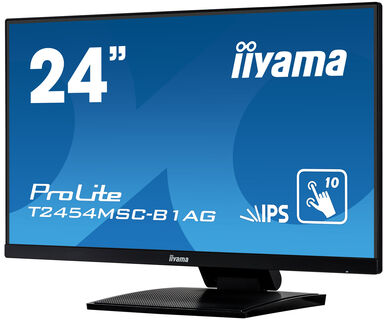
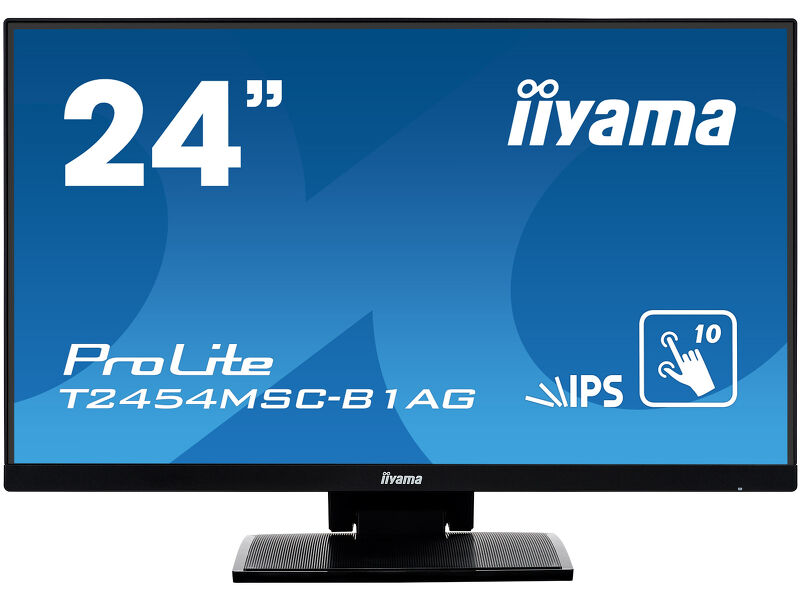
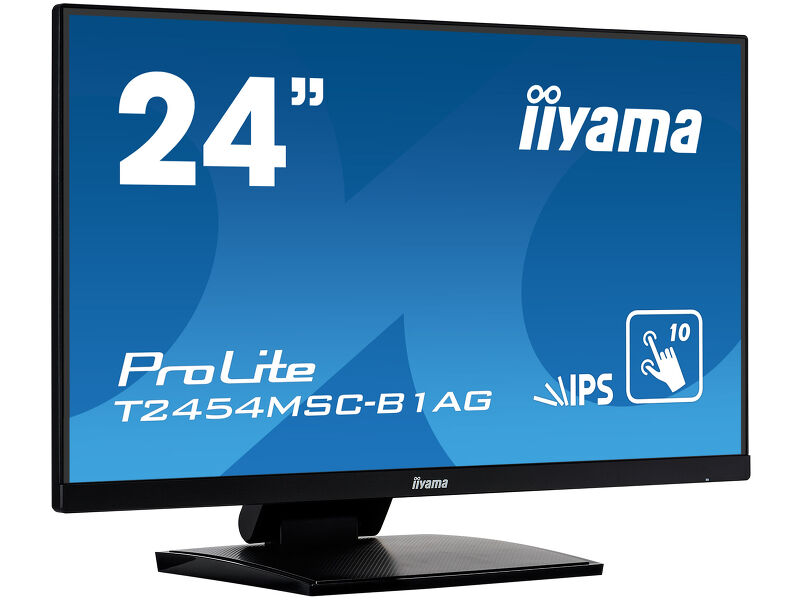
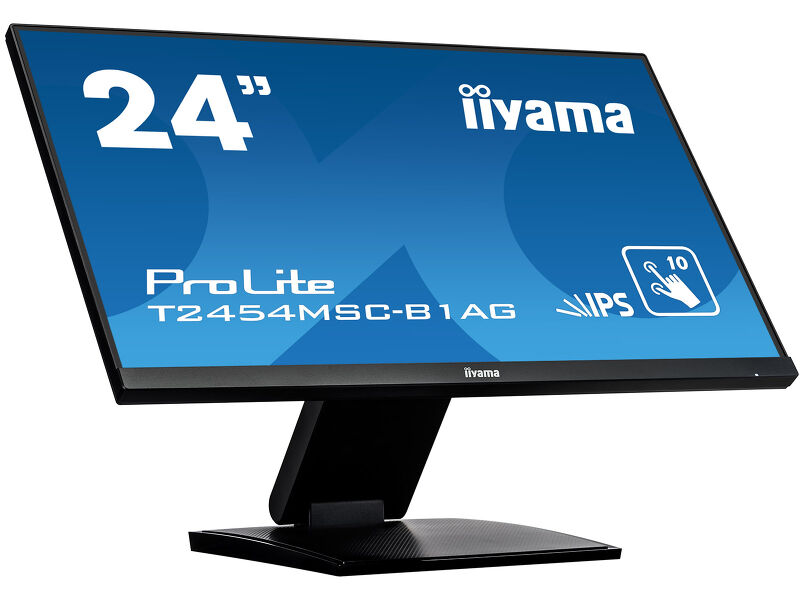
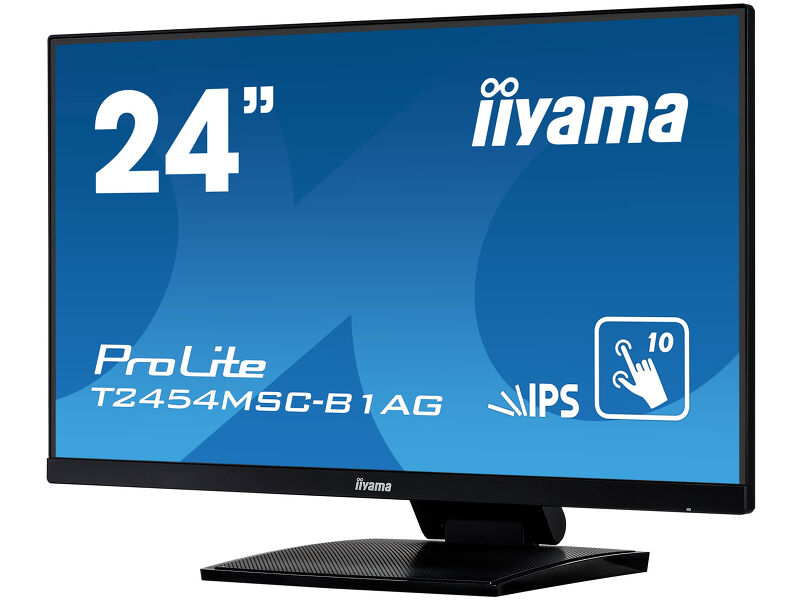
24” P-CAP 10pt touch screen featuring IPS panel technology and Anti Glare coating
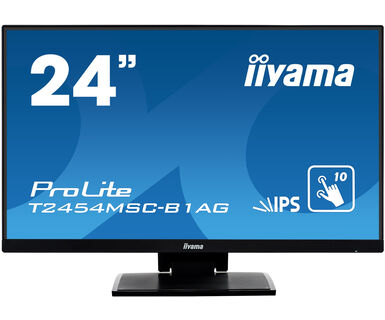
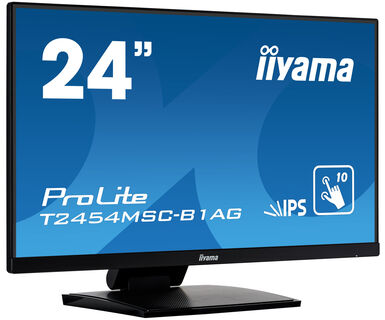
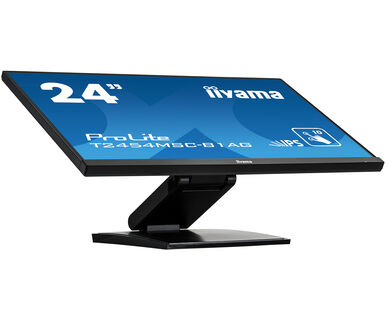
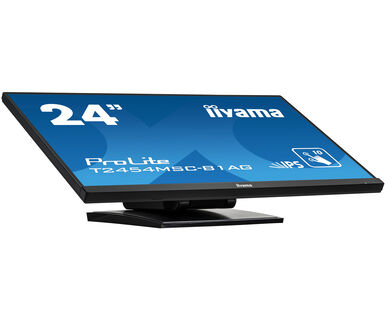
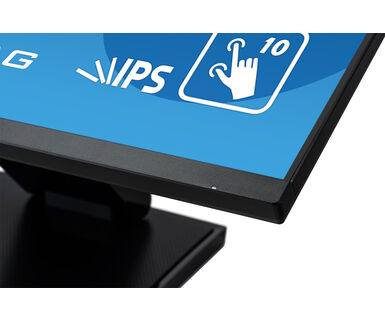
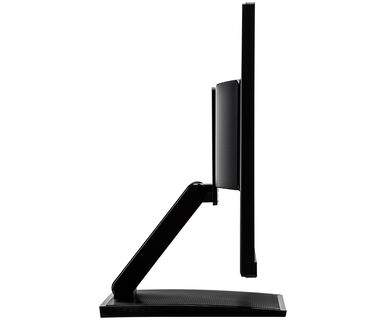
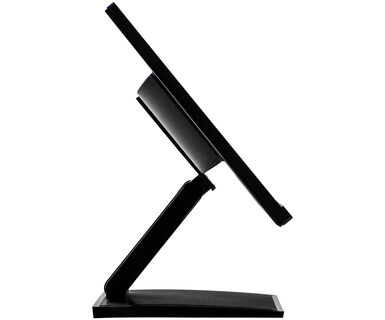
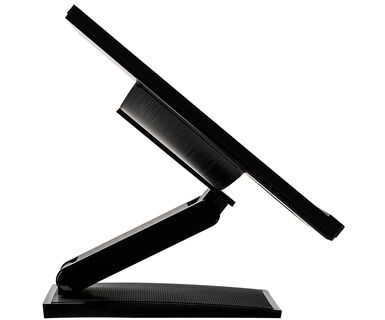
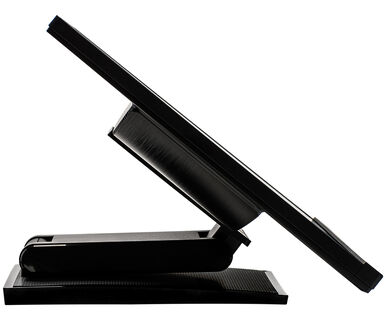
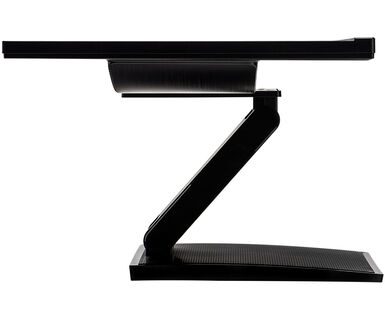
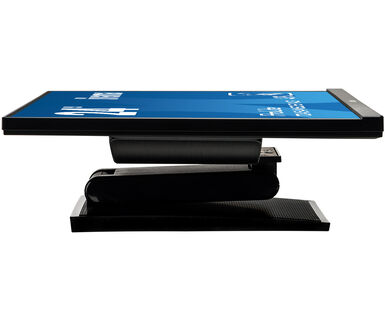
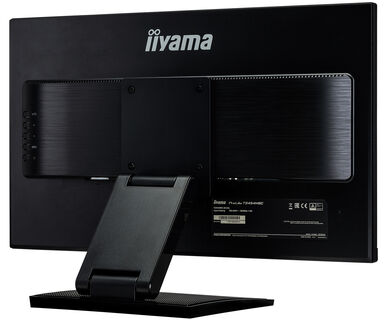
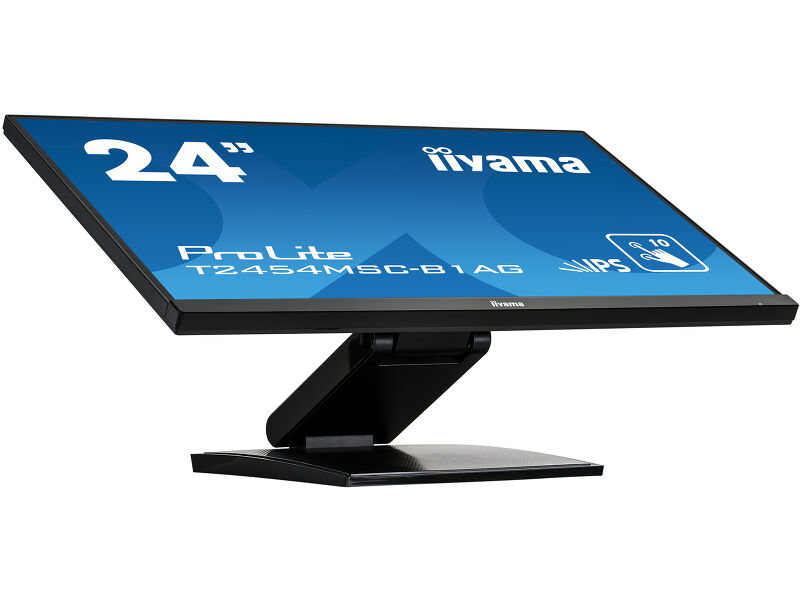
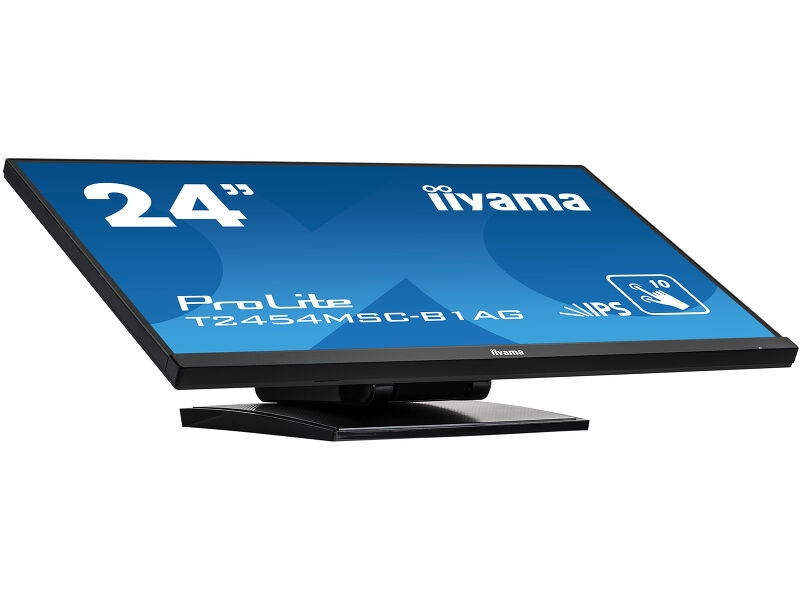
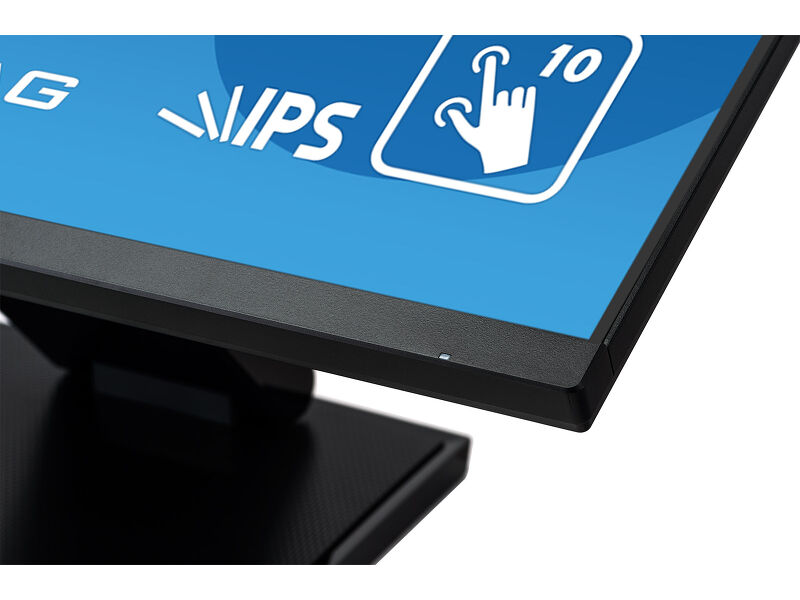
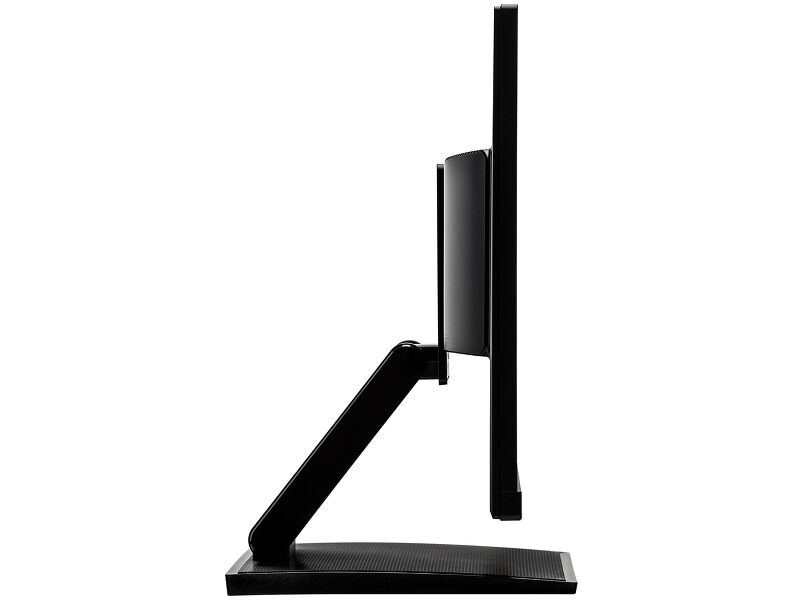
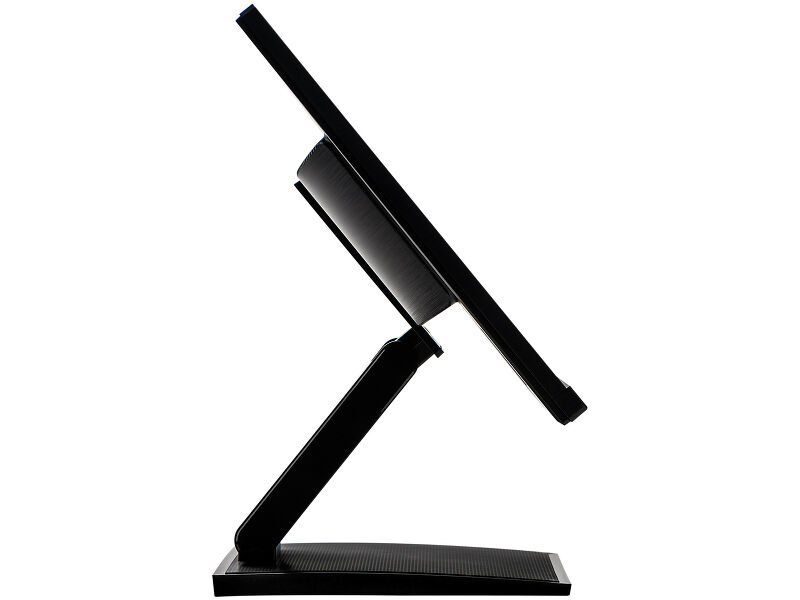
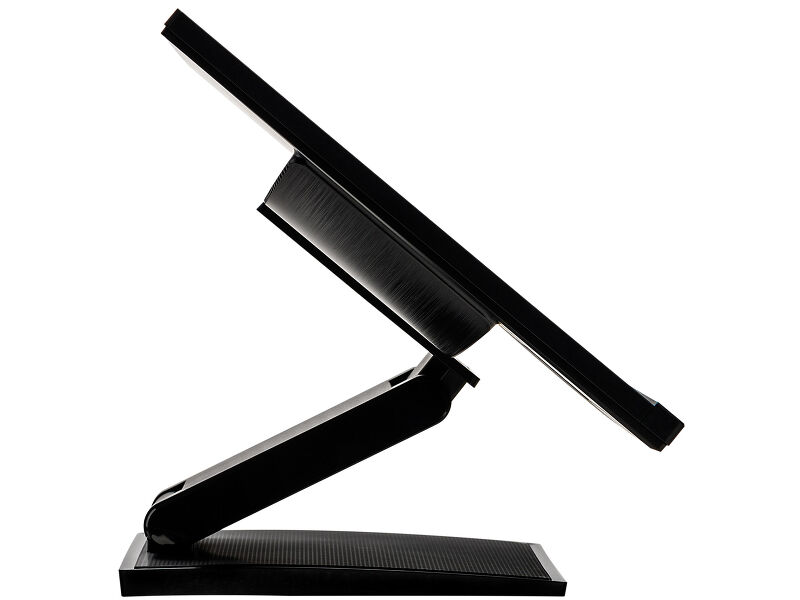
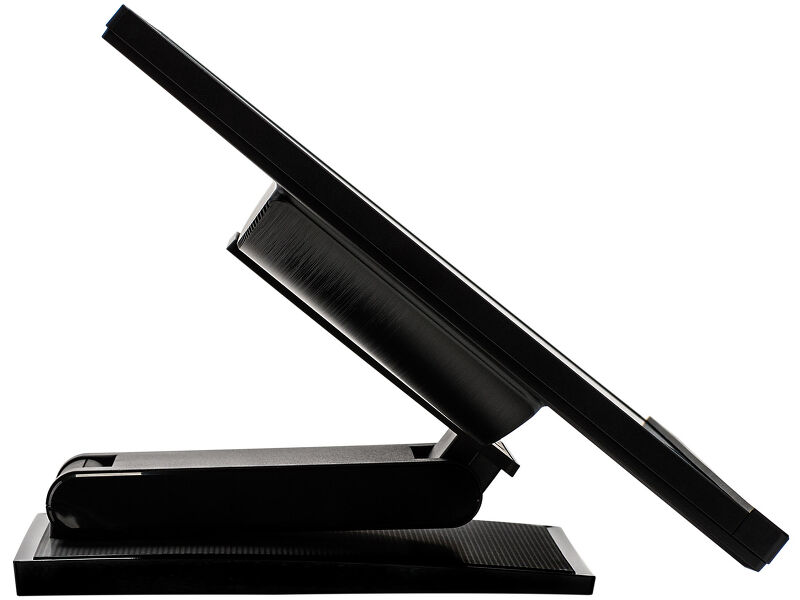
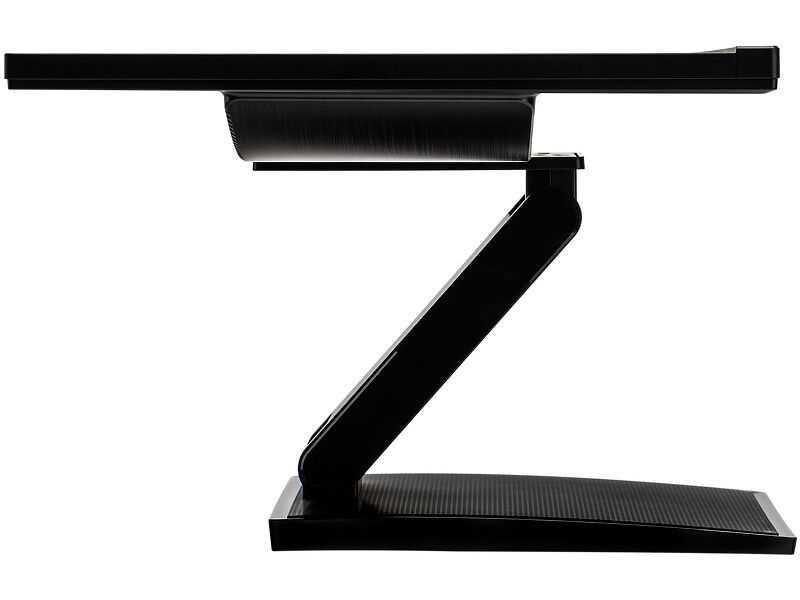
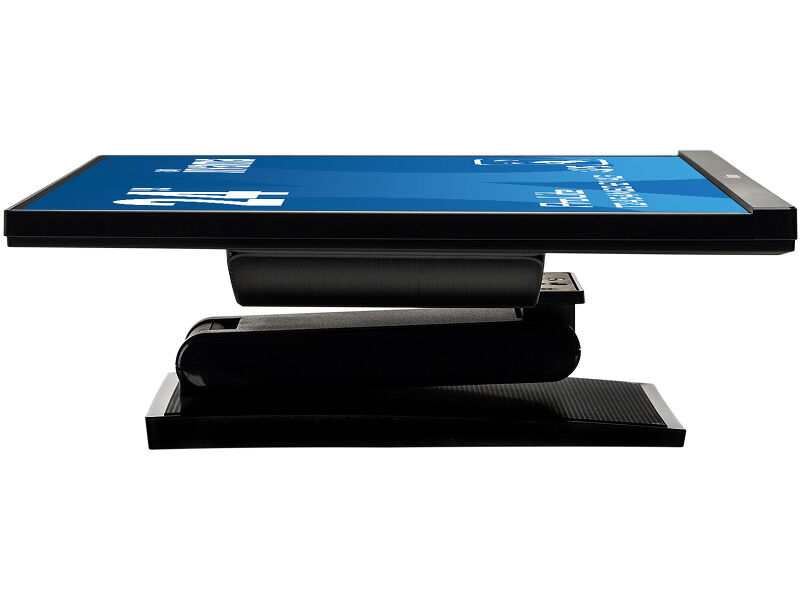
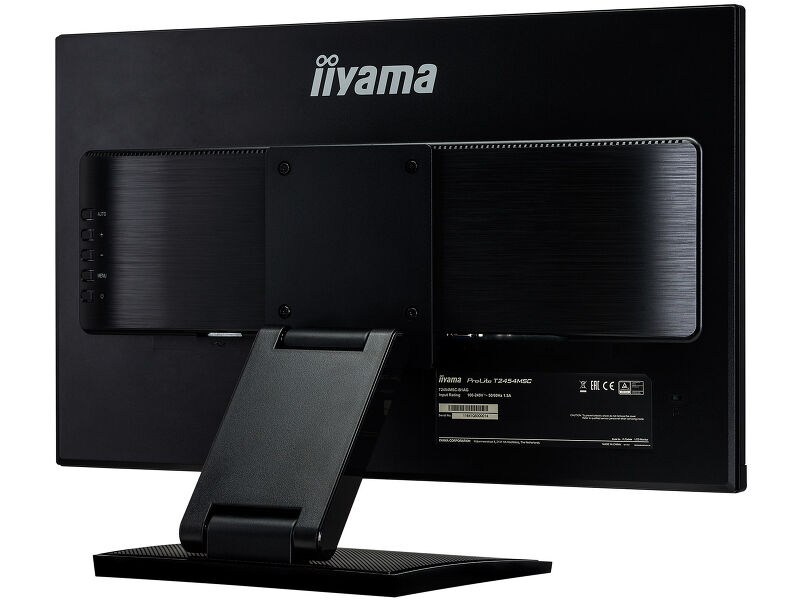
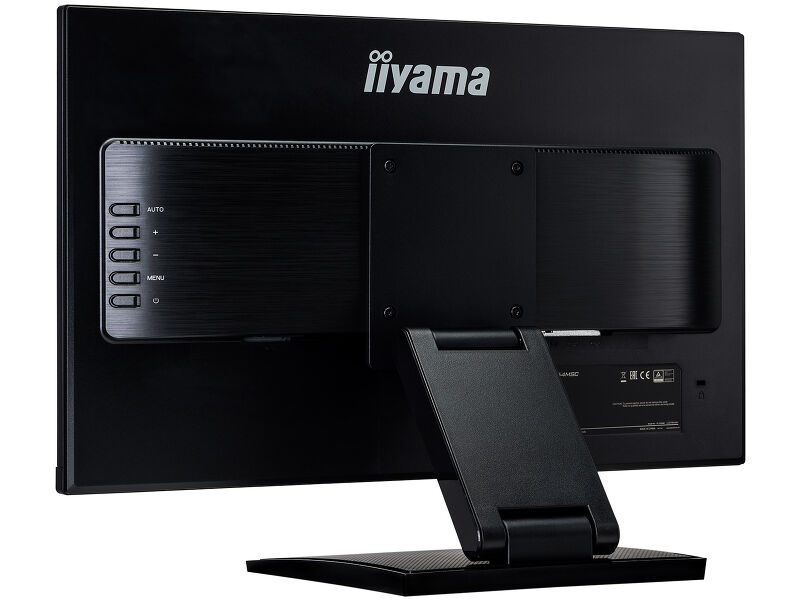
With its Full HD (1920x1080) resolution and accurate Projective Capacitive 10 point touch technology, the ProLite T2454MSC-B1AG delivers seamless and accurate touch response. Featuring IPS LCD screen technology, it offers exceptional colour performance and wide viewing angels, making it a perfect choice for a vast array of interactive applications. The Anti Glare coating helps to avoid issues with reflections and external light sources affecting colour reproduction, contrast and sharpness. Its flexible stand can be positioned at several angles creating a comfortable and ergonomic user experience. The ProLite T2454MSC-B1AG is the ideal solution for interactive signage, instore retail, POS and interactive presentations.
 AG Coating
 Speakers
-

Touch technology - Capacitive
This technology uses a sensor-grid of micro-fine wires integrated into the glass that covers the screen. Touch is detected because electrical characteristics of the sensor grid change when human finger is placed on the glass. Thanks to the glass overlay this technology is highly durable, and the touch function remains unaffected even if the glass is scratched. It offers perfect picture performance and will work with human finger (also latex gloved) and stylus-pen.
-
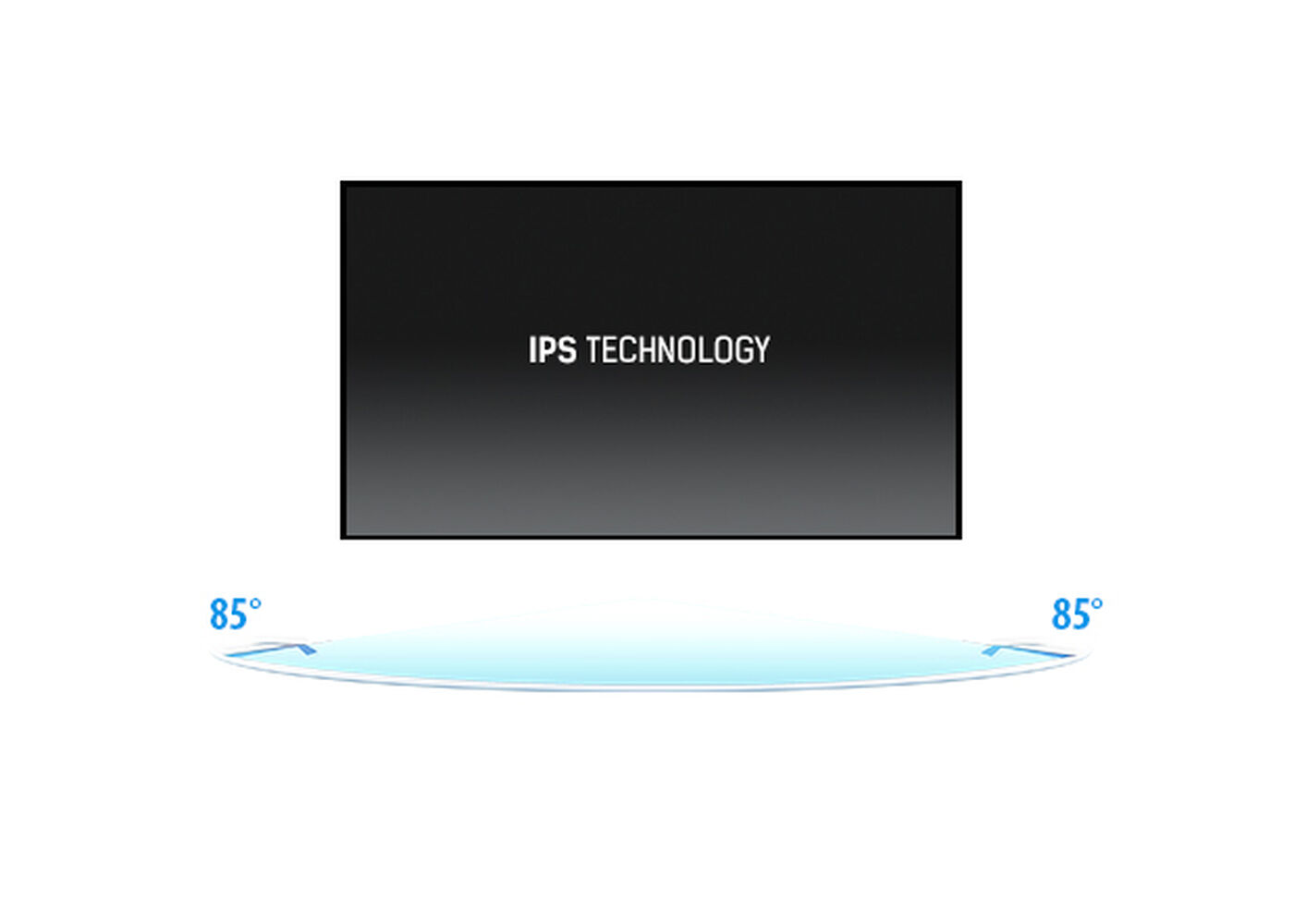
IPS
IPS displays are best known for wide viewing angles and natural, highly accurate colours. They are especially suited for colour-critical applications.
-
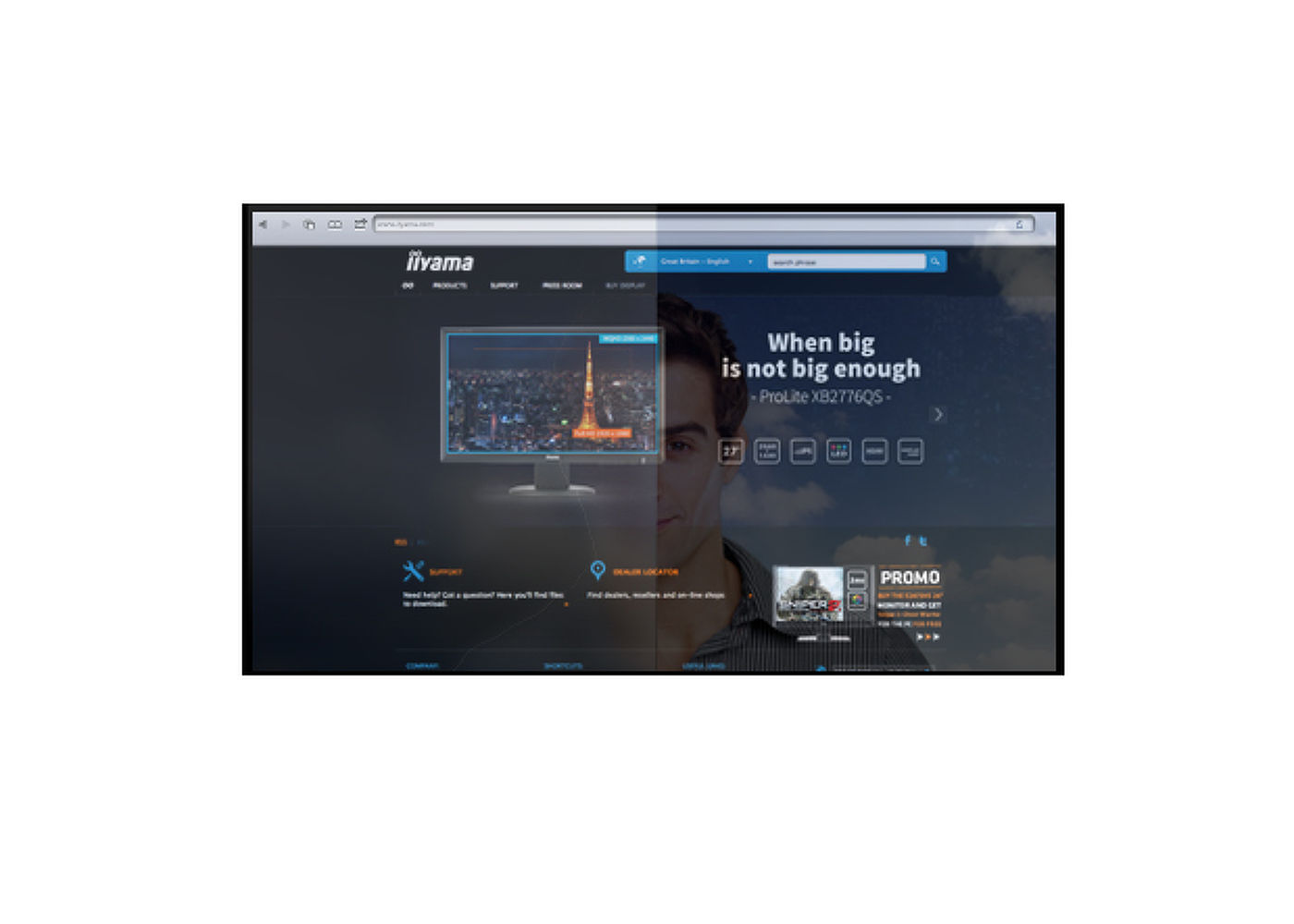
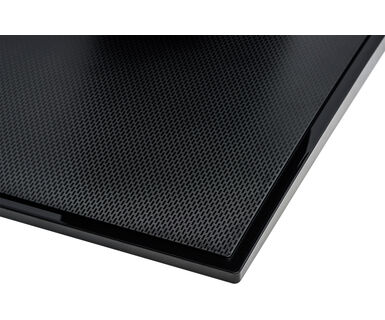
AG Coating
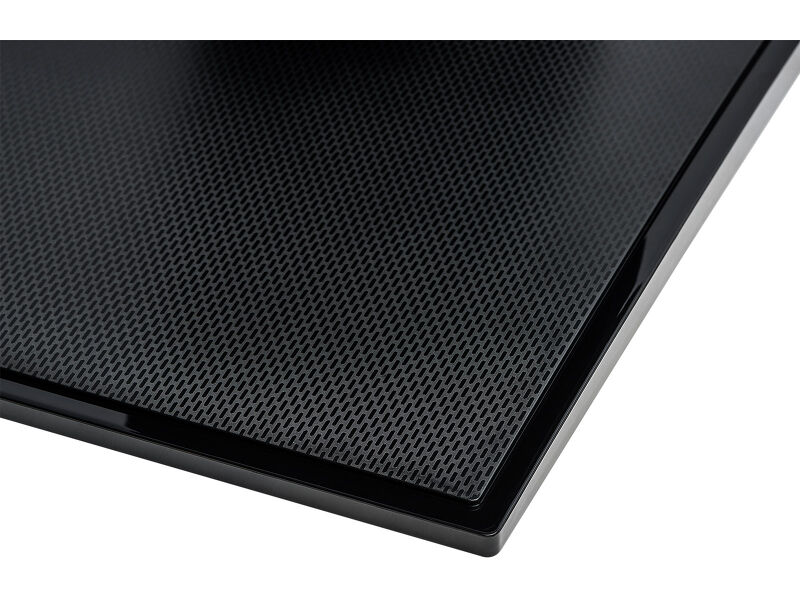
The anti-glare coating is used in professional-grade displays to help avoid issues with reflections and external light sources affecting colour reproduction, contrast and sharpness. It also makes the screen less susceptible to dust, grease and dirt marks.
-
Speakers
This LED monitor is equipped with two stereo speakers.
-
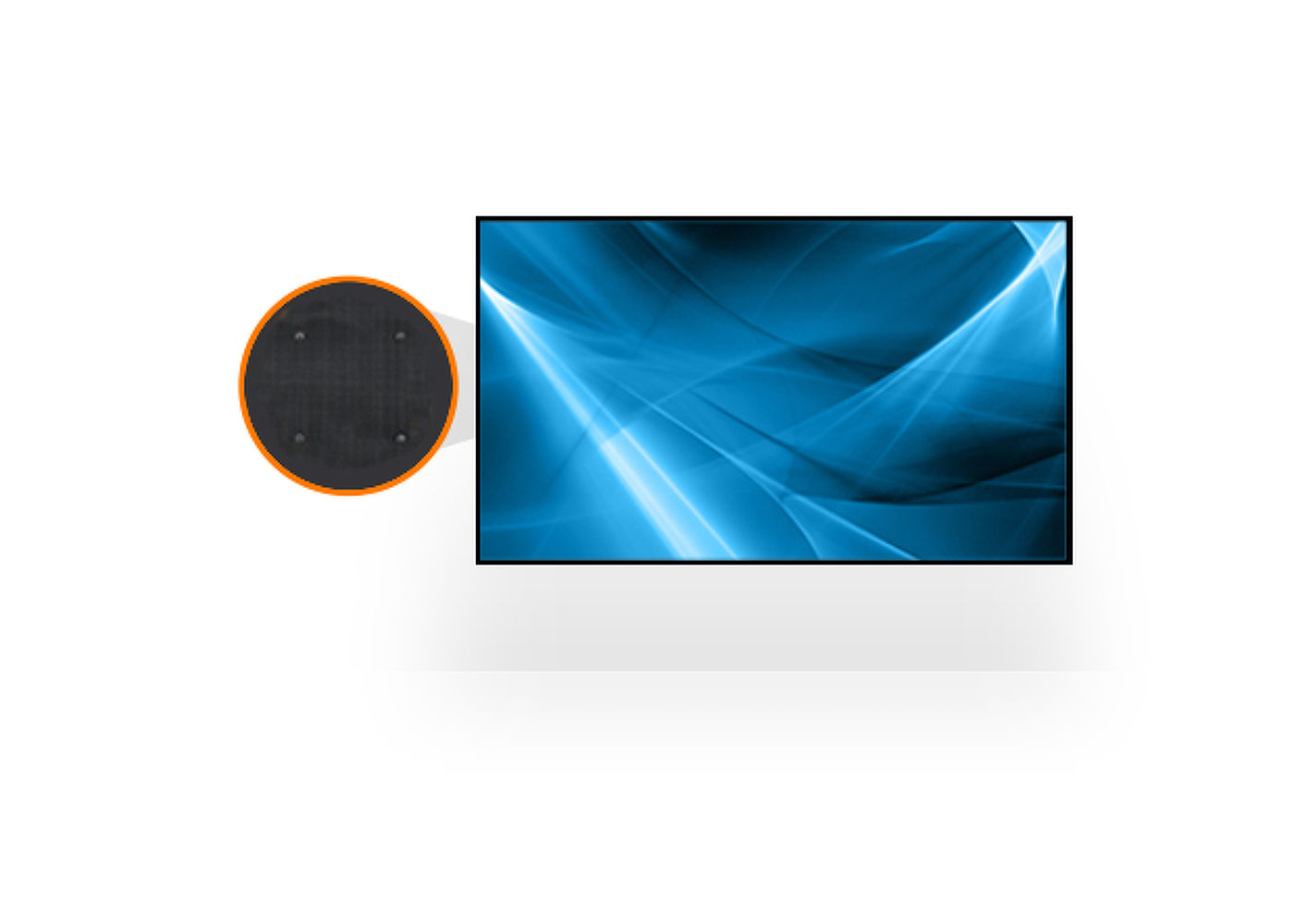
VESA
VESA mount compliance means you can easily mount the display to any mounting that complies with the VESA standard.
Technical specification




DISPLAY CHARACTERISTICS
| Design | Ultra thin bezel |
| Diagonal | 23.8", 60.5cm |
| Panel | IPS LED, AG surface finish |
| Native resolution | 1920 x 1080 @60Hz (2.1 megapixel Full HD) |
| Aspect ratio | 16:9 |
| Panel brightness | 250 cd/m² |
| Static contrast | 1000:1 |
| Advanced contrast | 5M:1 |
| Response time (GTG) | 4ms |
| Viewing zone | horizontal/vertical: 178°/178°, right/left: 89°/89°, up/down: 89°/89° |
| Colour support | 16.7mln 8bit |
| Horizontal Sync | 30 - 80kHz |
| Viewable area W x H | 527.04 x 296.46mm, 20.7 x 11.7" |
| Pixel pitch | 0.274mm |
| Bezel colour and finish | black, matte |
TOUCH
| Touch technology | projective capacitive |
| Touch points | 10 (HID, only with supported OS) |
| Touch method | stylus, finger, glove (latex) |
| Touch interface | USB |
| Supported operating systems | All iiyama monitors are Plug & Play and compatible with Windows and Linux. For details regarding the supported OS for the touch models, please refer to the driver instruction file available in the downloads section. |
| Palm rejection | yes |
INTERFACES / CONNECTORS / CONTROLS
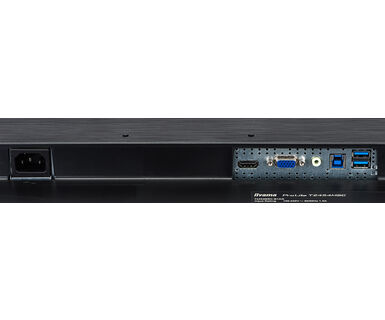
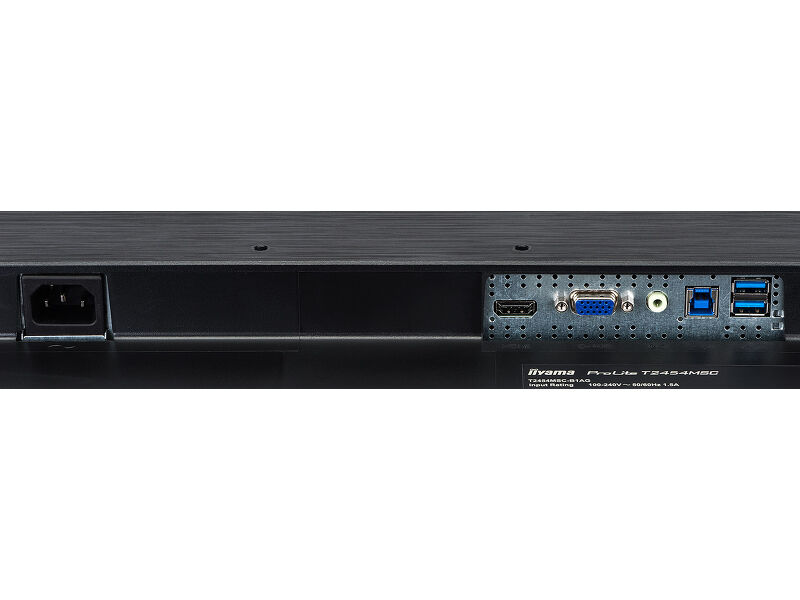
| Analog signal input | VGA x1 |
| Digital signal input | HDMI x1 |
| Audio input | Mini jack x1 |
| Audio output | Speakers 2 x 2W |
| HDCP | yes |
| USB HUB | x2 (v.3.2 (Gen 1, 5Gbit)) |
FEATURES
| OSD key lock | yes |
GENERAL
| OSD languages | EN, DE, FR, ES, IT, PT, RU, JP, NL, PL |
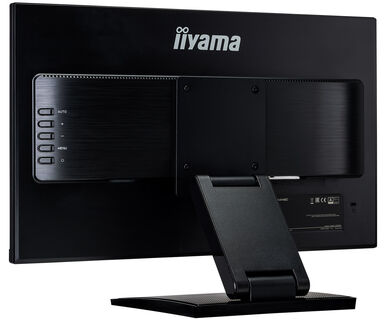
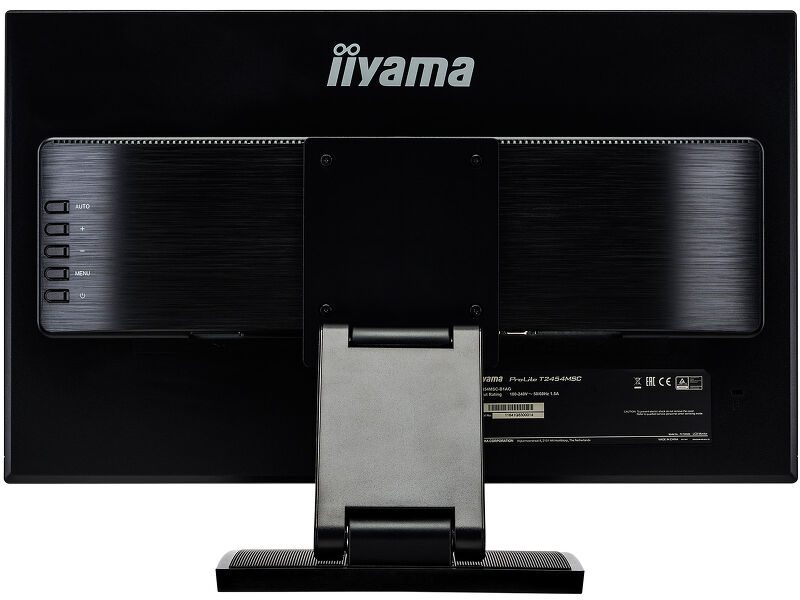
| Control buttons | Auto, + Up, - Down, Menu, Power |
| User controls | Picture adjust (brightness, contrast, Eco, i-Style Color, adv. contrast), Geometry (pixel clock, phase, horizontal position, vertical position, aspect), Color settings (gamma, color temp), OSD (OSD horizontal position, OSD vertical position, OSD time, language, auto power off, touch wake up), Extra (reset, signal select, audio input, opening logo, LED, Overdrive, Information, volume, auto adjust) |
| Convenience | Kensington-lock™ prepared |
| Blue light reducer | yes |
| Plug&Play | DDC2B |
MECHANICAL
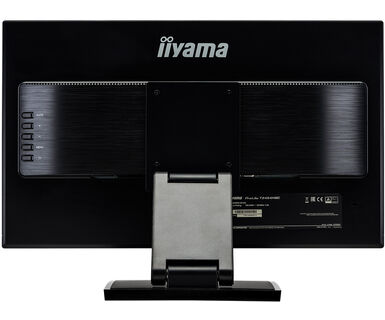
| Height adjustment | 268mm |
| Tilt angle | 5° up; 90° down |
| VESA mounting | 100 x 100mm |
| MTBF | 30000 hours (excluding backlight) |
ACCESSORIES INCLUDED
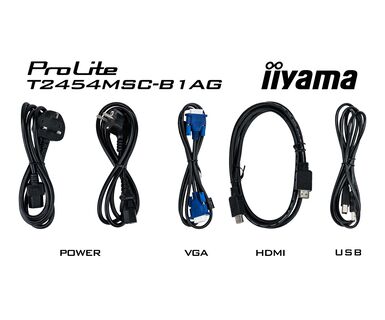
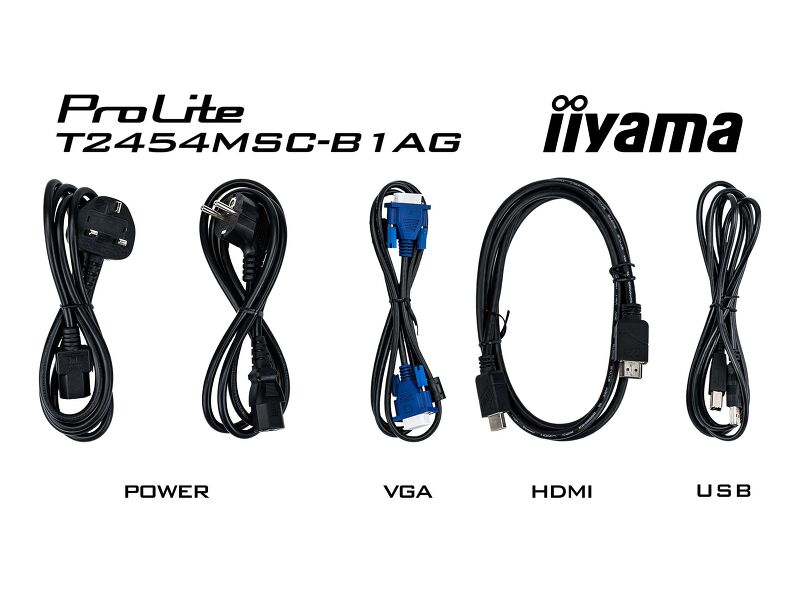
| Cables | power (1.8m), USB (1.8m), HDMI (1.8m) |
| Guides | quick start guide, safety guide |
POWER MANAGEMENT
| Power supply unit | internal |
| Power supply | AC 100 - 240V, 50/60Hz |
| Power usage | 23.7W typical, 0.46W stand by, 0.29W off mode |
SUSTAINABILITY
| Regulations | CB, CE, TÜV-Bauart, EAC, VCCI-B, RoHS support, ErP, WEEE, REACH |
| Energy efficiency class (Regulation (EU) 2017/1369) | F |
| EPEAT | T2454MSC-B1AG A |
| REACH SVHC | above 0.1%: Lead |
DIMENSIONS / WEIGHT
| Product dimensions W x H x D | 540.5 x 388 x 238.5mm |
| Box dimensions W x H x D | 601 x 408 x 175mm |
| Weight (without box) | 5.5kg |
| Weight (with box) | 7.4kg |
| EAN code | 4948570116416 |
RELATED INFORMATION
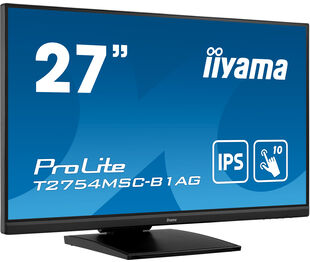
| Product series | ProLite T2754MSC-B1AG |
| Related products | ProLite T2754MSC-B1AG |
FAQS
Why is the Touch functionality not working?
+If your touch functionality is not working, please check the following:
1. Ensure your PC is connected to the monitor with the supplied USB cable.
2. Verify in the user manual that your operating system is supported by the screen.
How should I clean my Touch monitor?
+When cleaning, please follow these guidelines to avoid damaging your Touch monitor:
1. Avoid using paper towels, abrasive cloths, or any harsh cleaning agents, as they can scratch the screen or damage the touch sensors.
2. Do not spray the cleaning solution directly onto the screen to prevent liquid from seeping into the monitor.
3. Avoid excessive cleaning, as it can wear out the screen over time.
4. For more details, please check our dedicated Cleaning page.
Why is my monitor displaying a "No Signal" message?
+If your monitor is displaying a "No Signal" message, please check the following:
1. Ensure the cables are properly connected at both ends.
2. Select the correct signal input (HDMI/DP) or choose AUTO.
For guidance on selecting an input while the screen is in standby mode, please consult the user manual. On desktop monitors, common methods include pressing the INPUT, AUTO, or "2" buttons, or moving the joystick backward.
I have an Apple MAC-system, will my iiyama monitor work?
+Yes, your iiyama monitor will work with your Apple Mac system. However, it depends on the signal input how to connect. Since Apple Mac systems from 2020 onwards only have Thunderbolt 3 (USB-C) ports for video output, you have two options:
1. Connect directly to the USB-C signal input on your iiyama monitor.
2. In case your monitor only has HDMI or Displayport, you will need a Mac-compatible dongle that supports one of the video inputs available. Apple offers a USB-C Digital AV Multiport Adapter (MW5M3AM) that can be used for this purpose.
The picture on my monitor is flickering. What steps can I take to fix it?
+To resolve the issue of a blinking picture, please follow these steps:
1. Inspect the Signal Cable.
Ensure the signal cable is securely connected at both ends and free from any physical damage. Avoid any sharp bends or squishing of the cable.
2. Use a Shorter Cable.
If possible, use a cable shorter than 3 meters and connect the monitor directly to a wall power socket, avoiding the use of adapters.
3. Disable FreeSync/Adaptive Sync.
For desktop or gaming monitors, try disabling FreeSync or Adaptive Sync in the monitor's settings menu.

Related products
Downloads
| Technical specification | ProLite T2454MSC-B1AG - gb_en.pdf | Download |
| Drawing | ProLite T2454MSC-B1AG drawing.pdf | Download |
| EU Energy Label | T2454MSC-B1AG EU Energy Label pdf data(366281).pdf | Download |
| UA Energy Label | T2454MSC-1AG Ukraine Energy Label pdf data.pdf | Download |
| UK Energy Label | T2454MSC-B1AG UK Energy Label pdf data(366281).pdf | Download |
Technical support & Certificates
| CE & TUV | T2454MSC-1AG CE_TUV.pdf | Download |

