Subscribe to our newsletter
Keep up #withiiyama
You have successfully subscribed to our newsletter.
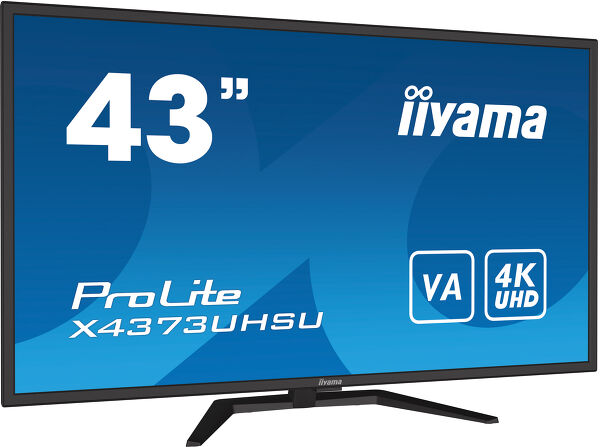
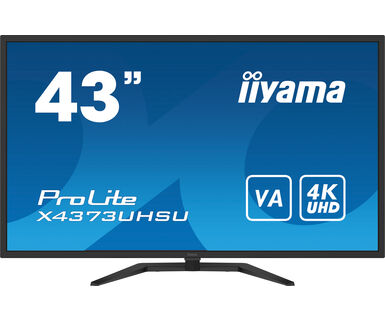
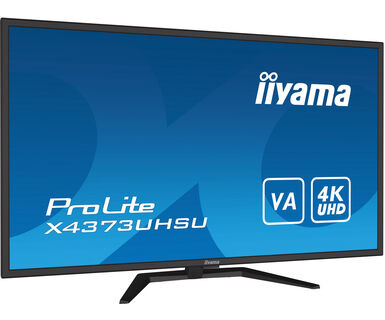
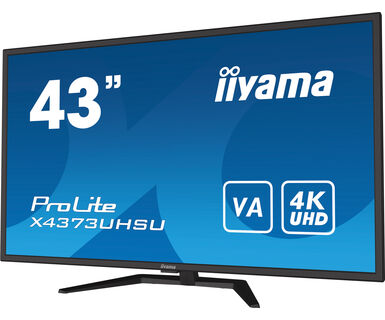
43" large format desktop monitor with 4K resolution, offering you the power of four displays packed into one
The ProLite X4373UHSU-B1 is a 43’’ Ultra HD 4K monitor with PbP (picture-by-picture) function allowing for simultaneous display of content from up to four different signal inputs. Divided into four, the screen offers users a dashboard equal to four Full HD displays and no bezel interrupting your view, whilst saving hassle with multiple cables. The VA panel technology guarantees an impressive view, consistent colour reproduction, superb clarity and wide 178° viewing angles. Flicker free technology and the Blue light reducer functions help to reduce eye fatigue and ensure user comfort even on long days. The HDMI, DisplayPort, USB hub and a headphone connector ensure compatibility across various devices and media platforms. Whether you work with pro editing tools, need a huge canvas for graphs and figures or are in a controlled retail environment, increase your productivity with a single iiyama X4373UHSU.
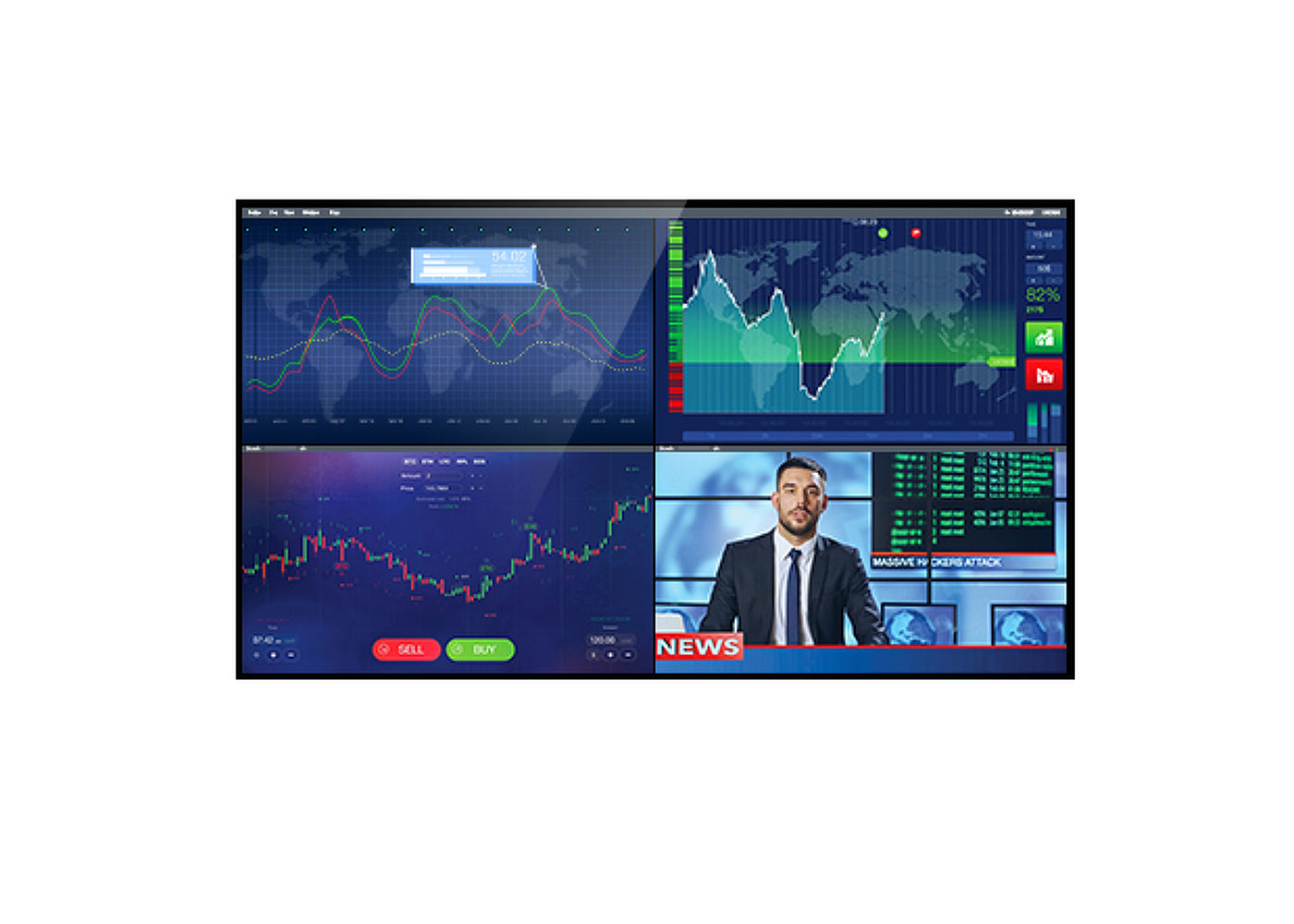
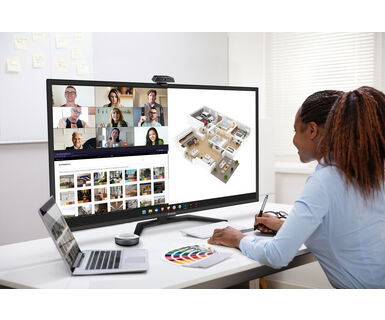
The PbP (picture-by-picture) function allows for simultaneous display of content from up to four different signal inputs. Divided into four, the screen offers users a workplace equal to four Full HD displays put together without the bezel getting in your view and saving you the hassle with extra cables. It’s perfect for a huge range of applications like stock market data, medical desktop publishing, CAD/CAM drawings, graphic and web design.
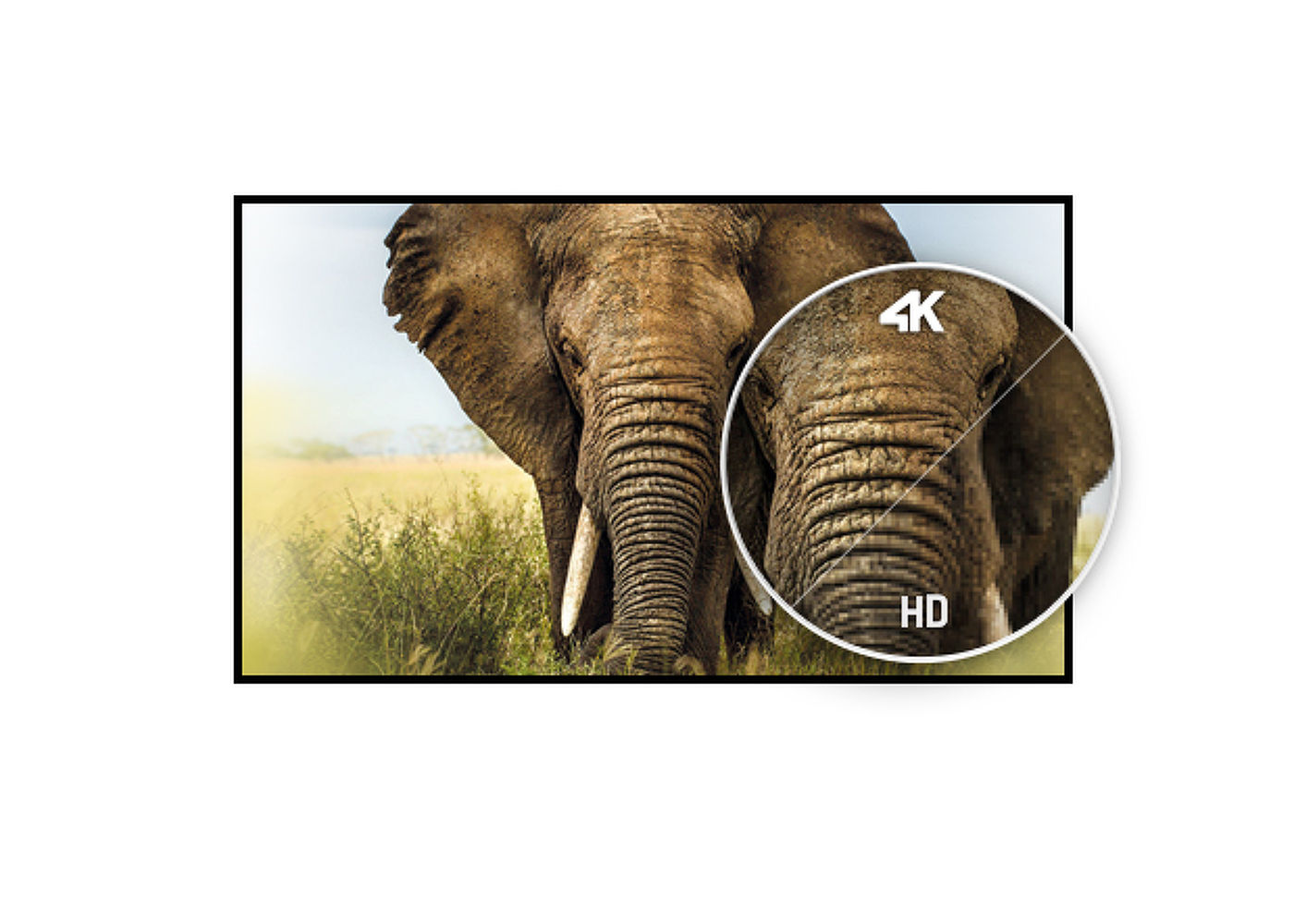
UHD resolution (3840x2160), better known as 4K, offers a gigantic viewable area with 4 times more information and work space than a Full HD screen. Due to the high DPI (dots per inch), it displays an incredibly sharp and crisp image.
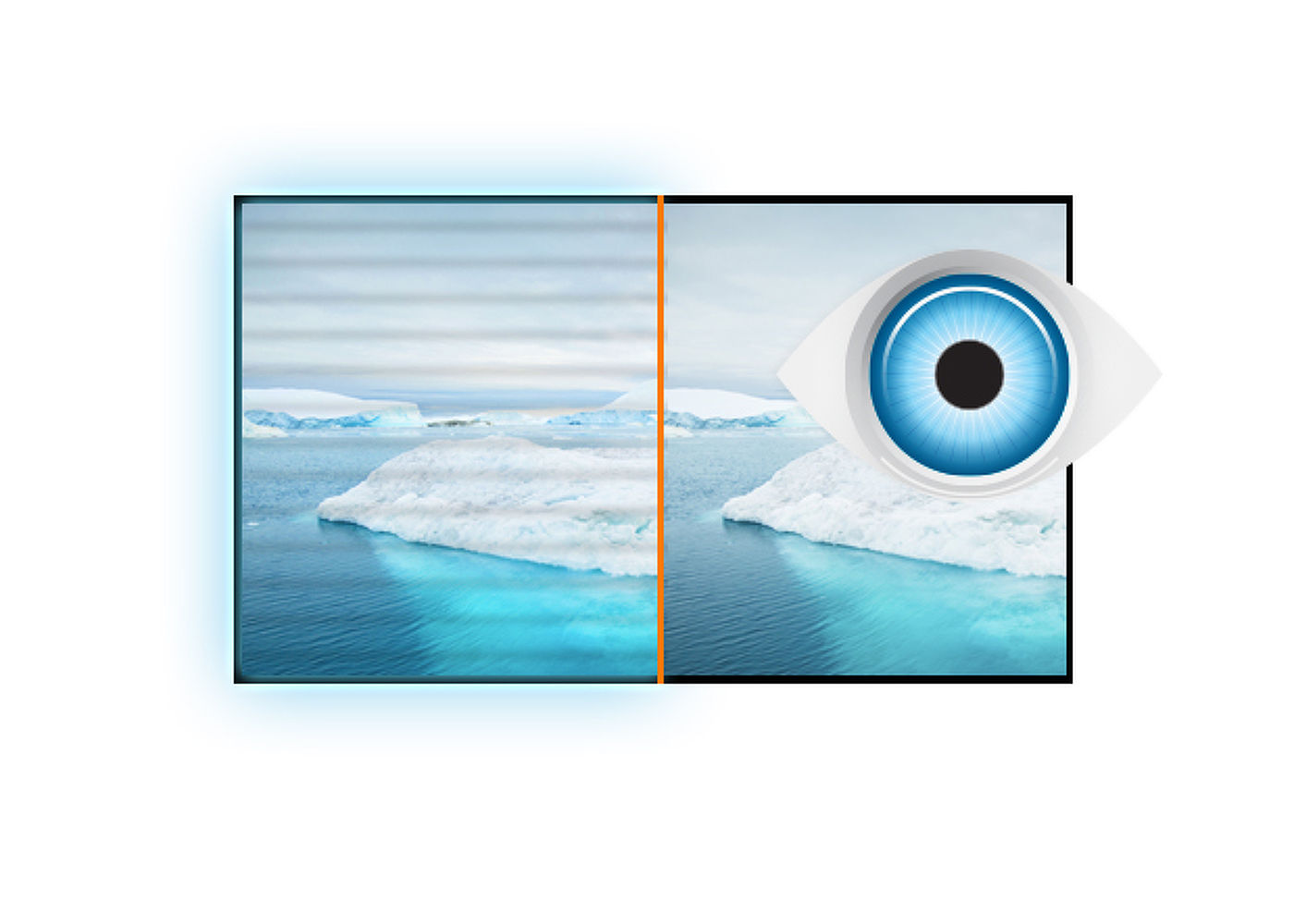
The ultimate solution for the comfort and health of your eyes. Flicker-free monitors with the blue light reducer function substantially reduce the strain and fatigue caused by flickering and blue light emittance of regular monitors.
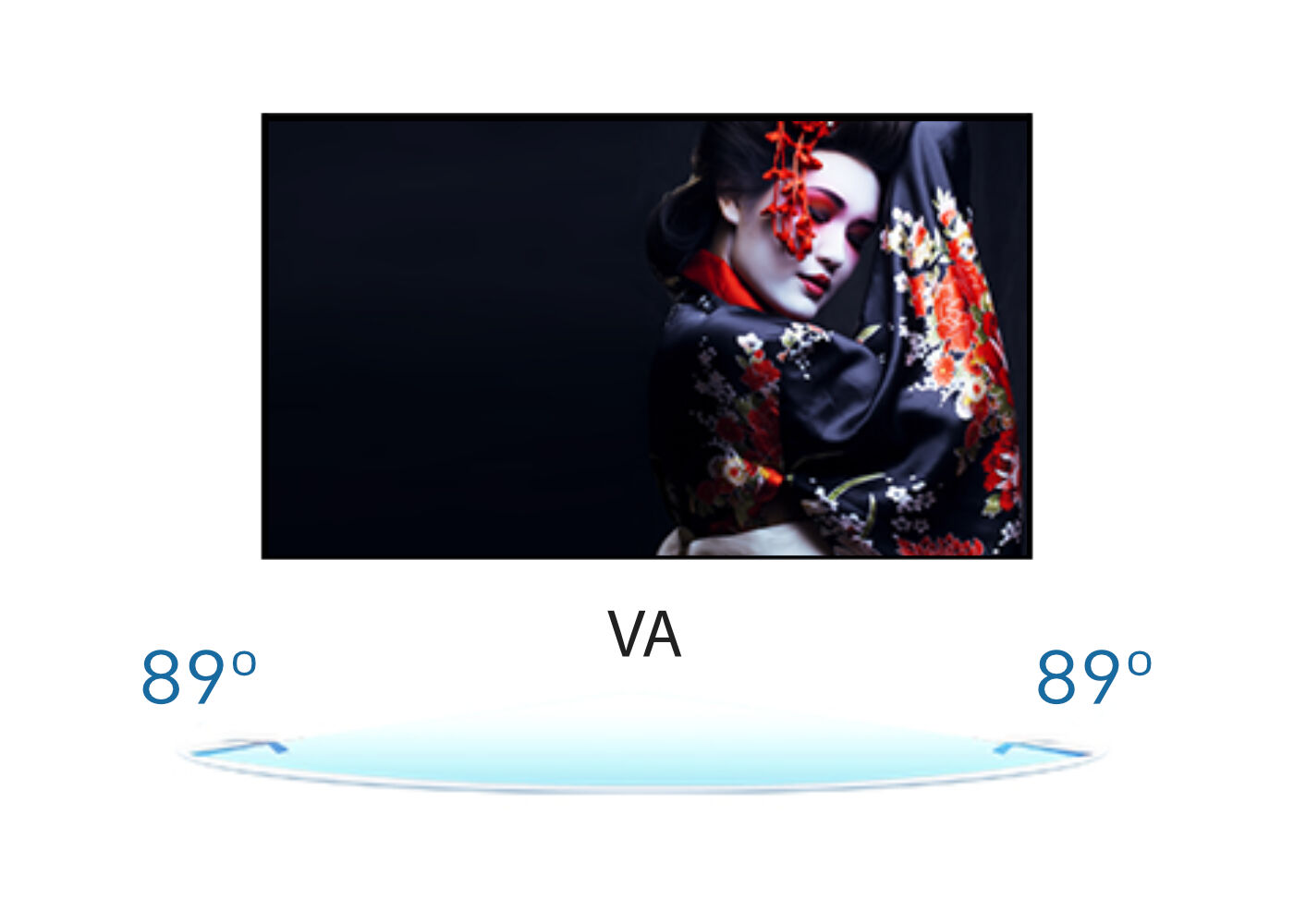
VA panel technology offers higher contrast, darker blacks and much better viewing angles than standard TN technology. The screen will look good no matter what angle you look at it.
This LED monitor is equipped with two stereo speakers.



| Diagonal | 42.5", 108cm |
| Panel | VA matrix |
| Native resolution | 3840 x 2160 @60Hz |
| Aspect ratio | 16:9 |
| Panel brightness | 400 cd/m² |
| Static contrast | 4000:1 |
| Advanced contrast | 80M:1 |
| Response time (GTG) | 3ms |
| Viewing zone | horizontal/vertical: 178°/178°, right/left: 89°/89°, up/down: 89°/89° |
| Colour support | 1.07B 10bit (8bit + Hi-FRC) (NTSC: 85%) |
| Horizontal Sync | 30 - 135kHz |
| Viewable area W x H | 941.18 x 529.42mm, 37.1 x 20.8" |
| Pixel pitch | 0.245mm |
| Colour | matte, black |
| Signal input |
HDMI x2 DisplayPort x1 mDP x1 |
| Signal output | DisplayPort x1 (daisy chain) |
| USB HUB | x4 (v.3.2 (Gen 1, 5Gbit) x2, v.2.0 x2) |
| HDCP | yes |
| Headphone connector | yes |
| Blue light reducer | yes |
| Flicker free | yes |
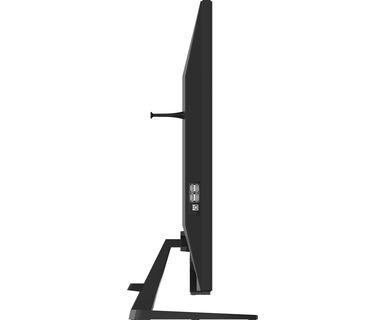
| Extra | headphone hook |
| HDR | yes |
| OSD languages | EN, DE, FR, ES, IT, PT, RU, JP, NL, PL |
| Control buttons | Input Select, Up, Down, Menu, Power |
| User controls | picture adjust (brightness, contrast, ECO, blue light reducer, advanced contrast, overdrive, black tuner), image settings (video mode adjust, sharp and soft, X-Res technology), colour settings (gamma, 6-axis, colour temperature, i-Style colour), PiP/PbP (PiP/PbP mode, sub win 1/2/3/4 input, PiP size, PiP position, swap), signal select, audio settings (volume, mute, audio input), OSD settings (OSD H. position, OSD V. position, OSD time, language), extra (reset, HDR, HDMI range, DDC/CI, opening logo, LED, DP daisy chain, information) |
| Speakers | 2 x 7W |
| Convenience | Kensington-lock™ prepared, DDC/CI, DDC2B, Mac OSX |
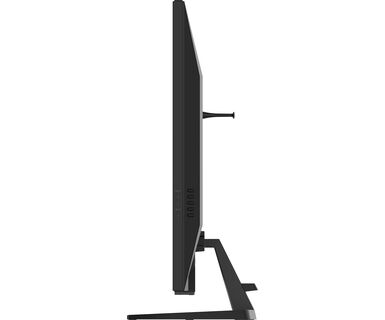
| Display position adjustments | tilt |
| Tilt angle | 10° up; 2° down |
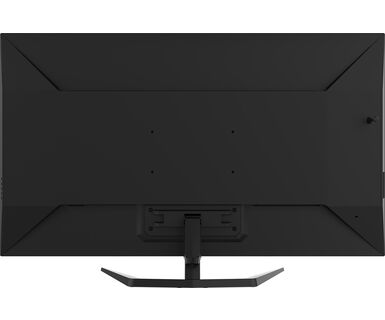
| VESA mounting | 200 x 100mm |
| Cables | power, USB, HDMI, DP |
| Other | quick start guide, safety guide |
| Remote control | yes (batteries included) |
| Power supply unit | internal |
| Power supply | AC 100 - 240V, 50/60Hz |
| Power usage | 92W typical, 0.5W stand by, 0.5W off mode |
| Regulations | CE, TÜV-Bauart, EAC, PSE, RoHS support, ErP, WEEE, VCCI, REACH, UKCA |
| Energy efficiency class (Regulation (EU) 2017/1369) | G |
| REACH SVHC | above 0.1%: Lead |
| Product dimensions W x H x D | 977.5 x 621.5 x 251mm |
| Box dimensions W x H x D | 1071 x 760 x 240mm |
| Weight (without box) | 14.5kg |
| Weight (without stand) | 12.7kg |
| Weight (with box) | 19kg |
| EAN code | 4948570118519 |


If you are unable to set the native resolution with the maximum refresh rate on your monitor, try the following troubleshooting steps:
1. Ensure you are using a cable that supports both the native resolution and the desired refresh rate.
2. Visit the product page on our website and check technical specification tab - Interfaces / Connectors / Controls section to see what resolution and refresh rate are supported under the signal input you have seleced (e.g. HDMI signal input does not always support the maxium refresh rate, please check the DisplayPort connection instead).
3. Check the settings and specifications of your PC / graphics card to see if they support the desired resolution or refresh rate.
Yes, Adaptive Sync is compatible with AMD FreeSync and NVIDIA G-Sync.
MBR cannot be selected when FreeSync/AdaptiveSync is activated, because MBR can interfere with the FreeSync/Adaptive Sync technology as they have different methods of improving motion clarity. MBR reduces motion blur (response time), while Adaptive Sync/FreeSync addresses stuttering. We recommend activating Adaptive Sync/FreeSync on systems with fluctuating or unstable frame rates. MBR performs best on powerful systems that maintain a consistently high frame rate.
If your monitor is displaying a "No Signal" message, please check the following:
1. Ensure the cables are properly connected at both ends.
2. Select the correct signal input (HDMI/DP) or choose AUTO.
For guidance on selecting an input while the screen is in standby mode, please consult the user manual. On desktop monitors, common methods include pressing the INPUT, AUTO, or "2" buttons, or moving the joystick backward.
Yes, your iiyama monitor will work with your Apple Mac system. However, it depends on the signal input how to connect. Since Apple Mac systems from 2020 onwards only have Thunderbolt 3 (USB-C) ports for video output, you have two options:
1. Connect directly to the USB-C signal input on your iiyama monitor.
2. In case your monitor only has HDMI or Displayport, you will need a Mac-compatible dongle that supports one of the video inputs available. Apple offers a USB-C Digital AV Multiport Adapter (MW5M3AM) that can be used for this purpose.
To resolve the issue of a blinking picture, please follow these steps:
1. Inspect the Signal Cable.
Ensure the signal cable is securely connected at both ends and free from any physical damage. Avoid any sharp bends or squishing of the cable.
2. Use a Shorter Cable.
If possible, use a cable shorter than 3 meters and connect the monitor directly to a wall power socket, avoiding the use of adapters.
3. Disable FreeSync/Adaptive Sync.
For desktop or gaming monitors, try disabling FreeSync or Adaptive Sync in the monitor's settings menu.