Subscribe to our newsletter
Keep up #withiiyama
You have successfully subscribed to our newsletter.
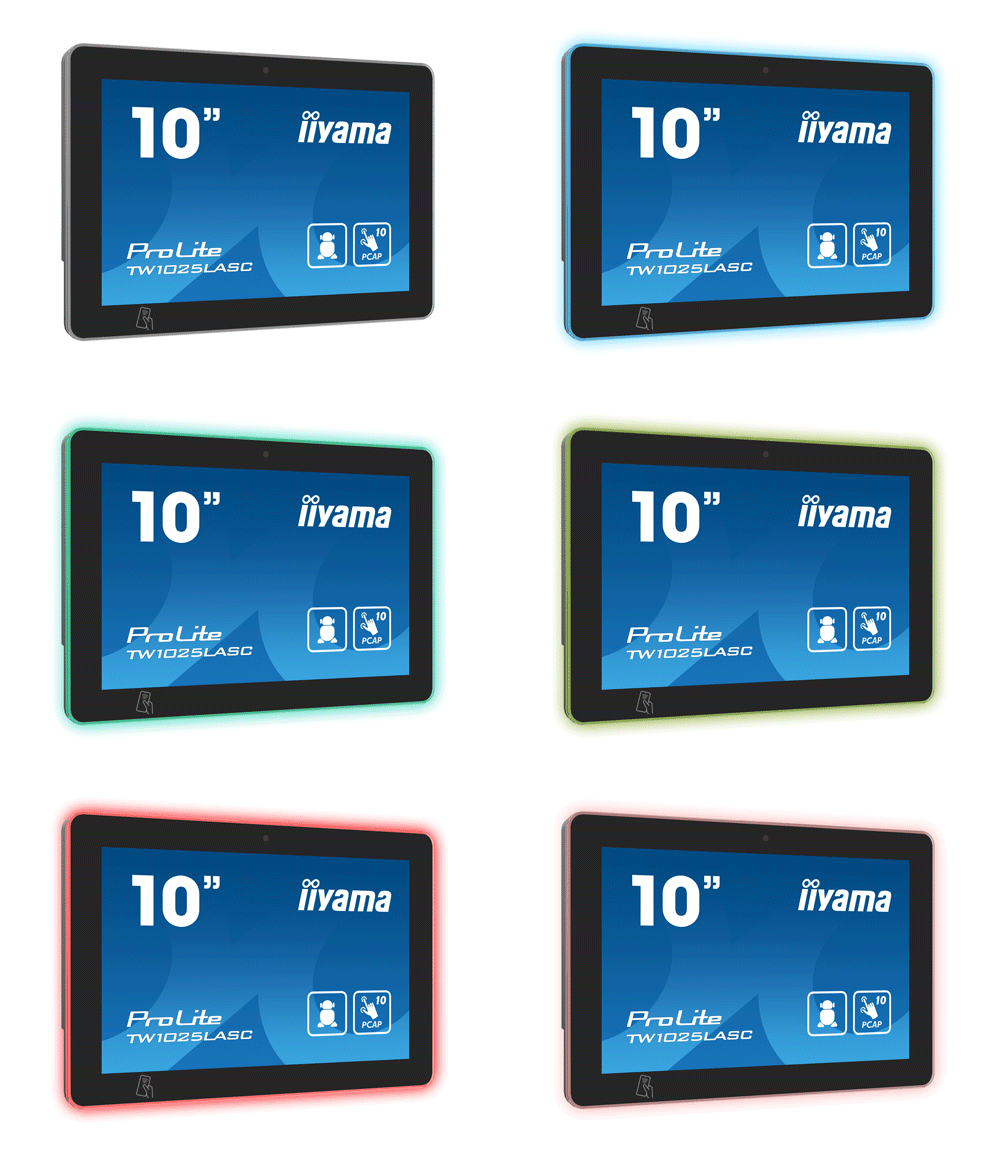
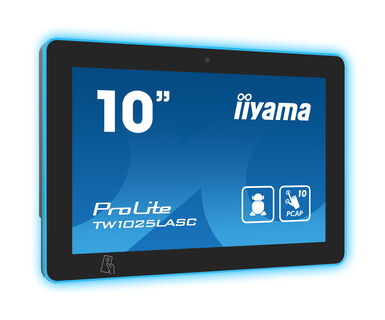
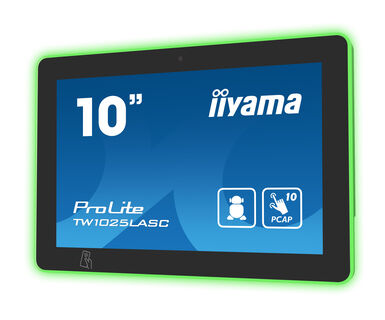
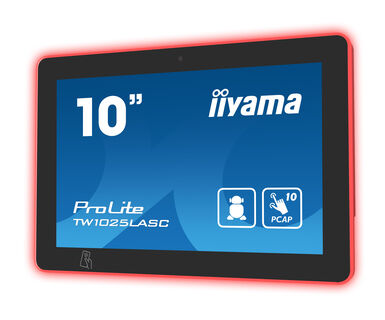
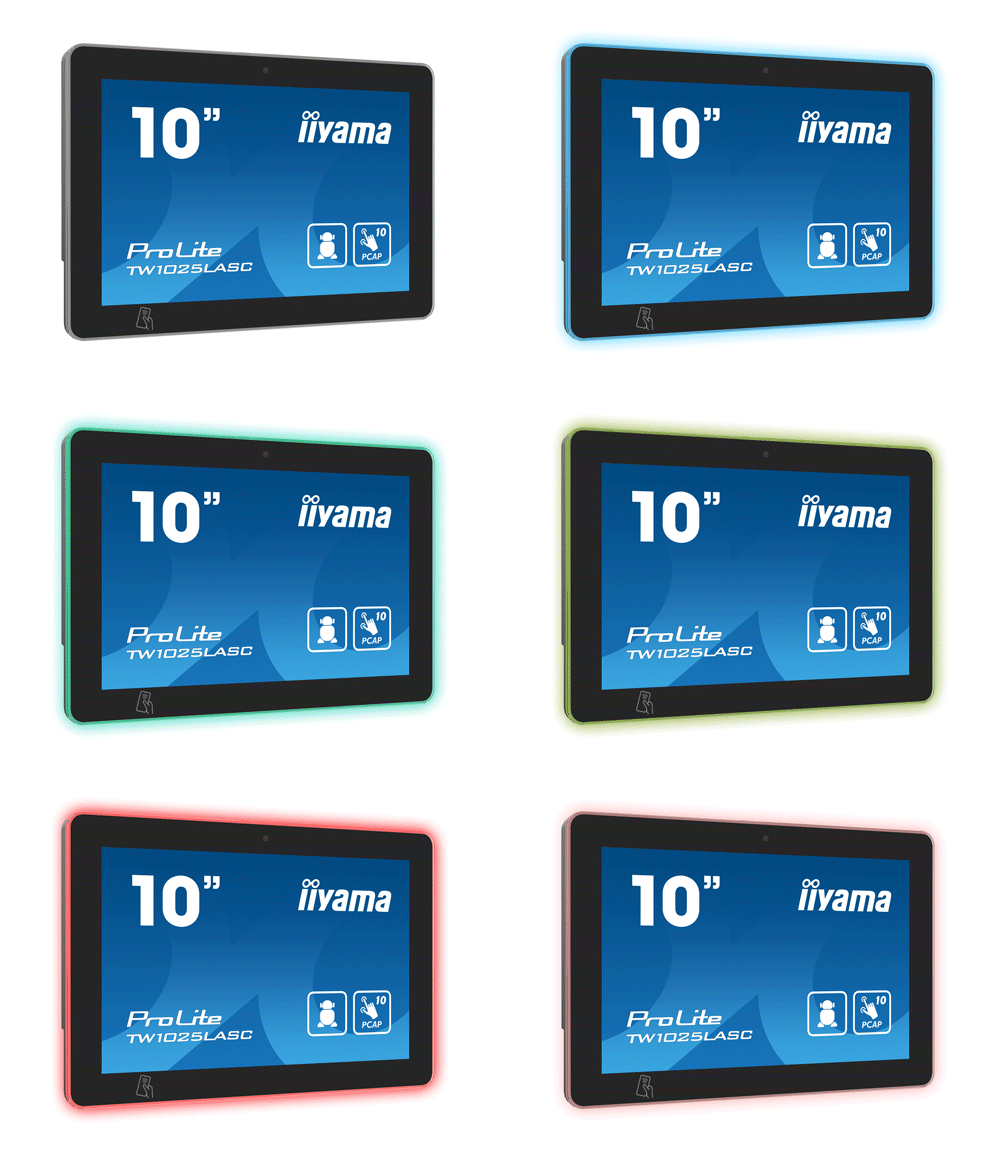
10.1” PCAP 10pt touch screen with Android, Power over Ethernet Technology, NFC/RFID reader and a RGB LED bar around the screen
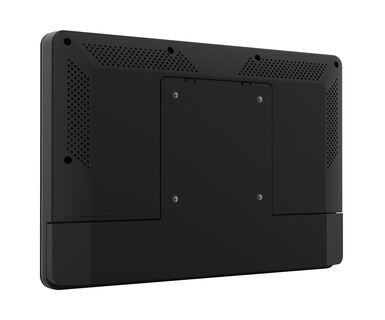
The ProLite TW1025LASC-B1PNR touch panel PC is a perfect choice for high-use environments such as booking rooms, information desks or other corporate and hospitality applications. The Optical Bonded Projective Capacitive (PCAP) 10-point touch technology ensures a seamless and accurate touch response and a lower light reflection, in addition, the display is protected against humidity and potential moisture development. Thanks to the pre-installed Android 12 operating system, it is possible to easily customize the monitor by installing applications directly to it. The Power over Ethernet technology (POE) allows to provide both data connection and power by a single cable, simplifying all installations.
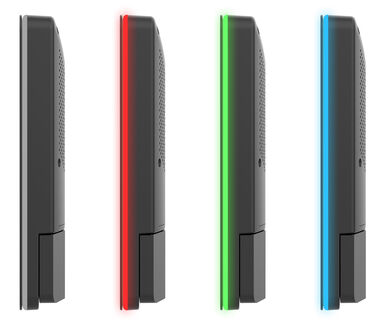
Thanks to the NFC/RFID reader, the touch panel PC allows to communicate wirelessly with enabled devices or tags within close proximity and the RGB Led bar will clearly and intuitively indicate the availability status of the room. Together with the built-in 5 megapixel camera, microphone and speakers it offers limitless, interactive installation possibilities.
The RGB Led bar will clearly and intuitively indicate the room's availability status and can display a wide range of colors.
Thanks to the NFC/RFID reader, the touch panel PC alows to communicate wirelessly with enabled devices or tags within close proximity.
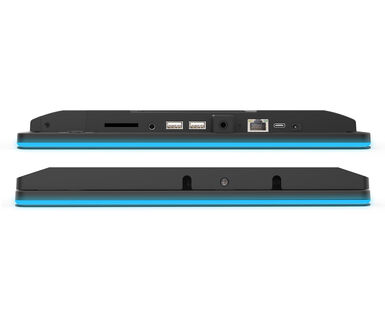
The RJ45 (LAN) connector supporting Power over Ethernet technology (POE) allows to provide both data connection and power by a single cable, which simplifies installation in areas where many cables would interfere with the environment.
Thanks to Android OS, you can easily customize the display to your needs by installing applications directly to it.
Making the screen a perfect solution for semi or fully automated reception solutions allowing businesses to track and manage visitor traffic at the front desk lobby without compromising on the safety and security of your staff, visitors and company assets.


| Design | Edge to edge glass |
| Diagonal | 10.1", 25.5cm |
| Panel | IPS Panel Technology, LED |
| Native resolution | 1280 x 800 (1 megapixel HD) |
| Aspect ratio | 16:10 |
| Panel brightness | 450 cd/m² |
| Brightness | 390 cd/m² with touch |
| Light transmittance | 86% |
| Static contrast | 1000:1 with touch |
| Response time (GTG) | 25ms |
| Viewing zone | horizontal/vertical: 160°/160°, right/left: 80°/80°, up/down: 80°/80° |
| Colour support | 16.7mln 8bit |
| Viewable area W x H | 218.4 x 137.2mm, 8.5 x 5.4" |
| Pixel pitch | 0.1692mm |
| Bezel colour and finish | black, matte |
| Touch technology | projective capacitive |
| Touch points | 10 (HID, only with supported OS) |
| Touch method | finger, glove (latex), capacitive stylus |
| Touch interface | USB |
| Audio output |
Mini jack x1 Speakers 2 x 2W |
| USB ports | x3 (1x v. 3.2 (Gen 1, 5Gbit; DC5V, 900mA), 1x 2.0 (DC5V, 500mA), 1 x Mini with OTG (DC5V, 500mA)) |
| RJ45 (LAN) | x1 (PoE - IEEE802.3af/15.4W) |
| Microphone | x1 |
| Integrated software | Android 12 |
| CPU | Rockchip RK3399 Hexa-core A72*2 + A53*4 |
| Storage | 32GB eMMC |
| Memory | 4GB DDR4 |
| WiFi | IEEE802.11b/g/n |
| Bluetooth | 5.2 |
| Hardware | NFC (ARM Cortex--M3 256KB, 34Mbps (high speed)), RFID (125kHZ, 9600kbit/s), ISO 14443A/B, Mifare Classic 4K/8K/Ultralight, Sony Felica |
| Extra | auto-rotation, webcam (5 megapixel), SD card slot, anti-fingerprint coating, anti-glare coating, PoE, NFC/RFID reader, RGB Led lightbar, cable cover & wall mount in one |
| Kiosk mode | yes |
| Max. non-stop operating time | 24/7 |
| Glass thickness | 1.85mm |
| Glass hardness | 6H |
| Control buttons | Power switch |
| Applications | Applications: lock application, manage restart time, manage power on/off time, calculator, calendar, camera, Chrome, alarm/clock/timer/stopwatch, manage files & folders, organize albums, Gmail, Google, led light bar, play audio files, Play store, system peferences, sound recorder, play video |
| Orientation | landscape, portrait, face-up |
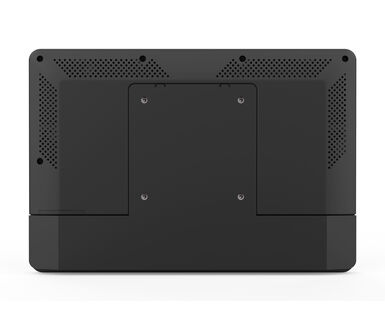
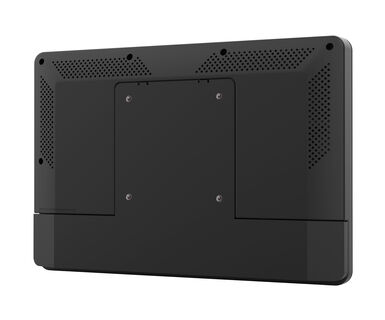
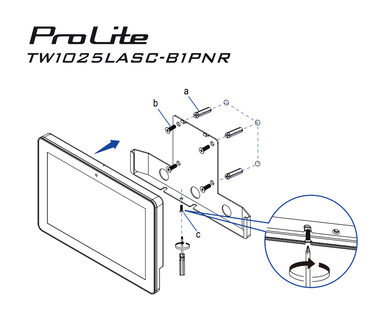
| VESA mounting | 75 x 75mm |
| Cable management system | yes |
| Guides | quick start guide, safety guide |
| Other | AC adapter, interchangeable plugs (EU/UK) |
| Cable cover | yes |
| Power supply unit | external |
| Power supply | DC 12 V |
| Power usage | 18W typical, 0.5W stand by, 0.3W off mode |
| Regulations | CE, EAC, RoHS support, ErP, WEEE, REACH, UKCA |
| REACH SVHC | above 0.1%: Lead |
| Product dimensions W x H x D | 259.5 x 178.5 x 28mm |
| Box dimensions W x H x D | 363 x 225 x 65mm |
| Weight (without box) | 1.1kg |
| EAN code | 4948570124275 |
You can install apps on your iiyama monitor through the official Google Play Store. However, the functionality of these apps may vary, depending on the specific app you wish to install.
If your touch functionality is not working, please check the following:
1. Ensure your PC is connected to the monitor with the supplied USB cable.
2. Verify in the user manual that your operating system is supported by the screen.
When cleaning, please follow these guidelines to avoid damaging your Touch monitor:
1. Avoid using paper towels, abrasive cloths, or any harsh cleaning agents, as they can scratch the screen or damage the touch sensors.
2. Do not spray the cleaning solution directly onto the screen to prevent liquid from seeping into the monitor.
3. Avoid excessive cleaning, as it can wear out the screen over time.
4. For more details, please check our dedicated Cleaning page.
If your monitor is displaying a "No Signal" message, please check the following:
1. Ensure the cables are properly connected at both ends.
2. Select the correct signal input (HDMI/DP) or choose AUTO.
For guidance on selecting an input while the screen is in standby mode, please consult the user manual. On desktop monitors, common methods include pressing the INPUT, AUTO, or "2" buttons, or moving the joystick backward.
Yes, your iiyama monitor will work with your Apple Mac system. However, it depends on the signal input how to connect. Since Apple Mac systems from 2020 onwards only have Thunderbolt 3 (USB-C) ports for video output, you have two options:
1. Connect directly to the USB-C signal input on your iiyama monitor.
2. In case your monitor only has HDMI or Displayport, you will need a Mac-compatible dongle that supports one of the video inputs available. Apple offers a USB-C Digital AV Multiport Adapter (MW5M3AM) that can be used for this purpose.
To resolve the issue of a blinking picture, please follow these steps:
1. Inspect the Signal Cable.
Ensure the signal cable is securely connected at both ends and free from any physical damage. Avoid any sharp bends or squishing of the cable.
2. Use a Shorter Cable.
If possible, use a cable shorter than 3 meters and connect the monitor directly to a wall power socket, avoiding the use of adapters.
3. Disable FreeSync/Adaptive Sync.
For desktop or gaming monitors, try disabling FreeSync or Adaptive Sync in the monitor's settings menu.