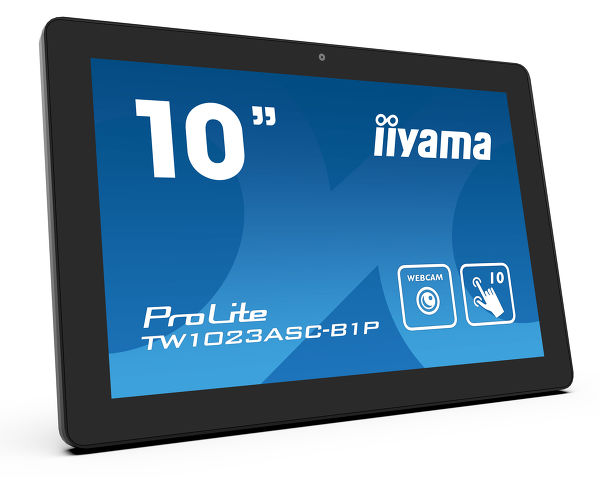
ProLite TW1023ASC-B1P (EOL) Replaced by: ProLite TW1023ASC-B3P
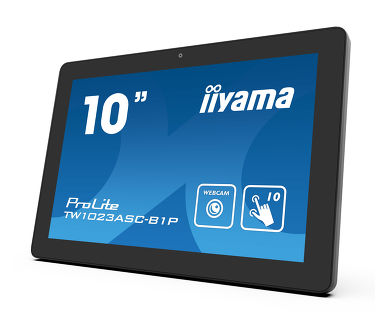
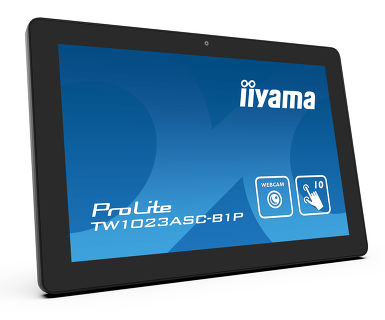
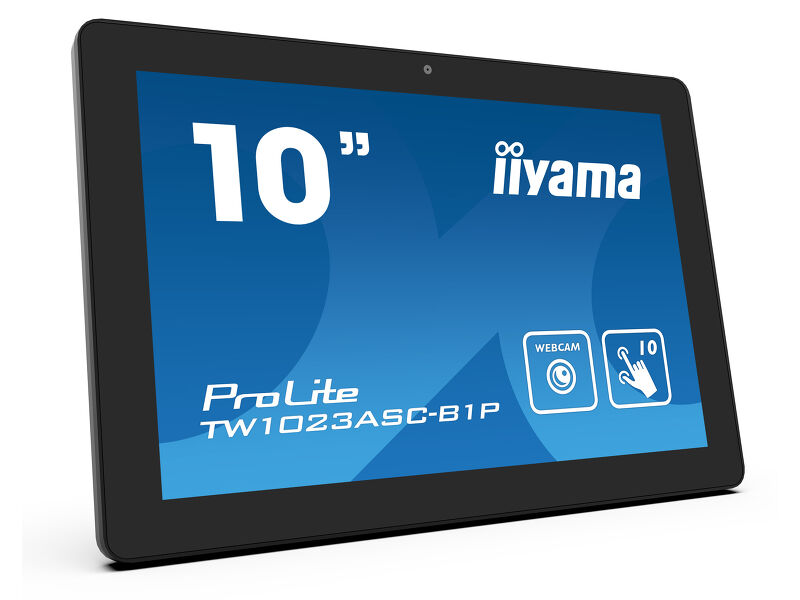
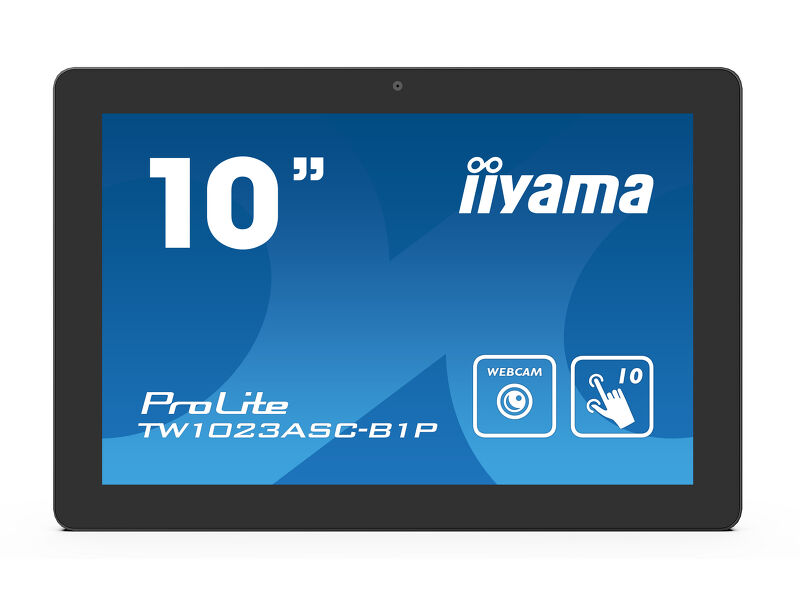
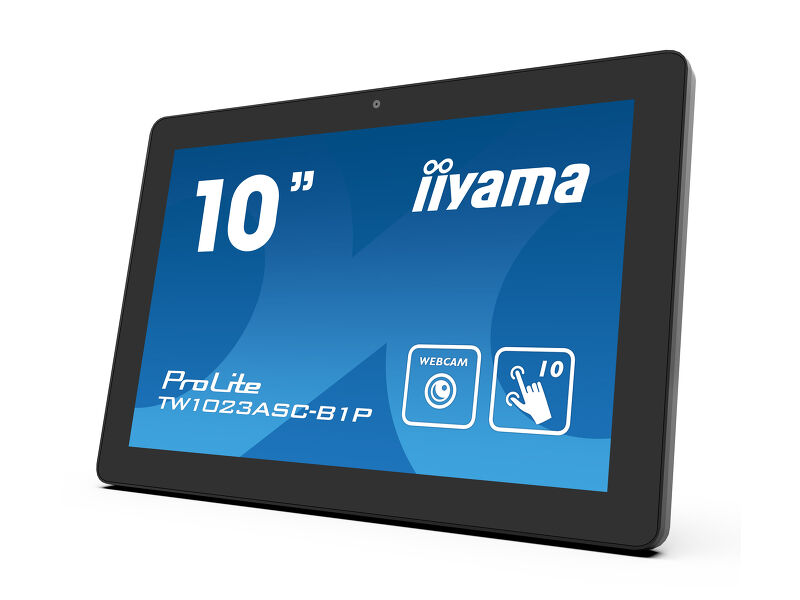
10.1” PCAP 10pt touch screen with Android and Power over Ethernet Technology
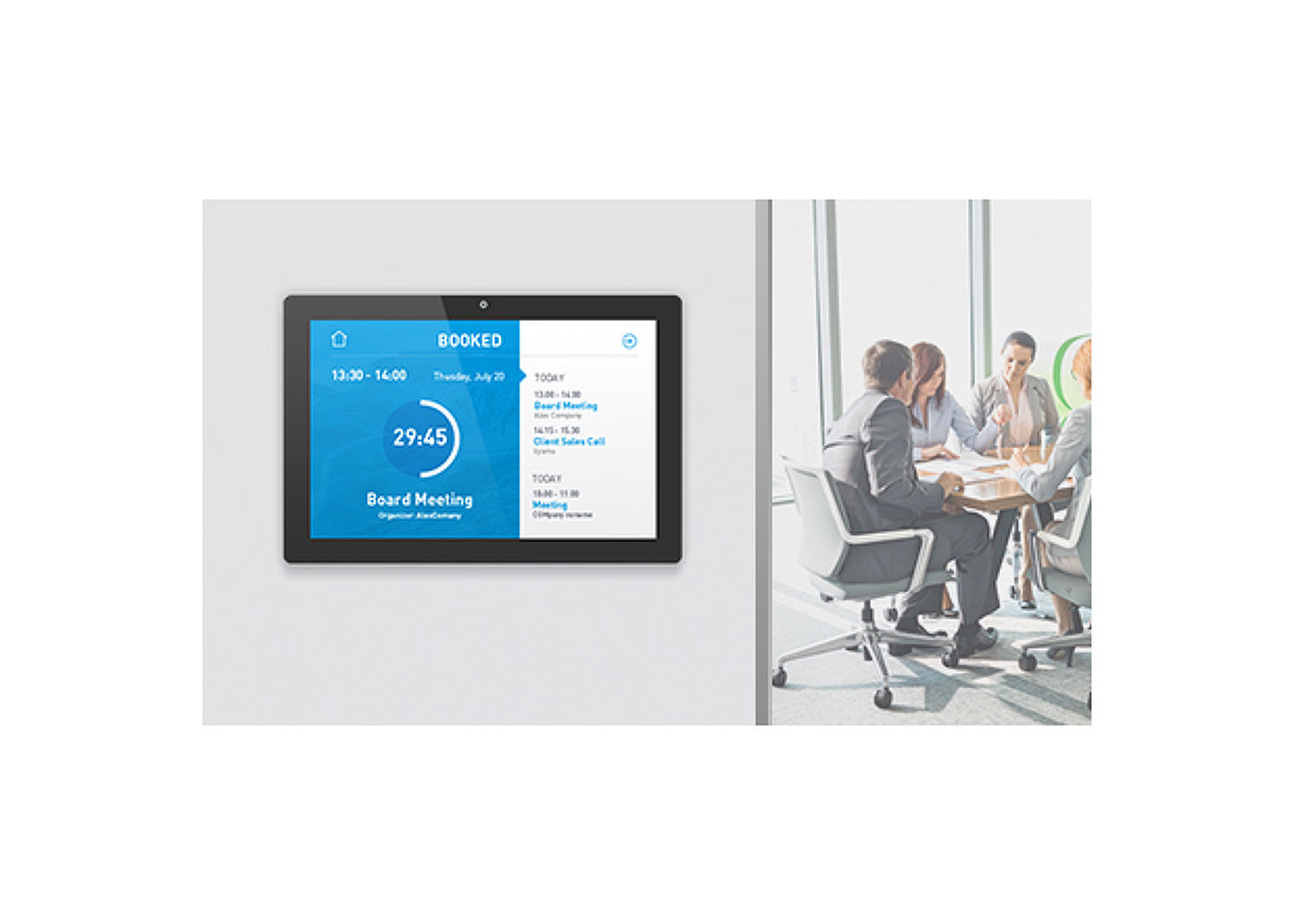
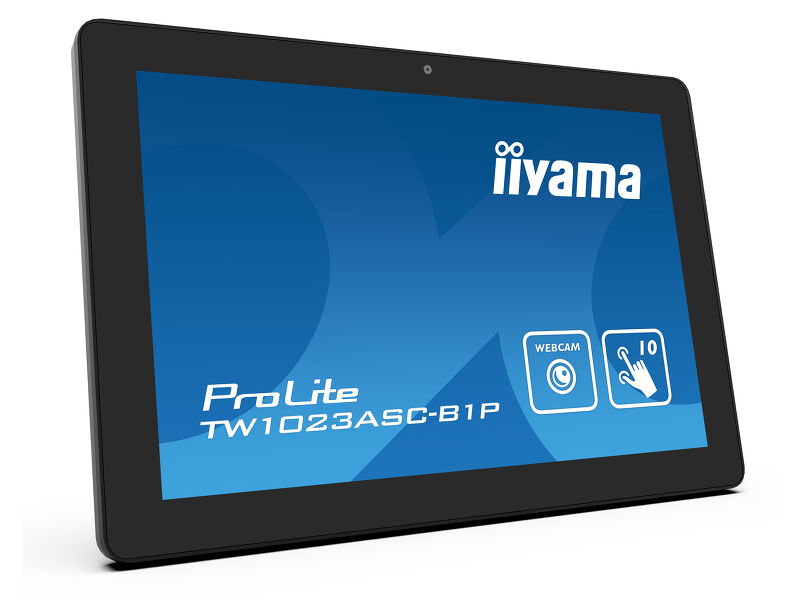
The ProLite TW1023ASC-B1P touch panel PC is a perfect choice for high-use environments such as retail, interactive POS, information desks or hospitality applications. Thanks to the pre-installed Android operating system, it is possible to easily customize the monitor by installing applications directly to it.
The Power over Ethernet technology (POE) allows to provide both data connection and power by a single cable, simplifying all installations. This monitor can operate in landscape, portrait or face-up orientation. Together with the built-in camera, microphone and speakers it offers limitless, interactive installation possibilities.
-
Connectivity
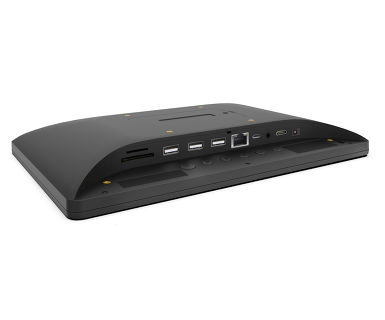
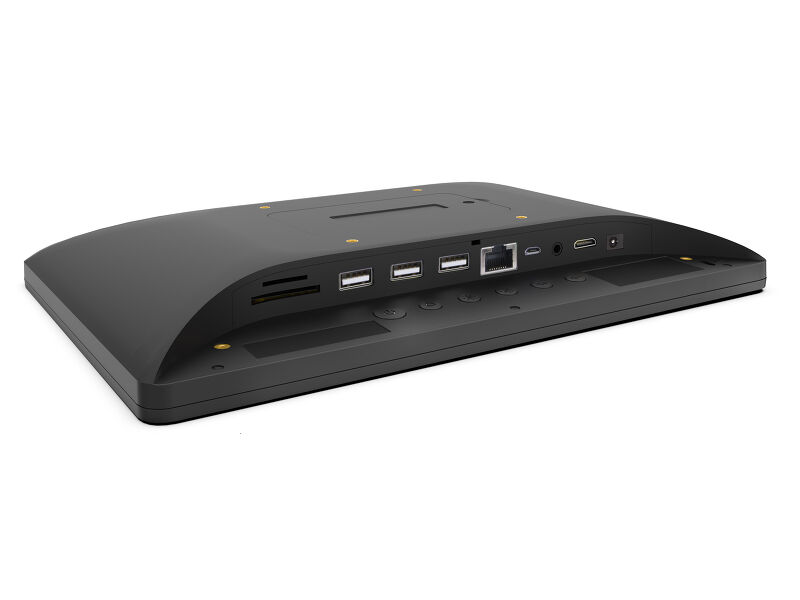
The RJ45 (LAN) connector supporting Power over Ethernet technology (POE) allows to provide both data connection and power by a single cable, which simplifies installation in areas where many cables would interfere with the environment.
-
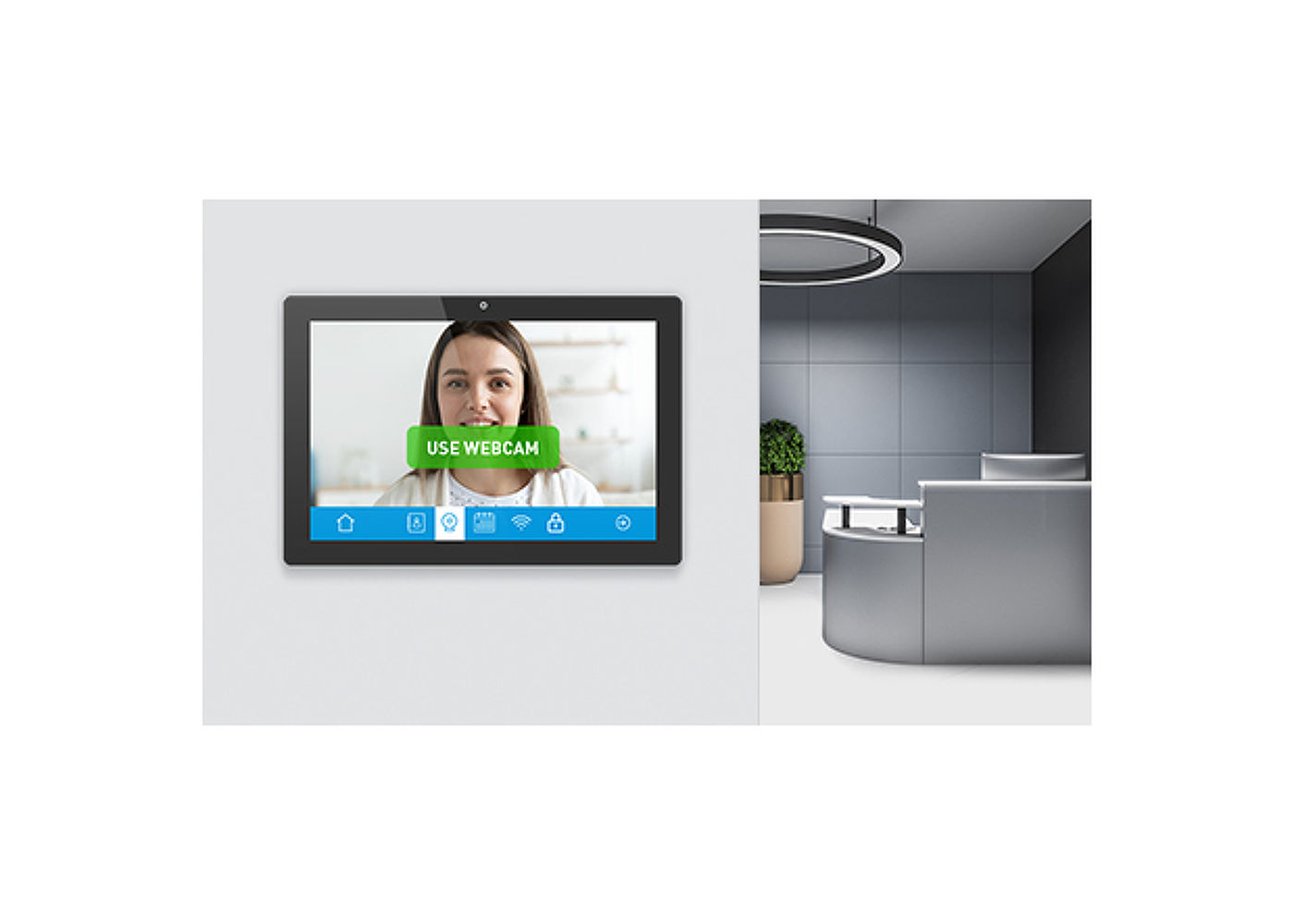
Built-in webcam, microphone & speakers
Making the screen a perfect solution for semi or fully automated reception solutions allowing businesses to track and manage visitor traffic at the front desk lobby without compromising on the safety and security of your staff, visitors and company assets.
-
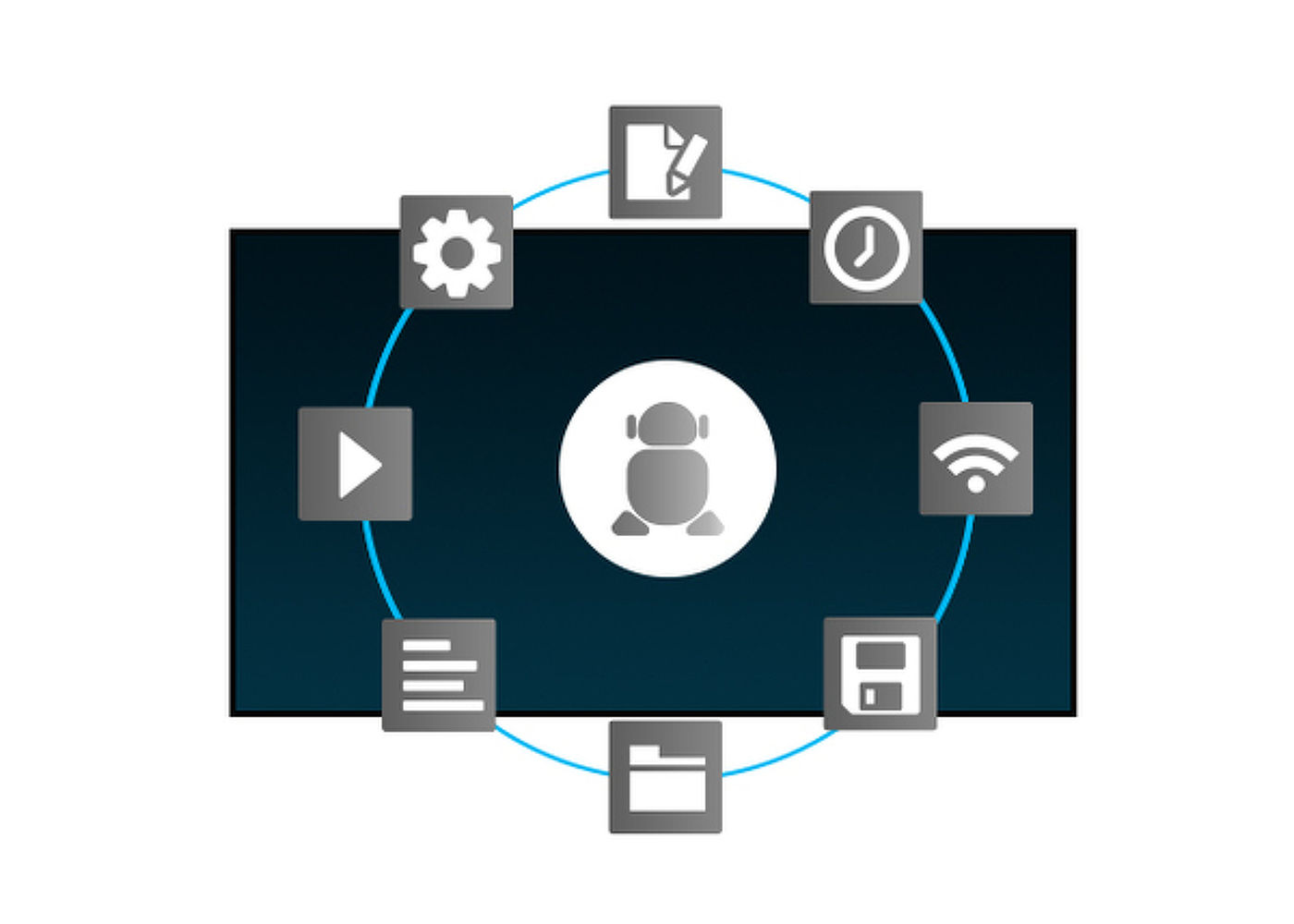
Android OS
Thanks to Android OS, you can easily customize the display to your needs by installing applications directly to it.
-

Anti-fingerprint coating
This special Nano coating ensures a smoother touch and less resistance in the swipe. It makes the screen less static and susceptible to dirt, dust, fingerprints and it improves the clarity of the content displayed on the screen.
-

Touch technology - Capacitive
This technology uses a sensor-grid of micro-fine wires integrated into the glass that covers the screen. Touch is detected because electrical characteristics of the sensor grid change when human finger is placed on the glass. Thanks to the glass overlay this technology is highly durable, and the touch function remains unaffected even if the glass is scratched. It offers perfect picture performance and will work with human finger (also latex gloved) and stylus-pen.
Technical specification


DISPLAY CHARACTERISTICS
| Design | Edge to edge glass |
| Diagonal | 10.1", 25.5cm |
| Panel | IPS |
| Native resolution | 1280 x 800 (1 megapixel HD) |
| Aspect ratio | 16:9 |
| Panel brightness | 450 cd/m² |
| Brightness | 385 cd/m² with touch |
| Light transmittance | 85% |
| Static contrast | 1000:1 with touch |
| Response time (GTG) | 25ms |
| Viewing zone | horizontal/vertical: 160°/160°, right/left: 80°/80°, up/down: 80°/80° |
| Colour support | 16.7mln 8bit |
| Viewable area W x H | 216.6 x 135.4mm, 8.5 x 5.3" |
| Pixel pitch | 0.1692mm |
| Bezel colour and finish | black, matte |
TOUCH
| Touch technology | projective capacitive |
| Touch points | 10 (HID, only with supported OS) |
| Touch method | finger, glove (latex), capacitive stylus |
| Touch interface | USB |
INTERFACES / CONNECTORS / CONTROLS
| Digital signal output | HDMI x1 (mini HDMI, 1280x720 @60Hz) |
| Audio output | Speakers 2 x 1.5W |
| USB ports | x2 (2.0, 1 x MICRO with OTG) |
| RJ45 (LAN) | x1 (PoE - IEEE802.3af/15.4W) |
| Microphone | 1 |
FEATURES
| Integrated software | Android 11 |
| CPU | Rockchip RK3288 Quad-core A17*4 |
| GPU | T764 |
| Max. non-stop operating time | 24/7 |
| Glass thickness | 1.25mm |
| Glass hardness | 7H |
MECHANICAL
| Orientation | landscape, portrait, face-up |
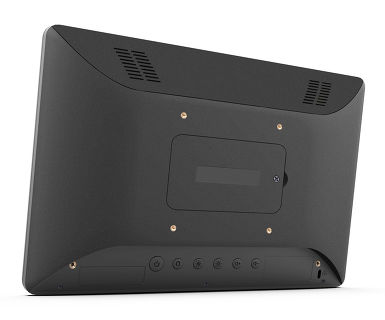
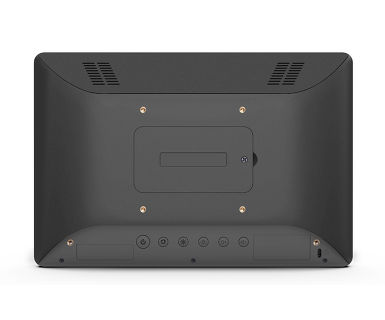
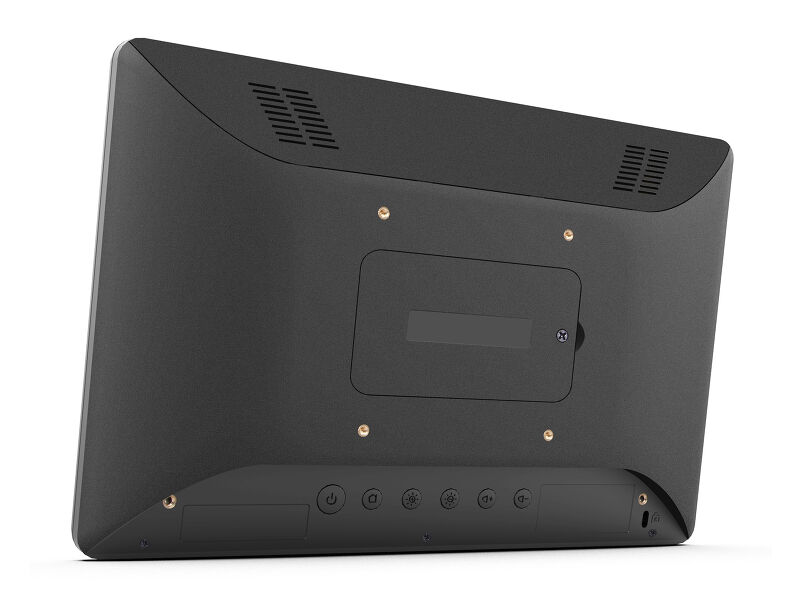
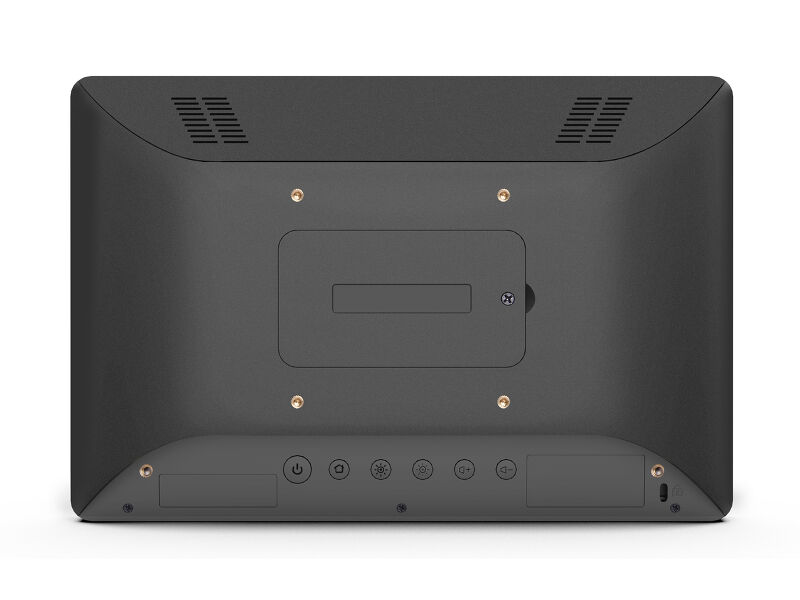
| VESA mounting | 75 x 75mm |
ACCESSORIES INCLUDED
| Guides | quick start guide, safety guide |
| Cable cover | yes |
POWER MANAGEMENT
| Power supply unit | external |
| Power supply | DC 12 V |
| Power usage | 7W typical |
SUSTAINABILITY
| Regulations | CE, RoHS support, ErP, WEEE, REACH |
| REACH SVHC | above 0.1%: Lead |
DIMENSIONS / WEIGHT
| Product dimensions W x H x D | 255 x 172 x 30.5mm |
| Box dimensions W x H x D | 398 x 223 x 68mm |
| Pallet volume | 256pcs |
| Pallet dimensions W x H x D | 1000 x 1200 x 2150mm |
| Weight (without box) | 0.8kg |
| Weight (with box) | 1.36kg |
| EAN code | 4948570117116 |
RELATED INFORMATION
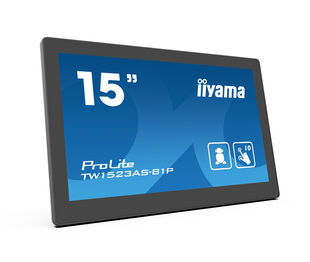
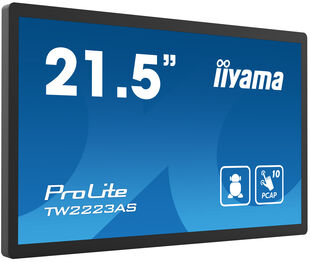
| Product series | ProLite TW1523AS-B1P, ProLite TW2223AS-B1 |

FAQS
Can I install apps on my iiyama monitor through Google Play Store?
+You can install apps on your iiyama monitor through the official Google Play Store. However, the functionality of these apps may vary, depending on the specific app you wish to install.
Where can I get a license for EShare, iiSignage², iiControl or iiyama DMS?
+Please visit the iiyama signup webpage and enter the model name or serial number of your iiyama screen. You will be directed to all available software applications for your product, along with instructions on how to activate them.
Why can't I select MBR when FreeSync/Adaptive Sync is activated?
+MBR cannot be selected when FreeSync/AdaptiveSync is activated, because MBR can interfere with the FreeSync/Adaptive Sync technology as they have different methods of improving motion clarity. MBR reduces motion blur (response time), while Adaptive Sync/FreeSync addresses stuttering. We recommend activating Adaptive Sync/FreeSync on systems with fluctuating or unstable frame rates. MBR performs best on powerful systems that maintain a consistently high frame rate.
Is Adaptive Sync compatible with AMD FreeSync or NVIDIA G-Sync?
+Yes, Adaptive Sync is compatible with AMD FreeSync and NVIDIA G-Sync.
Why is the Touch functionality not working?
+If your touch functionality is not working, please check the following:
1. Ensure your PC is connected to the monitor with the supplied USB cable.
2. Verify in the user manual that your operating system is supported by the screen.
How should I clean my Touch monitor?
+When cleaning, please follow these guidelines to avoid damaging your Touch monitor:
1. Avoid using paper towels, abrasive cloths, or any harsh cleaning agents, as they can scratch the screen or damage the touch sensors.
2. Do not spray the cleaning solution directly onto the screen to prevent liquid from seeping into the monitor.
3. Avoid excessive cleaning, as it can wear out the screen over time.
4. For more details, please check our dedicated Cleaning page.
Why is my monitor displaying a "No Signal" message?
+If your monitor is displaying a "No Signal" message, please check the following:
1. Ensure the cables are properly connected at both ends.
2. Select the correct signal input (HDMI/DP) or choose AUTO.
For guidance on selecting an input while the screen is in standby mode, please consult the user manual. On desktop monitors, common methods include pressing the INPUT, AUTO, or "2" buttons, or moving the joystick backward.
I have an Apple MAC-system, will my iiyama monitor work?
+Yes, your iiyama monitor will work with your Apple Mac system. However, it depends on the signal input how to connect. Since Apple Mac systems from 2020 onwards only have Thunderbolt 3 (USB-C) ports for video output, you have two options:
1. Connect directly to the USB-C signal input on your iiyama monitor.
2. In case your monitor only has HDMI or Displayport, you will need a Mac-compatible dongle that supports one of the video inputs available. Apple offers a USB-C Digital AV Multiport Adapter (MW5M3AM) that can be used for this purpose.
3. If your iiyama monitor has touchscreen capabilities, please refer to the user manual to verify touch functionality compatibility with your Mac system.
The picture on my monitor is flickering. What steps can I take to fix it?
+To resolve the issue of a blinking picture, please follow these steps:
1. Inspect the Signal Cable.
Ensure the signal cable is securely connected at both ends and free from any physical damage. Avoid any sharp bends or squishing of the cable.
2. Use a Shorter Cable.
If possible, use a cable shorter than 3 meters and connect the monitor directly to a wall power socket, avoiding the use of adapters.
3. Disable FreeSync/Adaptive Sync.
For desktop or gaming monitors, try disabling FreeSync or Adaptive Sync in the monitor's settings menu.
How can I recognize which iiyama monitor has a USB-C Dock and LAN support?
+iiyama monitors with USB-C Dock capabilities can be recognized by an "N" in their model names, such as HSN or QSN. For example, XUB****HSN. You can also visit our product selector page and use the available filters.
How to use the USB-C dock?
+To explore the features and benefits of a monitor with a USB-C dock, please watch the video below.
The DP-out currently mirrors the main monitor. How can I change it to extend the desktop instead?
+To extend the desktop via DP-out, enable the MST function in the screen settings. For detailed instructions, please refer to your user manual.
Related products